iPhone 4S Upgrade

This is an iPhone 4S with iOS 8.1.2. It says that iOS 9.3.5 is available. When I tap on Download & Install, I see the activity sign for 2 seconds and nothing else happens anymore. How to get that new version installed?

iPhone 4S, iOS 8.1.2

Posted on Oct 13, 2018 8:15 AM

Reply
Question marked as Top-ranking reply

Posted on Oct 15, 2018 9:51 AM

Hi ott814,

Thanks for using Apple Support Communities. From your post, I see you're unable to update your iPhone 4S to iOS 9.3.5.

There are some great steps here that you can use to Get help with over-the-air iOS updates :

If you can’t reach the update server or can’t verify the update

If you try to update the iOS on your device, you might see one of these messages:
User uploaded file

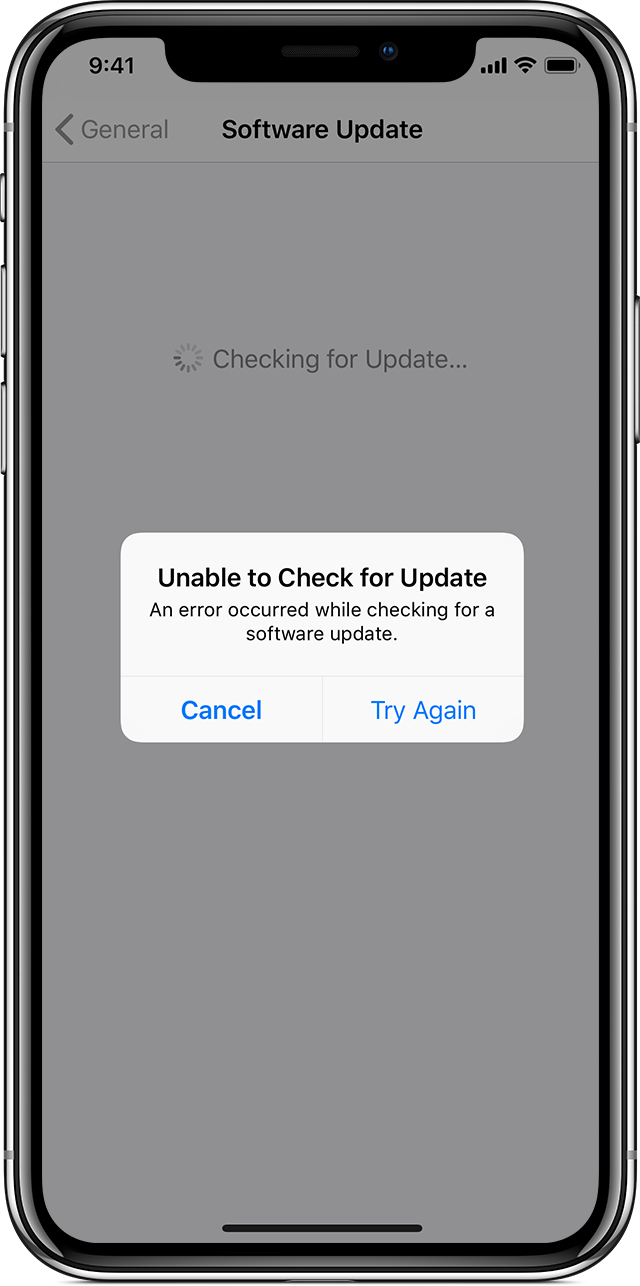
"Unable to Check for Update. An error occurred while checking for a software update."
User uploaded file

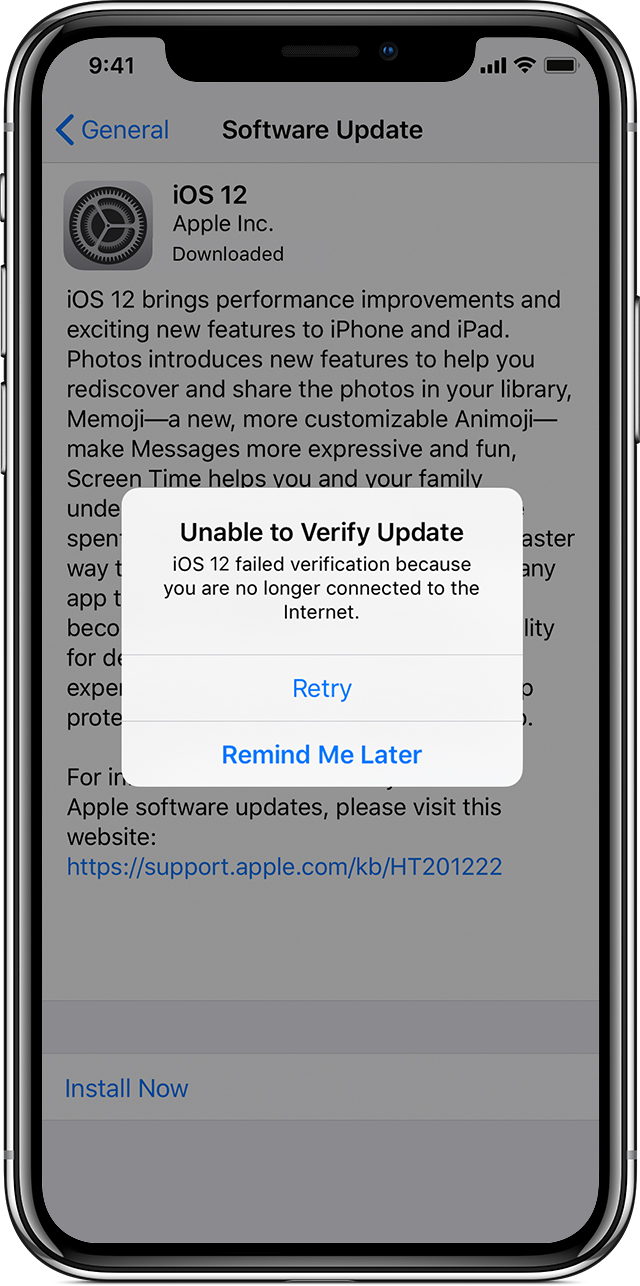
"Unable to Verify Update. iOS failed verification because you are no longer connected to the Internet."

Try updating your device again using the same network. If you still see one of these messages, try updating your device using another network or update your device with iTunes. If the issue happens again after trying to update with multiple networks, remove the update.

Remove and download the iOS update again

If you still can't install the latest version of iOS, try downloading the update again:

  1. Go to Settings > General > [Device name] Storage.
  2. Find the iOS update in the list of apps.
  3. Tap the iOS update, then tap Delete Update.
  4. Go to Settings > General > Software Update and download the latest iOS update.


If you find the issue persists after you try the steps above, you may need to update using iTunes. Here's how to Update your iPhone, iPad, or iPod touch :

Update your device using iTunes

If you can’t update wirelessly on your iOS device, you can update manually using iTunes on a computer that you trust. If your computer is using Personal Hotspot on the iOS device that you’re updating, connect your computer to a different Wi-Fi or Ethernet network before you update.

  1. Install the latest version of iTunes on your computer.
  2. Connect your device to your computer.
  3. Open iTunes and select your device.
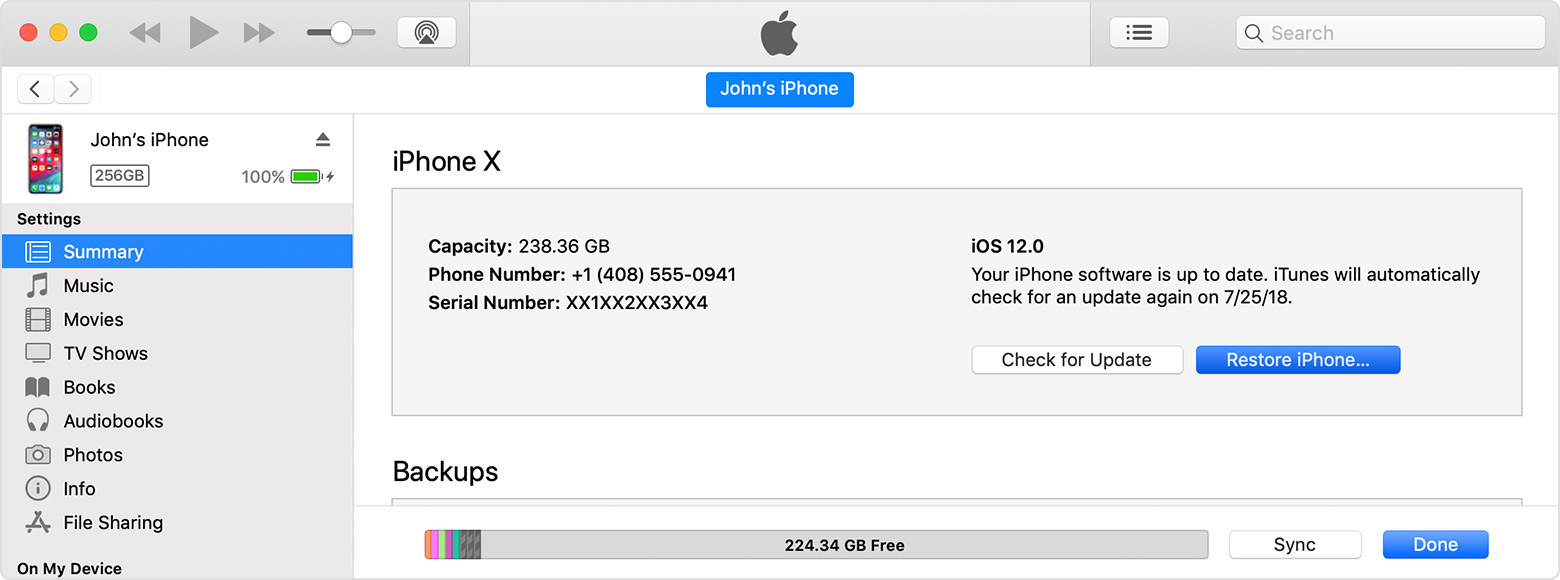
  4. Click Summary, then click Check for Update.
    User uploaded file
  5. Click Download and Update.
  6. If asked, enter your passcode. If you don't know your passcode, learn what to do.


I hope these steps help.

Have a great day.

3 replies
Question marked as Top-ranking reply

Oct 15, 2018 9:51 AM in response to ott814

Hi ott814,

Thanks for using Apple Support Communities. From your post, I see you're unable to update your iPhone 4S to iOS 9.3.5.

There are some great steps here that you can use to Get help with over-the-air iOS updates :

If you can’t reach the update server or can’t verify the update

If you try to update the iOS on your device, you might see one of these messages:

User uploaded file

"Unable to Check for Update. An error occurred while checking for a software update."

User uploaded file

"Unable to Verify Update. iOS failed verification because you are no longer connected to the Internet."

Try updating your device again using the same network. If you still see one of these messages, try updating your device using another network or update your device with iTunes. If the issue happens again after trying to update with multiple networks, remove the update.

Remove and download the iOS update again

If you still can't install the latest version of iOS, try downloading the update again:

  1. Go to Settings > General > [Device name] Storage.
  2. Find the iOS update in the list of apps.
  3. Tap the iOS update, then tap Delete Update.
  4. Go to Settings > General > Software Update and download the latest iOS update.


If you find the issue persists after you try the steps above, you may need to update using iTunes. Here's how to Update your iPhone, iPad, or iPod touch :

Update your device using iTunes

If you can’t update wirelessly on your iOS device, you can update manually using iTunes on a computer that you trust. If your computer is using Personal Hotspot on the iOS device that you’re updating, connect your computer to a different Wi-Fi or Ethernet network before you update.

  1. Install the latest version of iTunes on your computer.
  2. Connect your device to your computer.
  3. Open iTunes and select your device.
  4. Click Summary, then click Check for Update.
    User uploaded file
  5. Click Download and Update.
  6. If asked, enter your passcode. If you don't know your passcode, learn what to do.


I hope these steps help.

Have a great day.

This thread has been closed by the system or the community team. You may vote for any posts you find helpful, or search the Community for additional answers.

iPhone 4S Upgrade

Welcome to Apple Support Community
A forum where Apple customers help each other with their products. Get started with your Apple Account.