How to change password for an account with an old email address

The email address associated with one of my Apple accounts is old and I can no longer access any mail sent to that address. And I don’t recall the password for the account. So how can I change the password so I can inactivate the account?

iPhone 6s Plus, iOS 11.4.1

Posted on Oct 13, 2018 8:33 PM

Reply
Question marked as Top-ranking reply

Posted on Oct 15, 2018 2:45 PM

Hi mjmontgo,

Thanks for using Apple Support Communities. From your post, I see you want to change the password for your Apple ID.

If you no longer have access to the email address used for the account, you still have a few options available. For example, if you have security questions on file, you might be able to use those. You'll find the details in the article titled If you forgot your Apple ID password :

Email, password, and security questions

  1. Go to your Apple ID account page and click "Forgot Apple ID or password." If asked to confirm your phone number, use steps for two-factor authentication instead.
  2. Enter your Apple ID. Did you forget your Apple ID?
  3. Select the option to reset your password, then choose Continue.
  4. Choose how to reset your password:


Depending on how old this account is, you might also consider the possibility that two-step verification or two-factor authentication is enabled for the account:

Two-factor authentication

If you have two-factor authentication enabled for your Apple ID, you can reset your password from any trusted iPhone, iPad, Pod touch, or Mac with a password or passcode that's enabled. Can't access any of your devices?

On your iPhone, iPad, or iPod touch

  1. Make sure that your device has iOS 10 or later.
  2. Go to Settings.
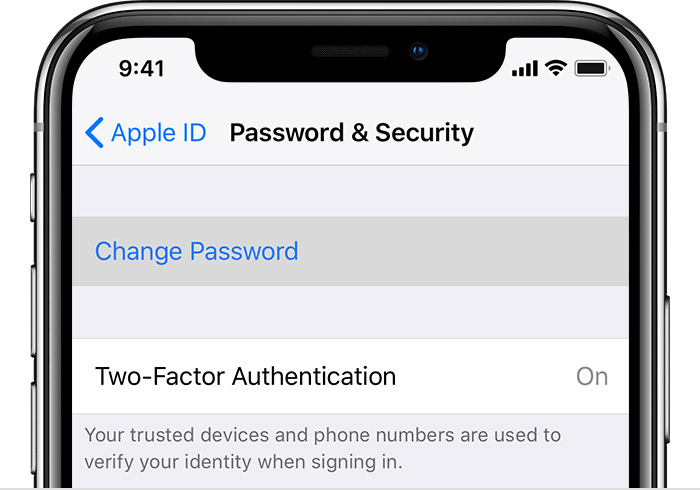
  3. Tap [your name] > Password & Security > Change Password, then follow the onscreen steps to update your password. For iOS 10.2 or earlier, tap iCloud > [your name] > Password & Security > Change Password, then follow the onscreen steps.
    User uploaded file

Need help with the previous step? You might not be signed in to iCloud. Open Settings and tap "Sign in to your [device]" > "Don’t have an Apple ID or forgot it," then follow the onscreen steps. For iOS 10.2 or earlier, tap iCloud > Forgot Apple ID or Password, then follow the onscreen steps.

On your Mac

  1. Go to Apple menu > System Preferences, then click iCloud.
  2. Choose Account Details.
  3. If you're asked to enter your Apple ID password, click "Forgot Apple ID or password" and follow the onscreen instructions. You can skip the final steps below.
  4. Click Security > Reset Password. Before you can reset your Apple ID password, you'll be required to enter the password used to unlock your Mac.

Need help with these steps? You might not be signed in to iCloud. Go to Apple menu > System Preferences, then click iCloud. Click "Forgot Apple ID or password" and follow the onscreen steps.

Use a recovery key

If you updated your Apple ID from two-step verification to two-factor authentication in iOS 11 and later, or macOS High Sierra and later, and you have a recovery key, you can use the recovery key to help reset your password.

If you can't access any of your devices

Borrow a friend or family member’s iPhone, iPad, or iPod touch and follow these steps:

  1. Open the Find My iPhone app.
  2. When a Sign In screen appears, make sure the Apple ID field is empty. If you see someone else's user name, erase it.
  3. Tap Forgot Apple ID or Password, then follow the onscreen steps.

Don't see a Sign In screen? Tap Sign Out. After you sign out, make sure the Apple ID field is empty. Then tap Forgot Apple ID or Password, and follow the onscreen steps.

Two-step verification

  1. Go to your Apple ID account page and click "Forgot Apple ID or password." If asked to confirm your phone number, use steps for two-factor authentication instead.
  2. Enter your Apple ID, select the option to reset your password, then choose Continue. Did you forget your Apple ID?
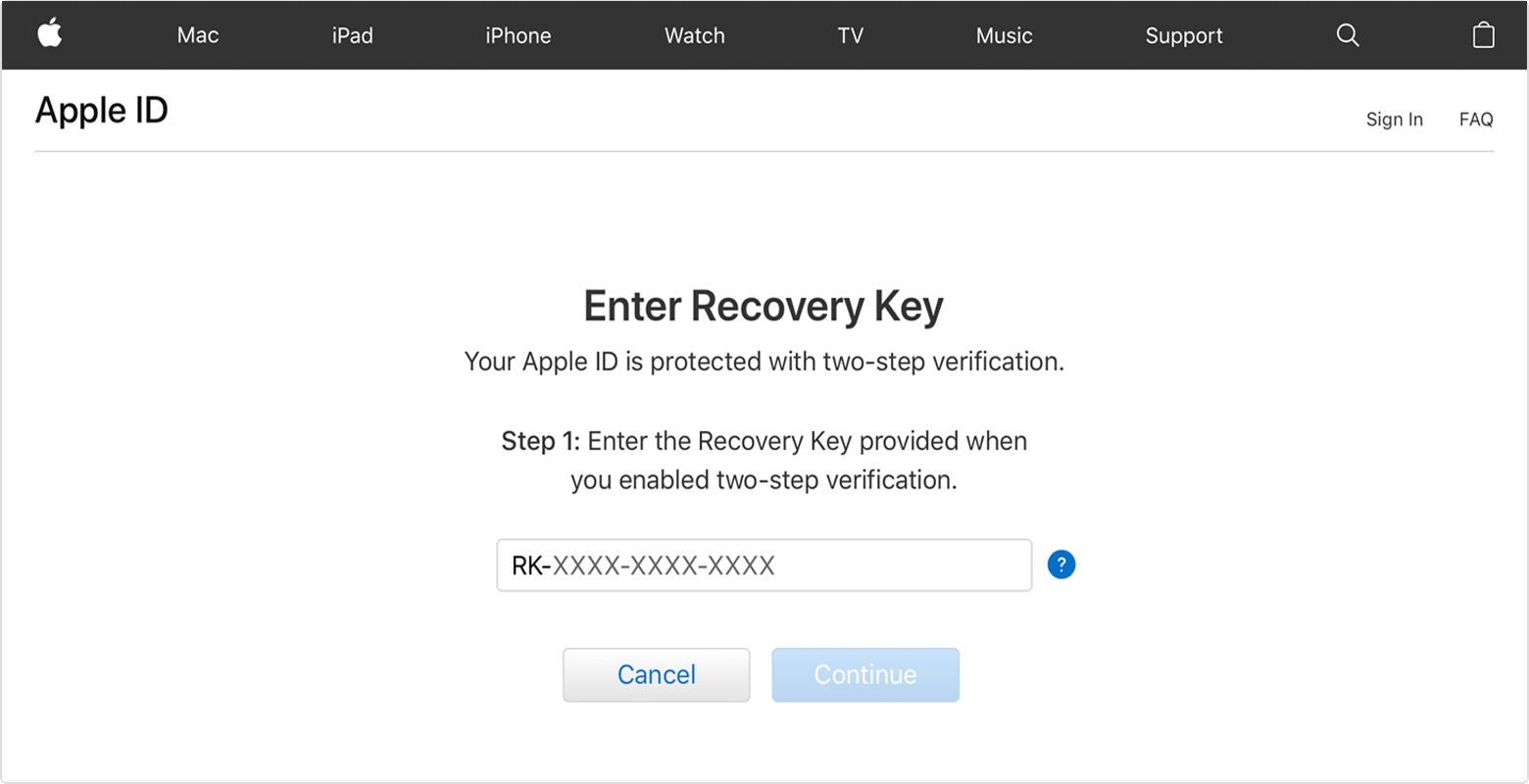
  3. Enter your Recovery Key for two-step verification.*User uploaded file
  4. Choose a trusted device.* We'll send your device a verification code.
  5. Enter the verification code.
  6. Create a new password, then select Reset Password.

After you reset your password, you'll be asked to sign in again with your new password. You also might need to update your password in Settings on your devices.


These steps should help you reset your password in most cases. If you're not able to reset the password still, you'd want to Contact Apple Support as your next step.

I hope these steps help.

Have a great day.

1 reply
Question marked as Top-ranking reply

Oct 15, 2018 2:45 PM in response to mjmontgo

Hi mjmontgo,

Thanks for using Apple Support Communities. From your post, I see you want to change the password for your Apple ID.

If you no longer have access to the email address used for the account, you still have a few options available. For example, if you have security questions on file, you might be able to use those. You'll find the details in the article titled If you forgot your Apple ID password :

Email, password, and security questions

  1. Go to your Apple ID account page and click "Forgot Apple ID or password." If asked to confirm your phone number, use steps for two-factor authentication instead.
  2. Enter your Apple ID. Did you forget your Apple ID?
  3. Select the option to reset your password, then choose Continue.
  4. Choose how to reset your password:


Depending on how old this account is, you might also consider the possibility that two-step verification or two-factor authentication is enabled for the account:

Two-factor authentication

If you have two-factor authentication enabled for your Apple ID, you can reset your password from any trusted iPhone, iPad, Pod touch, or Mac with a password or passcode that's enabled. Can't access any of your devices?

On your iPhone, iPad, or iPod touch

  1. Make sure that your device has iOS 10 or later.
  2. Go to Settings.
  3. Tap [your name] > Password & Security > Change Password, then follow the onscreen steps to update your password. For iOS 10.2 or earlier, tap iCloud > [your name] > Password & Security > Change Password, then follow the onscreen steps.
    User uploaded file

Need help with the previous step? You might not be signed in to iCloud. Open Settings and tap "Sign in to your [device]" > "Don’t have an Apple ID or forgot it," then follow the onscreen steps. For iOS 10.2 or earlier, tap iCloud > Forgot Apple ID or Password, then follow the onscreen steps.

On your Mac

  1. Go to Apple menu > System Preferences, then click iCloud.
  2. Choose Account Details.
  3. If you're asked to enter your Apple ID password, click "Forgot Apple ID or password" and follow the onscreen instructions. You can skip the final steps below.
  4. Click Security > Reset Password. Before you can reset your Apple ID password, you'll be required to enter the password used to unlock your Mac.

Need help with these steps? You might not be signed in to iCloud. Go to Apple menu > System Preferences, then click iCloud. Click "Forgot Apple ID or password" and follow the onscreen steps.

Use a recovery key

If you updated your Apple ID from two-step verification to two-factor authentication in iOS 11 and later, or macOS High Sierra and later, and you have a recovery key, you can use the recovery key to help reset your password.

If you can't access any of your devices

Borrow a friend or family member’s iPhone, iPad, or iPod touch and follow these steps:

  1. Open the Find My iPhone app.
  2. When a Sign In screen appears, make sure the Apple ID field is empty. If you see someone else's user name, erase it.
  3. Tap Forgot Apple ID or Password, then follow the onscreen steps.

Don't see a Sign In screen? Tap Sign Out. After you sign out, make sure the Apple ID field is empty. Then tap Forgot Apple ID or Password, and follow the onscreen steps.

Two-step verification

  1. Go to your Apple ID account page and click "Forgot Apple ID or password." If asked to confirm your phone number, use steps for two-factor authentication instead.
  2. Enter your Apple ID, select the option to reset your password, then choose Continue. Did you forget your Apple ID?
  3. Enter your Recovery Key for two-step verification.*User uploaded file
  4. Choose a trusted device.* We'll send your device a verification code.
  5. Enter the verification code.
  6. Create a new password, then select Reset Password.

After you reset your password, you'll be asked to sign in again with your new password. You also might need to update your password in Settings on your devices.


These steps should help you reset your password in most cases. If you're not able to reset the password still, you'd want to Contact Apple Support as your next step.

I hope these steps help.

Have a great day.

This thread has been closed by the system or the community team. You may vote for any posts you find helpful, or search the Community for additional answers.

How to change password for an account with an old email address

Welcome to Apple Support Community
A forum where Apple customers help each other with their products. Get started with your Apple Account.