Hello saeid10,
Thank you for reaching out in Apple Support Communities. Getting notifications on your Apple Watch is important. I can help with this. There are some steps you can take to make sure you're getting them.
Notifications on your Apple Watch - Apple Support
Your Apple Watch notifications mirror your iPhone settings, but you can customize the settings for each app. In watchOS 5, notifications can be organized by app and grouped in stacks in Notification Center. For example, all your activity notifications can appear in a stack. You can also choose whether or not you get alerts for notifications, so they appear silently or not at all.
- Touch and hold the top of the watch face.
- Wait for Notification Center to show, then swipe down.
- Swipe left on a notification, then tap
 .
.
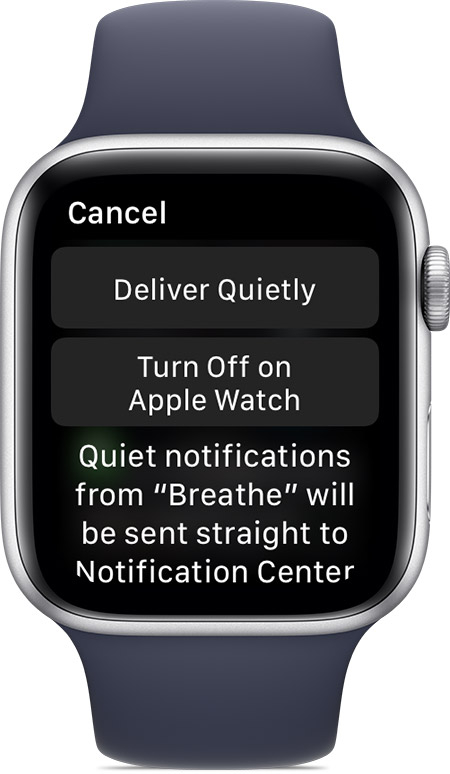
- If you don't want to hear sounds or haptic alerts for that app, tap Deliver Quietly. Notifications for that app go directly to Notification Center on both your Apple Watch and iPhone, instead of showing you a notification with a sound or haptic alert.
- If you don't want to get notifications for that app, tap Turn Off on Apple Watch.
To see or hear these notifications again, swipe left on a notification from the app, tap , then tap Deliver Prominently.

- Open the Apple Watch app on your iPhone, then tap the My Watch tab.
- Tap Notifications.
- Tap an app. Different apps have different options. To use the same notification settings on your Apple Watch and iPhone, tap Mirror my iPhone. Some apps allow you to customize your notifications. When you customize, you can choose from these options:
- Allow Notifications: Notifications appear in Notification Center and your Apple Watch alerts you.
- Send to Notification Center: Notifications are sent directly to Notification Center without your Apple Watch alerting you.
- Notifications Off: The app sends no notifications.
- If you customize an app's notifications, you can also group notifications from that app. Tap Notification grouping, then choose an option: Off, Automatically, or By app.
If you can't customize an app, you can still turn off its notifications. Scroll down to the Mirror iPhone Alerts From section and turn off the setting next to the app.
Learn how to change audio settings for notifications.
When your devices disconnect, your notifications go to your iPhone instead of your Apple Watch. To check your connection, swipe up on the watch face to open Control Center. If your devices are disconnected, you might see  ,
,  , or
, or  . Try to connect your iPhone and Apple Watch.
When your Apple Watch locks or you turn on Do Not Disturb, your notifications go to your iPhone.
- When your Apple Watch is locked,
 appears on the watch face.
- When Do Not Disturb is on,
 appears on the watch face. To turn this feature off, swipe up on the watch face, then tap
  .
.
For third-party apps, notifications are delivered only if your paired iPhone is also connected to a network.
Take care.


