Do Not Disturb during workout not working

Has anyone noticed that the setting Workout Do Not Disturb (In Watch app- General- Do Not Disturb) isn't working? I'm using iOS 12.0.1 and Watch OS 5.0.1. Even though I have this turned ON, I still get notifications on my watch during my workouts. If I MANUALLY enable do not disturb, then the notifications are silent. Appears to be an iOS 12 or WatchOS 5 issue, because this worked fine in iOS11 / Watch OS 4.

Watch Series 4 Nike (GPS+Cellular) 44mm, iOS 12.0.1

Posted on Oct 26, 2018 5:55 AM

Reply
Question marked as Top-ranking reply

Posted on Oct 26, 2018 6:44 PM

Hi OSU-Mac,

Thanks for reaching out in Apple Support Communities. I understand that you have Workout Do Not Disturb enabled for you Apple Watch but you continue to receive notifications unless you manually enable Do Not Disturb for the device. I know it's important to have this feature work as you expect it to; I'd like to help. First, I would suggest that you disable the Workout Do Not Disturb setting, then restart both your Apple Watch and iPhone. After you've restarted, enable Workout Do Not Disturb again and test to see if the behavior continues.

If so, use the steps below to unpair your Apple Watch and set it up with your iPhone again:

Disconnect your devices

  1. Keep your Apple Watch and iPhone close together as you unpair them.
  2. Open the Apple Watch app on your iPhone.
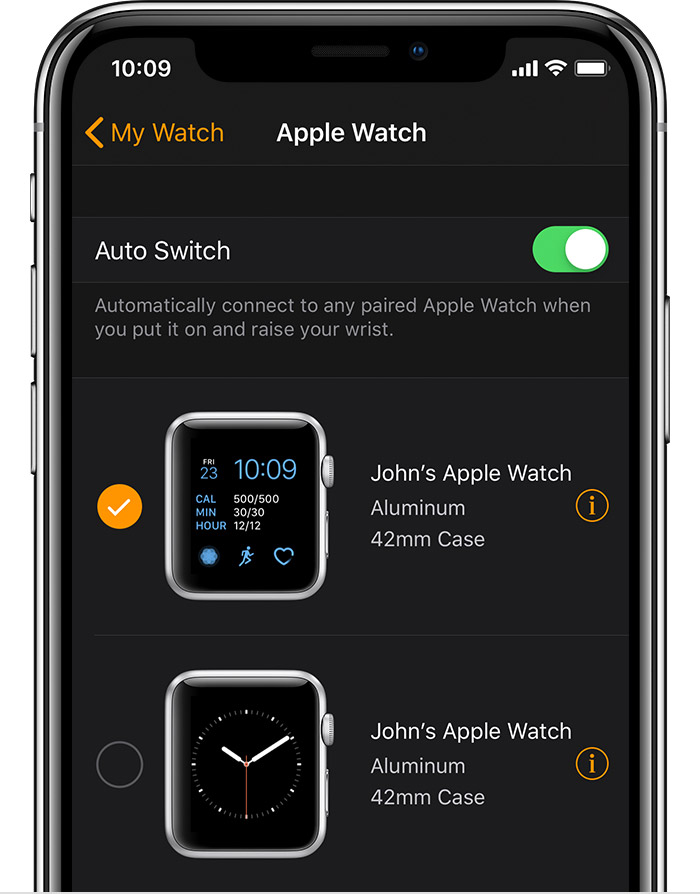
  3. Go to the My Watch tab and tap your watch at the top of the screen.
  4. Tap User uploaded file next to the watch that you want to unpair.
    User uploaded file
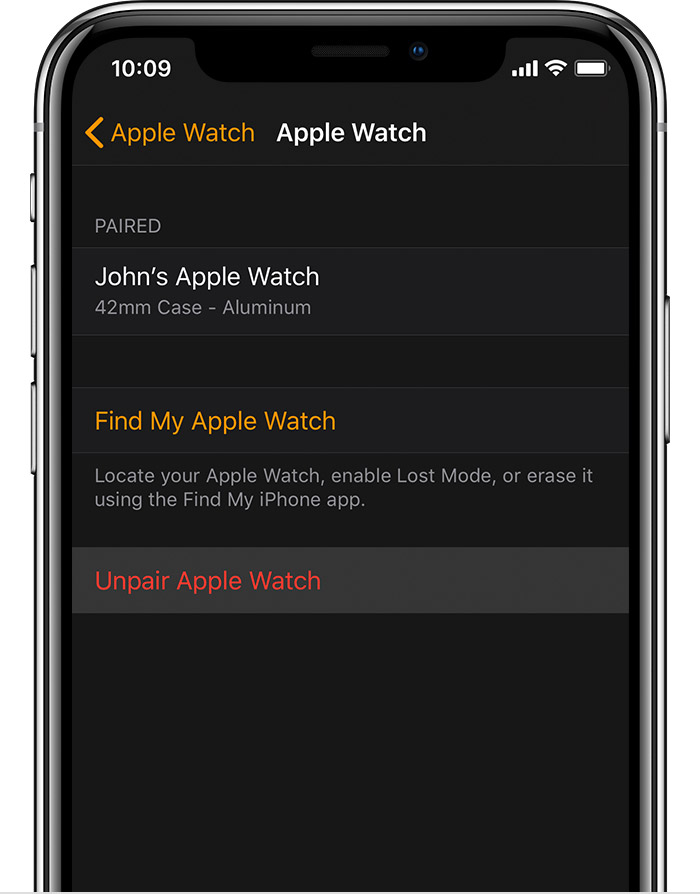
  5. Tap Unpair Apple Watch.
    User uploaded file
  6. For Apple Watch Series 4 (GPS + Cellular) or Apple Watch Series 3 (GPS + Cellular), choose to keep or remove your cellular plan.
    • If you want to pair your Apple Watch and iPhone again, keep your plan.
    • If you don't want to pair your Apple Watch and iPhone again, remove your plan. If you aren't going to pair with a different watch or iPhone, you might need to contact your carrier to cancel your cellular subscription.
  7. Tap again to confirm. You might need to enter your Apple ID password to disable Activation Lock. Before erasing all content and settings on your Apple Watch, your iPhone creates a new backup of your Apple Watch. You can use the backup to restore a new Apple Watch. After your Apple Watch unpairs, you'll see the Start Pairing message.
  8. Use these steps to set up your Apple Watch again.
Unpair and erase your Apple Watch

Let me know what you find.


Best Regards.

Similar questions

2 replies
Question marked as Top-ranking reply

Oct 26, 2018 6:44 PM in response to OSU-Mac

Hi OSU-Mac,

Thanks for reaching out in Apple Support Communities. I understand that you have Workout Do Not Disturb enabled for you Apple Watch but you continue to receive notifications unless you manually enable Do Not Disturb for the device. I know it's important to have this feature work as you expect it to; I'd like to help. First, I would suggest that you disable the Workout Do Not Disturb setting, then restart both your Apple Watch and iPhone. After you've restarted, enable Workout Do Not Disturb again and test to see if the behavior continues.

If so, use the steps below to unpair your Apple Watch and set it up with your iPhone again:

Disconnect your devices

  1. Keep your Apple Watch and iPhone close together as you unpair them.
  2. Open the Apple Watch app on your iPhone.
  3. Go to the My Watch tab and tap your watch at the top of the screen.
  4. Tap User uploaded file next to the watch that you want to unpair.
    User uploaded file
  5. Tap Unpair Apple Watch.
    User uploaded file
  6. For Apple Watch Series 4 (GPS + Cellular) or Apple Watch Series 3 (GPS + Cellular), choose to keep or remove your cellular plan.
    • If you want to pair your Apple Watch and iPhone again, keep your plan.
    • If you don't want to pair your Apple Watch and iPhone again, remove your plan. If you aren't going to pair with a different watch or iPhone, you might need to contact your carrier to cancel your cellular subscription.
  7. Tap again to confirm. You might need to enter your Apple ID password to disable Activation Lock. Before erasing all content and settings on your Apple Watch, your iPhone creates a new backup of your Apple Watch. You can use the backup to restore a new Apple Watch. After your Apple Watch unpairs, you'll see the Start Pairing message.
  8. Use these steps to set up your Apple Watch again.
Unpair and erase your Apple Watch

Let me know what you find.


Best Regards.

This thread has been closed by the system or the community team. You may vote for any posts you find helpful, or search the Community for additional answers.

Do Not Disturb during workout not working

Welcome to Apple Support Community
A forum where Apple customers help each other with their products. Get started with your Apple Account.