All tags are empty

Hi,


I'm using a Macbook Pro, 2.4GH Intel Core i5, 8 GB Memory, 251GB storage - 37GB free. Operating OS X Yosemite version 10.10.15.


I have 4 years worth of work in my tags. When I tried to access documents within them - they are all showing empty.

I can still access the documents within 'All My Files', however, non are categorised according to my tag categories.


Can anyone please advise how to fix?


Thanks

MacBook Pro (Retina, 13-inch, Late 2013), OS X Yosemite (10.10.5)

Posted on Oct 27, 2018 5:59 AM

Reply
1 reply

Oct 28, 2018 6:59 AM in response to FMKB

Hi FMKB,

Thanks for using Apple Support Communities. From your post, it sounds like you have an issue with tagging in Finder.

To clarify, it sounds like when you click a tag in your Finder sidebar, for example, Yellow, you're not seeing any documents. However, you're able to locate and open the documents from "All My Files." Is that right?

If the files don't appear in the tag categories in Finder and don't show a tag when viewed from All My Files as well, it sounds like they may have been cleared. To test, if you tag a file as Yellow now, does it appear in the respective category in the Finder sidebar?

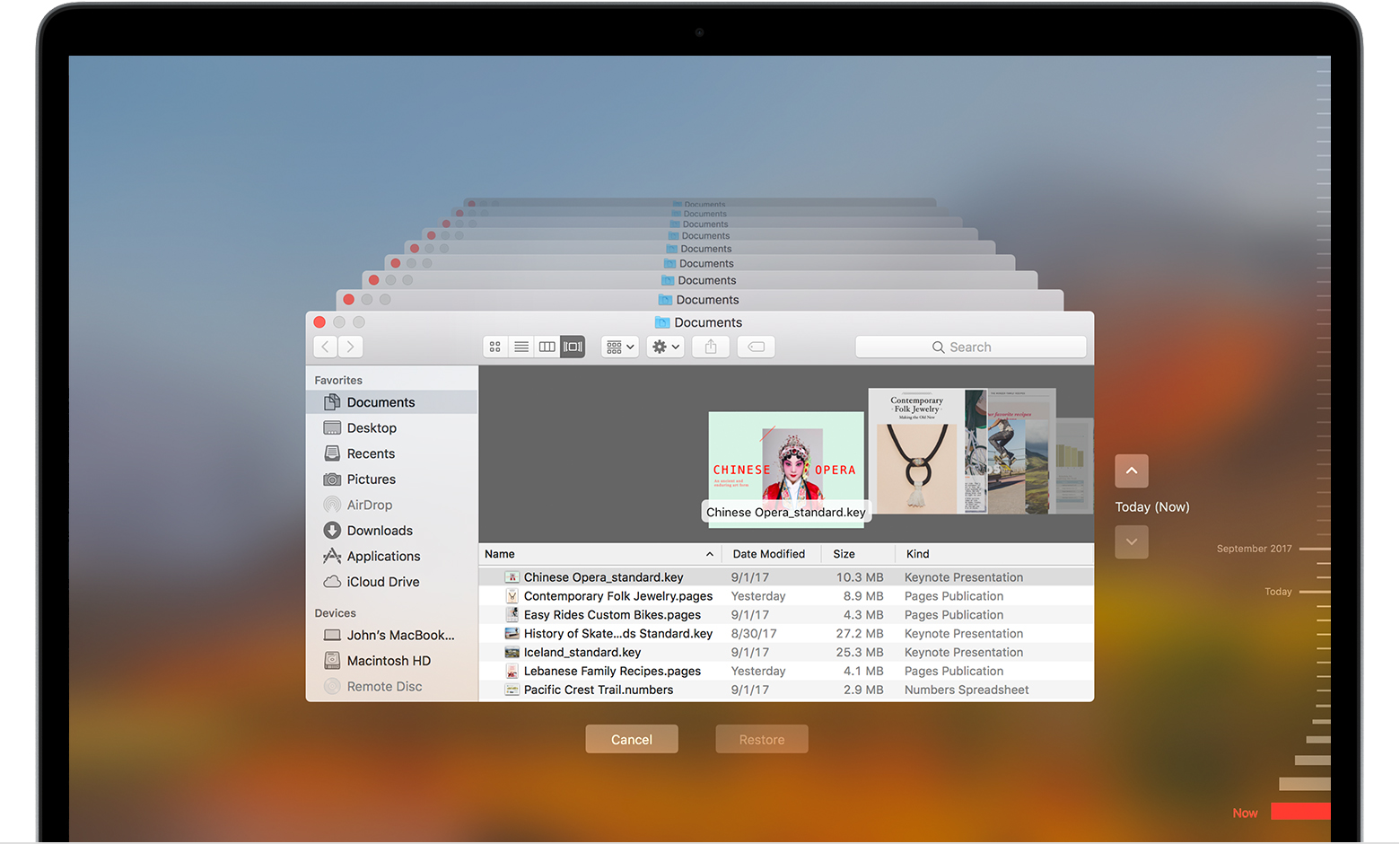
Do you happen to have a Time Machine backup that was made prior to the tags seeming to clear? If so, you might consider restoring that backup using the steps from the article How to use Time Machine to back up or restore your Mac :

Restore specific items from a Time Machine backup

  1. Open a window for the item that you want to restore. For example:
    • To restore a file you accidentally deleted from your Documents folder, open the Documents folder.
    • To restore an email message, open your inbox in Mail.
    • If you're using an app that automatically saves versions of documents as you work on them, you can open a document, then use Time Machine to restore earlier versions of that document.
  2. Choose Enter Time Machine from the Time Machine menu User uploaded file, or click Time Machine in the Dock. This example shows Time Machine for the Documents folder:
    User uploaded file
  3. Find the items to restore:
    • Use the timeline on the edge of the screen to see the items in your Time Machine backup as they were at that date and time. The timeline may also include local snapshots.
    • Use the onscreen up and down arrows to jump to the last time the contents of the window changed. You can also use the search field in a window to find an item, then move through time while focused on changes to that item.
    • Select an item and press Space Bar to preview it and make sure it's the one you want.
  4. Click Restore to restore the selected item, or Control-click the item for other options.

User uploaded file

Restore everything from a Time Machine backup

To completely restore your Mac, use the “Restore from Time Machine Backup” utility in macOS Recovery. The disk you're restoring is erased before receiving the macOS and other contents of your Time Machine backup.

To copy just your files, settings, or user accounts, use Migration Assistant.


I hope this helps you in recovering your tags.

Kindest regards.

This thread has been closed by the system or the community team. You may vote for any posts you find helpful, or search the Community for additional answers.

All tags are empty

Welcome to Apple Support Community
A forum where Apple customers help each other with their products. Get started with your Apple Account.