Poor battery life- MacBook Pro 15" 2018

Hey,

I got my new MacBook Pro 15" with i9 and 32GB ram like yesterday and so far my battery life is non exist.

my battery status is normal but I can only get around 5, 5:30 hours out of it, doing literally nothing but mails and safari.

when Im starting to edit the problem getting worst and I get around 2 hours of usage.

as soon as I got it I upgraded to Mojave but idk if its related.

I though the MacBook Pro should have like 9-10 hours of battery... Im getting half.

please help!!

MacBook Pro TouchBar and Touch ID, macOS Mojave (10.14.1)

Posted on Oct 30, 2018 3:10 PM

Reply
27 replies

Jan 31, 2019 7:16 AM in response to Oz74

I have recently discovered something that might be a bit of a game-changer regarding battery life. It’s already well-discussed elsewhere, but intel uses ‘turbo boosting’ on their cpus to increase processing power, and this uses a lot of power. You can get an app called Turbo Switcher which turns this off - the pro version which costs $10 does this automatically and is customisable. It seems to dramatically improve battery life.

The fundamental issue is that Mojave is terrible in terms of its power management. It engages turbo boosting and the high performance graphics card nearly all the time when such extra performance is not even detectable. With both off on my i9, I can still do pretty demanding tasks without a hitch.

Apple really needs to improve power management features - a low power mode like on iOS which disables energy hungry hardware - critically important in such a profligate OSX IMHO.

As with the touchbar, it’s down to independent developers uploading to GitHub that the full functionality of the MBP can be accessed.


Nov 1, 2018 5:07 AM in response to Oz74

Hello Oz74,

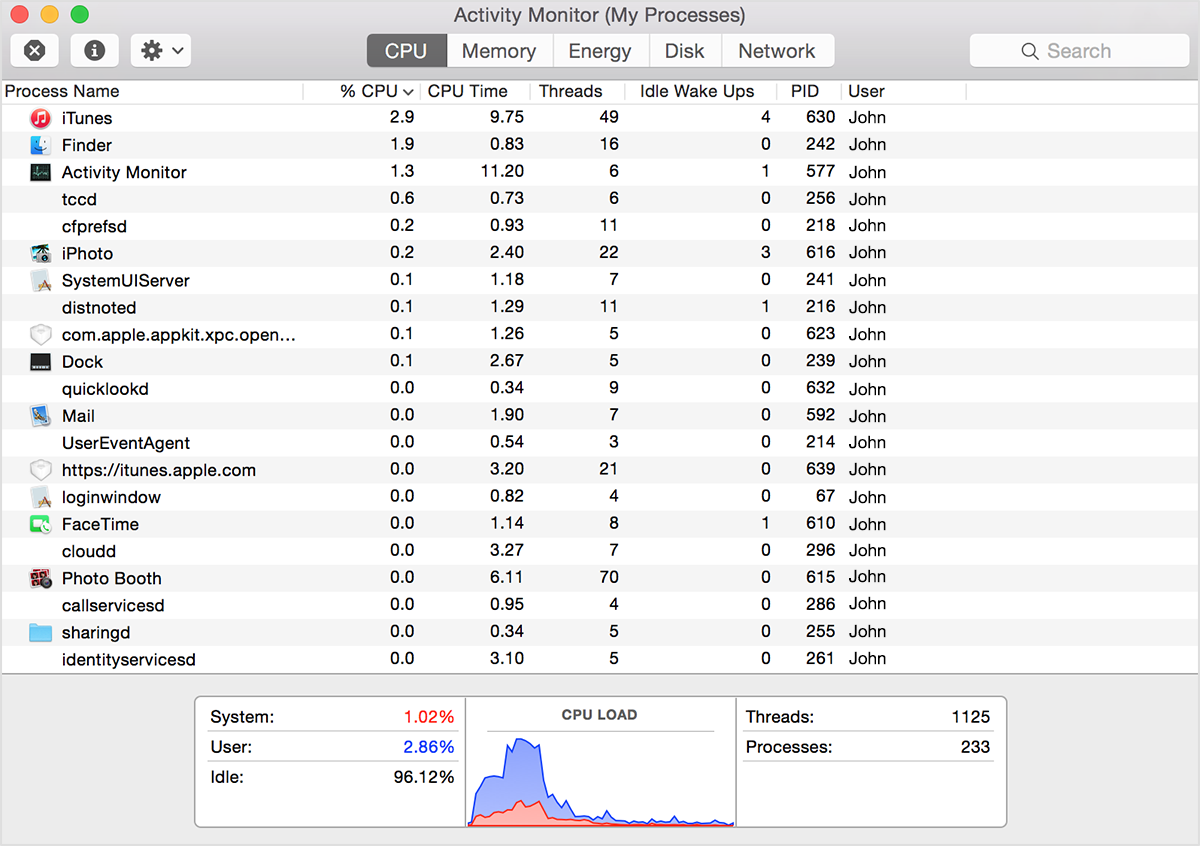
Thank you for reaching out in Apple Support Communities. Congratulations on your new MacBook Pro! I can help with the battery life issues you're having. Let's take a look at the Activity Monitor and see what's running in the background.

How to use Activity Monitor on your Mac - Apple Support


CPU

The CPU pane shows how processes are affecting CPU (processor) activity:

User uploaded file

Click the top of the “% CPU” column to sort by the percentage of CPU capability used by each process. This information and the information in the Energy pane can help identify processes that are affecting Mac performance, battery runtime, temperature, and fan activity.

More information is available at the bottom of the CPU pane:

  • System: The percentage of CPU capability currently used by system processes, which are processes that belong to macOS.
  • User: The percentage of CPU capability currently used by apps that you opened, or by the processes those apps opened.
  • Idle: The percentage of CPU capability not being used.
  • CPU Load: The percentage of CPU capability currently used by all System and User processes. The graph moves from right to left and updates at the intervals set in View > Update Frequency. The color blue shows the percentage of total CPU capability currently used by user processes. The color red shows the percentage of total CPU capability currently used by system processes.
  • Threads: The total number of threads used by all processes combined.
  • Processes: The total number of processes currently running.


Then follow the steps in this article as well: About Mac notebook batteries


Take care.

Dec 3, 2018 7:53 AM in response to Oz74

To monitor your energy usage, make sure to select the “Energy” tab in Activity Monitor. And make sure it is set to show “All Processes”.


Also, there are some subtle factors that affect energy usage. You can’t really say "doing literally nothing but mails and safari” because those two apps, Safari in particular, can consume massive amounts of energy. Mail can get suck doing network activity. Safari can burn the GPU. Neither of these activities are likely to show up on Activity Monitor under the CPU tab.


This is even more pronounced on the new Macbook Pros. Those machines have very fast CPUs. Maybe it is 96% idle. But it could be using quite a bit of wireless RF energy for networking. And maybe some “responsive” website is running tight Javascript loops. On an older machine, that might show up as only 50% idle and you might even hear fans. But you might not notice it on a newer machine. But the energy required for all those tasks is the same, only the CPU is faster.

Dec 27, 2018 11:18 AM in response to Oz74

One other thing, you can force your MacBook Pro to only use integrated graphics. Go to terminal and enter: sudo pmset -a gpuswitch 0

You can also access a mass of power information and settings from there, just read the manual in terminal by typing: man pmset OR as I just discovered, type in pmset and hit the show manual button on the Touch Bar [I think this is a very cool feature of the touch bar - integrating the latest feature with the most basic command line control].

For example: pmset -g rawlog will show you amongst other things exactly how much battery you really have (without the predictive calculations you get in the menu bar percentage stat)


Jan 1, 2019 4:25 AM in response to rairure88

My experience is the same. You can definitely get over 10hrs battery life if you are using this machine like a MacBook. However, if you start using it like a MacBook Pro, you get around 3hrs. I can't see that will change with any further re-installs / different hardware. In fact, according to Coconut Battery, the battery in my MBP is above specification capacity - this capacity seems to be increasing to full potential with the initial dozen or so battery cycles.

But do post the results of your re-install from Mojave please :)

I'd recommend Coconut battery, btw, you can set it to show in the menu bar how many watts your machine is currently using. This gives you a far more immediate impression of what's going on with your power usage and therefore how long your battery will last with your open apps than doing run-down tests. To get 10hrs, it seems you have to be running apps which keep power under 10w. Over that, and the battery life drops by half quite quickly.

I have noticed that (forced) using the integrated graphics card with high graphics load apps does not necessarily reduce the power usage compared to using the discrete card. I think it is not necessarily the graphics card causing the high drain in pro apps, but the high performance system overall - RAM, CPU, perhaps even the T2. It seems it is just a high performance machine which needs a lot of power even at middling tasks. But at light tasks, it can throttle down power consumption effectively.

As I write this, I have been on battery for 19 minutes, only typing on Safari, and the battery level is still at 100%, and Activity Monitor predicts I have 13:12hrs left - significantly above and beyond Apple's claimed 10hrs.

Dec 25, 2018 3:24 AM in response to AlexMold

I re-installed Mojave without doing a clean install: reboot holding Command+R and then click on install Mojave, follow the instructions. This step doesn't touch your user data or applications.

TBH this only helped in as far as now I can do basic stuff on the integrated GFX for longer, but as soon as I open performance applications the battery life gets demolished. I literally open a bunch of apps and the power percentage drops immediately by 3%.

I know this MBP is a power hungry beast, it is specced out. But Apple should have designed in better battery to make it useable for professional media work without a power socket nearby.

(nb the rest pf the machine is good - I really like the new keyboard - it feels neat and sharp, and the lower profile buttons don't mark the screen when it's shut)

Dec 29, 2018 8:53 AM in response to Torrom

So, with some time off I finally managed to do some tests of my own.


I carried out the iTunes movie playback test as described here: https://youtu.be/vWPT_5pp2U4

This sets up a couple of movies to continuously play with the screen at 75% brightness and the volume at 50%.


My battery lasted 11.5 hours which I was pleased about.


Essentially I’m finding it’s Adobe Illustrtor and Photoshop that are responsible for my battery drain as I use them daily.

When using them I only get about 2.5 - 3 hours. I’m really disappointed with this as sometimes they are very light files.


I’m going to try a re-install off Mojave from Recovery Mode as mentioned above to see if it helps but I’m not expecting any change.


I think it comes down to applications using the extra GPU etc.

Mar 28, 2019 4:33 AM in response to Andersskynet

More RAM does use more energy. On top of that, MBPs used to be specced with DDR3 RAM, which uses less energy than the DDR4 memory installed now.


I “only” have 16GB of memory in my i9 Vega 20 but I’m experiencing the drain while just surfing in safari. I switched away from Firefox because among other issues, now when I fast user switch, it locks up for over a minute before I’m able to access tabs. Everything else works fine after a switch.


Im in the middle of a Mojave reinstall as I migrated from a ‘17 MBP 13 inch. Hoping it takes care of my battery life.

Nov 18, 2018 2:04 AM in response to ozinga

Same here, MacBook Pro 15" 2018 with 32 GB RAM and i7 2.6 GHz - I get at most 3 hours of battery on a brand new system. All I'm doing is streaming Amazon video (checked the CPU usage, it's around 17%, the device stays cool) and browsing the web. Activity monitor doesn't show anything suspicious.


Just reset the SMC (no idea if that can help at all).


I will wait a little longer to see if it gets better (the battery in my DSLR needed a couple of cycles to get to its full potential, weirdly enough - right now, the Mac's battery is at its 4th cycle).


This is on OS X Mojave.

Dec 23, 2018 6:06 PM in response to Oz74

I have had a seemingly dramatic improvement in my battery life after simply reinstalling Mojave (not even a clean install). I migrated using Time Machine, and things didn't seem right - battery drain and iCloud issues.

Before, the battery was dropping a percent every 2-3 mins on integrated / light use. I thought I'd try reinstalling over the top with Mojave before going through the grind of a clean install. As soon as I rebooted after the install, the difference was obvious: after an hour of web use, power was only down 10%. Budding Turings among you may calculate that puts power usage in line with that fabled 10 hours quoted by Big Fruit.

When the Vega 20 and i9 kick in on serious graphics work I can see the battery power burning away much more quickly, but I would expect that. The issue for me was really the power drain during light usage, which appears to be much improved now.

I can't be more specific but it seems that now there are a lot fewer items in the Energy section of activity monitor than before the reinstall (unfortunately I didn't screenshot it). Perhaps migration assistant copied across Mojave power / general settings from my old MBP?

I read an article about how pro tests of MBP battery life are far closer to quoted figures than end users' - perhaps this is because testers are working off clean installs and users off migrated accounts?

Anyway, if you're reading this I hope this helps, and if not then good luck sorting out this issue.

This thread has been closed by the system or the community team. You may vote for any posts you find helpful, or search the Community for additional answers.

Poor battery life- MacBook Pro 15" 2018

Welcome to Apple Support Community
A forum where Apple customers help each other with their products. Get started with your Apple Account.