Hello John98G,
Thanks for the follow-up information. We appreciate it.
Noting that you are able to pair some Bluetooth accessories, you may want to
Reset NVRAM or PRAM on your Mac
. This will often help with Bluetooth issues like this, or will help narrow things down further.
Settings that can be stored in NVRAM include sound volume, display resolution, startup-disk selection, time zone, and recent kernel panic information. The settings stored in NVRAM depend on your Mac and the devices that you're using with your Mac.
If you experience issues related to these settings or others, resetting NVRAM might help. For example, if your Mac starts up from a disk other than the one selected in Startup Disk preferences, or a question mark icon briefly appears before your Mac starts up, you might need to reset NVRAM.
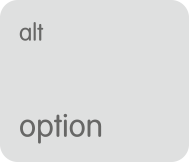




Shut down your Mac, then turn it on and immediately press and hold these four keys together: Option, Command, P, and R. You can release the keys after about 20 seconds, during which your Mac might appear to restart.
When your Mac finishes starting up, you might want to open System Preferences and adjust any settings that were reset, such as sound volume, display resolution, startup disk selection, or time zone.
If you're still not able to pair these headphones, your next best step is to test this in a new administrator account. This will help determine if the issue may be with compatibility. Here's
How to test an issue in another user account on your Mac
:
If another user account is already set up on your Mac, you can simply log out of your account (Apple menu > Log Out) and log in with the other account. But the best way to test is with a newly created account:
- Choose Apple menu () > System Preferences, then click Users & Groups.
- Click
 , then enter an administrator name and password.
- Click the Add button (+) below the list of users.
- Complete the fields shown for a Standard or Administrator account, then click Create Account (or OK).
If you plan to test with any of the documents in your own account, make those documents available to the new account. Drag them to the Shared folder of the Users folder on your hard drive (~/Users/Shared). You can then move them to other folders after you log in as the new user.
Then log out of your account and log in with the new account:
- Choose Apple menu > Log out.
- At the login window, log in with the name and password of the new account. If you're also asked to sign in with an iCloud account or Apple ID, skip that step.
Now try to reproduce the issue in the new account. If you need to set up an email account or other account in order to test, you can do so.
If the issue doesn't happen in the new user account, the issue is related to the settings or files in your own account.
If you need help with a specific alert or issue, search the Apple Support website for the text of the alert. If the issue happens in only one app in your account, it might be related to one of that app's settings. Check the app's documentation or support website for help.
You can remove the new user account when you're done testing. Follow the steps for creating a new account, but click the Remove button (–) instead of the Add button (+). Before removing the account, make sure that you don't need any of the files or settings you created or copied in that account.
If the issue happens in the other user account:
Take care.




