I'm having massive issues with my messaging.

My mac won't send any text messages (it sends iMessages fine though) and both my mac and iphone are only sending any sort of messages from my email. I have tried everything!

MacBook Air (13-inch, Early 2014)

Posted on Nov 2, 2018 9:34 AM

Reply
Question marked as Top-ranking reply

Posted on Nov 3, 2018 2:23 PM

Hello and welcome to Apple Support Communities, merrily10.
If I understand your post correctly, your iPhone and Mac are sending iMessages from your email address and your Mac will not send text messages at all. Being able to send and receive messages is important. I'd like to help.
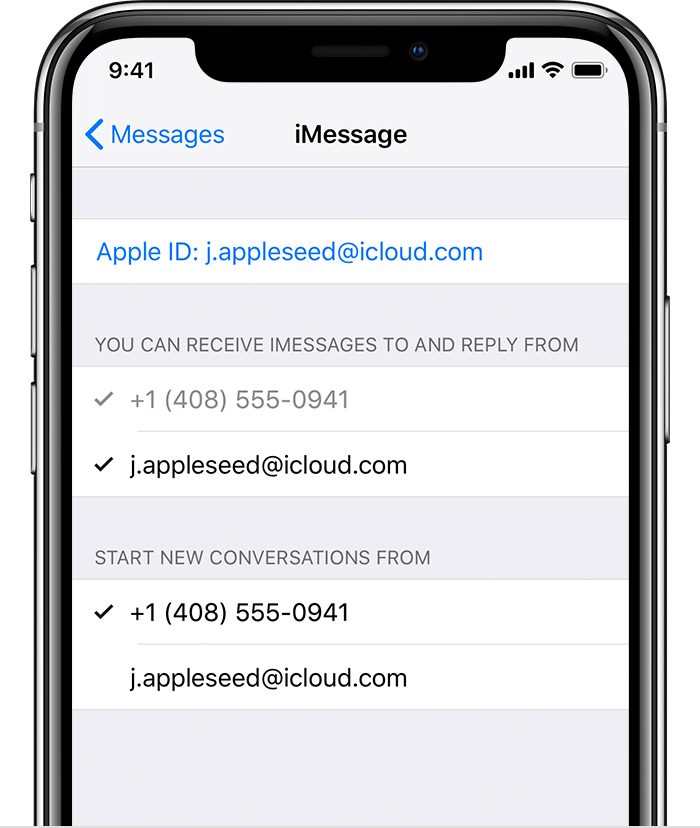
First, make sure your phone number is selected here:

If you can't see or select your number in Messages or FaceTime

  1. Make sure that you're using the latest software for your Mac or iOS device.
  2. Make sure that you correctly followed the iPhone steps to set up your phone number. You should be using the same Apple ID on all of your devices.
  3. In the “You can be reached” section of Messages and FaceTime settings, make sure that there are checkmarks beside your phone number and Apple ID:
    User uploaded file

If your phone number is unchecked and you can't select it, or you have some other issue, follow these steps:

  1. On your Mac:
    • In Messages, choose Messages > Preferences, then click Accounts and select your iMessage account. Click Sign Out.
    • In FaceTime, choose FaceTime > Preferences, then click Sign Out.
  2. On your iPhone, iPad, and iPod:
    • Go to Settings > Messages > Send & Receive. Tap your Apple ID, then tap Sign Out.
    • Go to Settings > FaceTime. Tap your Apple ID, then tap Sign Out.
  3. On your iPhone:
    • Go back to Settings > Messages and make sure that iMessage is turned on.
    • Tap Send & Receive, then choose “Use your Apple ID for iMessage” and sign in with your Apple ID.
  4. Using the same Apple ID, sign back in to Messages and FaceTime on your other devices.

If you still need help, change your Apple ID password and repeat the setup steps. If that doesn't work, contact Apple Support.

See the full article here:
Add or remove your phone number in Messages or FaceTime
To use your Mac to send and receive text messages, follow these steps:

Set up SMS and MMS messaging

Use this feature with any Mac, iPhone, iPad, or iPod touch that meets the Continuity system requirements. Make sure that your devices are set up as follows:

  • Each device is signed in to iCloud with the same Apple ID.
  • On iPhone, go to Settings > Messages > Send & Receive. Make sure that the Apple ID at the top of the screen is the same Apple ID that you're using for iMessage on your other devices. Add a check to your phone number and email address, so that you can be reached by iMessage at both. Do the same on your iPad or iPod touch.
  • On iPhone, go to Settings > Messages > Text Message Forwarding, then choose which devices to allow to send and receive text messages from this iPhone. If you're not using two-factor authentication for your Apple ID, a verification code appears on each of your other devices: enter that code on your iPhone.
  • On Mac, open Messages, then choose Messages > Preferences. Click Accounts, then select your iMessage account. Make sure that the Apple ID shown here is the same Apple ID that you're using on your other devices. Add a check to your phone number and email address.
Use SMS and MMS messaging

User uploaded file

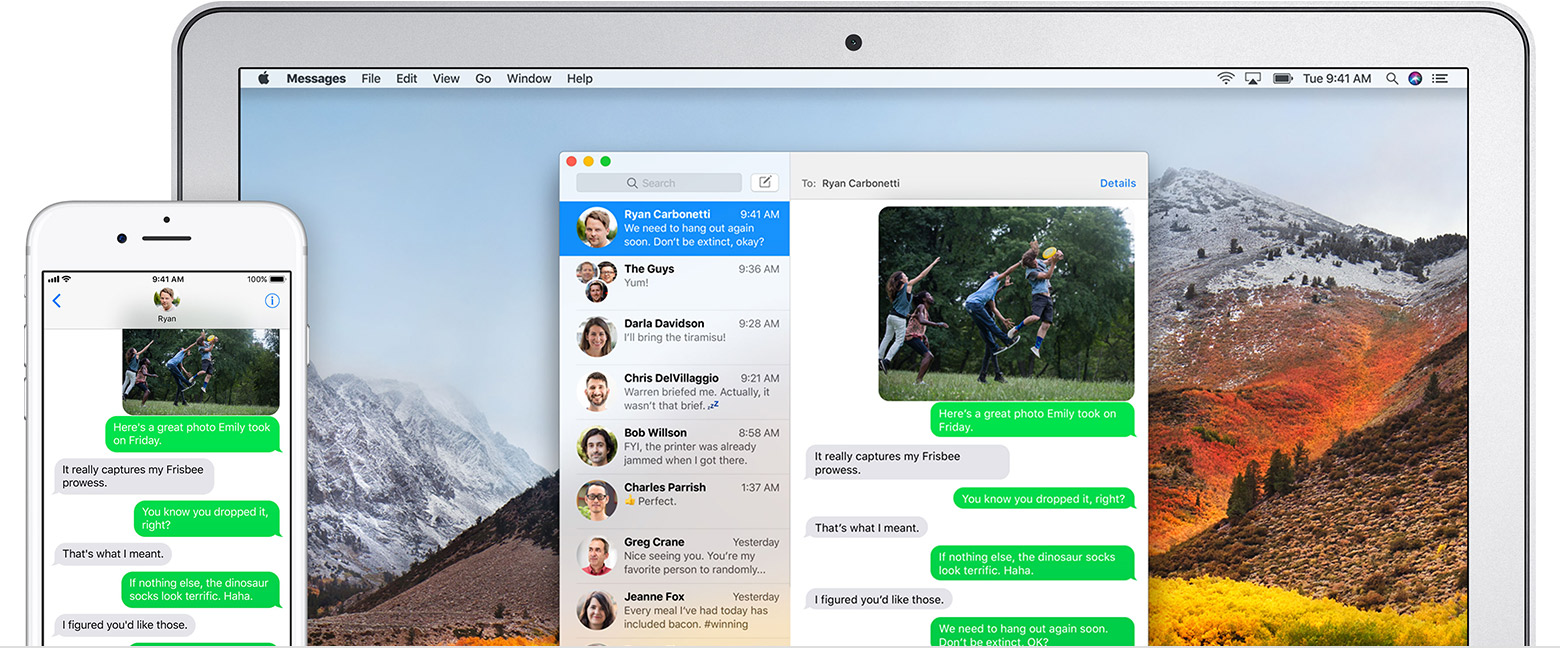
To use this feature, just start conversations as normal in the Messages app on any of your devices. You can also start a conversation by clicking a phone number in Safari, Contacts, Calendar, or other apps that detect phone numbers. All of your incoming and outgoing messages appear on all of your devices. Learn more about forwarding SMS/MMS messages from your iPhone to an iPad, iPod touch, or Mac.

See the full article here:
Use Continuity to connect your Mac, iPhone, iPad, iPod touch, and Apple Watch
Let us know if that resolves this issue for you.
Thanks for using the Apple Support Communities. Take care.

3 replies
Question marked as Top-ranking reply

Nov 3, 2018 2:23 PM in response to merrily10

Hello and welcome to Apple Support Communities, merrily10.
If I understand your post correctly, your iPhone and Mac are sending iMessages from your email address and your Mac will not send text messages at all. Being able to send and receive messages is important. I'd like to help.
First, make sure your phone number is selected here:

If you can't see or select your number in Messages or FaceTime

  1. Make sure that you're using the latest software for your Mac or iOS device.
  2. Make sure that you correctly followed the iPhone steps to set up your phone number. You should be using the same Apple ID on all of your devices.
  3. In the “You can be reached” section of Messages and FaceTime settings, make sure that there are checkmarks beside your phone number and Apple ID:
    User uploaded file

If your phone number is unchecked and you can't select it, or you have some other issue, follow these steps:

  1. On your Mac:
    • In Messages, choose Messages > Preferences, then click Accounts and select your iMessage account. Click Sign Out.
    • In FaceTime, choose FaceTime > Preferences, then click Sign Out.
  2. On your iPhone, iPad, and iPod:
    • Go to Settings > Messages > Send & Receive. Tap your Apple ID, then tap Sign Out.
    • Go to Settings > FaceTime. Tap your Apple ID, then tap Sign Out.
  3. On your iPhone:
    • Go back to Settings > Messages and make sure that iMessage is turned on.
    • Tap Send & Receive, then choose “Use your Apple ID for iMessage” and sign in with your Apple ID.
  4. Using the same Apple ID, sign back in to Messages and FaceTime on your other devices.

If you still need help, change your Apple ID password and repeat the setup steps. If that doesn't work, contact Apple Support.

See the full article here:
Add or remove your phone number in Messages or FaceTime
To use your Mac to send and receive text messages, follow these steps:

Set up SMS and MMS messaging

Use this feature with any Mac, iPhone, iPad, or iPod touch that meets the Continuity system requirements. Make sure that your devices are set up as follows:

  • Each device is signed in to iCloud with the same Apple ID.
  • On iPhone, go to Settings > Messages > Send & Receive. Make sure that the Apple ID at the top of the screen is the same Apple ID that you're using for iMessage on your other devices. Add a check to your phone number and email address, so that you can be reached by iMessage at both. Do the same on your iPad or iPod touch.
  • On iPhone, go to Settings > Messages > Text Message Forwarding, then choose which devices to allow to send and receive text messages from this iPhone. If you're not using two-factor authentication for your Apple ID, a verification code appears on each of your other devices: enter that code on your iPhone.
  • On Mac, open Messages, then choose Messages > Preferences. Click Accounts, then select your iMessage account. Make sure that the Apple ID shown here is the same Apple ID that you're using on your other devices. Add a check to your phone number and email address.

Use SMS and MMS messaging

User uploaded file

To use this feature, just start conversations as normal in the Messages app on any of your devices. You can also start a conversation by clicking a phone number in Safari, Contacts, Calendar, or other apps that detect phone numbers. All of your incoming and outgoing messages appear on all of your devices. Learn more about forwarding SMS/MMS messages from your iPhone to an iPad, iPod touch, or Mac.

See the full article here:
Use Continuity to connect your Mac, iPhone, iPad, iPod touch, and Apple Watch
Let us know if that resolves this issue for you.
Thanks for using the Apple Support Communities. Take care.

Nov 5, 2018 12:36 PM in response to merrily10

Hi,


For some, at Upgrades or Updates an issue can arise where the iMessages Servers block the Apple ID when used from your Mac for iMessages.


This makes the Block Device Specific and effectively App Specific on the device it happens to.


See When the iMessages account will not Login

Phone Apple Support (Apple Care) and explaining you have an Apple ID issue make the process free.

However it takes time to move up the levels until someone can look at the server info and see if this is what has happened.


User uploaded file

8:36 pm Monday; November 5, 2018


 iMac 2.5Ghz i5 2011 (Sierra)
 G4/1GhzDual MDD (Leopard 10.5.8)
 MacBookPro 2Gb (Snow Leopard 10.6.8)
 MacBookPro 15" 2016 (High Sierra 10.13.x)
 Mac OS X (10.6.8),
 iPhone 6 iOS 11.x and an iPad (2)

This thread has been closed by the system or the community team. You may vote for any posts you find helpful, or search the Community for additional answers.

I'm having massive issues with my messaging.

Welcome to Apple Support Community
A forum where Apple customers help each other with their products. Get started with your Apple Account.