Hi taichiguy,
Thank you for posting in the Apple Support Communities. I see you're having a few issues since the macOS Mojave update.
Regarding the issue with Roxio Toast, you'll find some helpful steps here
If an app freezes or quits unexpectedly
:
There are several suggestions to try.
-
If the app is frozen and unresponsive, force quit the app (you may lose unsaved changes). Choose Apple menu > Force Quit, select the app in the dialog that appears, then click Force Quit.
-
If the app quit, reopen it by clicking Reopen in the dialog that appears.
-
Restart your Mac by choosing Apple menu > Restart.
-
Read the app’s documentation to see whether it’s compatible with your version of macOS.
-
Open another file in the app. There may be a problem with the original file.
-
Check for updates to your software.
-
Disconnect any peripheral devices you just connected (for example, a printer). They may not be compatible with your version of macOS.
-
Uninstall any app plug-ins or enhancements from other manufacturers.
If you recently updated the app or macOS, a plug-in or enhancement you installed may no longer be compatible.
-
Use Apple Diagnostics or Apple Hardware Test. These tools can tell you if hardware you installed, such as additional memory, is incompatible, improperly installed, or defective.
-
Restart your Mac in safe mode.
You also mentioned your Mac appears to be performing slower. Does this happen when you're using any particular apps? A great place to start is to check out the Activity Monitor. This will help you to
See how apps affect Mac performance, battery runtime, temperature, and fan activity
:
When an app isn't responding or working correctly, it might use more of the processor (CPU) than it should, even when the app doesn't seem to be doing anything. As the CPU gets busier, it uses more energy, which reduces the time that your Mac can run on battery power. It also generates heat, which can cause the fans in your Mac to spin faster.
Use the CPU pane of Activity Monitor to see how apps (processes) are affecting your CPU:
- Open Activity Monitor, then choose View > All Processes.
- Click the top of the “% CPU” column to sort by the percentage of CPU capability used by each process.
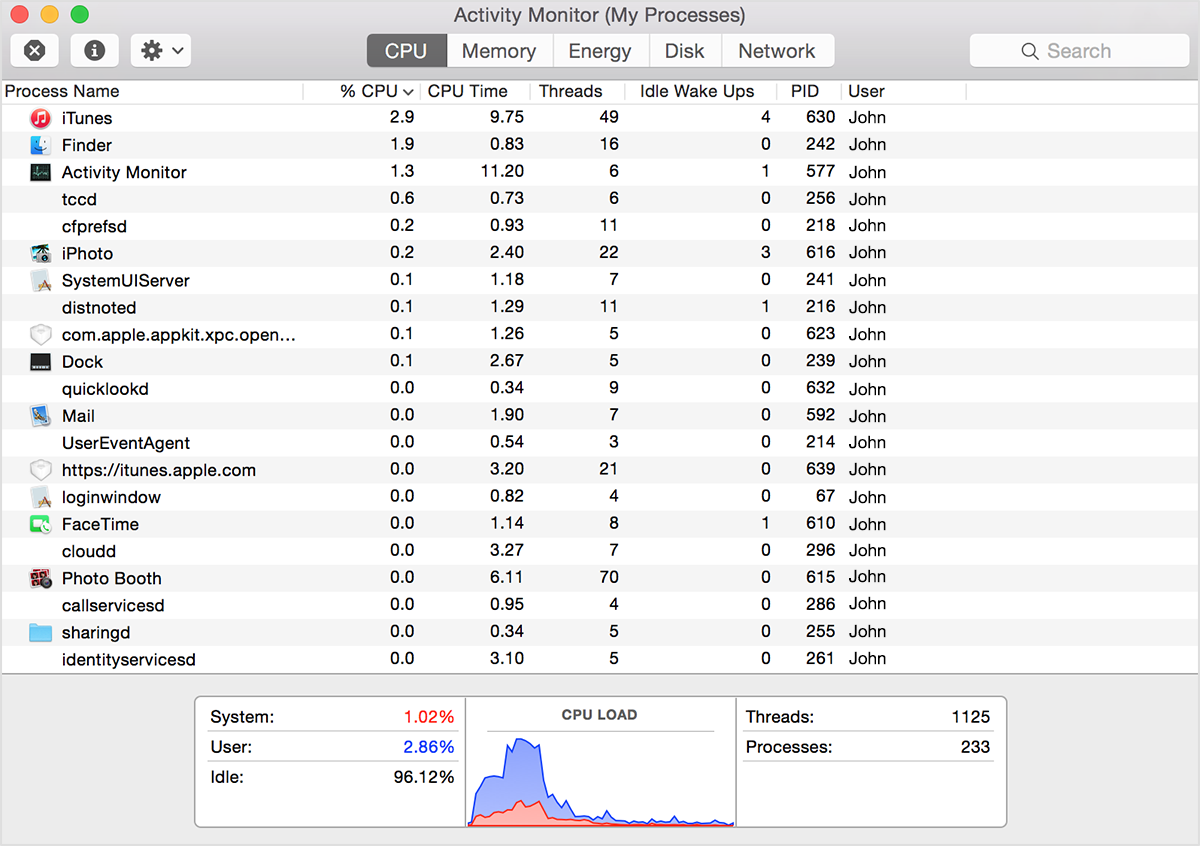
Apps normally use a larger percentage of the CPU when doing tasks that require intensive calculations, such as encoding video. But CPU use should decrease when the task is finished, and it should stop entirely when the app is no longer open. Any process except kernel_task that is consistently using more than 70 percent of your CPU is putting a significant load on the CPU and could be malfunctioning.
To quit a process, first try quitting it normally. For example, quit Safari by switching to Safari and choosing Safari > Quit Safari.
If you can't quit a process normally, you can use Activity Monitor to force it to quit. Save any documents related to the process, then select the process in Activity Monitor and choose View > Quit Process.
If you don't recognize the name of a process, it might belong to macOS or another process that you do recognize. To see the relationships between processes, choose View > All Processes, Hierarchically. If you see that a process belongs to an app, such as Safari or Mail, quit the app before deciding whether to quit any of its processes.
To help avoid malfunctioning processes, keep your apps, plug-ins, and operating system up to date.
If you don't find any issues in Activity Monitor, I recommend trying these tests to help isolate the issue. These will determine if third-party software and login items may be responsible, and also if the issue is system-wide or specific to your user account. You'll find the steps here:
Use safe mode to isolate issues with your Mac
How to test an issue in another user account on your Mac
I hope the information I've provided is helpful with these issues.
Kind regards.


