No other device signed into iCloud to approve iphone
I can’t get to a screen in any of my dee ices to approve any of the other devices. It’s like I’m in an endless loop.
I can’t get to a screen in any of my dee ices to approve any of the other devices. It’s like I’m in an endless loop.
If that is what you're seeing, try these steps:If you enter the wrong iCloud Security Code too many times when using iCloud Keychain, your iCloud Keychain is disabled on that device, and your keychain in iCloud is deleted. You might see one of these messages:
- “Security Code Incorrectly Entered Too Many Times. Approve this iPhone from one of your other devices using iCloud Keychain. If no devices are available, reset iCloud Keychain.”
- “Your iCloud Security Code has been entered too many times. Approve this Mac from one of your other devices using iCloud Keychain. If no devices are available, reset iCloud Keychain.”
I hope this helps you!If you can't access a device that uses your iCloud Keychain
Follow these steps to reset your iCloud Keychain.
On an iPhone, iPad, or iPod touch:
- Tap Settings > [your name] > iCloud > Keychain and turn on iCloud Keychain. If you're using iOS 10.2 or earlier, tap Settings > iCloud. You might be asked to enter your Apple ID password.
- If you protect your account with two-factor authentication, tap Restore with Security Code. If you don't use two-factor authentication, tap Approve with Security Code.
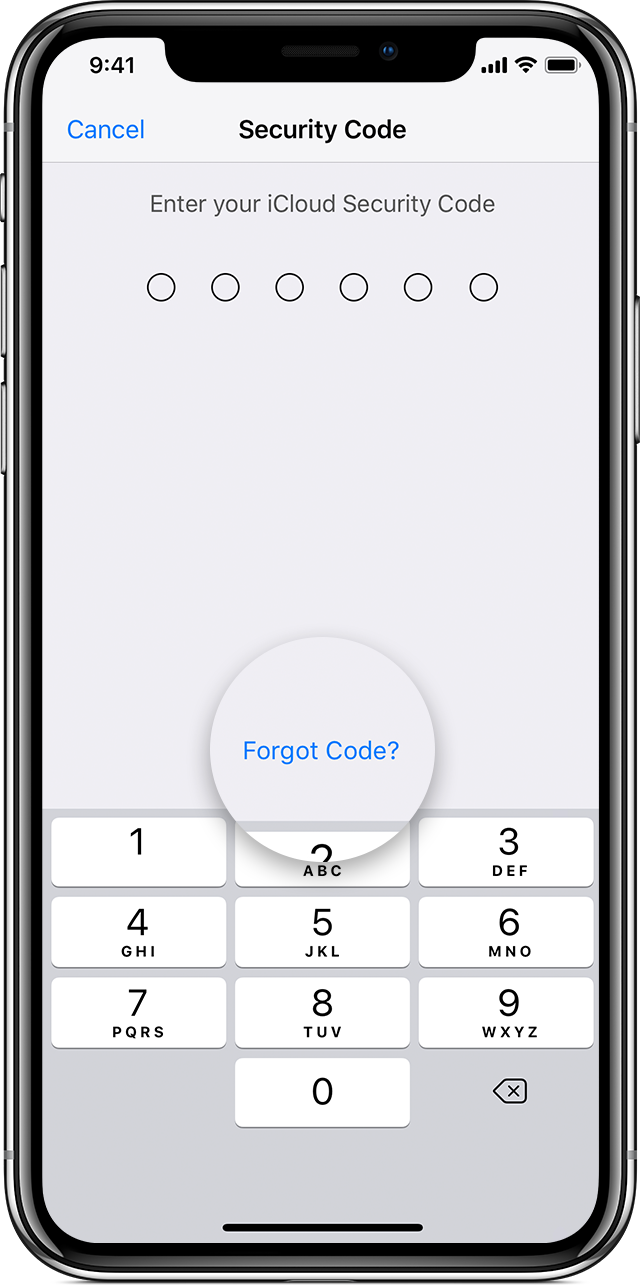
- Tap Forgot Code.
- Tap Reset iCloud Keychain to replace your keychain in iCloud with the iCloud Keychain from your device.
- Tap Reset to confirm.
- Follow the onscreen steps to create a new iCloud Security Code.
On a Mac with OS X Yosemite or later:
- Choose Apple
menu > System Preferences.
- Click iCloud, then select Keychain. You might be asked to enter your Apple ID password.
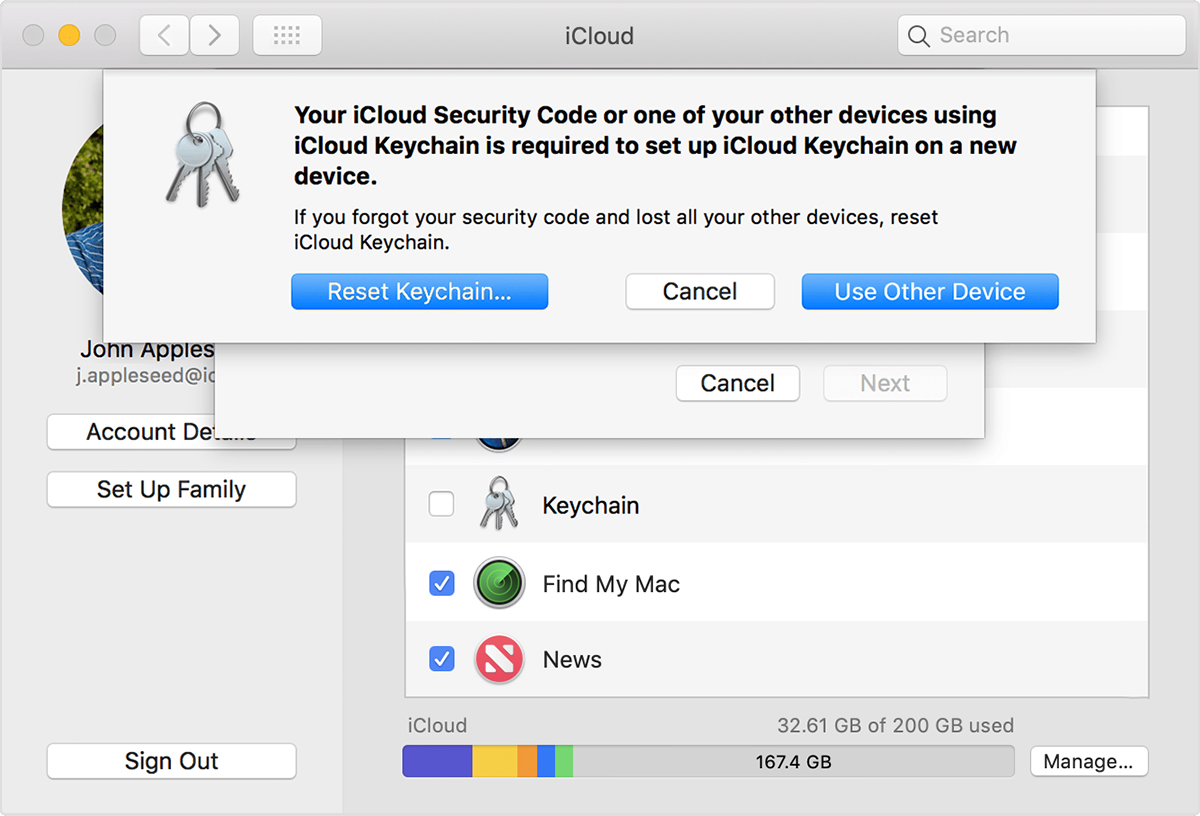
- Click Use Code, then choose Forgot Code when you're asked to enter your iCloud Security Code.
- Click Reset Keychain to replace your keychain in iCloud with the iCloud Keychain from your device.
- Click Reset iCloud Keychain to confirm.
- Follow the onscreen steps to create a new iCloud Security Code.
If that is what you're seeing, try these steps:If you enter the wrong iCloud Security Code too many times when using iCloud Keychain, your iCloud Keychain is disabled on that device, and your keychain in iCloud is deleted. You might see one of these messages:
- “Security Code Incorrectly Entered Too Many Times. Approve this iPhone from one of your other devices using iCloud Keychain. If no devices are available, reset iCloud Keychain.”
- “Your iCloud Security Code has been entered too many times. Approve this Mac from one of your other devices using iCloud Keychain. If no devices are available, reset iCloud Keychain.”
I hope this helps you!If you can't access a device that uses your iCloud Keychain
Follow these steps to reset your iCloud Keychain.
On an iPhone, iPad, or iPod touch:
- Tap Settings > [your name] > iCloud > Keychain and turn on iCloud Keychain. If you're using iOS 10.2 or earlier, tap Settings > iCloud. You might be asked to enter your Apple ID password.
- If you protect your account with two-factor authentication, tap Restore with Security Code. If you don't use two-factor authentication, tap Approve with Security Code.
- Tap Forgot Code.
- Tap Reset iCloud Keychain to replace your keychain in iCloud with the iCloud Keychain from your device.
- Tap Reset to confirm.
- Follow the onscreen steps to create a new iCloud Security Code.
On a Mac with OS X Yosemite or later:
- Choose Apple
- Click iCloud, then select Keychain. You might be asked to enter your Apple ID password.
- Click Use Code, then choose Forgot Code when you're asked to enter your iCloud Security Code.
- Click Reset Keychain to replace your keychain in iCloud with the iCloud Keychain from your device.
- Click Reset iCloud Keychain to confirm.
- Follow the onscreen steps to create a new iCloud Security Code.
No other device signed into iCloud to approve iphone