Printing too Dark

It may be since Aperture 2.0, but possibly since installing Leopard (and even with 1.5), I can't get my monitor brightness and print brightness to match. I have been using an Eye-One Photo to calibrate my monitor (30" ACD) and my printer (Epson R1800). Before Leopard, this worked quite well. Now not at all.

I try to adjust brightness on the monitor according to the spectrophotometer and the Eye-One Match software, but the prints come out way dark. I even lower the monitor's brightness to the minimum, and my prints are still way too dark. This all worked fine with Tiger.

Can anyone suggest where I can look to address this problem?

Thanks!

- David

MacBook Pro, Mac OS X (10.5.2), 30" Apple Cinema Display, Nikon D2XS

Posted on Mar 27, 2008 11:07 AM

Reply
62 replies

Mar 27, 2008 4:49 PM in response to David Segelstein

Monitor calibration is just a first step. When you tell AP to print and the print dialogue box comes up, click on "Printer Settings." That will get you into Epson's print settings. Explore the drop down menus: every setting choice is critical, and any or all of them may have been changed during an upgrade. You will normally want to turn Color Management off. Also you must have the proper printer/paper profile.

First step for me whenever printing anomalies occur is to Repair Permissions, download and install the latest Epson driver (even if it is exactly what you already have) and Repair Permissions again.

Good Luck!

-Allen Wicks

May 9, 2008 1:31 PM in response to Neil Heyde

I am struggling to understand the bad print quality also. I believe I have spent $2500 and still get crap proofs! Color is too dark and grainy despite a 14mb file size and noon day shot.
I am beginning to suspect the color profiles?(rgb etc...) there is the profile the pic was created in and the profile aperture saves it in and the color profile the printer will use when printing?
Its just so bad looking that iI cant believe its not something (or some things) prefrenced incorrectly

May 9, 2008 1:48 PM in response to SierraDragon

Monitor calibration seems obvious (the last thing I want is something hanging over my screen or another usb device to clutter the work table) but i want it to at least proof something close to the original. The proof from aperture looks like it is tea stained. I threw the same image onto a thumbdrive and plugged it into the "pictbridge" on the printer to print directly from there and the image looks fine.
I remember years ago when microsoft launched service pack 2 everyone started having dark prints.
Maybe this is a driver issue? I have a good hp printer but I am using the drivers that Apple loaded on my computer.

May 9, 2008 2:15 PM in response to Michael Limbaugh

I would definitely make a trip to HP's site and see if there are newer drivers available for your printer. You can also "soft proof" the printer on screen before you send it to the printer using the icc profile for your printer and paper combination. It's the color conversion between Aperture and the printer that can cause the differences you see from when you print directly using "pictbridge."

At the risk of coming across like a relentless self promoter (given that my blog is ad free, and that I've made about five entires in six months, I hope it's obvious that blog readership is not of terrible importance to me) I just finished up a 5 part blog series on getting the best possible prints from Aperture. I got some great information directly from engineers at Apple, X-Rite, and Canon so I think you'll find some pretty helpful stuff there. I use a Canon printers myself, but a great deal of the advice is universal to all printers and I think it'll help. Check it out part 1 here:

http://www.kbeat.com/Site/Blog/Entries/2008/5/1Everything_you_never_wanted_to_know_about_color_management%2C_part1....html

May 9, 2008 5:29 PM in response to David Segelstein

I've been printing out of Photoshop with my calibrated Artisan monitor, profiled Epson 7600 printer using Leopard 10.5.2 with Epson's newest drivers. Now that I am using Aperture 2.1 I have not been able to get a good print using the same Epson Enhanced Matte profile made with an Eye-One photometer that I use with Photoshop. I make sure the color management is turned off in the Epson driver and the prints don't even come close to matching the screen like they do in Photoshop. The prints are dark and muddy. The only way I've been able to get a decent print is to use Printer Color Management and up the brightness and contrast in the Epson driver settings. Printing is really frustrating. I hope Apple is listening.

Stan

May 10, 2008 4:37 AM in response to Gary i

Hello everyone. I chose this thread to make my first post because I have been reading everything I could find regarding color spaces, colorsync, and printing within Aperture, in an effort to make good prints with Aperture. I've only been using Aperture for a month (2.1); never used any previous versions of Aperture. I'm going to buy a new printer soon, so I wanted to get the entire Aperture printing-process learning curve mastered using my current hardware (Canon i9900) before working with a new printer.

I profile everything with i1, and I use Zedonet's PrintFab RIP for my printer driver. I'm almost to the point where I can produce prints to my liking, in that they (nearly) perfectly match my screen. My question specifically addresses PrintFab's settings. Is anyone using it? Google and Apple Forum searches did not yield a single thread where someone said they use PrintFab with Aperture.

Regardless, some of you color-space experts might have an answer to my question. PrintFab needs you to select the document's color space (not just the printer profile); similar to printing in most color-managed applications, but instead it's set up in the print driver. It allows you to import existing ICC profiles too, such as Adobe RGB (1998), but it defaults to sRGB. I want to match PrintFab's setting to the color space of the data sent to the printer driver from Aperture's print dialog, when Aperture is printing a RAW image, and the Aperture print settings are set to "System Managed" for the ColorSync Profile. Is Aperture leaving the color space intact (it's internal wide gamut profile) or is it converting it to sRGB, or Adobe RGB(1998) like when you round-trip to an external editor? What colorsync profile should I import into PrintFab (e.g., Apple RGB (1998), Adobe RGB (1998), Wide Gamut RGB, sRGB, or something else) to match the color space Aperture uses for "System Managed" (i.e., printer manages color) printing?

Cheers

May 10, 2008 7:26 AM in response to Stanley Goldberg

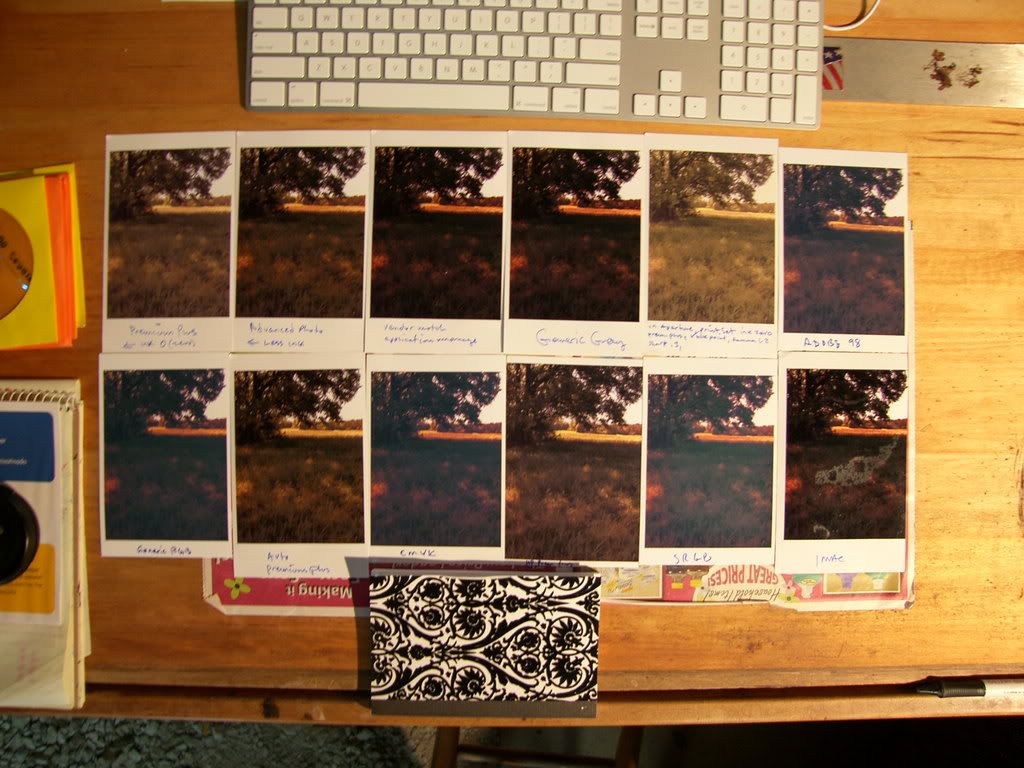
Ok..for those of you (like me) who need to print something decent in aperture. I dont take photographs professionally , I take photographs as reference to paint from. I need pretty accurate
color but I dont need to "sell" a client with them. I printed the same photo 12 times.....Each time with a different "color preference in the printer pane and here is a pic of the range of color quality...

[IMG] http://i288.photobucket.com/albums/ll200/michaellimbaugh/SH102647.jpg[/IMG]

Let me know if the link doesn't work.

May 10, 2008 7:41 AM in response to McGus135

I had the same problem with my 4880. my solution was to print the test charts out of my windows machine and scan them in with i1 photo on my macbook pro. for some reason the mac os was doing something with the color while printing the charts. i had all color controls off and if i print the charts out of the match 3 software, cs3, or aperture the charts would all be totally different in color. made no sense to me. but if i print from windows either through cs3, match3 or qimage they all came out the same. this helped my prints in aperture. but like you in the begining they were so dark i could barley see them.

May 10, 2008 7:46 AM in response to Michael Limbaugh

Micheal,

Those are nothing like the prints I am able, for example, to get with Aperture and my newest Epson printer (SP 280) and its driver. Those prints are great, and the equal of anything I can achieve when using other photo apps.

My printing presets (different ones setup for different paper/printers) all have the type of paper and implied profile for that paper in the ColorSync Profile -- example: SPR280 R290 Premium Glossy -- which will differ from printer to printer and paper choice to paper choice. A key factor is that in the printer settings, Color Management must be set to Off. With this setting, Aperture or the system will manage the printer/color and not the printer. In Photoshop, when printing, the analogous setting would be to let Photoshop manage printing.

You do not have to use custom Printer Presets to do this, but it a real treat with Aperture vs Photoshop to be able to use your own presets.

Please detail your Print dialogue settings.

Ernie

Message was edited by: Ernie Stamper

May 10, 2008 7:57 AM in response to Ernie Stamper

Do you mean you would like to better see what iI have written on the bottom of each pic?

You are correct, each printer is sooo very different. I did have some probs. updating the printer drivers. Hp had new drivers for mac osx so I downloaded them. Now when I check driver version # it still says the previous #...I removed all the HP drivers and then reinstalled the new one alone but it still says previous ver.

The prints are on photo premium plus paper and when I select another color profile the color
management is being replaced with the new profile..

May 10, 2008 8:59 AM in response to Ernie Stamper

Examples of what I have experimented with:

In "preview" application of a photo;
print>preview>color matching>colorsync>profile>premium plus paper(hp, available because I use a d7100 model)


In Aperture;
print>>>where it says color sync profile I selected HP premium plus photo paper(not system managed. If you do this you are selecting something other than system managed) however above that there is print settings tab under the printer tab. I imagine those selections are availabl per printer software. In that tab I can select paper type/quality>ink>ink volume>,I turned that all the way down to get a much lighter print. I dont like the way the software makes things look when you lighten a print digitally, it seems to make it look as though it has a milky film on it.


I do not see anything specifically called color management at this time.. Please direct me to that feature if you believe I am overlooking it. Perhaps its a feature of your printers specific software?

This thread has been closed by the system or the community team. You may vote for any posts you find helpful, or search the Community for additional answers.

Printing too Dark

Welcome to Apple Support Community
A forum where Apple customers help each other with their products. Get started with your Apple Account.