deinterlaced output is not deinterlaced

my source feed is 1080i, and when i export in 1280x720 the video still shows as interlaced footage... any ideas?

MacBook Pro 2.4Ghz, Mac OS X (10.5.6)

Posted on Jan 28, 2009 6:55 PM

Reply
300 replies

Feb 23, 2009 4:34 AM in response to nkrause

nkrause wrote:
For my purposes, I consider lossless something that the human eye cannot detect.


I detest the judderfest which blights so much HD footage personally, so I completely sympathise with your desire to maintain interlaced processing throughout.

I find it hard to see problems with AIC when used with a consumer camcorder - at least it keeps full 1920x1080 resolution. Many older so-called lossless CODECs reduce the width to at best 1440 pixels across, using rectangular pixels to maintain aspect ratio.

AIC's 4:2:0 chroma sampling ( http://en.wikipedia.org/wiki/Chroma_subsampling) may reduce colour resolution, but if your camcorder uses a single sensor chip, it'll be a Bayer-style sensor anyway ( http://en.wikipedia.org/wiki/Bayer_sensor) just like most digital stills cameras. This means each of the 1920x1080 capture pixels is actually monochrome, capturing red, green or blue. These are then merged together to produce a full colour picture that isn't really at full 1920x1080 resolution; it's scaled back up and sharpened. Worrying about 4:2:0 sampling when you've used a Bayer sensor at source is pointless - whatever your camera's AVCHD encoding metrics, the colour resolution simply wasn't there to start with. It was already at 4:2:0 resolution in the original raw data - at best. (Side note: These Bayer sensor compromises prompted at least one commercial company to develop a competing technology, seen in the Sigma DSLRs as well as in a few other places - http://en.wikipedia.org/wiki/FoveonX3sensor).

AIC does seem to have some issues with making things darker - the whites stay white, but shadow areas start to expand. It's probably a gamma curve bug somewhere. If going through AIC several times you'd need to watch out for this.

My Mac seems to have the high quality ProRes CODECs available but this may have come as a side-effect of purchasing Logic Studio for my audio work. However, if ProRes gets shipped within the QuickTime framework as standard, then check out VideoPier HD. Everyone seems to talk about Voltaic HD as a way to convert raw camera footage to MOV if you don't want to use iMovie but I found it very disappointing. VideoPier is loads better - more polished, fast and "Mac-like":

http://www.aquafadas.com/en/videopier/

The demo version performs well. Ticking the "interlaced" box when exporting using QuickTime settings to ProRes HQ gives a properly tagged 1080i60 ProRes movie. VideoPier seems to offer aspects of the decent quality archiving and transcoding options from Final Cut Express/Pro, but you then use the free-with-machine and much easier to use iMovie '08 or '09 for editing. You can drag exported ProRes MOV files from the Finder into an iMovie event in '08/'09 (or use the iMovie "Import" menu) and iMovie will move the file into the events folder. It's reasonably fast though obviously slower than ingesting footage directly into iMovie - but you get to keep the full ProRes HQ CODEC quality and interlacing. There is no transcoding thereafter; iMovie seems content to work with ProRes directly.

Downside - if you insist on ProRes then you need VideoPier to process footage externally which slows down the workflow. It is quite expensive at £59 / $79 for a single-user license, which isn't that much less than a full copy of Final Cut Express if you shop around. Then again, I dislike FCE, finding its interface awkward and dated (nasty Logic 7-style controls, have to render everything before you can play stuff back etc. - professionals may like it, but this amateur did not!). VideoPier plus iMovie is good for me.

Edit your movie and export into your favoured CODEC - ProRes, AIC, H264... - using the "upper" 1920x1080 setting in the "Size..." section of the "Export using QuickTime" settings window. That is, there are two 1920x1080 options in the size menu; you pick the first/upper one in iMovie '08 - I've lost track of this thread but I think it would be the same for iMovie '09, however I'm sure some one will correct me if I'm wrong!.

If you want 720p60 (progressive) footage from your 1080i60 original, use JES Deinterlacer (free):

http://www.xs4all.nl/~jeschot/home.html

Drag your AIC or ProRes 1080i60 movie to it, select the "Standards Conversion" setting in the "Project" tab and use the "1280x720p60" option. Leave the other settings at defaults. You end up with a HDV MOV file with really smooth, fluid motion. You must use this intermediate file to avoid frame rate conversion problems, though. So, next, convert the 720p60 file to your favoured CODEC with JES Deinterlacer or MPEG StreamClip (free):

http://www.squared5.com/svideo/mpeg-streamclip-mac.html

Result - 720p60 MP4 file to copy onto a memory card, memory stick, burn to disc etc. for a PlayStation 3.

Summary

== If you can't see a problem with AIC in practice then just ingest directly into iMovie '08. No cost involved beyond disc space!

== If you want ProRes (HQ) and your computer has the CODEC on board, then I recommend VideoPier as one good (if slightly expensive) way to solve all your archiving and ingestion format conversion problems. I think I'll be buying a copy myself anyway and wish I'd found it earlier so I could've used higher quality masters for a couple of recent projects. Export from VideoPier using QuickTime and your preferred CODEC, then drag to an iMovie event in the events list in the iMovie window.

== Edit in iMovie, export as described numerous times in this thread to maintain 1080i60 quality. You can't export to other resolutions without foul-ups from interlacing and stuff. This is the one major step when things definitely do not Just Work and Apple need to sort out the iMovie '09 bugs, in particular, urgently.

== Use Toast with the 1080i60 footage if you wish, or perhaps convert to a slightly more manageable 720p60 with JES Deinterlacer and then convert to MP4 for PS3 memory sticks using MPEG StreamClip.

== If you intend to write an interlaced SD DVD from 1080i60 input, see: http://pond.org.uk/misc/imovieandhd/workflow.html

Overall, the results by just taking a bit more time with the import/export phases can be very good indeed. But perhaps there's a one-stop shop that does all this for you under Windows? I dunno; I abandoned that platform a long time ago. The Mac has plenty of hiccups, but they're a tiny handful in comparison to the irritations, limitations, omissions and faults I left behind with XP.

All that said - a computer is an appliance - just a gadget, a thing. It's a tool, not a lifestyle and one should always use the right tool for the job. If you can your video made cheaper, quicker and easier under Windows with the same or better quality, you'd probably be crazy to throw money at a Mac... But somehow I doubt things are any better in Windows land.

Feb 23, 2009 5:35 AM in response to Pond

"Drag your AIC or ProRes 1080i60 movie to it, select the "Standards Conversion" setting in the "Project" tab and use the "1280x720p60" option. Leave the other settings at defaults. You end up with a HDV MOV file with really smooth, fluid motion. You must use this intermediate file to avoid frame rate conversion problems, though. So, next, convert the 720p60 file to your favoured CODEC with JES Deinterlacer or MPEG StreamClip (free):"

Pond,

Just to be clear, are you saying that we should drag our AIC 1080i50/60 file to JES twice? Once to convert to 720p AIC and then to convert to MP4? Can I not just deinterlace the 1080i and convert to mp4 in one step? That is what I normally do, or is this going to cause me issues?

Regards,
Steve

Feb 23, 2009 6:36 AM in response to stevebuk

stevebuk wrote:
Just to be clear, are you saying that we should drag our AIC 1080i50/60 file to JES twice? Once to convert to 720p AIC and then to convert to MP4?


If you want to convert to 720p30 (sic.) then you can do so directly with JES Deinterlacer or MPEG StreamClip, whichever you prefer. My original problem was that I had AVCHD 1080i60 sports footage of a rowing crew from a Canon HF11. I wanted to convert each 1920x540 interlaced field of the original 1080i60 footage into a 1280x720 progressive frame of 720p60 video for a PS3 or playback on a computer (i.e., bob deinterlacing - http://en.wikipedia.org/wiki/Deinterlacing). That way, people can step frame by frame and see a unique, full frame of video showing motion at 60ths second intervals. It means scaling down horizontally from 1920 pixels to 1280 pixels wide and only scaling up vertically from 540 line fields to 720 line frames, so it still looks good because the vertical up-scale is minimal.

The problem is, direct exports to H.264-in-MP4 or H.264-in-MOV files always seem to screw up. If I ask for 60fps, I actually get a 30fps movie encoded at 60fps by repeating each frame twice. If I ask for 30fps, I get either 30fps or I'm ignored and end up with a frame-doubled movie again. I cannot get a real 720p60 movie from JES Deinterlacer unless I use an intermediate CODEC. Then I must use carefully chosen settings in MPEG StreamClip to do the final MP4 export. I did mean to write a supplementary page to that "HD workflow" thing on my web site about this, but as yet I haven't got around to it.

Whereas JES Deinterlacer appears to be able to do bob deinterlacing - i60 to p60 - MPEG StreamClip always seems to do field combination deinterlacing with no option to do anything else, so you can only ever go from i60 to p30 with it. We're left with using one for deinterlacing and the other for final encoding. If the frame rate output bugs in JES Deinterlacer were fixed/worked around for MP4 or H264 export when doing a standards conversion from 1080i60 to 720p60, though, we would be able to export directly in one step without MPEG StreamClip.

Whether or not you're better off staying in 1080i60 will depend on the display characteristics of your intended display device (both decoder and screen); some combinations make a right mess of it, some get it right. In terms of movement, HD is a nightmare really - fluid motion appears to be very hard to come by, but it is possible.

*Bottom line*

For 1080i60:

+Optional [VideoPier|http://www.aquafadas.com/en/videopier> ->1080i60 ProRes ==>+
iMovie -> 1080i60 in CODEC of choice

For 720p60 for a PS3 or similar:

+Optional [VideoPier|http://www.aquafadas.com/en/videopier> -> 1080i60 ProRes ==>+
iMovie -> 1080i60 ProRes or AIC ==>
[JES Deinterlacer|http://www.xs4all.nl/~jeschot/home.html#DEI] -> 720p60 HDV ==>
[MPEG StreamClip|http://www.squared5.com/svideo/mpeg-streamclip-mac.html] -> 720p60 in CODEC of choice

*Footnote - MPEG StreamClip MP4 export settings*

"File -> Export to MPEG-4..."

Compression: H.264. Quality / limit data rate: As you wish. B-Frame, Multipass: Off (see later). Sound: As you wish.

Frame size: 1280x720 (unscaled). Frame Rate: Blank (empty). Frame Blending, Better Downscaling: Off. Interlaced Scaling: It'll probably be on by default but it shouldn't matter as no scaling is being performed so these options are irrelevant. Same for Deinterlace, which will probably be off by default and Field Dominance, which probably says "Upper Field First".

Rotation, Zoom, Cropping: All off / defaults - no rotation, zoom or crop (but if you did want these, they would probably work fine).

"Adjustments...": I leave these alone, but again, they probably work and don't break the "720p60-ness" of the output.

Don't use multi-pass encoding. For some reason such files seem to be harder to play back in things like the PS3. No harm in testing it yourself, though, if you want the better encoding quality and don't mind the much longer encoding time.

*Additional notes*

In JES Deinterlacer, having selected the 720p60 standards conversion project, you'll probably want to go to the "Output" tab and change the "Target rectangle (edge)" settings from 9/16/9/16 to 0/0/0/0. Otherwise, you'll see a black border of 9 and 16 pixels top/bottom and left/right edge when you load the intermediate movie into MPEG StreamClip.

Feb 23, 2009 3:04 PM in response to Pond

"The problem is, direct exports to H.264-in-MP4 or H.264-in-MOV files always seem to screw up."

Have you tried the x264 codec? I no longer use the Apple codec.

Also, I've found the JES guy willing to respond to questions. Your solution would be much better with 1-step rather than 2.

The other option is to batch convert to 720p60 before editing. You do need to modify the iM plist to support 60 rather than 30.

Feb 23, 2009 6:57 PM in response to Pond

First of all, thank you for the detailed explanation and possible solutions to this problem. I've been following this post since it began. I gave up for a while because it seemed to be getting no near a solution.

I have video in a few different formats from two different cameras, Canon HG20 and HV20. I've recorded 98% in 60i because they are sporting events. The other 2% is 30p and 24p (I thought when it said cinema it meant cinema quality, boy was I wrong. I decided it is not worth it to me to inverse telecine the 24p footage and I will just deal with the look of the 24p mixed in with the other fps).

I tried the following workflow after I had made edits in iMovie '09.
+Drag your AIC or ProRes 1080i60 movie to it, select the "Standards Conversion" setting in the "Project" tab and use the "1280x720p60" option. Leave the other settings at defaults. You end up with a HDV MOV file with really smooth, fluid motion. You must use this intermediate file to avoid frame rate conversion problems, though. So, next, convert the 720p60 file to your favoured CODEC with JES Deinterlacer or MPEG StreamClip (free):+

I had some slowmotion in the edited video and the 720p@60 had a stuttering effect to it but only the video that was slowed down.

Any ideas???

Feb 24, 2009 12:41 AM in response to Steve Mullen

Steve Mullen wrote:
Have you tried the x264 codec? I no longer use the Apple codec.


No. AVI export is only available in CinePak and various SD DV formats - I probably haven't installed the relevant bits and pieces. Never saw the need previously.
The other option is to batch convert to 720p60 before editing. You do need to modify the iM plist to support 60 rather than 30.


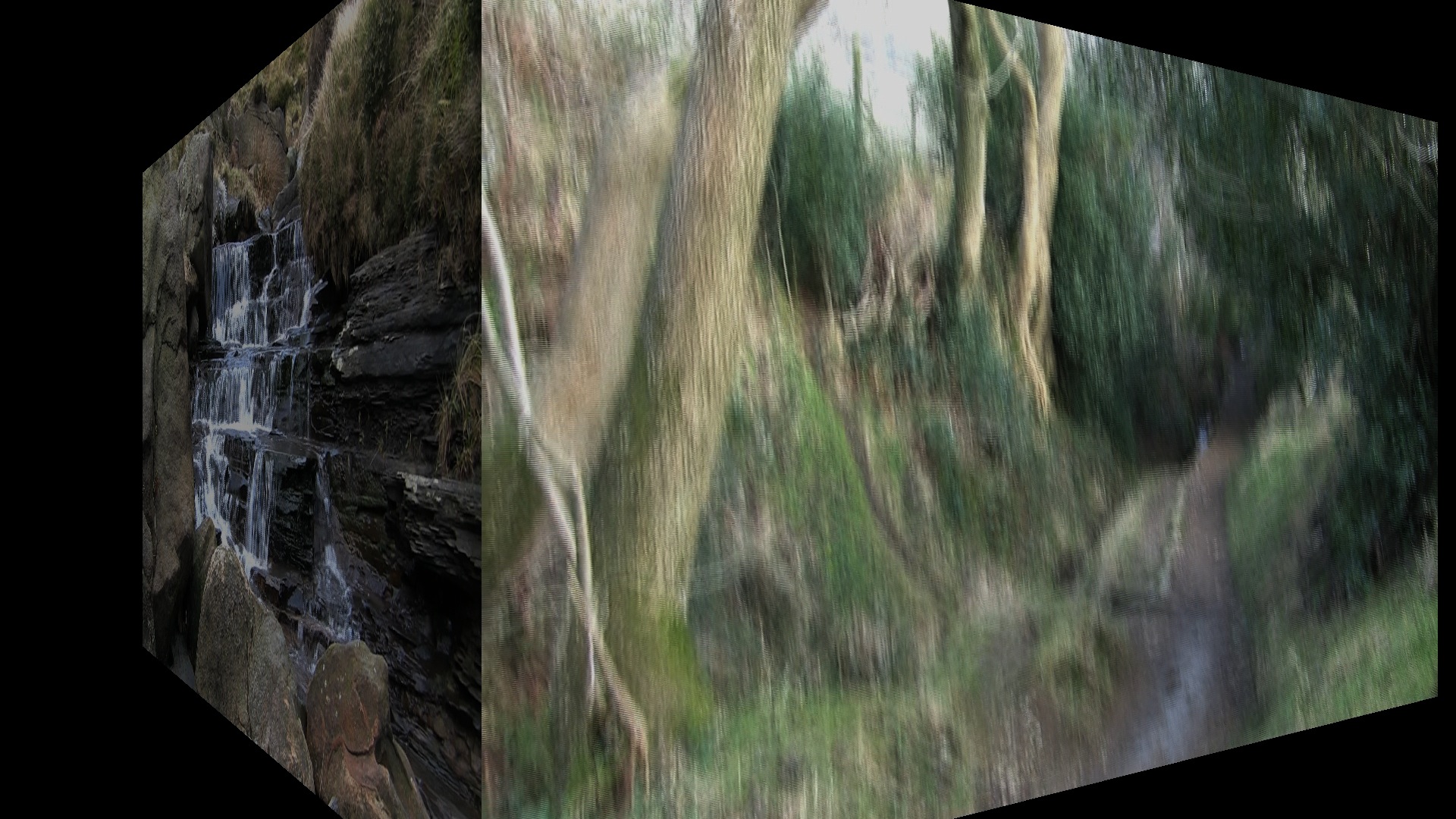
I had considered this, but haven't tested it. When you edit 1080i60 footage, the iMovie effects are of course applied as if the clip were progressive. For some transitions - crossfade, left/right wipes etc. - the problems this introduces are almost impossible to see. All you really end up with is an effect that runs at half the frame rate of the video when it's eventually "bobbed" to 720p60. For other effects things go horribly wrong - the 3D cube transition, for example, suffers from atrocious artefacts caused by the attempt to scale interlace frames as though they were progressive.

If you were to edit the iMovie plist file to bring it up to 60fps and deinterlace the source video by doubling its frame rate prior to import into iMovie, then in theory, you would not suffer from any of the above problems and all video effects would work and work at full frame rate. Maybe I'll test this some time. It would also mean you could use the iMovie '09 stabiliser safely - in that case, taking the 1080i60 footage to 1080p60 would be best, if you have the disc space and processor power, because it means more pixels of original footage are available for the stabiliser's image processing algorithms.

Bob deinterlace in JES Deinterlacer does seem to introduce some quality change. I'm not sure it's exactly bob deinterlacing, indeed it might only work "by accident" - I would expect to see a vertical shift between each frame, since adjacent interlace fields are vertically displaced, but I don't, so some kind of vertical filter is being applied. With that in mind, it would be important to hold onto the original MTS/M2TS files (if you can convert them to an editable format again in future) or keep hold of 1080i60 AIC footage ingested by iMovie around as a master copy.

It's a good thing 1TB drives are so cheap these days 😉

Feb 24, 2009 1:01 AM in response to Rogerabc

Rogerabc wrote:
http://www.cineform.com/products/NeoScene.htm#Workflow


I'm still not sure what's meant to be wrong with AIC per se... 😀

I haven't ever tried the NeoScene software, so I'm only making guesses here. If you do really do need a 4:2:2 solution (perhaps because of highly saturated titles or other effects overlays you intend to apply during editing) and don't have the ProRes CODEC installed already (it comes with Final Cut Studio or Logic Studio) then maybe NeoScene will help. Personally I'd want to know more about their proprietary CODEC's specifications and for $129 I might just consider working in Final Cut Express, if I could live with the user interface!

The vast majority of CODECs to which you will eventually export your finished movie, if intending to share a video via DVD or the web, will use (at best) 4:2:0 chroma subsampling anyway. Even Blu Ray movies use AVCHD, which only supports 4:2:0 chroma. If you're planning to make a real movie and want the best possible quality at 4:2:2 or better then you should probably invest in Final Cut Studio or an equivalent competing top-end editor package.

Feb 24, 2009 1:45 AM in response to kjgienapp

kjgienapp wrote:
I had some slowmotion in the edited video and the 720p@60 had a stuttering effect to it but only the video that was slowed down.


iMovie doesn't understand interlace. There are ways to get it to pass interlaced footage through relatively unscathed, but any effects processing, titles, speed changes etc. within iMovie all operate on the video as if it consisted of a series of complete frames. If interlaced video is slowed down using an algorithm intended for progressive video, the result will be broken.

Contrived example follows...!

Consider a tennis ball moving from the top left to bottom right of the screen. In the first interlace field, it's in the top left. In the next, bottom right. Now suppose we play this back at half speed.

If we know about interlace, we'd know to show the first field twice, so the tennis ball is at the top left of the screen for twice as long. Then we'd show the second field twice, so the tennis ball is at the bottom right of the screen for twice as long.

If we don't know about interlace, we'd just take the whole frame and repeat it twice. Now we're in trouble. Those repeated frames actually contain interlaced fields. First the tennis ball is at the top left, then the bottom right. Then we repeat it - the ball jumps back to the top left again, then goes back to the bottom right. The footage is completely broken and you see stuttering as our hypothetical tennis ball starts travelling backwards and forwards between the corners of the screen.

You simply cannot process interlaced footage using such effects in iMovie. You're going to have to deinterlace any clips you intend to slow down, down prior to editing.

Right-click on the relevant clip in the events list and use the "Reveal in Finder" menu option to find the original movie file. Copy (not move!) it somewhere and then use JES Deinterlacer to deinterlace it as described elsewhere in this thread. Drag the result into the iMovie event containing the original clip. iMovie will import the movie, all things being well, and it will sit alongside the original clip. You'll be able to tell the difference from their creation date. You can now drag this deinterlaced clip into your movie and do the rate control stuff on it.

Because it's already deinterlaced, the tennis ball in our hypothetical example ends up in a merged frame - it is, in both fields making up the frame, present at both the top left and bottom right of the screen. iMovie can repeat frames without a problem. OK, so, you don't get as much motion (temporal / time) resolution; you end up with this blurred "two tennis balls" frame repeated for four interlace fields (2 frames), rather than a clearer "ball-top-left-2-fields, ball-bottom-right-2-fields" effect that you could achieve with proper interlace processing. But that's the price of progressive video and that's the only thing that iMovie truly understands, even if you can trick it into acting like it understands interlace material most of the time.

Footnote

I recommend you deinterlace to 30 frames/second using field merging rather than using bob deinterlace to double the frame rate to 60 frames/second. That is, in JES Deinterlacer, use a Deinterlace project and select "Blend fields". iMovie can be made to understand 60 frames/second video but by default it works at 30 frames/second and it's complicated to change that.

If you want to reduce the playback rate of the movie to exactly half speed, you could use a cunning trick here and slow down playback from within JES Deinterlacer - select "Both fields" rather than "Blend fields" and tick the "Double movie duration" check box. You should get smoother, clearer half speed playback this way and you won't need to change the rate in iMovie - just import the deinterlaced clip and drag it into your project.

I just tried this with JES Deinterlacer and it does a really nice job.

Feb 24, 2009 4:25 AM in response to Pond

"iMovie doesn't understand interlace. There are ways to get it to pass interlaced footage through relatively unscathed, but any effects processing, titles, speed changes etc. within iMovie all operate on the video as if it consisted of a series of complete frames."

You might want to check if your beliefs are actually consistent with reality. Speed changes for example, including reverse, are processed correctly. Titles, even scrolling titles, look perfect. (And always have.)

PIP does what would make sense for a small insert, it does a field blend that looks nice.

In all cases, interlace -- with its combing on motion -- passes through iM09 and into ProRes 422 HQ where the same combing on motion is seen.

Stabilized video, in my test, shows no combing. Nor does it show the motion blur of field blending. It appears bob de-interlacing is used, which makes sense. That seems like a serious limitation, but I don't think it is.

1) The top 1080i -- if not all of the current 1080i -- camcorders have such good optical stabilization systems you don't really need to more in post.

2) Because 60i and 60i are inherently smooth, small camera movements don't look as stroby as they do with 25p and 30p.

Therefore, iM09 handles both SD and HD interlace and progressive without issues -- given it is near free consumer application. And, unless Apple has altered iM09, one can also edit 720p50 and 720p60 by editing the iM plist.

The only issues I know of:

1) One needs to export interlace and use JES or MPEGstreamclip to de-interlace to 720p.

2) I have no idea how 24p with pull-up to 60i will be handled. My advice is just say NO to 24p when 30p gives the same look and has no issues.

3) It is claimed that TRUE 24p can be edited in a 25p Project. The extra frame automatically added by iM09 is claimed to create cadence problems with Speed changes. The output will be 24p because iM09 is claimed to remove the extra frame.

-----------------

As someone posted earlier -- after working through all the issues -- the bottom line is it's not hard to edit any kind of video with iM09.

Feb 24, 2009 5:23 AM in response to Pond

Thanks for the reply. I laid in bed thinking that I would eventually try what you suggested. In the morning, I did a simple test with 1080 60p and it imported into iMovie just fine and when I wanted to slow down the video it said it needed to be converted. iMovie made its conversion (only on the slowed down clip) and then I exported the video. No stuttering and the video, at a simple glance looked great.

I will do some more testing when I get home from work. You have given me hope that I can make iMovie do what I want again! Luckily, I have extra 750GB and 500GB drives for all the duplicate video. I unfortunately had my HV20 stolen so they only video I have is on the 1TB drive that I originally captured to and the tapes. Now I have an HG20.

Thanks,
Kevin

Feb 24, 2009 5:58 AM in response to Steve Mullen

Steve Mullen wrote:
"iMovie doesn't understand interlace ..."

You might want to check if your beliefs are actually consistent with reality. Speed changes for example, including reverse, are processed correctly. Titles, even scrolling titles, look perfect. (And always have.)


I always test before I post. Well, nearly always...

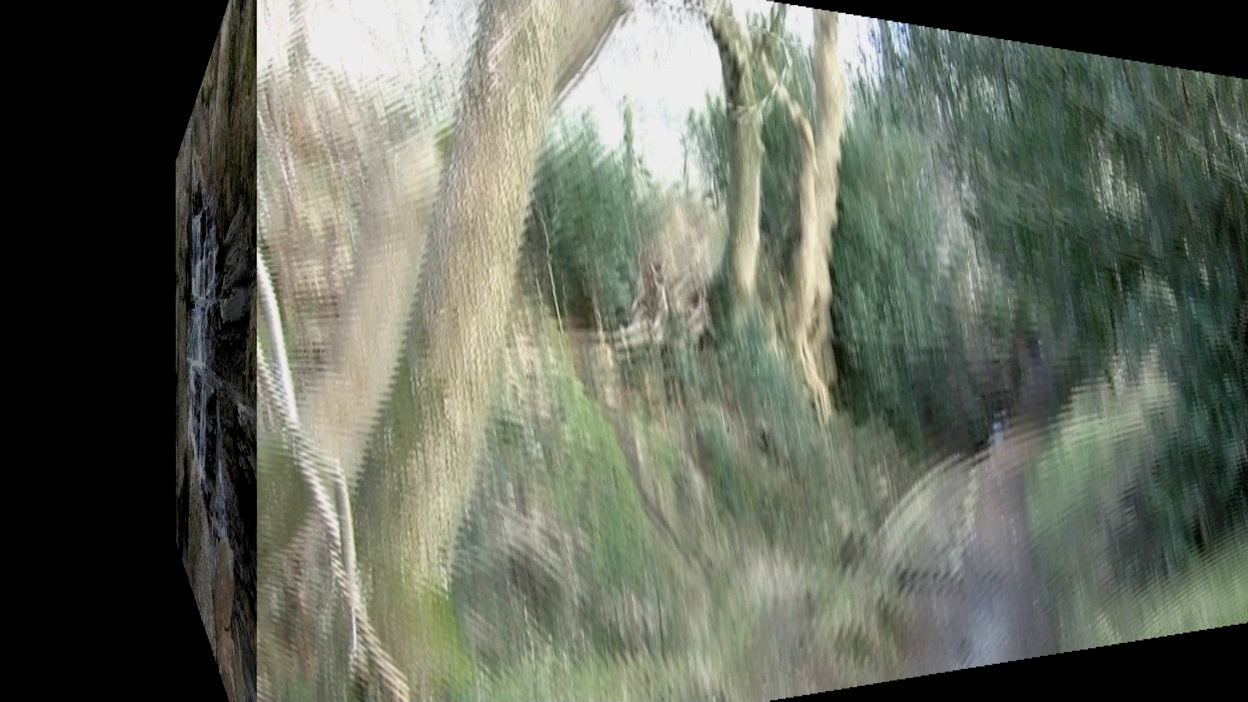
Titles and transitions are certainly not interlaced in iMovie '08. I created test videos prior to sending the last few messages to confirm what I was saying. Wipe transitions from one clip to another show no interlace combing on the wipe "edge" as it moves from frame to frame, even though the frames underneath are interlaced and do show combing. Converting to 720p60 shows that the wipe effect's position only updates every second frame, equal to both interlaced fields of the original interlaced source. Cube transitions in '08 show moire patterns and stuttering again because entire frames are scaled and mapped onto the 3D surface for the transition.

If iMovie handles rate changes fine, why are rate changes broken for the O.P. when 1080i60 video is bob deinterlaced to 720p60, but only for parts where iMovie applied speed changes? (Again, perhaps this is an '08 vs '09 issue).

*Example images*

These need to be viewed at 1:1 scaling. Browsers like Safari will, of course, automatically shrink them to fit inside the browser window initially.

Scrolling titles in a 1080i60 frame - interlace combing in the video, no combing on titles:

http://pond.org.uk/images/formessages/imovie/credits1080i60.jpg

Converted to 720p60 - motion in the video between the two frames, no motion in the titles, note the aliasing artefacts around the edges of the text caused by the deinterlacing process fouling up progressive mode title graphics (you might, say, open these in adjacent browser tabs and flick between them to compare):

http://pond.org.uk/images/formessages/imovie/credits_720p60_frame1.jpg
http://pond.org.uk/images/formessages/imovie/credits_720p60_frame2.jpg

Cube transition 1080i60 - you can see the interlace combing has been broken up into a moire pattern, particularly on the right hand cube face:

http://pond.org.uk/images/formessages/imovie/cube1080i60.jpg

Converted to 720p60 - total disaster:

http://pond.org.uk/images/formessages/imovie/cube720p60.jpg

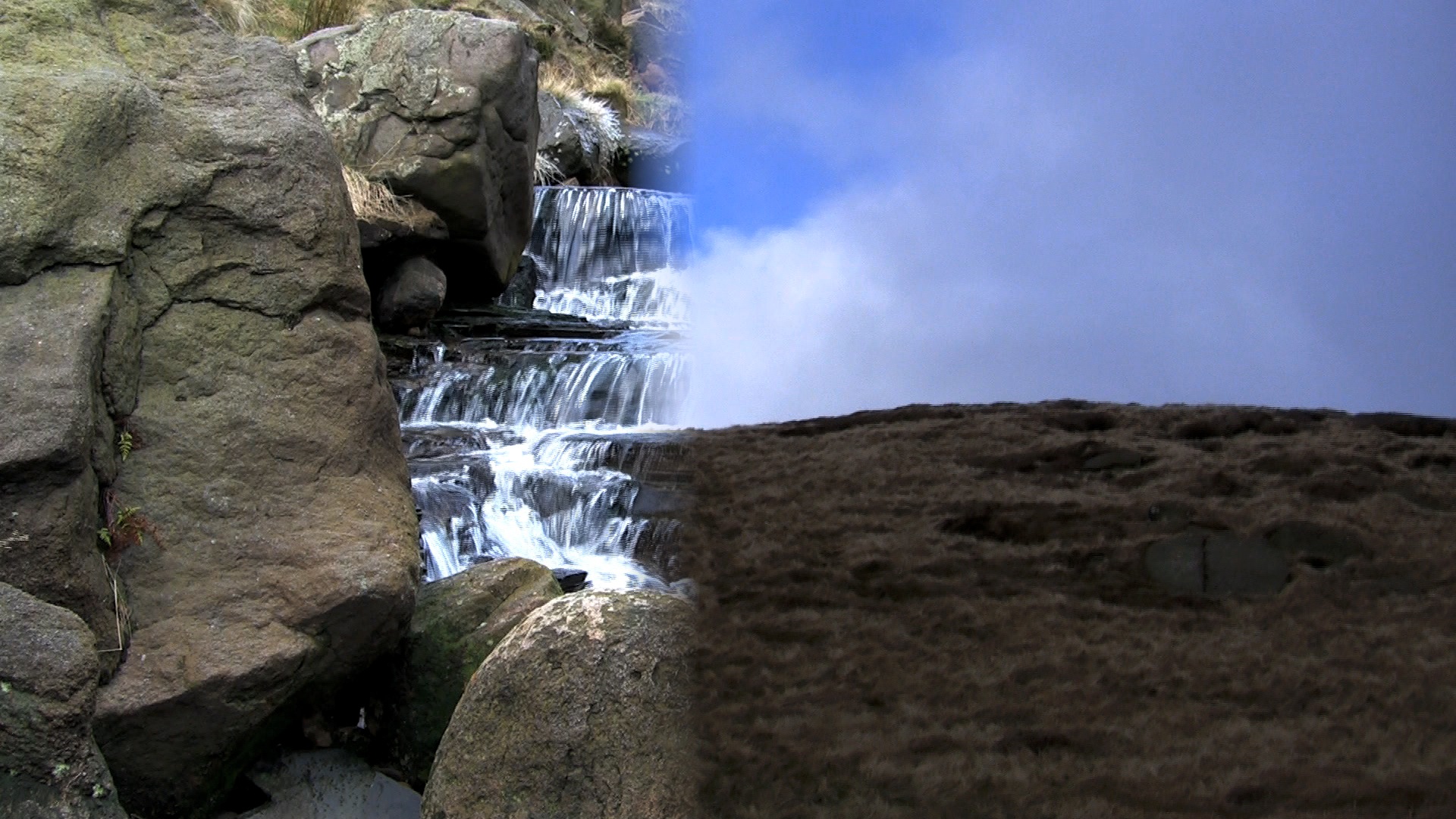
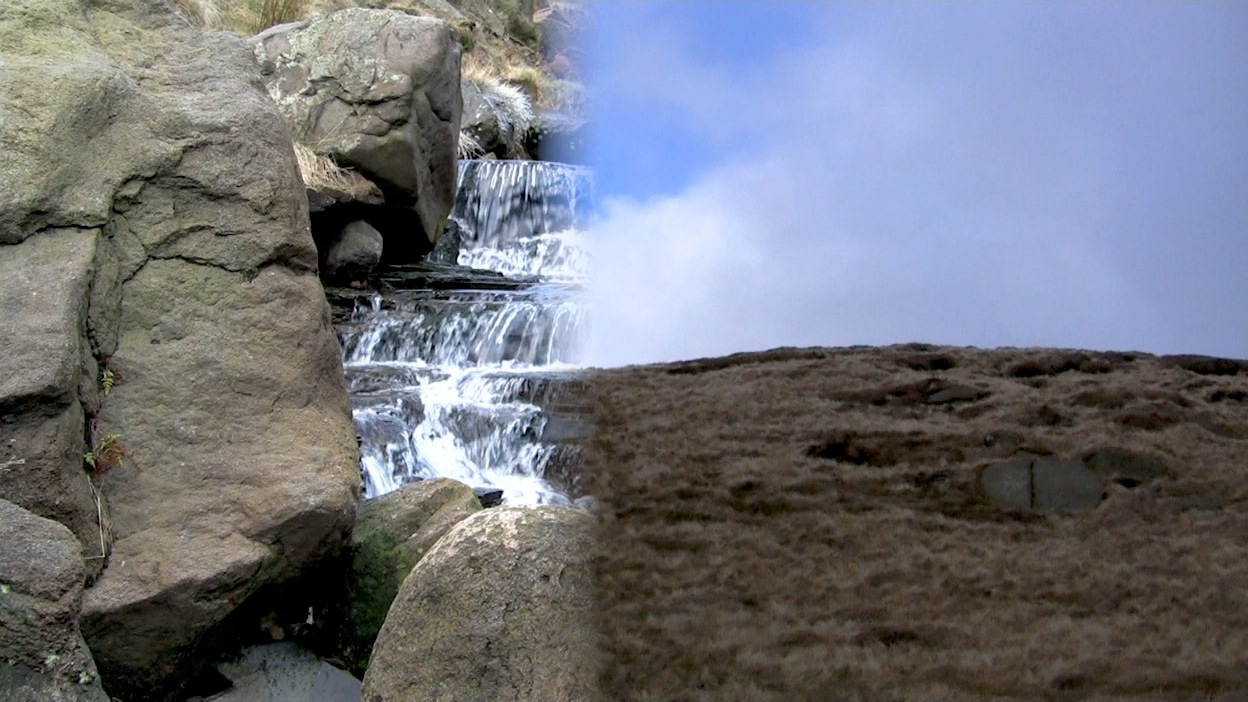
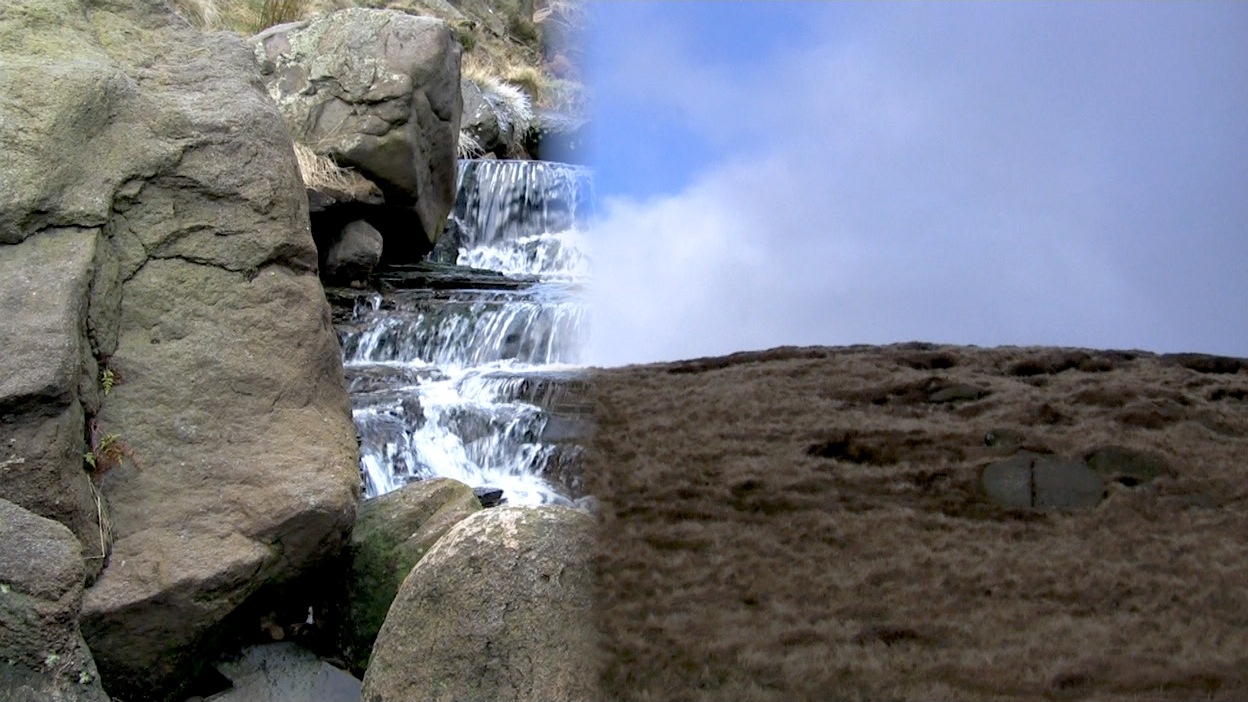
Left to right wipe in 1080i60 - you can clearly see interlace combing in both left and right video frames, but the transition wipe region has no visible combing (look closely where sky from the outgoing right-hand video is being blended with shadow areas in the rocks of the incoming left-hand video; ignore JPEG artefacts; I can send original PNGs if you like but they're 10x the file size and I didn't want my web server to melt!):

http://pond.org.uk/images/formessages/imovie/wipe1080i60.jpg

Converted to 720p60 - video moves between the first two frames but the wipe does not; wipe position only advances in the third. That's because the wipe was only running at 30 frames/second in iMovie so only advances in every other frame of a bob deinterlaced derived movie:

http://pond.org.uk/images/formessages/imovie/wipe_720p60_frame1.jpg
http://pond.org.uk/images/formessages/imovie/wipe_720p60_frame2.jpg
http://pond.org.uk/images/formessages/imovie/wipe_720p60_frame3.jpg

Stabilized video, in my test, shows no combing.


Well that's very odd, because I thought we had established a very long time ago - indeed, the very reason the thread was started - that any kind of scaling or cropping done by iMovie '09 breaks interlaced footage very badly. Since stabilising requires both scaling and cropping, I can't understand how iMovie '09 could achieve it successfully.

Nor does it show the motion blur of field blending. It appears bob de-interlacing is used, which makes sense. That seems like a serious limitation, but I don't think it is.


It's also impossible to do bob deinterlacing without doubling the frame rate of the movie. That's the definition of bob deinterlacing, after all! So unless iMovie is suddenly able to have one part of a movie play at one frame rate while another section plays an entirely different rate, perhaps your numerous observations on the subject eventually led to confusion. It seems more likely, if iMovie did actually notice that the source video was interlaced, that it just dropped an entire field prior to stabiliser processing.

Therefore, iM09 handles both SD and HD interlace and progressive without issues -- given it is near free consumer application. And, unless Apple has altered iM09, one can also edit 720p50 and 720p60 by editing the iM plist.


Given the bugs described herein regarding iMovie '09 and interlaced processing, with all the screenshots of combing and other problems resulting from any kind of scaling, that's kind of an odd comment. Or has there been a software update pushed out which fixes it already?

Feb 24, 2009 10:36 AM in response to Pond

8bit 4:2:0 is good for delivery but very fragile to manipulation. Good intermediate codec has good quality/compression ratio, and tolerance to harsh post production processes like color correction and effects work. For that you'll need full chroma sampling at least 8bit 4:2:2 or even upto 10bit 4:4:4, *even if* your original footage is only 8bit 4:2:0.That makes AIC not exactly ideal for serious video post work, but for us iMovie users it should be enough.
But it helps to at least understand that heavy color manipulation or video effects in iMovie09 could be destructive to AIC movies. You can easily push highlights over the white peak or crush the shadow detail into dark to create color banding and it is actually bigger part of picture quality than pixel count.

Feb 24, 2009 12:14 PM in response to Euisung Lee

Euisung Lee wrote:
You can easily push highlights over the white peak or crush the shadow detail into dark to create color banding and it is actually bigger part of picture quality than pixel count.


I don't dispute your point in general at all, but as far as white or black crushing goes, that's a function of bit depth per colour channel, not colour resolution (as you point out - 10-bit vs 8-bit will give better results).

Higher colour resolution will definitely give better results for heavily saturated fine detail, e.g. titles and graphics, but is often harder to notice on regular video. After all, AFAIAA users of extremely large full HD TVs are rarely heard to complain about obvious loss of colour resolution when playing Blu Ray discs, but they'll (usually!) spot 480p SD vs 720p HD straight away - even though the luma resolution difference between SD and HD is similar to the chroma resolution difference of 4:2:0 to 4:4:4.

Colour channel bit depth while processing isn't just a function of CODEC. Does iMovie, in conjunction with the way it calls QuickTime for processing, use > 8-bit per channel internal algorithms? If not, any higher bit depth in the source movie would be wasted, at least in the iMovie case.

If the user exports from iMovie intending to produce a final compressed video with a typical consumer CODEC without further video processing, it'll end up at 4:2:0 anyway. Whereas iMovie HD rendered transitions and titles up-front and stored them as video files, in iMovie '08 and '09 everything is composited and rendered from source data - fonts, transition algorithms etc. - on the fly during exports. As far as any of those elements go, original input video CODEC is irrelevant (and as such there is potential for greater overall quality). If exporting from iMovie with the intention of processing the video further in an external application, though, then for sure, the higher the colour resolution the better.

This thread has been closed by the system or the community team. You may vote for any posts you find helpful, or search the Community for additional answers.

deinterlaced output is not deinterlaced

Welcome to Apple Support Community
A forum where Apple customers help each other with their products. Get started with your Apple Account.