Toggle Grayscale keyboard shortcut problem

Hello, I'm on a Macbook Pro with Mojave and would like to create a keyboard shortcut to toggle Grayscale.


I have tried to use this method explained brilliantly here: https://discussions.apple.com/thread/8247628


But I must've done something wrong as I get this error when trying to run the "Grayscale" Finder Service I have just created using the above method.


Any idea what to do?


Thank you!

--

Cata

MacBook Pro with Touch Bar

Posted on Dec 29, 2018 8:40 AM

Reply
Question marked as Top-ranking reply

Posted on Dec 30, 2018 5:24 AM

There is a single line of code difference between a script that works on High Sierra 10.13.6 and Mojave 10.14.2. I have included both scripts here.


Pre-Mojave


-- set_grayscale.applescript
-- alternates between grayscale and normal display with each run.
-- Pre-Mojave version. Tested on High Sierra 10.13.6
-- VikingOSX, 12/30/2018, Apple Support Communities, No warranty at all.

tell application "System Preferences"
	launch
	reveal anchor "Seeing_Display" of pane id "com.apple.preference.universalaccess"
end tell
tell application "System Events"
	tell application process "System Preferences"
		set frontmost to true
		delay 1
		tell window "Accessibility"
			click its checkbox "Use grayscale"
		end tell
	end tell
end tell

tell application "System Preferences" to if it is running then quit


Mojave


-- set_grayscale_mojave.applescript
-- alternates between grayscale and normal display with each run.
-- Mojave or later version. Tested on Mojave 10.14.2
-- VikingOSX, 12/30/2018, Apple Support Communities, No warranty at all

tell application "System Preferences"
	launch
	reveal anchor "Seeing_Display" of pane id "com.apple.preference.universalaccess"
end tell
tell application "System Events"
	tell application process "System Preferences"
		set frontmost to true
		delay 1
		tell group 1 of window "Accessibility"
			click checkbox "Use grayscale"
		end tell
	end tell
end tell
tell application "System Preferences" to if it is running then quit


As an Automator Service (QuickAction on Mojave), you would set the Service/Workflow receives to no input, in any application . There will be one workflow action: Run AppleScript, which you drag and drop from Utilities Library (pre-Mojave), Automator Library (Mojave) into the larger workflow window.


Select the line: (* Your script goes here *), and copy/paste the appropriate AppleScript from above into the Run AppleScript action. Click the hammer icon in the Run AppleScript action to compile the AppleScript.


Save the Service, and I would recommend as Gray Scale, and Mojave Gray Scale names respectively based on the machine that you are on. The finished product should look like this (pre-Mojave code example):
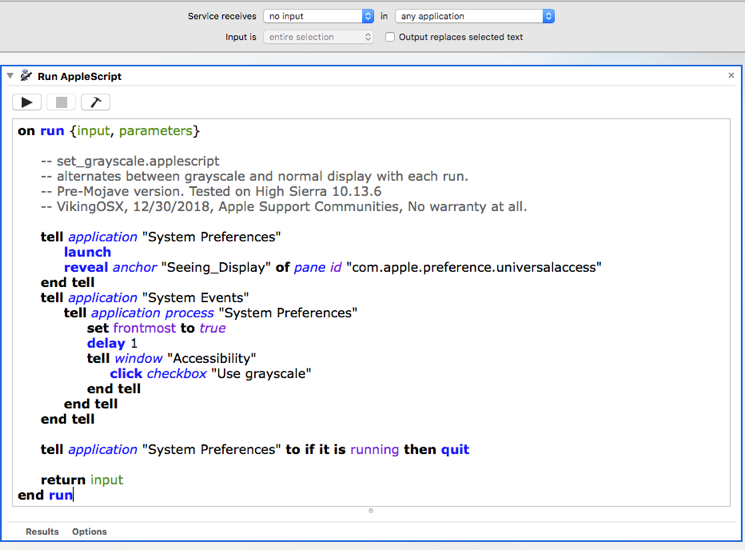


The keyboard shortcut can be set in System Preferences : Keyboard : Shortcuts : Services. You scroll down until you encounter the name given to your Service, and on the right-side, where it says "none," you can click once to get a Add Shortcut button, and again to enter a non-conflicting keystroke combination, followed by a return.


Apparently, I cannot update the Jan. 20, 2018 post with a link to this content.

5 replies
Question marked as Top-ranking reply

Dec 30, 2018 5:24 AM in response to mancuso5

There is a single line of code difference between a script that works on High Sierra 10.13.6 and Mojave 10.14.2. I have included both scripts here.


Pre-Mojave


-- set_grayscale.applescript
-- alternates between grayscale and normal display with each run.
-- Pre-Mojave version. Tested on High Sierra 10.13.6
-- VikingOSX, 12/30/2018, Apple Support Communities, No warranty at all.

tell application "System Preferences"
	launch
	reveal anchor "Seeing_Display" of pane id "com.apple.preference.universalaccess"
end tell
tell application "System Events"
	tell application process "System Preferences"
		set frontmost to true
		delay 1
		tell window "Accessibility"
			click its checkbox "Use grayscale"
		end tell
	end tell
end tell

tell application "System Preferences" to if it is running then quit


Mojave


-- set_grayscale_mojave.applescript
-- alternates between grayscale and normal display with each run.
-- Mojave or later version. Tested on Mojave 10.14.2
-- VikingOSX, 12/30/2018, Apple Support Communities, No warranty at all

tell application "System Preferences"
	launch
	reveal anchor "Seeing_Display" of pane id "com.apple.preference.universalaccess"
end tell
tell application "System Events"
	tell application process "System Preferences"
		set frontmost to true
		delay 1
		tell group 1 of window "Accessibility"
			click checkbox "Use grayscale"
		end tell
	end tell
end tell
tell application "System Preferences" to if it is running then quit


As an Automator Service (QuickAction on Mojave), you would set the Service/Workflow receives to no input, in any application . There will be one workflow action: Run AppleScript, which you drag and drop from Utilities Library (pre-Mojave), Automator Library (Mojave) into the larger workflow window.


Select the line: (* Your script goes here *), and copy/paste the appropriate AppleScript from above into the Run AppleScript action. Click the hammer icon in the Run AppleScript action to compile the AppleScript.


Save the Service, and I would recommend as Gray Scale, and Mojave Gray Scale names respectively based on the machine that you are on. The finished product should look like this (pre-Mojave code example):


The keyboard shortcut can be set in System Preferences : Keyboard : Shortcuts : Services. You scroll down until you encounter the name given to your Service, and on the right-side, where it says "none," you can click once to get a Add Shortcut button, and again to enter a non-conflicting keystroke combination, followed by a return.


Apparently, I cannot update the Jan. 20, 2018 post with a link to this content.

Dec 30, 2018 8:20 AM in response to VikingOSX

Thought more about this and only one script is necessary. It will now toggle grayscale with the right GUI tell block for the specific major operating system version. Again, this was tested on High Sierra 10.13.6 and Mojave 10.14.2.


-- set_grayscale.applescript
-- alternates between grayscale and normal display with each run.
-- Tested on macOS High Sierra 10.13.6 and Mojave 10.14.2
-- VikingOSX, 12/30/2018, Apple Support Communities, No warranty at all

-- return 10.nn as implicit text
set os_ver to do shell script "sw_vers -productVersion | cut -d '.' -f1-2"

tell application "System Preferences"
	launch
	reveal anchor "Seeing_Display" of pane id "com.apple.preference.universalaccess"
end tell
tell application "System Events"
	tell application process "System Preferences"
		set frontmost to true
		delay 1
		if os_ver ≥ "10.14" then
			tell group 1 of window "Accessibility"
				click checkbox "Use grayscale"
			end tell
		else
			tell window "Accessibility"
				click checkbox "Use grayscale"
			end tell
		end if
	end tell
end tell
tell application "System Preferences" to if it is running then quit


Dec 29, 2018 11:23 AM in response to mancuso5

The service (and AppleScript) still work as expected on High Sierra 10.13.6. However, on Mojave 10.14.2, as often is the case with these custom "GUI" scripts, Apple has changed something in System Preferences : Accessibility panel construction, and this breaks the script code. Thus, the problem is Apple and not you.


I will take a closer look and see if I can fix this. Will post here back either way.

This thread has been closed by the system or the community team. You may vote for any posts you find helpful, or search the Community for additional answers.

Toggle Grayscale keyboard shortcut problem

Welcome to Apple Support Community
A forum where Apple customers help each other with their products. Get started with your Apple Account.