- Reset Your Network Settings.
- Turn On Airplane Mode and Then Turn It Off.
- Updating via iTunes. ...
- Wait For A Bit, And Retry. (Have Patience)
Update your device wirelessly
If a message says that an update is available, tap Install Now. You can also follow these steps:
- Plug your device into power and connect to the Internet with Wi-Fi.
- Tap Settings > General > Software Update.
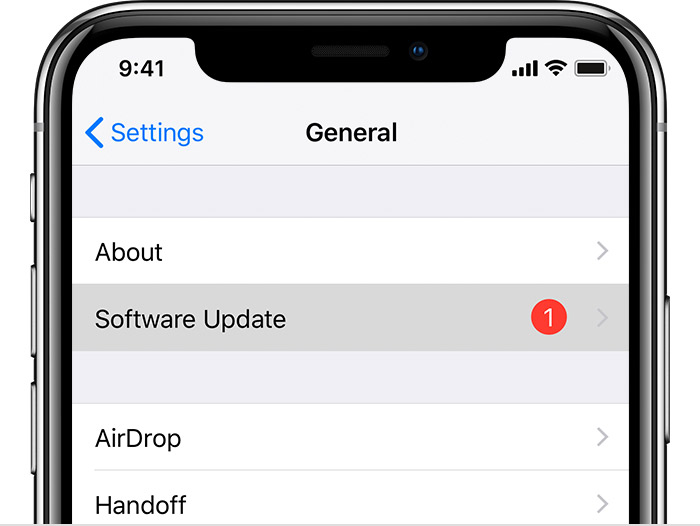
- Tap Download and Install. If a message asks to temporarily remove apps because iOS needs more space for the update, tap Continue or Cancel. Later, iOS will reinstall apps that it removed. If you tap Cancel, learn what to do next.
- To update now, tap Install. Or you can tap Later and choose Install Tonight or Remind Me Later. If you tap Install Tonight, just plug your iOS device into power before you go to sleep. Your device will update automatically overnight.
- If asked, enter your passcode. If you don't know your passcode, learn what to do.
If you see an error or need more space when updating wirelessly
If you see an error message while trying to update your device wirelessly, learn what to do. If you need more space for a wireless update, you can update using iTunes or delete content manually from your device. Whether you use iTunes or update wirelessly, you'll have the same amount of free space on your device after you update.
Some iOS software updates aren't available wirelessly. VPN or proxy connections might prevent your device from contacting the iOS update servers.

Update automatically
With iOS 12, you can have your iOS device update automatically. To turn on automatic updates, go to Settings > General > Software Update > Automatic Updates. Your iOS device will automatically update to the latest version of iOS. Some updates might need to be installed manually.
Update your iPhone, iPad, or iPod touch - Apple Support
https://support.apple.com/en-in/HT204204