There is no way of transferring Mac messages to iPhone.
Settings > Messages > Text Message Forwarding > [Select your devices, Mac, iPhone, iWatch etc]
You can only get them from backup on Mac or iCloud
Here’s what iCloud Backup includes
- App data
- Apple Watch backups
- Device settings
- HomeKit configuration
- Home screen and app organisation
- iMessage, text (SMS), and MMS messages
- Photos and videos on your iPhone, iPad, and iPod touch1
- Purchase history from Apple services, like your music, movies, TV shows, apps, and books2
- Ringtones
- Visual Voicemail password (requires the SIM card that was in use during backup)
Your iPhone, iPad, and iPod touch backup only include information and settings stored on your device. It doesn’t include information already stored in iCloud, like Contacts, Calendars, Bookmarks, Mail, Notes, Voice Memos3, shared photos, iCloud Photos, Health data, call history4, and files you store in iCloud Drive.
1. When you use Messages in iCloud or turn on iCloud Photos, your content is automatically stored in iCloud. That means they're not included in your iCloud Backup.
2. Your iCloud Backup includes information about the content you buy, but not the content itself. When you restore from an iCloud backup, your purchased content is automatically re-downloaded from the iTunes Store, App Store, or Books Store. Some types of content aren’t downloaded automatically in all countries or regions. Previous purchases might be unavailable if they've been refunded or aren't available in the store. Find out what you can re-download from iTunes in your country or region and what you can buy from the iTunes Store in your country or region.
3. If you use iOS 11 or earlier, Voice Memos are included in iCloud Backup.
4. If you use iOS 10 or earlier, call history is included in iCloud Backup.
Turn on Messages in iCloud
Turn on Messages in iCloud from Settings on your iPhone and iPad, or Preferences on your Mac.
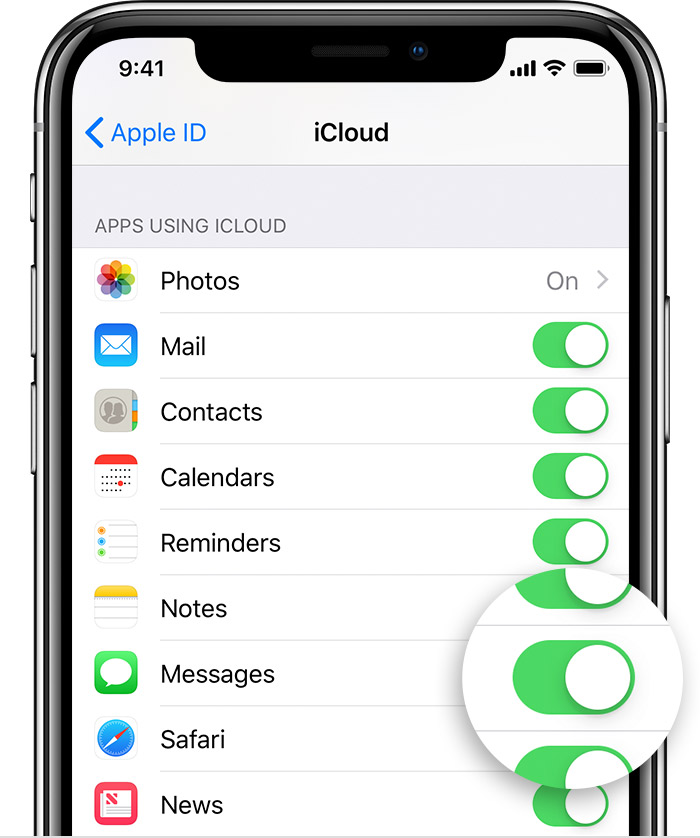
On your iPhone and iPad
- Go to Settings.
- Tap [your name].
- Tap iCloud.
- Turn on Messages.

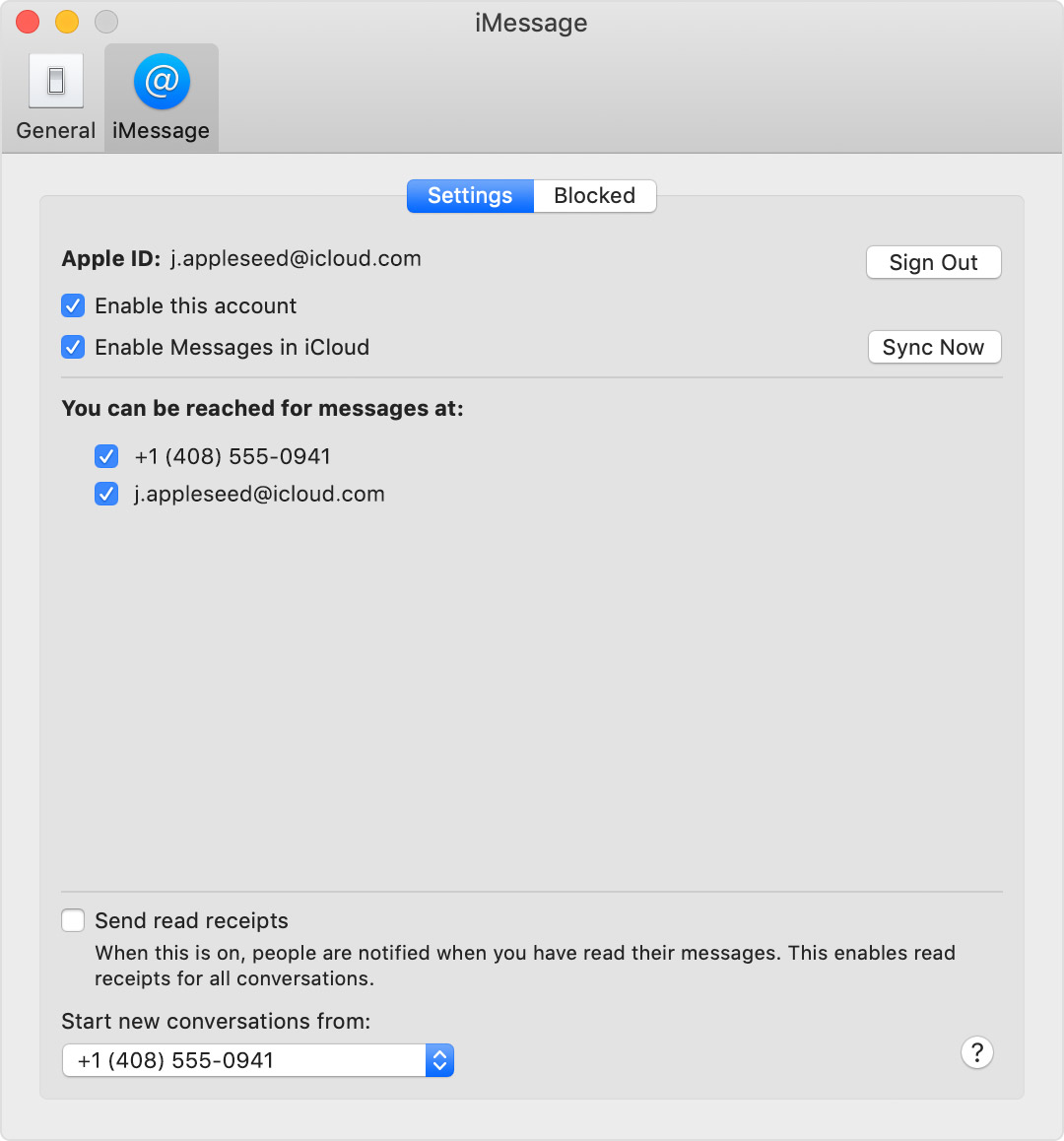
On your Mac
- Open Messages.
- In the menu bar, choose Messages > Preferences.
- Click iMessage.
- Select the checkbox next to Enable Messages in iCloud.
Keep all your messages in iCloud - Apple Support
https://support.apple.com/en-in/HT208532

