Use Maps and Bluetooth on your iPhone and iPad
Learn how to use Maps on your iPhone or iPad with a Bluetooth accessory.
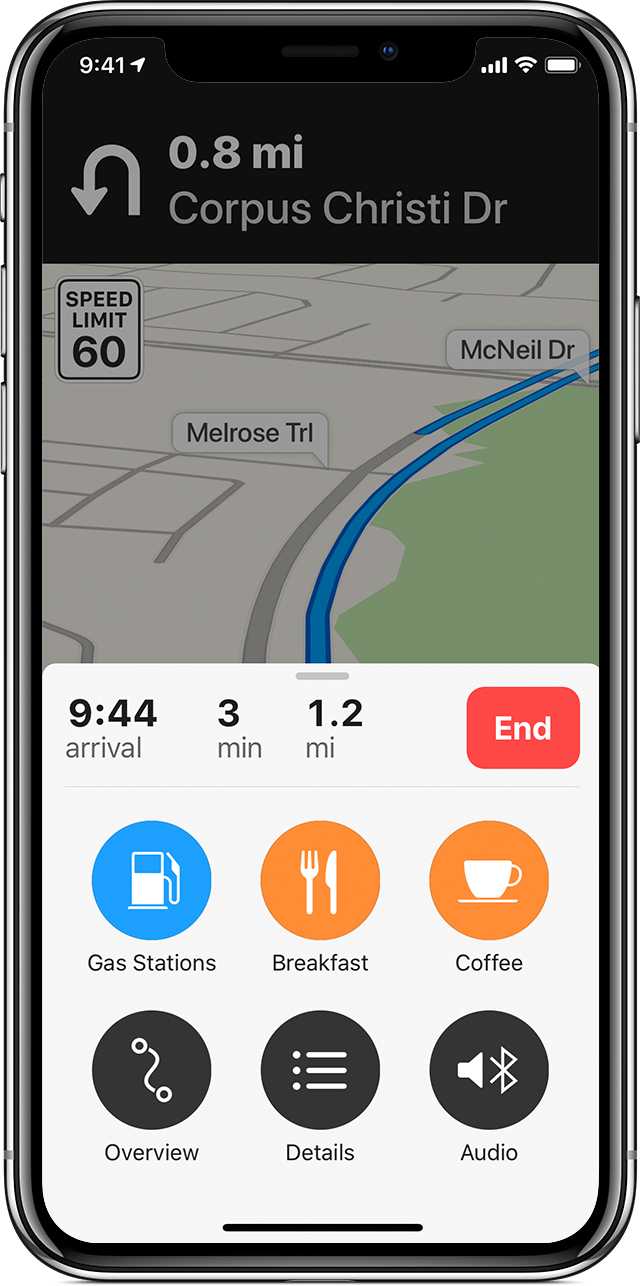
Manage your Navigation Voice settings
First, pair your iPhone or iPad to your car or Bluetooth accessory. Then follow these steps to manage your Navigation Voice settings when you’re getting turn-by-turn directions:
- Open Maps on your iPhone or iPad and enter your destination.
- After you tap
 , Maps will start turn-by-turn navigation. Tap
  to open the Route Card.
 - Tap Audio.
- Tap the volume level that you want for Navigation Voice.
- Swipe up on the Route Card to choose which output you want the Navigation to play from.
You can also control settings to pause the audio during navigation or control the audio output from your iPhone or iPad. When audio plays, the audio output can only be managed from Control Center on your iPhone or iPad.
Allow Navigation Voice Prompts
Hands-free profile (HFP) allows navigation prompts to play through your car speakers when iPhone isn't selected as the audio source. If you don't see the HFP option, your car stereo might not support it. Check the user guide for your car to see if your stereo supports HFP.
If you don't see the HFP setting when your iPhone is connected to your stereo, check with the stereo manufacturer. The HFP feature depends on your car stereo.
Use Maps and Bluetooth on your iPhone and iPad - Apple Support
https://support.apple.com/en-us/HT204242


