Force Apple Watch to Use Cellular Connection

How do you manually force the Apple Watch (Series 3 - GPS/Cellular) to connect/use the cellular connection?


There are times when I need to have the watch connect to cellular due to certain conditions (weak wifi, away from phone but within wifi distance with watch, etc.)

Apple Watch Series 3, watchOS 5

Posted on Mar 22, 2019 7:58 AM

Reply
Question marked as Top-ranking reply

Posted on Mar 31, 2019 10:11 AM

It should (works for me) force the watch to cellular if you disable WiFi in the watch Control Center, and disable Bluetooth in the iPhone Settings app (turning off in iPhone Control Center doesn’t disconnect the watch). If all other attempts fail, put the iPhone to airplane mode.

8 replies

Mar 22, 2019 9:21 AM in response to nrw0

Connect to a cellular network

Your Apple Watch with cellular will automatically switch to the most power-efficient wireless available: It can connect to your iPhone when itʼs nearby, a Wi-Fi network, or cellular. When your watch connects to cellular, it uses LTE networks. If LTE isn't available, your watch will try to connect to UMTS if your carrier supports it. 

When your watch connects to a cellular network, you can check the signal strength from Control Center or the Explorer watch face. To open Control Center, touch and hold the bottom of the screen, then swipe up.
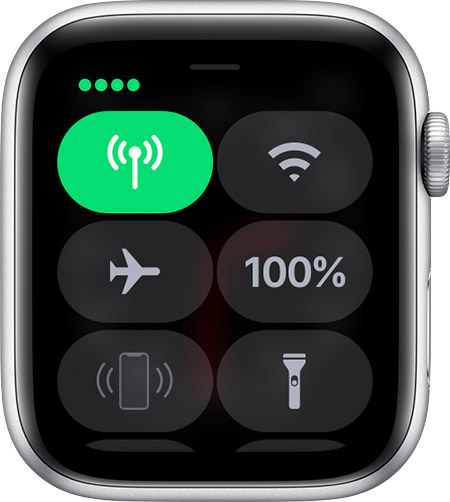
The Cellular button turns green when you have a connection. The green dots show the signal strength. 
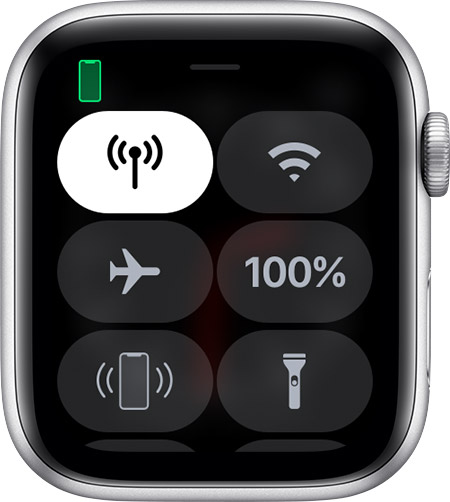
The Cellular button turns white when your cellular plan is active, but your watch is connected to your iPhone using Bluetooth or Wi-Fi.


This thread has been closed by the system or the community team. You may vote for any posts you find helpful, or search the Community for additional answers.

Force Apple Watch to Use Cellular Connection

Welcome to Apple Support Community
A forum where Apple customers help each other with their products. Get started with your Apple Account.