Share analytics, diagnostics, and usage information with Apple
Apple asks customers to help improve the iOS by occasionally providing analytics, diagnostic, and usage information. Apple collects this information anonymously.
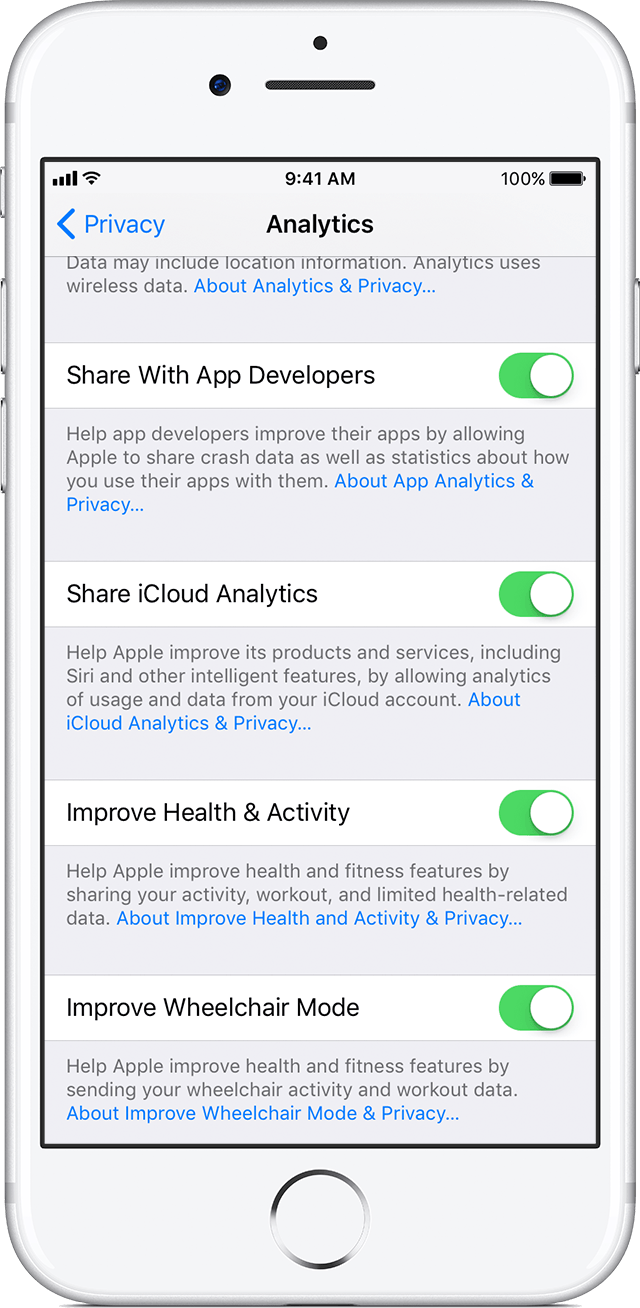
iOS 10 and later
If you have iOS 10.3 or later, go to Settings > Privacy, scroll down and tap Analytics. Then tap Share iPhone & Watch Analytics.
If you have iOS 10 to iOS 10.2, go to Settings > Privacy > Diagnostics & Usage and select Automatically Send or Don't Send.
You can also adjust settings for iCloud analytics and to improve health and fitness or wheelchair mode.
iOS 8 and iOS 9
Go to Settings > Privacy > Diagnostics & Usage, and select Automatically Send or Don't Send.
When you turn on Automatically Send, you can also turn on Share With App Developers. This helps developers improve their apps by allowing Apple to share data, as well as statistics about how you use their apps.

iOS 5, iOS 6, and iOS 7
Go to Settings > General > About > Diagnostics & Usage and select Automatically Send or Don't Send.
iOS 4 and earlier
By default, opting in is a one-time decision. If you'd like to change your decision, you can use iTunes to reset warnings for your iOS 4 or earlier device.
- Connect your iPad, iPhone, or iPod touch to your PC or Mac.
- Wait until your device appears on the left side of the iTunes window under Devices.
- Select your device and click Reset Warnings on the bottom of the summary screen.
If you don’t see this option, Right-click (Mac or PC) or Control-click (Mac) the icon for your device, and from the shortcut menu, choose Reset Warnings.
The next time you sync after resetting warnings, you should see:
To disagree and stop sending Apple diagnostic and usage information, click No Thanks.
If you don't see the window above
- Disconnect your device from your computer.
- Open an application on your device.
- Press and hold the Sleep/Wake buttons until the power off slider appears, then press and hold the Home button until the application quits. If you're using iOS 2.x or earlier, press and hold the Home button until the application quits.
- Connect your device and sync it with iTunes.
- The option to agree or disagree to diagnostics collection should appear again.
Share analytics, diagnostics, and usage information with Apple - Apple ...
https://support.apple.com/en-in/HT202100

