How to add title/text on pictures, clips to make a video on imovie, iphone?

I am totally new to making videos on my iphone. I have lots of pictures and video clips on my IPhone XS . I recently learnt about IMOVIE on my iphone. I was able to add text title on the beginning of the picture but I can't figure out a way to add text/title on 2nd or 3rd pictures. Let's say I make IMOVIE with 30 pictures, I am only able to add one title text only. When I play the pictures, the title appears for 3 secs on first picture. But I wanted to add title/text on some other photos too to describe our locations etc. My purpose to upload the pictureS/ clips on facebook or youtube. I will start taking pics or videos using my iphone & a tripod I bought ocassionally when we travel


IMOVIE won't allow this? Do I need to pay for other paid apps or is there good photo apps built in on the XS? Thanks

iPhone XS, iOS 12

Posted on Jun 16, 2019 9:50 AM

Reply
Question marked as Top-ranking reply

Posted on Jun 16, 2019 10:08 AM

Since you are using Pictures to make a movie.


As a beginner, your can follow two steps

  1. Make a movie out of your pictures and save them
  2. Open the movie and Add title as shown in the following instructions.


Editing movies using iMovie is lot easier on a Mac than an iPhone


iMovie for iOS (iPad): Add a title to a video clip or photo


You can add a title to any video clip or photo in your project. Each title style animates onto the screen and remains onscreen for the entire duration of the video clip or photo to which it’s added.

Add a title


  1. With your project open, tap a video clip or photo in the timeline to reveal the inspector at the bottom of the screen.
  2. Tap the Titles button .
  3. Tap to select a title style.
  4. To turn off titles, tap None.
  5. To change where the title appears onscreen, tap Center or Lower.
  6. In the viewer, tap the sample title, then type a new title.
  7. Note: Depending on which theme you apply to your project, the name of the location where the photo or video clip was shot (for example, “Golden Gate Bridge” or “San Francisco”) may appear below the title. To change the location name, see Change location information.
  8. Tap Done on the keyboard.

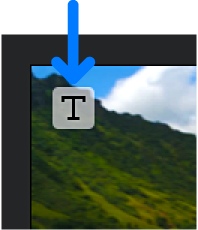
A photo or video clip with a title appears in the timeline with a T icon in the upper-left corner.
Edit title text


  1. With your project open, scroll the timeline until the title you want to edit appears in the viewer.
  2. Tap the title in the viewer.
  3. Do one of the following:
    • Erase the entire title: Tap the Clear button , then type a new title.
    • Edit part of a title: Type new text in the text field.
  1. Tap Done on the keyboard.

Change the title style


  1. With your project open, tap a video clip in the timeline to reveal the inspector at the bottom of the screen.
  2. Tap the Titles button , then tap a different title style to preview it in the viewer.
  3. Tap outside the title styles to dismiss them.

Remove a title from a video clip or photo


  1. With your project open, tap a video clip in the timeline to reveal the inspector at the bottom of the screen.
  2. Tap the Titles button , then tap None in the title styles that appear.
  3. Tap outside the title styles to dismiss them.

Add a sound effect to a title

Each title style in iMovie comes with a Hollywood-style sound effect to enhance what you see. You can turn the sound effect on or off.

  1. With your project open, tap a video clip in the timeline to reveal the inspector at the bottom of the screen.
  2. Tap the Titles button , then tap the Mute button  to turn the sound effect on or off (by default, it’s off).
  3. To preview the sound effect, scroll the timeline to position playhead before the transition, and tap the Play button  in the viewer.
  4. Tap outside the inspector to close it.


iMovie for iOS (iPad): Add a title to a video clip or photo - Apple Support

https://support.apple.com/kb/ph3202?locale=en_US


iMovie for Mac: Add titles - Apple Support

https://support.apple.com/kb/PH14702?viewlocale=en_US


1 reply
Question marked as Top-ranking reply

Jun 16, 2019 10:08 AM in response to myapple312

Since you are using Pictures to make a movie.


As a beginner, your can follow two steps

  1. Make a movie out of your pictures and save them
  2. Open the movie and Add title as shown in the following instructions.


Editing movies using iMovie is lot easier on a Mac than an iPhone


iMovie for iOS (iPad): Add a title to a video clip or photo


You can add a title to any video clip or photo in your project. Each title style animates onto the screen and remains onscreen for the entire duration of the video clip or photo to which it’s added.

Add a title


  1. With your project open, tap a video clip or photo in the timeline to reveal the inspector at the bottom of the screen.
  2. Tap the Titles button .
  3. Tap to select a title style.
  4. To turn off titles, tap None.
  5. To change where the title appears onscreen, tap Center or Lower.
  6. In the viewer, tap the sample title, then type a new title.
  7. Note: Depending on which theme you apply to your project, the name of the location where the photo or video clip was shot (for example, “Golden Gate Bridge” or “San Francisco”) may appear below the title. To change the location name, see Change location information.
  8. Tap Done on the keyboard.

A photo or video clip with a title appears in the timeline with a T icon in the upper-left corner.

Edit title text


  1. With your project open, scroll the timeline until the title you want to edit appears in the viewer.
  2. Tap the title in the viewer.
  3. Do one of the following:
    • Erase the entire title: Tap the Clear button , then type a new title.
    • Edit part of a title: Type new text in the text field.
  1. Tap Done on the keyboard.

Change the title style


  1. With your project open, tap a video clip in the timeline to reveal the inspector at the bottom of the screen.
  2. Tap the Titles button , then tap a different title style to preview it in the viewer.
  3. Tap outside the title styles to dismiss them.

Remove a title from a video clip or photo


  1. With your project open, tap a video clip in the timeline to reveal the inspector at the bottom of the screen.
  2. Tap the Titles button , then tap None in the title styles that appear.
  3. Tap outside the title styles to dismiss them.

Add a sound effect to a title

Each title style in iMovie comes with a Hollywood-style sound effect to enhance what you see. You can turn the sound effect on or off.

  1. With your project open, tap a video clip in the timeline to reveal the inspector at the bottom of the screen.
  2. Tap the Titles button , then tap the Mute button  to turn the sound effect on or off (by default, it’s off).
  3. To preview the sound effect, scroll the timeline to position playhead before the transition, and tap the Play button  in the viewer.
  4. Tap outside the inspector to close it.


iMovie for iOS (iPad): Add a title to a video clip or photo - Apple Support

https://support.apple.com/kb/ph3202?locale=en_US


iMovie for Mac: Add titles - Apple Support

https://support.apple.com/kb/PH14702?viewlocale=en_US


This thread has been closed by the system or the community team. You may vote for any posts you find helpful, or search the Community for additional answers.

How to add title/text on pictures, clips to make a video on imovie, iphone?

Welcome to Apple Support Community
A forum where Apple customers help each other with their products. Get started with your Apple Account.