
Call related
I am currently using iPhone 7 the major problem I am facing is related to call ,the person on other side of call is not able to het my voice clearly....
I am currently using iPhone 7 the major problem I am facing is related to call ,the person on other side of call is not able to het my voice clearly....
If the microphones on your iPhone, iPad, and iPod touch aren't working
If the sound is unclear during phone calls or FaceTime calls, or if Siri is unable to detect your voice, learn what to do.
With your iOS device, you might experience one of these issues when you make a call, use FaceTime or Siri, or play recorded audio:
Test the microphones on your device
To find out if there’s an issue with the microphone on your device—and not your cellular connection or the app that you're using—test each microphone. Microphone location can vary by device. You can use your product's technical specifications to find the microphones.
When you test your microphones, make sure that your iOS device isn't connected to a wired or wireless headset.
iPhone
There is more than one microphone on your iPhone.
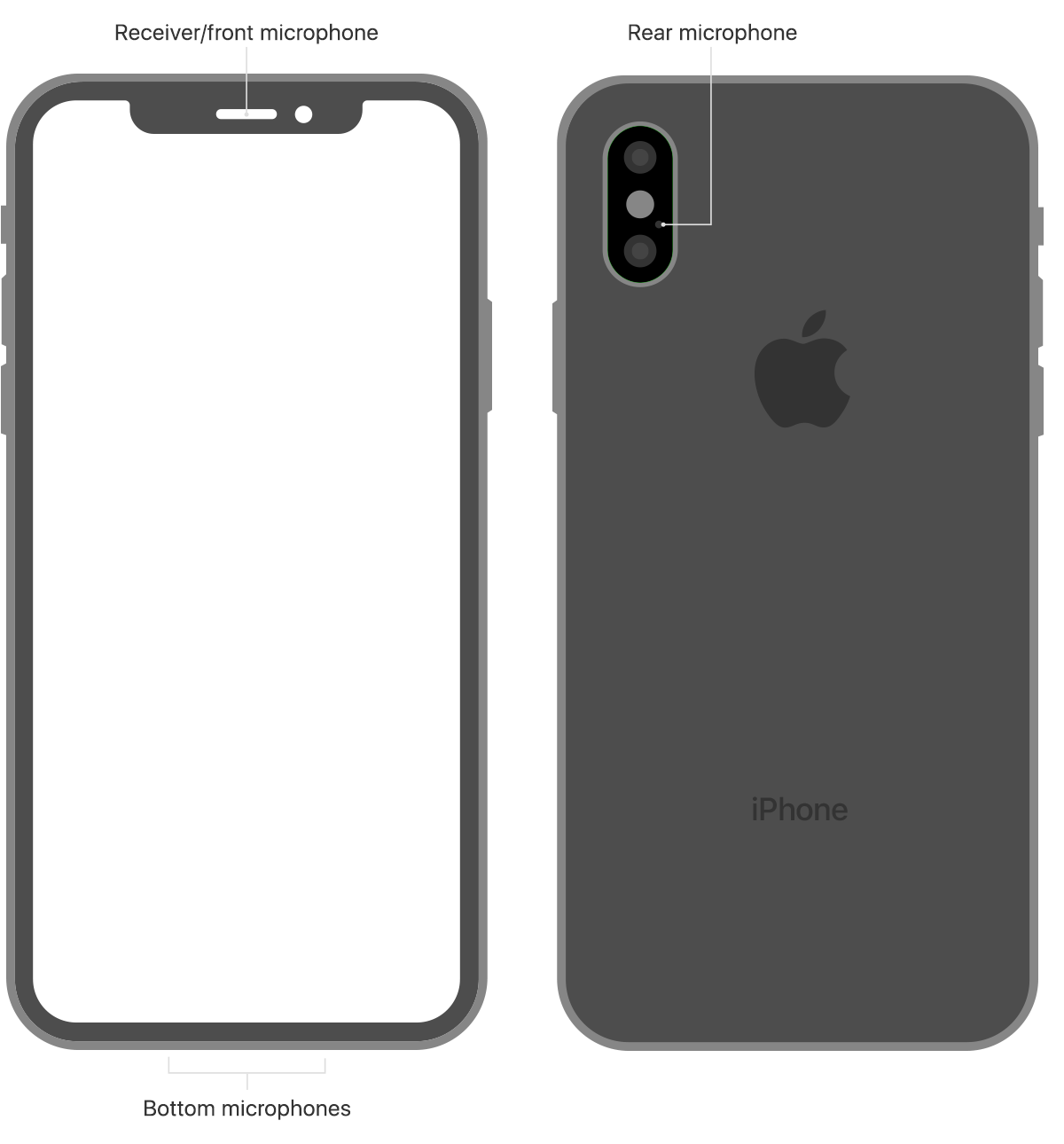
To test the primary microphone on the bottom of your iPhone, open Voice Memos and tap the record icon. Then speak into the microphone and tap the play icon to play back the recording. You should be able to hear your voice clearly.
To test the front microphone, open the Camera app and record a video using the front camera. To test the rear microphone, open the Camera app and record a video using the back camera. When you play back the video you should hear your voice clearly.
If your voice sounds faint when you’re on a phone call, make sure that your rear microphone isn’t blocked or covered.
If Siri can't hear you, make sure that the receiver and front microphone on top of your iPhone aren't covered or dirty.
iPad
To test the microphone on your iPad, make sure that nothing is covering the microphone, and then open Voice Memos and tap the record icon. Speak into the microphone, and then tap the play icon to play back the recording. You should be able to hear your voice clearly. Learn where the microphones are located on your iPad.
iPod touch
To test the microphone on your iPod touch, open Voice Memos. Tap the record icon, speak into the microphone, then tap the play icon to play back the recording. You should be able to hear your voice clearly.

Get help
If you still have issues after testing the microphone on your device, try these steps:
If you've tried these steps and people still can't hear you on phone or FaceTime calls or Siri doesn’t hear your requests, contact Apple Support.
FaceTime is not available in all countries or regions.
If the microphones on your iPhone, iPad, and iPod touch aren't working
If the sound is unclear during phone calls or FaceTime calls, or if Siri is unable to detect your voice, learn what to do.
With your iOS device, you might experience one of these issues when you make a call, use FaceTime or Siri, or play recorded audio:
Test the microphones on your device
To find out if there’s an issue with the microphone on your device—and not your cellular connection or the app that you're using—test each microphone. Microphone location can vary by device. You can use your product's technical specifications to find the microphones.
When you test your microphones, make sure that your iOS device isn't connected to a wired or wireless headset.
iPhone
There is more than one microphone on your iPhone.
To test the primary microphone on the bottom of your iPhone, open Voice Memos and tap the record icon. Then speak into the microphone and tap the play icon to play back the recording. You should be able to hear your voice clearly.
To test the front microphone, open the Camera app and record a video using the front camera. To test the rear microphone, open the Camera app and record a video using the back camera. When you play back the video you should hear your voice clearly.
If your voice sounds faint when you’re on a phone call, make sure that your rear microphone isn’t blocked or covered.
If Siri can't hear you, make sure that the receiver and front microphone on top of your iPhone aren't covered or dirty.
iPad
To test the microphone on your iPad, make sure that nothing is covering the microphone, and then open Voice Memos and tap the record icon. Speak into the microphone, and then tap the play icon to play back the recording. You should be able to hear your voice clearly. Learn where the microphones are located on your iPad.
iPod touch
To test the microphone on your iPod touch, open Voice Memos. Tap the record icon, speak into the microphone, then tap the play icon to play back the recording. You should be able to hear your voice clearly.
Get help
If you still have issues after testing the microphone on your device, try these steps:
If you've tried these steps and people still can't hear you on phone or FaceTime calls or Siri doesn’t hear your requests, contact Apple Support.
FaceTime is not available in all countries or regions.
If you can't hear a person on a call or voicemail or if the sound isn't clear on your iPhone
If you can't hear a person's voice clearly, hear crackling, static, or have issues with sound quality while you're on a call or listening to voicemail on your iPhone, learn what to do.
iPhone Volume and Receiver
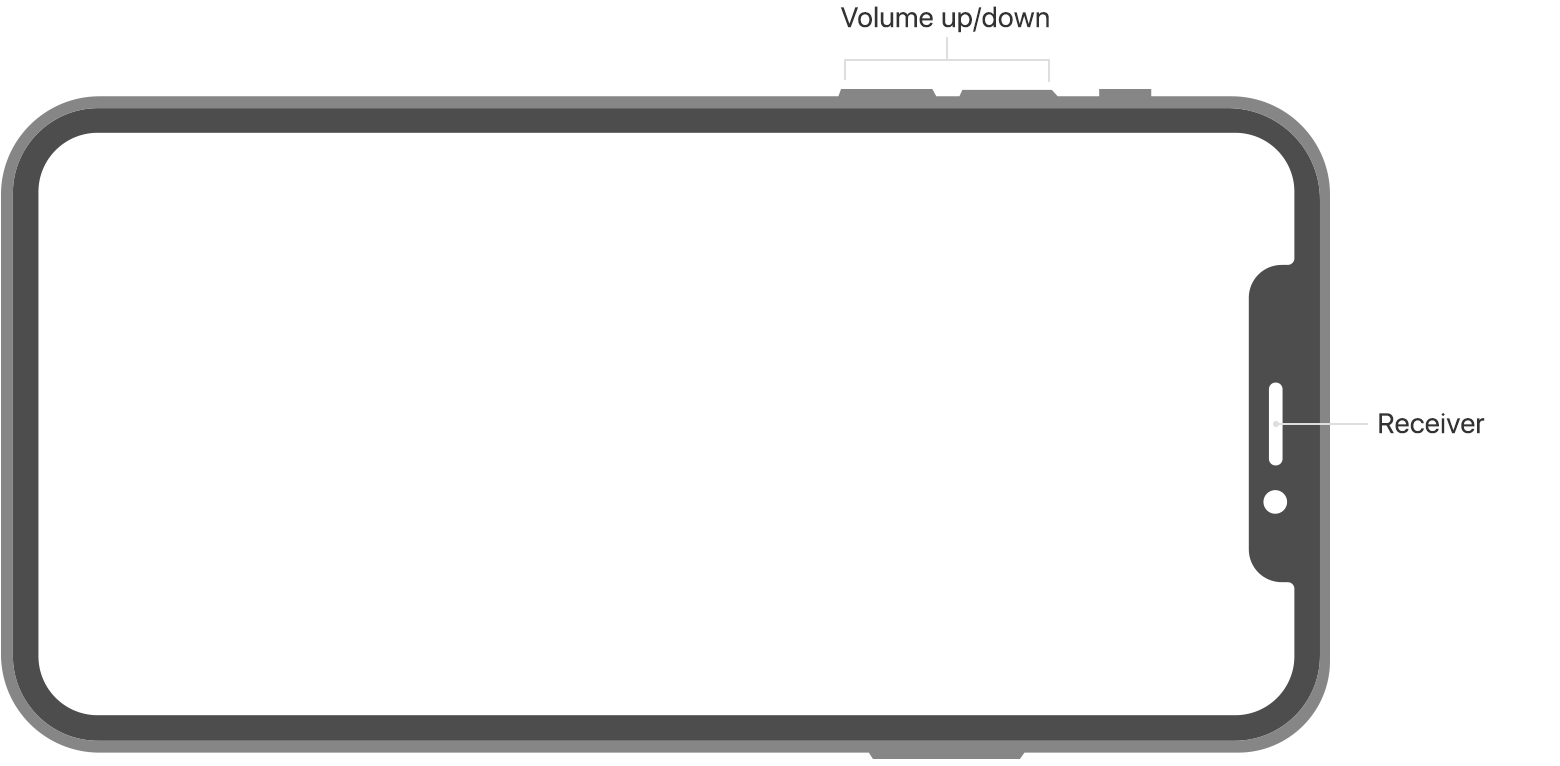
Turn up the volume
While you're on a call, adjust the volume with the volume buttons. Make sure that you can see the volume indicator on the screen when you press the volume buttons.
Check the connections
If your iPhone is connected to a headset, you won't be able to hear through the iPhone receiver or using speakerphone. Follow these steps, testing after each.
Clear the receiver
The iPhone receiver won't work properly if it's blocked or dirty.
Follow these steps, testing after each:
Restart and update
Get more help
If you tried these steps and there's still no sound or poor sound quality from your iPhone, contact Apple Support.
Learn what to do if your microphone isn’t working or people can’t hear you while you’re on a call.
If you can't hear a person on a call or voicemail or if the sound isn't ...
Call related
