Thanks.
First, ensure you have a reliable backup of your Mac, in case something should go wrong with continued troubleshooting. To learn how to do that, please read Back up your Mac with Time Machine.
- A backup is a fundamental prerequisite regardless of whatever method you may choose uninstall adware, and would apply even if your Mac were running perfectly well. Do not overlook this fundamental requirement. It's important.
Next: This step is optional, but will preclude any related inability to use your Mac due to the adware's excessive demands imposed upon it. Restart in "Safe Mode", and log in: Use safe mode to isolate issues with your Mac. Starting in Safe Mode takes longer than usual so let it finish.
Then,
- Open Activity Monitor again, and in the same manner as you did before, force both Chromium and all of its "helpers" to quit. They may not be running in Safe Mode so if they don't appear that's ok.
- Drag the Chromium icon in the Dock to the Trash, or away from the Dock—the same way you did before.
In the first screenshot (~/Library/LaunchAgents) select the files shown below:
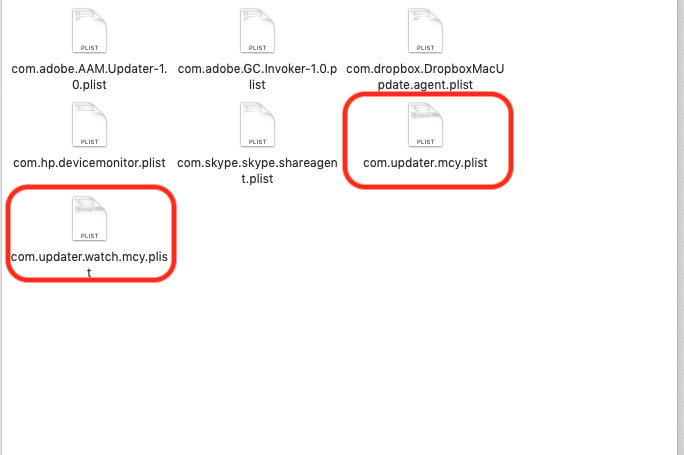
Drag that selection of files to the Trash. You will be asked to authenticate. Confirm they are no longer present in that folder. Leave all the others alone for now.
Next: open Safari and select the Safari menu > Preferences... > Extensions. If you see any Extensions that you do not recognize or understand, simply click the Uninstall button and they will be gone. No Safari Extensions are required for normal operation. Then, select the General pane and review your Homepage selection.
Repeat those equivalent actions for any other browser you may use.
There may also be adware-associated app icons in your Mac's Applications folder. Open it and examine its contents. Any unwanted or mysterious app icons should be obvious to you, but again please don't remove anything if you are uncertain—ask first. Identify any suspicious apps by name, or post another screenshot.
Next: In an abundance of caution, examine System Preferences > Extensions. Determine if there are any Extensions that may have been installed without your knowledge. Ask if you're uncertain.
While you're there, check for the presence of any Profiles. Profiles are installed by organizations with a need to manage Macs deployed in institutional corporate or educational environments (for example). Otherwise, no Profiles preference pane will appear in System Preferences.
You can then restart your Mac and use it normally.
Next: if you want to eradicate all remaining adware remnants post a screenshot of the following folder, in the same manner as you did earlier:
~/Library/Application Support
It is normal for that folder to contain many items, but anything associated with the above adware will bear identical names ("updater_mcy" in this case). A folder with that name or one similar to it may or may not be present, but if it is you may drag the entire "updater_mcy" folder to the Trash. Without the files you already removed or the reintroduction of similar malware, they can do nothing but occupy space. These can be removed if you wish, but again don't remove anything if you are uncertain.
Next: Uninstall "Bitdefender" in strict accordance with its instructions. Like all Mac "anti-virus" products it is categorically worthless. You can see for yourself it did nothing to prevent you from installing adware. Its continued presence will offer nothing beneficial and is only likely to cause other, unrelated problems of its own. Don't use those things.
Next: It seems you're using a backup product offered by Intego. I have never used it so I can't comment on it, just be aware that Intego's Mac "Net Barrier" and "Virus Barrier" products (both of which I have used) are among the worst such things. In my experience using them rendered a brand new and perfectly functioning Mac literally unusable. There is nothing in your screenshots to indicate Intego's "anti-virus" product is installed though.