
iOS default map app has a commercial vehicle setting for gps?
Just wondering if the iOS default map app has a commercial vehicle setting for gps
[Re-Titled by Moderator]
Just wondering if the iOS default map app has a commercial vehicle setting for gps
[Re-Titled by Moderator]
Use Maps on your iPhone, iPad, or iPod touch
With Maps you can get directions with real-time traffic information, explore new places, save your favorite locations, and more.

Maps makes things easier to find by giving you detailed information and suggestions based on your habits and calendar events.
Add your frequent locations
To add frequent locations, like your home or work:
 in the top-right corner.
Depending on your carrier and cellular data plan, cellular data charges might apply when using Maps.

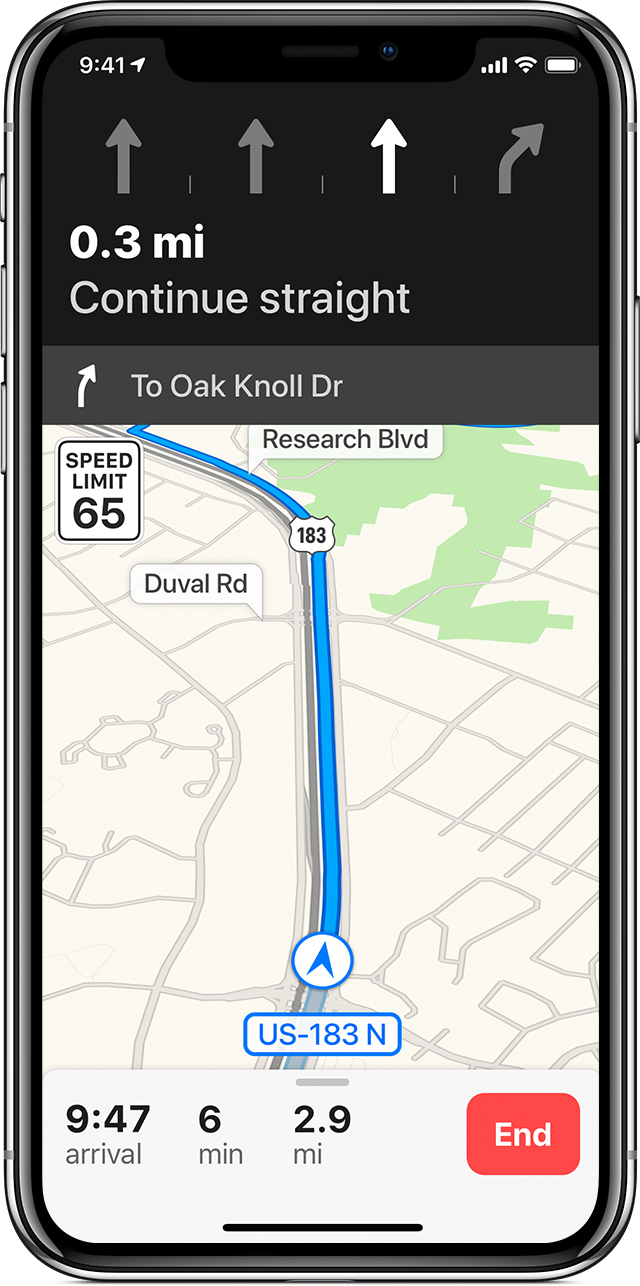
Get directions
 . To see an overview of your route, tap "Tap for Overview" in the banner.
 , in the bottom-right corner. Then tap End Route. You can also ask Siri to "Stop Navigating" when you have Hands-Free turned on.
When you start moving, Maps updates its position to give you a better sense of direction. You can also use your finger to scroll ahead to see any obstructions on your route. And with iOS 11 or later, Maps helps you avoid missing a turn or an exit by suggesting the lane you should be in while driving. You can also see the speed limit of the road you're currently on.
To avoid tolls or highways, go to Settings > Maps > Driving & Navigation. Then tap the slider for Tolls or Highways.
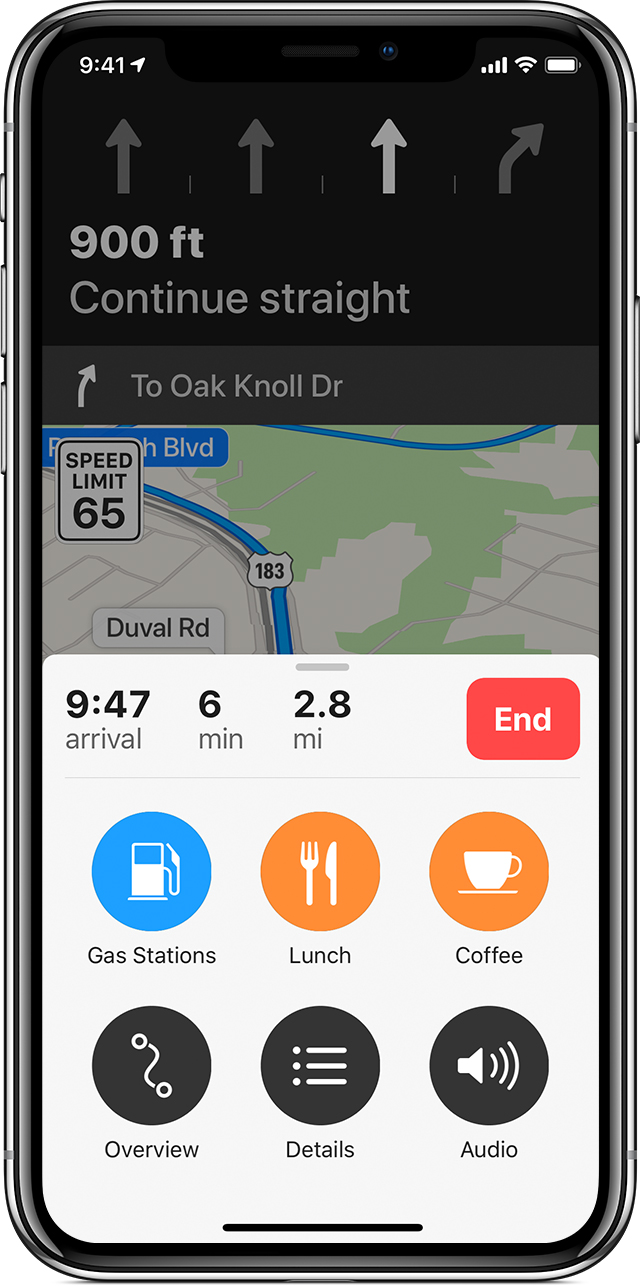
Use the Route Card
You can use the Route Card to find nearby places, like gas stations, food, and more.
To add a detour to a trip:
 while you're navigating to open the menu.. Maps will add the detour to your original route.
To get detailed turn-by-turn directions, swipe up on the menu while you're navigating and tap Details. You can also see your trip overview and adjust your Navigation Voice settings from the same menu bar.
If you paired your device to Bluetooth in your car, you can manage the Navigation Voice settings. Learn how to use Maps with Bluetooth.
Add a favorite transit line
You can add transit lines to your Favorites, and then see them in your Widget for timely information.
To add a transit line to your favorites:
, then select Transit.You can also enter your destination, then tap Directions to see if there are any other types of transit that you can take.
Thank you for the information but it doesn't answer if the maps app has route for commercial vehicles, as commercial vehicles cannot go on some roads as the normal cars can
iOS default map app has a commercial vehicle setting for gps?
