I understand your frustration, but it may just be worth re-iterating that Safari received a major functional update that fundamentally changed the way that many features work. These changes, particularly those that now allow multiple independent Safari “spaces” (i.e., “instances”) to simultaneously exist, often makes end-users believe that their open tabs have unexpectedly closed.
To see all current open “spaces”, whilst Safari is the running process, simply swipe-up from the bottom of the screen - just enough to reveal the dock at the bottom of the screen; don’t swipe-up to the middle of the screen and pause, as this will invoke the Task Switcher.
While the Dock is displayed over the top of Safari, touch the Safari icon on the Dock; doing so will now show you all the running Safari “spaces” (instances) - and you can switch between them just by touching the associated icon. Each “space” is independent of the others - and has its own set of open tabs. (NB: You can also find all the open Safari “spaces” in the Task Switcher - but they will appear along with all the other open Apps)
Here is a simple workflow that shows you how to save and restore a complete Safari “space” to your Favourites...
Save Session
When you are taking a break from your session, you can easily save your all the open tabs for this session in a single step. To do so, touch-and-hold the book icon to the left of the address bar, and from the menu that appears choose the second option - Add Bookmarks for n Tabs (where n = the number of open tabs in this Safari window/instance); a New Folder dialogue will appear - give it a suitable name - and Save.
Close your window if you wish - or just treat this as saving where you are so far. Saving the state of the window not only saves all your open tabs, but also saves the entire history of each tab as well!
Restore Session
To restore a saved session, with a Safari window open (any window will do), open a new window; a page will appear with all your saved Favourites shown as individual icons. You will notice that your page of favourites includes one or more grouped sets of thumbnail icons (i.e., folders), one or more of which will have the folder name that you chose in the step above.
Touch-and-hold the folder icon that corresponds with the session that you wish to restore - the folder will expand and show an actions menu; choose the second option Open in New Tabs.
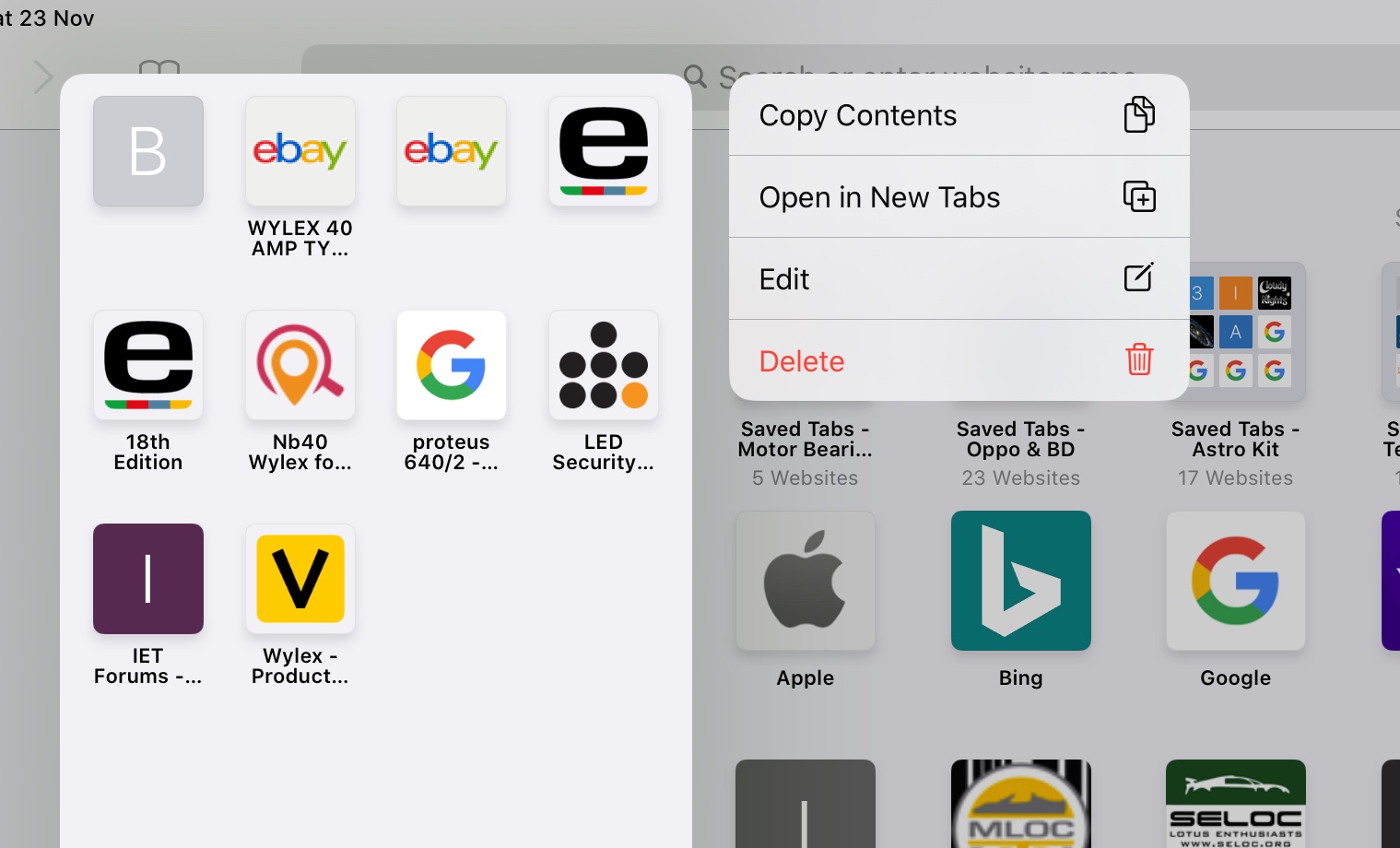
Now, all the tabs (and associated tab histories) will open in the new Safari Window - just as they were when you saved them. The new Safari window, with restored tabs, can be manipulated just like any other Safari window within iPadOS.
You can have as many saved sessions/folders as you like - all with unique names. So you could, for example, save your research project at various stages or times - ready for immediate recall at will. This save/restore process is very powerful - and is completely independent of the other mechanisms within Safari to restore closed windows or individual tabs. The saved sessions will persist and be synchronised with iCloud, like any other saved Favourite, until such time as you delete them.
I use this simple mechanism all the time - to manage individual (open) browsing sessions between, work, research and domestic - easily switching between them as needed. This process also protects you from the frustrations of an accidentally closed Safari window (or multiple windows).
I hope you find these tips helpful in introducing some of the new features - and, perhaps, resolving some of your usability issues.




