See the articles https://support.apple.com/en-in/HT202235
https://support.apple.com/en-in/guide/mac-help/mh35835/mac
Second method , right click on finder in the dock , scroll up and click on new finder window .
You can see some apps and folders , they can also be searched from its spotlight search , right click on them and move to bin , restart the Mac and empty the trash , some folders / apps have to be clicked forcefully , when start jiggling click on cross sign to remove them .

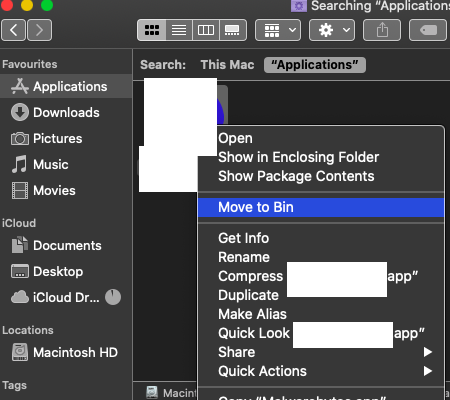
More refined way -
Go to system preferences and click on users and groups open the pad lock by entering admin name and password ( in case if it is an admin account ) , select login items , if you see unknown app select it and click on minus sign to get deleted .
In system preferences itself click on Security and privacy , click on Accessibility then privacy select the unknown app click on minus sign to get deleted .
Click on finder and search in Applications and download folder .
The next step would be enter in System Library .
Click on Finder , take cursor on top menu bar click on Go - Computer - Macintosh HD - Library
You have to manually search apps in some folders where they reside .
1.Application Support
2.Caches
3.LaunchAgents
4.LaunchDaemons
5.Logs
6.PriviledgedHelperTools
7.Startup-items
8.Receipts
9.Preferences - the plist of app is to be removed .
10.Extensions
11.Frameworks
12.internet Plug -ins
13.Input Methods
14.ScriptingAdditions
Then enter in User library - click on finder > Go > hold option key > Library
Search app in folders
1.Application Support
2.Caches
3.Cookies
4.Safari
5.Logs
6.Saved Application State
7.LaunchAgents
8.Internet Plug -ins
9.Input Methods
10.Preferences - com.apple.xxx.plist ( xxx - denotes the app .plist )
11.Containers are also to be checked .
Right click on app from the above folders and move to the trash , restart the computer and empty the trash .



