Search and replace invisible characters in Pages 8.2 Mac?

How do you perform a search and replace for invisible characters (non-printing) in Pages 8.2 on a Mac?


Is this a feature that fell victim to the "If iPhones don't have it then Macs can't have it either" policy? I hate that!!


[Edited by Moderator]

MacBook Air

Posted on Dec 26, 2019 10:31 AM

Reply
10 replies

Dec 27, 2019 12:58 AM in response to docfi

Hi docfi,


Nothing aimed at dumbing down Pages for Mac! Simply a new approach.

Select any character or a string of characters. I selected two consecutive returns (aka paragraph breaks, pilcrows).


Menu > Edit > Find > Use Selection for Find


To replace double paragraph breaks with single paragraph breaks, select a single paragraph break and Menu > Edit > Find > Use Selection for Replace.


If necessary, click on the the right triangle (bottom right) to start the process.


Click on Replace All to replace all occurrences.


2 replaced.


Regards,

Ian.

Dec 27, 2019 7:44 PM in response to t quinn

HI Quinn, & Viking


Here are the results to the testing I did.
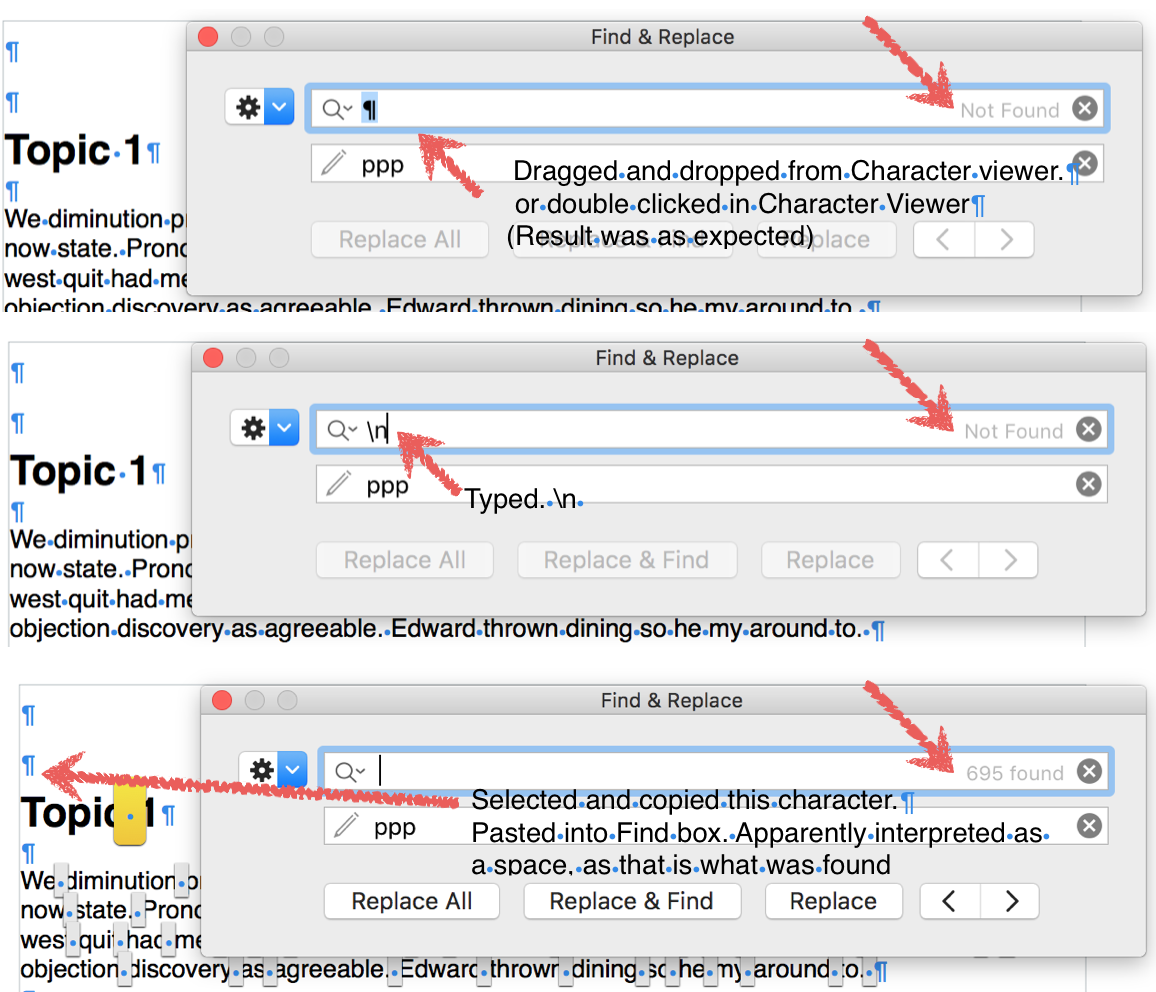

I expected the result in the first test shown as the pilcrow in the find box is a character that does not appear in the document except as a marker for the invisible 'return' character. As a marker, it is not searchable using that 'real' character as the search key.


I leaned toward the \n, as memory says that has worked in the past. But, as can be seen, it did not work this time, or for a different Pages 5 document which I tried before sending my previous reply.


For the third test, I selected the 'return' character marked by the pilcrow indicated by the left pointing arrow.

As can be seen, the first instance 'found' (marked by the yellow tile with a blue dot) is a space, and Find located 694 other spaces (marked by grey tiles with the same blue dot) in the rest of the document. Not what was being looked for at all.


@Viking OS X: My initial quote from your post was to draw docfi's attention to what (s)he entered in find (/n) to what you had said in your post ( \n ). The part of my post following that was a report of the behaviours, some of them unexpected, of Find on my Mac, running a specific version of Pages.


@Quinn:


Thanks for the check. Those are the results I would have expected on EL Cap as well, especially as I think that did work some time earlier.


Regards,

Barry

Dec 28, 2019 8:16 AM in response to Barry

Hi Barry,


Booted up my old El Capitan, and went exploring in Pages v5.6.2.


Pages v5.6.2 on El Capitan did not yet have support for the backslash characters that were added later. The simplest means to get one of these invisible characters into the Find field is to select a single pilcrow character and from the Edit menu : Find : Use Selection for Find menu item.


I happen to have the optional Input source Unicode Hex Input enabled and even direct input of the pilcrow using option+00B6 did not insert the pilcrow into the Pages v5.6.2 Find field. I thought that strange as I could swear I had done that previously in this version of Pages. Even double-clicking on the actual line feed character from character viewer did not result in pilcrow detection.

Dec 26, 2019 11:18 AM in response to docfi

F-bombs aside, what specific non-printing characters are you wanting to search and replace? The first thing to do is Show Invisible characters with the shortcut shift+cmd+i.


Here are the substitution characters for a search:

  • paragraph break (\n)
    • pilcrow or 
  • tab (\t)
  • line separator (\i)
    • "soft return" or ↲


Any other character, you will have to open the Emojis & Symbols panel (Character Viewer), search for the specific character, and then double-click it to insert it in the Pages find/replace panel.

Dec 26, 2019 11:58 PM in response to docfi

docfi writes: "When I type /n I get a "not found" response. This, even though I'm looking at numerous paragraph returns."


in reply to VikingOSX, who wrote:


"Here are the substitution characters for a search:

  • paragraph break (\n)"


That noted, I checked and also found that entering \n or /n or dragging and dropping a pilcrow character into the Find box then clicking Find next resulted in only a Not found message. (Numbers 3.6.2, OS X 10.6.2 (El Capitan).

Regards,

Barry

This thread has been closed by the system or the community team. You may vote for any posts you find helpful, or search the Community for additional answers.

Search and replace invisible characters in Pages 8.2 Mac?

Welcome to Apple Support Community
A forum where Apple customers help each other with their products. Get started with your Apple Account.

