Hide purchased music on iPhone that has not been copied to it - iOS 13.3

Hi, is there any way to hide any music purchased form iTunes store from your iPhone that you've not manually copied to it. I can see everything item I've ever purchased on my iPhone but I'm signed out of iCloud and 'Show Apple Music' is turned off for example. In that past that was all I needed to do usually to hide the music.


Thanks!

iPhone SE, iOS 13

Posted on Jan 3, 2020 4:37 AM

Reply
Question marked as Top-ranking reply

Posted on Jan 6, 2020 1:49 PM

Hello, AshleyCraig1987!


Thank you for using the Apple Support Communities!


If I'm understanding your post correctly, you want to hide purchased music from the iTunes store on your iPhone that you don't already have saved to your iPhone.


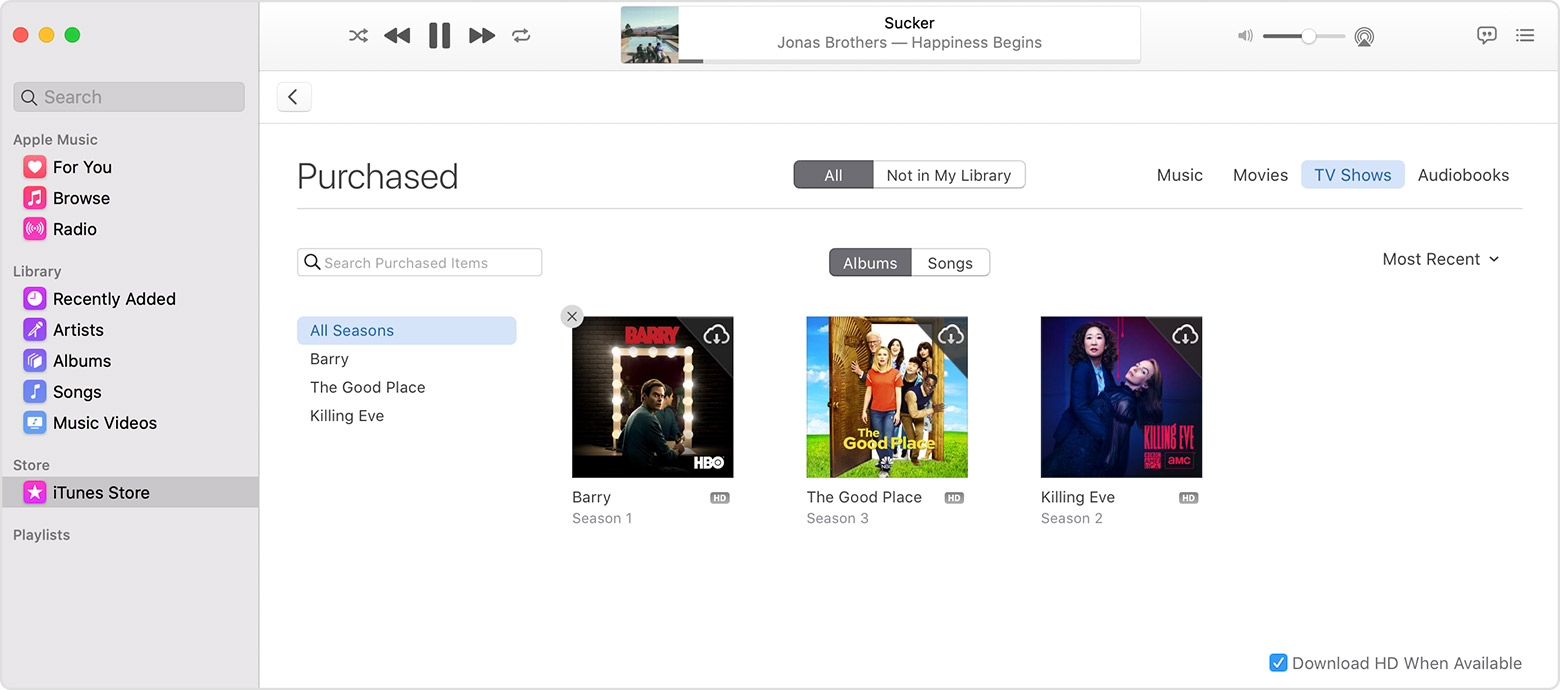
Take a look at this article called Hide and unhide music, movies, TV shows, audiobooks, and books and follow these steps:


"How to hide music, movies, and TV shows


  1. On your computer, open the Apple Music app, Apple TV app, or iTunes.
  2. In the menu bar at the top of your computer screen or at the top of the iTunes window, click Account, then click Purchased. (If you use Family Sharing, you might see Family Purchases instead of Purchased.)
  3. Depending on what you want to hide, click Music, Movies, or TV Shows at the top of the window, then click All. All of your purchased items appear.
  4. Find the item that you want to hide. Hold your pointer over the item until the hide purchase button  appears. Click the hide purchase button ."


I hope this information helps you!


Cheers!

4 replies
Question marked as Top-ranking reply

Jan 6, 2020 1:49 PM in response to AshleyCraig1987

Hello, AshleyCraig1987!


Thank you for using the Apple Support Communities!


If I'm understanding your post correctly, you want to hide purchased music from the iTunes store on your iPhone that you don't already have saved to your iPhone.


Take a look at this article called Hide and unhide music, movies, TV shows, audiobooks, and books and follow these steps:


"How to hide music, movies, and TV shows


  1. On your computer, open the Apple Music app, Apple TV app, or iTunes.
  2. In the menu bar at the top of your computer screen or at the top of the iTunes window, click Account, then click Purchased. (If you use Family Sharing, you might see Family Purchases instead of Purchased.)
  3. Depending on what you want to hide, click Music, Movies, or TV Shows at the top of the window, then click All. All of your purchased items appear.
  4. Find the item that you want to hide. Hold your pointer over the item until the hide purchase button  appears. Click the hide purchase button ."


I hope this information helps you!


Cheers!
Jan 10, 2020 9:53 AM in response to brenden dv

Hi brenden dv! Thanks for the info, I'll check out that article. Do you know is there a way though to hide all the music that hasn't been copied over by default i.e. without having to manually hide each album? Until recently provided I was signed out of iCloud and 'Show Apple Music' was turned off the music wouldn't show unless I'd specifically copied it over.

This thread has been closed by the system or the community team. You may vote for any posts you find helpful, or search the Community for additional answers.

Hide purchased music on iPhone that has not been copied to it - iOS 13.3

Welcome to Apple Support Community
A forum where Apple customers help each other with their products. Get started with your Apple Account.