Argument 1 of IF expects a Boolean, but cell N62 contains a string.

I'm trying to sum a column of numbers (which contain formulas), but if the result is an error due to the formula expecting a number, but see's a formula .... it resolves with an error, so I can NOT sum up the column.

Posted on Feb 14, 2020 8:24 AM

Reply
Question marked as Top-ranking reply

Posted on Feb 15, 2020 6:31 AM

Can you show which column is N and which is O and also the formulas in the other columns with red warning triangles?


The formula you show in the screenshot:


=IF(N26,N62*$O$7,"")


means if N26 is true (perhaps you have a checkmark there?) then multiply N62 by $O$7, otherwise leave the cell blank.


In general you can suppress errors by wrapping a formula with IFERROR like this:


=IFERROR(<your original formula>,"")


or for the formula you show in the screenshot:


=IFERROR(IF(N26,N62*$O$7,""),"")


Suppressing the errors will then allow you to SUM the columns.


But you want to make sure all your formulas except the column SUMs are all working the way you want before you do that.


Posting more details will help.


SG


8 replies
Question marked as Top-ranking reply

Feb 15, 2020 6:31 AM in response to samifromhenderson

Can you show which column is N and which is O and also the formulas in the other columns with red warning triangles?


The formula you show in the screenshot:


=IF(N26,N62*$O$7,"")


means if N26 is true (perhaps you have a checkmark there?) then multiply N62 by $O$7, otherwise leave the cell blank.


In general you can suppress errors by wrapping a formula with IFERROR like this:


=IFERROR(<your original formula>,"")


or for the formula you show in the screenshot:


=IFERROR(IF(N26,N62*$O$7,""),"")


Suppressing the errors will then allow you to SUM the columns.


But you want to make sure all your formulas except the column SUMs are all working the way you want before you do that.


Posting more details will help.


SG


Feb 15, 2020 4:40 PM in response to Barry

Barry,

Thanks again - you were correct. It was overlapping spreadsheets.


Regarding the "Ave Sell Price" and "Est COST/Unit" ...


IF(D9,(E9÷$E$109)×($C$5÷C9),"")


D9=retail price

E9=total value (qtyX retail price) / E109 Total Retail Value of all items = % of total

Times

Total Actual Cost / qty for that item.


This gives me what I actually paid for each item (and qty) based on retail value of the total purchase and what was paid for the auction items. I hope that makes sense.


Thank you so much! I have it working and looking good enough to work! if you have any suggestions (like, how I calculate the average cost per unit) I'm always open to learn how to do something more efficient.


thanks again,

Sami K


Feb 15, 2020 11:04 AM in response to SGIII

Thank you so much for the help! What you suggested worked. I still have a couple issues remaining. I have hidden many rows to make it all fit into a single screen shot. Also, I included formula notes for each column - you will see them near the top of the screen toward the right side.


  1. column N has blue corners indicating an error which says "The formula compares a string to a number." but I can't figure out how to integrate the LEN function into the existing formula - I think that's the issue.
  2. The upper left section is acting weird as far as the border lines go. For some reason I can't seem to make them go away. Also, there is an image of something in D1, and Rowes A2-A7 are grayed out, which may have something to do with the borders/lines - but I can't figure it out.


Thanks so much for your help! I am really liking Apple Numbers and trying to migrate away from Google sheets, so I really appreciate the help.

Sami

Feb 15, 2020 8:25 PM in response to samifromhenderson

Glad you've got it working.


Some suggestions.


To get a feel for efficient document and table design in Numbers be sure to have a look at the templates at File > New in your menu. They provide good examples of how to do things "the Numbers way." In general you will find it is more efficient to avoid "Excel like" tables with a lot of blank cells within them. You don't these those blank areas within Numbers tables because it is so easy to have multiple tables on one sheet.


In general avoid the LOOKUP function. It long since has been superseded by VLOOKUP and INDEX MATCH, which are more explicit in their assumptions and, especially in the case of INDEX MATCH, much more flexible.


In most situations, instead of LEN()<1 consider using ISBLANK(), which has a clearer name for what it does.


SG


Feb 15, 2020 12:20 PM in response to samifromhenderson

Hi Sami,


The blue triangle is a 'warning' of something not right, but also not serious enough to keep the formula from producing a result.

The red triangles are 'error' markers, marking an error that prevents the formula from working.

Clicking once on either type will show the message marked by that triangle.


In N9, you are comparing the text "APPLE AIRPODS WHITE" with the number 1 and asking if that text is greater than 1.

Apparently, IF 'thinks' it is, as N9 displays the result of the if-true action, it leads me to ask 'what's the logic?' and wonder what other meaningless comparisons IF would accept and which way the scales would tip for those.


To rid yourself of the blue triangles here, wrap the J9 cell reference in LEN(). LEN(J9) measures the LENgth of the contents of cell J9 in characters and returns the result as a number ( 19 ). IF J9 is empty, or contains a null string LEN(J9) returns 0.


Current: IF((J9>1),LOOKUP(J9,B,D),"")

Revised: IF(LEN(J9)>1,LOOKUP(J9,B,D),"")


Regarding the upper left corner:
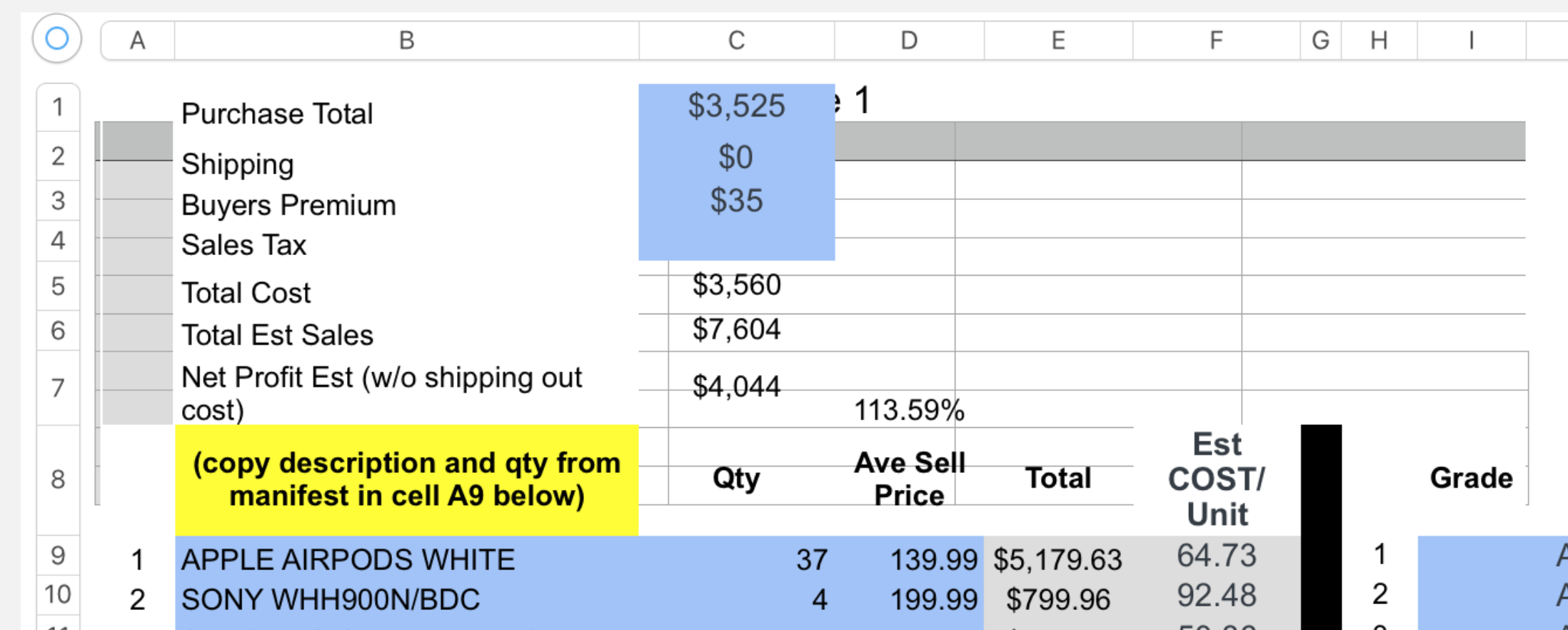

You appear to have two overlapping tables here. Note the misalignment of the column dividers in the column reference tabs at the top of the image with the grid lines between columns, and the misalignment of the text "Ave Sell Price" and "Est COST/Unit" with the visible cell boundaries.


What is it you are trying to achieve here?


Regarding Locking:


No. The smallest unit you can lock is a Table. Doing so offers protection agains accidentally damaging the formulas (and other entries) on that table, but does not protect against intended changes by you or other users of the document, as Lock/Unlock is a simple menu choice.


Password protection can be applied only to the document, and prevents all access. Anyone with the password can open and edit the document.


Documents saved in iCloud can, I think, be saved as read-only. That's more a guess than a statement of fact, though as I haven't tested it.


Regards,

Barry

This thread has been closed by the system or the community team. You may vote for any posts you find helpful, or search the Community for additional answers.

Argument 1 of IF expects a Boolean, but cell N62 contains a string.

Welcome to Apple Support Community
A forum where Apple customers help each other with their products. Get started with your Apple Account.