Hi Sami,
The blue triangle is a 'warning' of something not right, but also not serious enough to keep the formula from producing a result.
The red triangles are 'error' markers, marking an error that prevents the formula from working.
Clicking once on either type will show the message marked by that triangle.
In N9, you are comparing the text "APPLE AIRPODS WHITE" with the number 1 and asking if that text is greater than 1.
Apparently, IF 'thinks' it is, as N9 displays the result of the if-true action, it leads me to ask 'what's the logic?' and wonder what other meaningless comparisons IF would accept and which way the scales would tip for those.
To rid yourself of the blue triangles here, wrap the J9 cell reference in LEN(). LEN(J9) measures the LENgth of the contents of cell J9 in characters and returns the result as a number ( 19 ). IF J9 is empty, or contains a null string LEN(J9) returns 0.
Current: IF((J9>1),LOOKUP(J9,B,D),"")
Revised: IF(LEN(J9)>1,LOOKUP(J9,B,D),"")
Regarding the upper left corner:
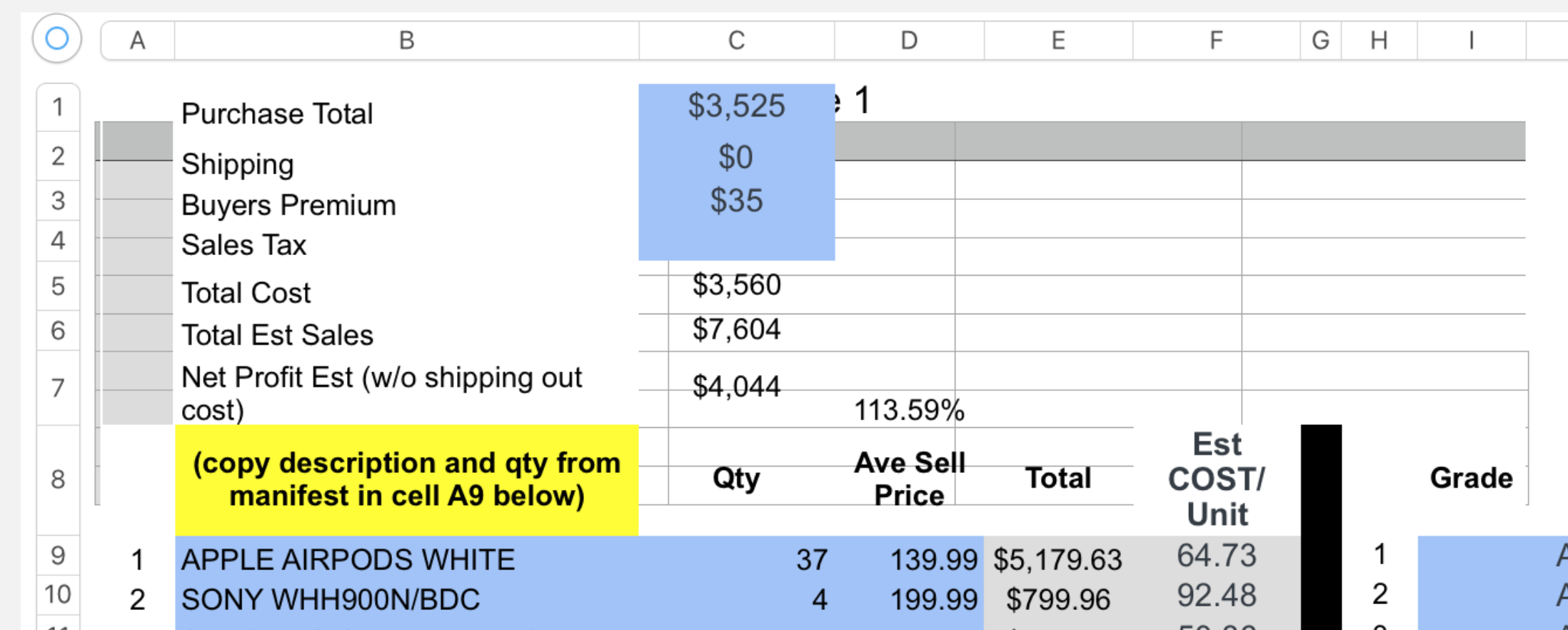
You appear to have two overlapping tables here. Note the misalignment of the column dividers in the column reference tabs at the top of the image with the grid lines between columns, and the misalignment of the text "Ave Sell Price" and "Est COST/Unit" with the visible cell boundaries.
What is it you are trying to achieve here?
Regarding Locking:
No. The smallest unit you can lock is a Table. Doing so offers protection agains accidentally damaging the formulas (and other entries) on that table, but does not protect against intended changes by you or other users of the document, as Lock/Unlock is a simple menu choice.
Password protection can be applied only to the document, and prevents all access. Anyone with the password can open and edit the document.
Documents saved in iCloud can, I think, be saved as read-only. That's more a guess than a statement of fact, though as I haven't tested it.
Regards,
Barry
