Power up the TC for a minute or two if it is not already on
Hold in the reset button on the back of the TC for 7-8 seconds and then release
Allow a full minute for the TC to restart to a slow, blinking amber light status
Connect an Ethernet cable......that you have tested, to make sure that it is working correctly.......from one of the LAN <--> ports on the main router to the WAN "O" port on the TC. This connection must be maintained at all times.
Click on the WiFi menu at the top of the Mac's screen
Look for a listing of New AirPort Base Station
Click directly on AirPort Time Capsule
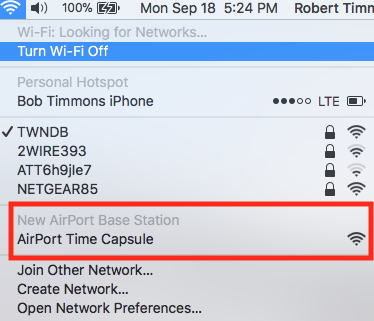
When you click on AirPort Time Capsule, that will start up the AirPort Utility setup "helper" or "wizard". The wizard will take a few seconds to analyze the network and then display a screen that looks like the example below, except that you will see a Time Capsule pictured instead of an AirPort Express
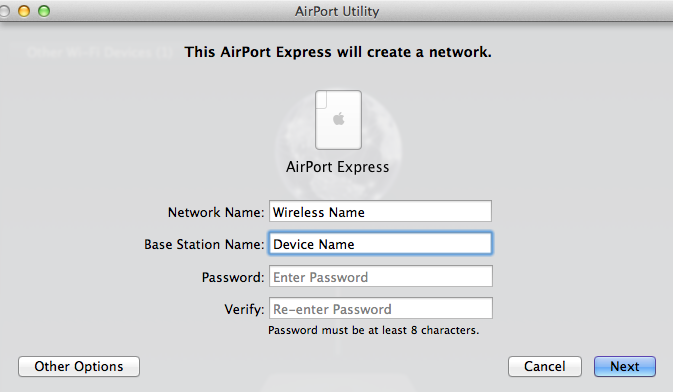
Network Name........Type in a short simple name for a wireless network that will be used temporarily during the process
Base Station Name......Type in a short simple name for the Time Capsule
Password.......Type in a password that will be used for the WiFi network and also as a device password for the TC
Verify......Type in the same password again to confirm
Click Next
The setup wizard will configure the TC with the settings that it needs, so you don't have to worry about Bridge Mode or other boring stuff like that.
If the setup is successful, you will see a message showing Setup Complete. Click Done.
At this point, the TC should be displaying a green light. But......this might change to a slow blinking amber light if AirPort Utility detects that the TC needs a firmware update. For now, don't worry about updating the firmware yet.
Power off the TC
Power off the main router
Power on the main router
Restart the Mac and log onto the main WiFi network that the router is normally providing....not the TC WiFi network that you set up for temporary use
Power on the TC
Open AirPort Utility, click on the TC image, and a small window should appear next to the TC
Does it?
If not, click on the Other WiFi Devices button in the upper left corner of the AirPort Utility screen. If WiFi is checked, then change that so that there is a check mark next to Ethernet. If Ethernet is checked, change that to WiFi.
At this point, all that we want to do is make sure that the TC is displayed in AirPort Utility when the Mac is connected to the main router's WiFi network and that a smaller window appears with information about the TC when you click on the TC. There are some more checks to perform.
Post back on your progress. Please......do not make any other changes at this time or try to set up Time Machine yet, because a wrong choice at the wrong time will mess things up, and you will have to start all over again.