I just came across the same issue. Changing to US Letter Borderless etc. didn't work, so here's what I figured out.
It works for those looking to export as PDF (eg. to sign something and send it back), but it may not be the be solution for those looking to print the file due to custom sizing.
- Double click and open the email in a new window
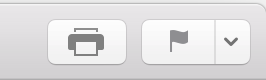
- Click the print button at the top right corner of the email or File > Print
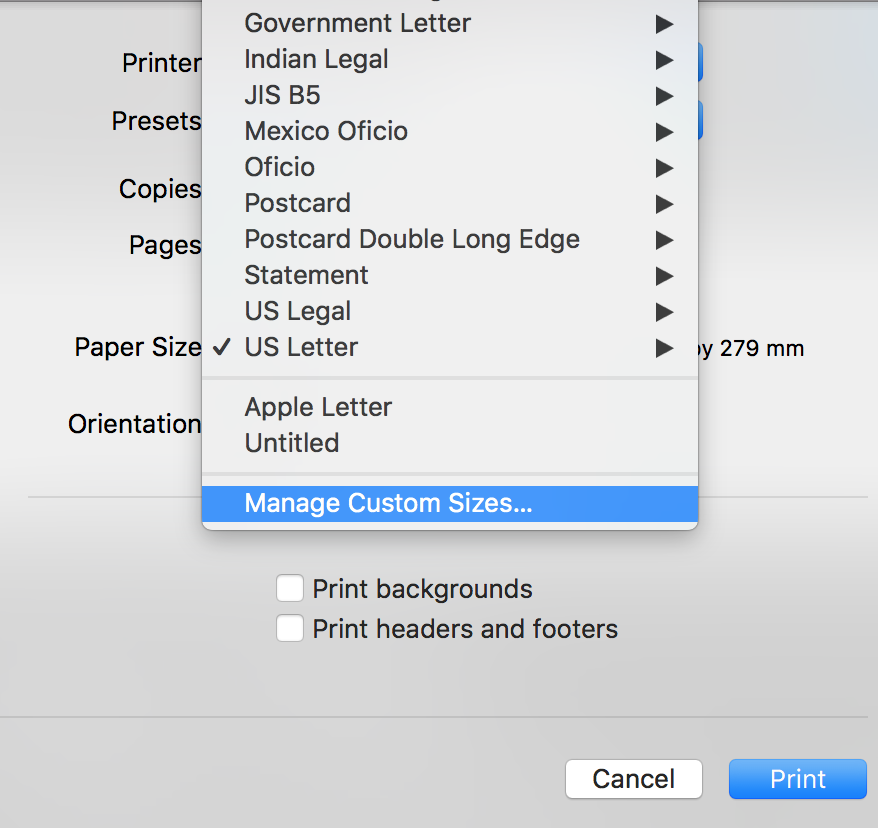
3. In the drop down menu for 'Printer Size' select 'Manage Custom Sizes'
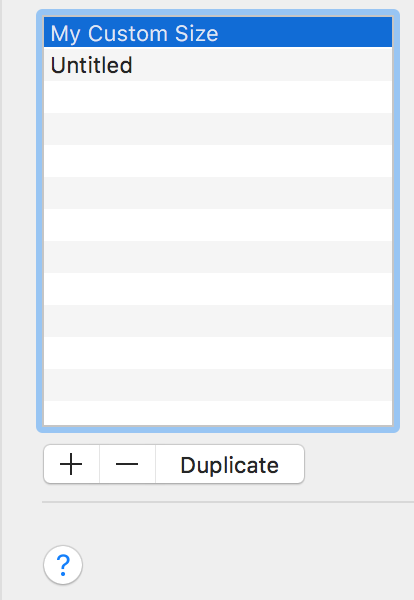
4. Click the ' + ' button to add a custom size, name it whatever you want
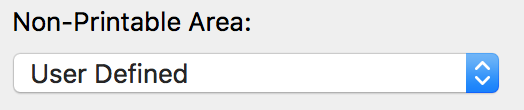
5. In the drop down menu on the right hand side, for 'Non-Printable Area' select 'User Defined'
6. Change all the margin sizes to '0 mm' and adjust the 'Paper Size' dimensions (Width: 250 mm, Height: 380 mm worked for me).
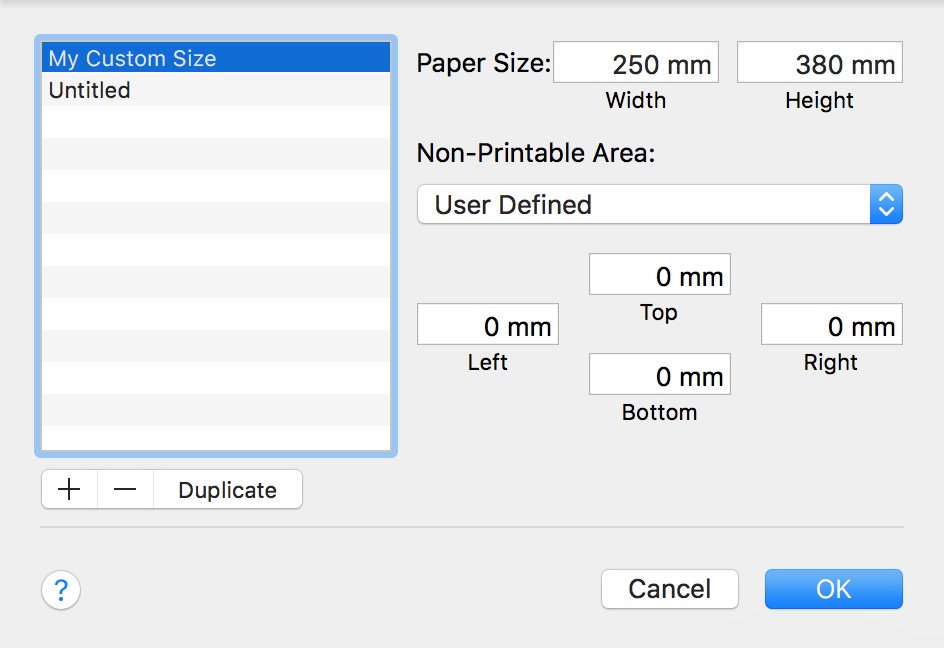
7. Press Ok and see how it looks in the print preview (you can go back and readjust the Paper Size dimensions until it fits)
8. Once you're happy with the preview, click the drop down menu in the bottom left corner which usually says 'PDF' and select 'Save as PDF' in a location of your choice
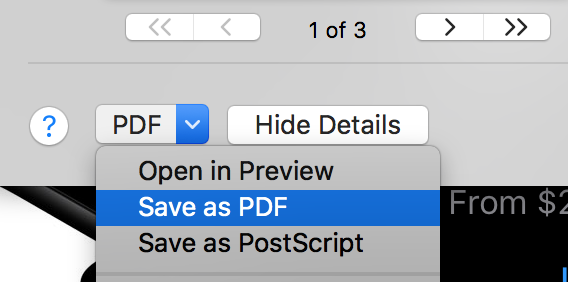
And voila! An email exported as a PDF.
I'm sure there's other ways of doing it but hopefully this helps! :)