Old photos on itunes

I had lots of old photos stored on itunes, photos from 10 years ago. I cannot see them on there now. All photos have dissapeared. Can someone please help? They are pictures of my children when they were growing up. I have lost years of memories.

Posted on Mar 26, 2020 1:10 AM

Reply
Question marked as Top-ranking reply

Posted on Mar 26, 2020 4:18 AM

Photos are not stored in, or listed by, iTunes. Rather, they are on your computer.


All one did was:

  • to get photos, taken with the iPod's (or iPhone's) camera, connect the device to your computer (ignore iTunes), use Windows File Manager to inspect the device's DCIM folder and copy the photos from the iPod to somewhere of your choice on your computer. The photos remain on the device until you delete them and remian on your computter, until you delete them
  • to get pictures from your computer to a device (such as an iPod), youtold iTunes which folder you were nominating for use, by iTunes, to copy from the folder to the device. Any update of that folder was reflected on the device after a Sync. The photos stayed on the computer, unless you deleted them. To remove a photo from the device either delete it or remove it, from the nominated folder on the computer


Using the information above, perhaps you might be able to work out whether you still have copies of those photos and where they might be.

5 replies
Question marked as Top-ranking reply

Mar 26, 2020 4:18 AM in response to adelle256

Photos are not stored in, or listed by, iTunes. Rather, they are on your computer.


All one did was:

  • to get photos, taken with the iPod's (or iPhone's) camera, connect the device to your computer (ignore iTunes), use Windows File Manager to inspect the device's DCIM folder and copy the photos from the iPod to somewhere of your choice on your computer. The photos remain on the device until you delete them and remian on your computter, until you delete them
  • to get pictures from your computer to a device (such as an iPod), youtold iTunes which folder you were nominating for use, by iTunes, to copy from the folder to the device. Any update of that folder was reflected on the device after a Sync. The photos stayed on the computer, unless you deleted them. To remove a photo from the device either delete it or remove it, from the nominated folder on the computer


Using the information above, perhaps you might be able to work out whether you still have copies of those photos and where they might be.

Mar 26, 2020 5:02 AM in response to the fiend

😞 I’m gutted. The last time I logged into iTunes my pictures were all stored there under the heading ‘pictures’ or ‘photos’ I can’t quite remember. That option is no longer there. This was on an old computer that I no longer have. I assumed when I logged in to my iTunes on another computer they would still be there. I was wrong and I’ve lost years of memories 💔

Mar 26, 2020 6:26 AM in response to adelle256

I do not recall such a method. As far as I know, it's always looked like the current method (and been the one I've used for years), with the exception noted in the screenshot:
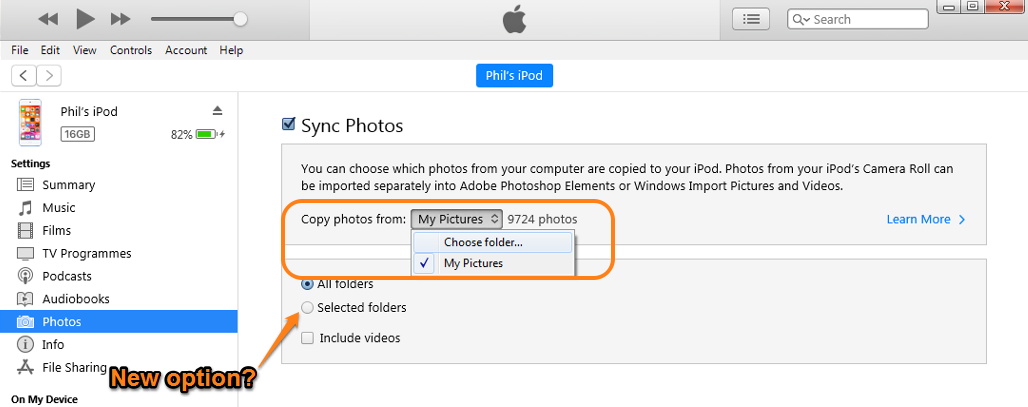


You then chose which folder (on your computer) to use, which would include its sub-folders. I'm not sure when the new option, to choose selected folders, appeared, but if that option is chosen and there are sub-folders in it, it opens a folder selection panel as shown below:
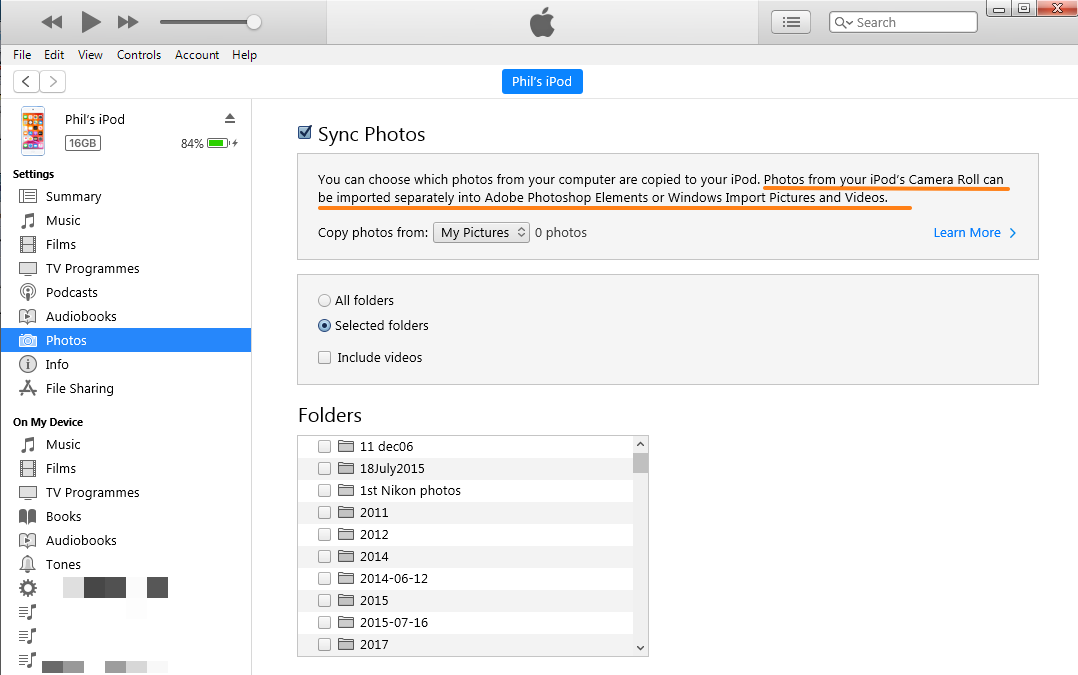


Note the sentence I've underlined about importing from the camera roll. one of the options it's referring to is using Windows File Manager, as I mentioned previously.


Your only other hope is if you ever had a back up of your computer, or even just of the pictures. This could be on an external hard drive, memory stick, or even an online back up.


This thread has been closed by the system or the community team. You may vote for any posts you find helpful, or search the Community for additional answers.

Old photos on itunes

Welcome to Apple Support Community
A forum where Apple customers help each other with their products. Get started with your Apple Account.