IPhone SE full storage/out of storage, stuck apple logo, try to update, stuck in recovery mode. Please help

I am using Iphone SE, got full storage , almost 100% full.

Still manage to work on the Iphone. I tried to delete some photos to get the storage space, I manage to deleted some photos. But when I tried to " Empty recently deteled photos " .... I did not success to make some empty storage space. and My Iphone Got Hung.


I tried to restart, got apple logo.

Tried several times, still got same apple logo stuck


I tried with software ReIboot ... and manage to enter and exit the recovery mode.

I managed to enter and exit recovery mode several times, but still on apple logo stuck.


I tried to update from Itunes, and got error code 14 ( almost reach 100% before it failed)


I tried to repair using ReIboot also got the same error. ( almost reach 100% before it failed)


from the log I am sure that the issue is because of out of storage/memory.


Is there any way to access and delete some files to get some spaces so that I can update/reboot again?


======== log error ===========

2020-03-28 06:06:51.948 [9424:2550]: restore library built Mar 12 2020 at 14:47:03

2020-03-28 06:06:51.948 [9424:2550]: iTunes: iTunes 12.10.5.12

2020-03-28 06:06:51.948 [9424:2550]: iTunes: Apple Mobile Device version: 1190.100.1.100.6

2020-03-28 06:06:51.948 [9424:2550]: iTunes: Software payload version: 17E255

2020-03-28 06:06:51.948 [9424:2550]: iTunes: Using MobileRestore state machine

[03:07:19.0392] Can't get board config with NULL device map

[03:07:19.0392] =====================================================

[03:07:19.0392] Device info:

[03:07:19.0392] board configuration: (null)

[03:07:19.0392] Board ID: 0x2

[03:07:19.0392] Chip ID: 0x8003

[03:07:19.0392] ECID: ====

[03:07:19.0392] Serial Number: ====

[03:07:19.0392] USB Location: 0x231

[03:07:19.0392] USB Name: (null)

[03:07:19.0392] Starting State: Recovery

[03:07:19.0392] Production Fused: YES

[03:07:19.0392]

[03:07:19.0392] Build Info:

[03:07:19.0392] Restore Bundle Path: C:\ProgramData\Apple Computer\iTunes\iPhone Temporary Files

[03:07:19.0392] =====================================================

[03:07:19.0402]

.

.

.


[03:12:40.0231] <Restore Device 000000001B994F70>: operation 13 progress 95

[03:12:40.0231] ASR progress: Sending payload

[03:12:45.0562] <Restore Device 000000001B994F70>: operation 13 progress 100

[03:12:45.0562] ASR progress: Could not read all of client request

[03:12:45.0562] ASRServerHandleConnection failed: 2

[03:12:45.0562] AMRAuthInstallDeletePersonalizedBundle

[03:12:45.0612] <Restore Device 000000001B994F70>: Restore failed (result = 14)

[03:12:45.0612] Can't send dump_console command since device is not in recovery mode

[03:12:45.0612] Finished RestoreOS Restore Phase: Failed

[03:12:45.0612] State Machine Dump, status:ERROR - [state:Recovery remaining-cycles:0] -> [state:RestoreOS remaining-cycles:0 (current state)]

[03:12:45.0612] Changing state from 'Restoring' to 'Error'

[03:12:45.0612] State is now set to error: AMRestorePerformRestoreModeRestoreWithError failed with error: 14

[03:12:45.0612] Restore completed, status:14

[03:12:45.0612] Restore Checkpoint Fingerprint: 065B.0000

[03:12:45.0612] Failure Description:

[03:12:45.0612] Depth:0 Code:-1 Error:AMRestorePerformRestoreModeRestoreWithError failed with error: 14

[03:12:45.0612] Depth:1 Code:14 Error:Failed to handle data request message

[03:12:45.0612] Depth:2 Code:14 Error:Failed to handle image request


======== end of log error ========


iPhone SE, iOS 13

Posted on Mar 28, 2020 11:49 PM

Reply

Similar questions

20 replies

Apr 27, 2020 10:42 AM in response to harris89

Hi, in my case it was impossible to find a solution. My wife couldn't wait any longer and we end up restoring the OS, therefore losing most of the information (except the one that was on iCloud, but not much). Unlucky for us we lost almost two years of memories, trips, etc. Our problem was fairly simple, there was just not enough capacity to install the new OS version (which is pretty big, almost 5GB).


We don't consider ourselves huge apple fanatics or anything, we're just very used to using an iPhone, and we really don't want to change, but this kind of things makes us sad, we got the iPhone 11 Pro last christmas, and it amazed us that this happened (to an almost brand new phone), and that this situation was possible. I had an iPhone 6 for almost 3 years, and it never complained about anything, by the end it was really slow, but completely functional.


I don't know, I guess that by next time I'll think twice before getting a new iPhone.


I invite you to keep looking around for a solution, the error 14 might appear for a number of reasons. I used the 3utools application (free) to try to fix it, and was able to get the log of the process (which is pretty much like the one ktaufik put), and it is pretty obvious that the problem is lack of storage, maybe in your case is something different.


The best advice I can give you is DON'T PAY for any software that claims to fix this problems, I tried several (using cracks), and NONE of them work, they all do the exact same as iTunes. Nothing different, and you will end up more dissapointed that at the beginning.


Good luck.

May 27, 2020 12:49 AM in response to ktaufik

Follow this process below to keep your personal data.


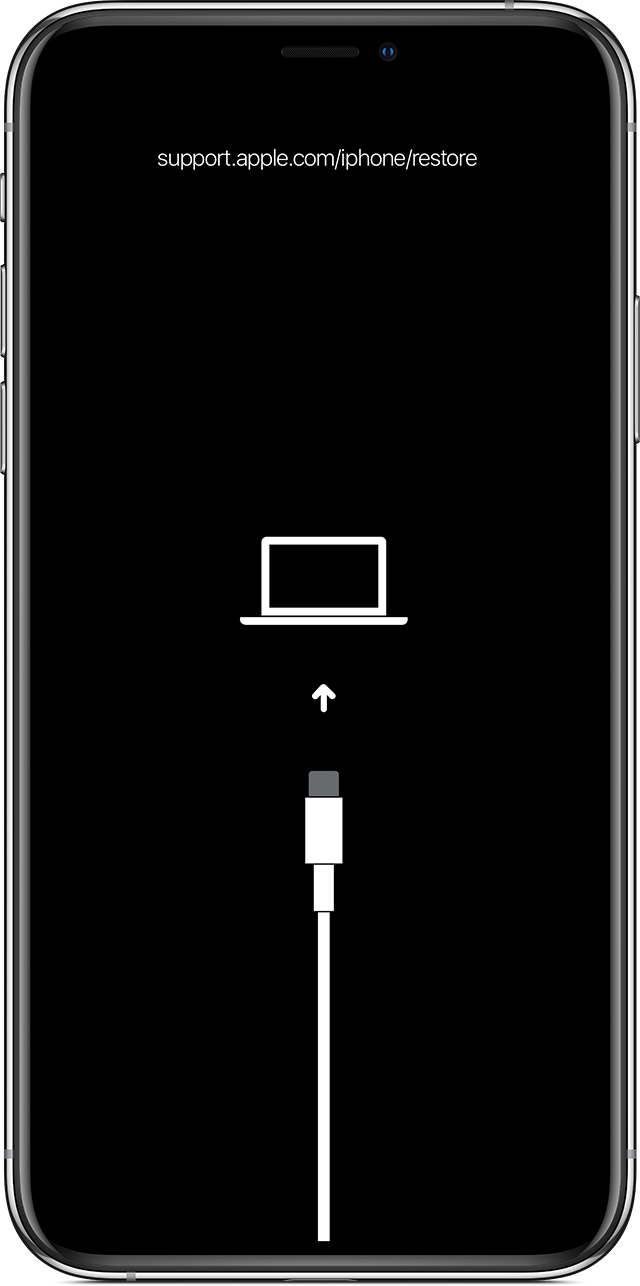
If you see the Restore screen on your iPhone, iPad, or iPod touch

If you see the Restore screen on your iPhone, iPad, or iPod touch, learn what to do.


Restart your device

If you see the Restore screen, restart your device:

  • iPad models with Face ID: Press and quickly release the Volume Up button. Press and quickly release the Volume Down button. Press and hold the Top button until the device restarts.
  • iPhone 8 or later: Press and quickly release the Volume Up button. Press and quickly release the Volume Down button. Press and hold the Side button until you see the Apple logo.
  • iPhone 7, iPhone 7 Plus, and iPod touch (7th generation): Press and hold both the Side (or Top) button and the Volume Down button until you see the Apple logo. 
  • iPad with Home button, iPhone 6s or earlier, and iPod touch (6th generation) or earlier: Press and hold both the Side (or Top) button and the Home button until you see the Apple logo.


Reinstall iOS or iPadOS

If you still see the Restore screen after you restart, you need to reinstall iOS or iPadOS:

  1. On your Mac, make sure that you’ve installed the latest software updates (including iTunes if you have MacOS Mojave or earlier). Or on your Windows PC, make sure that you’ve installed the latest version of iTunes.
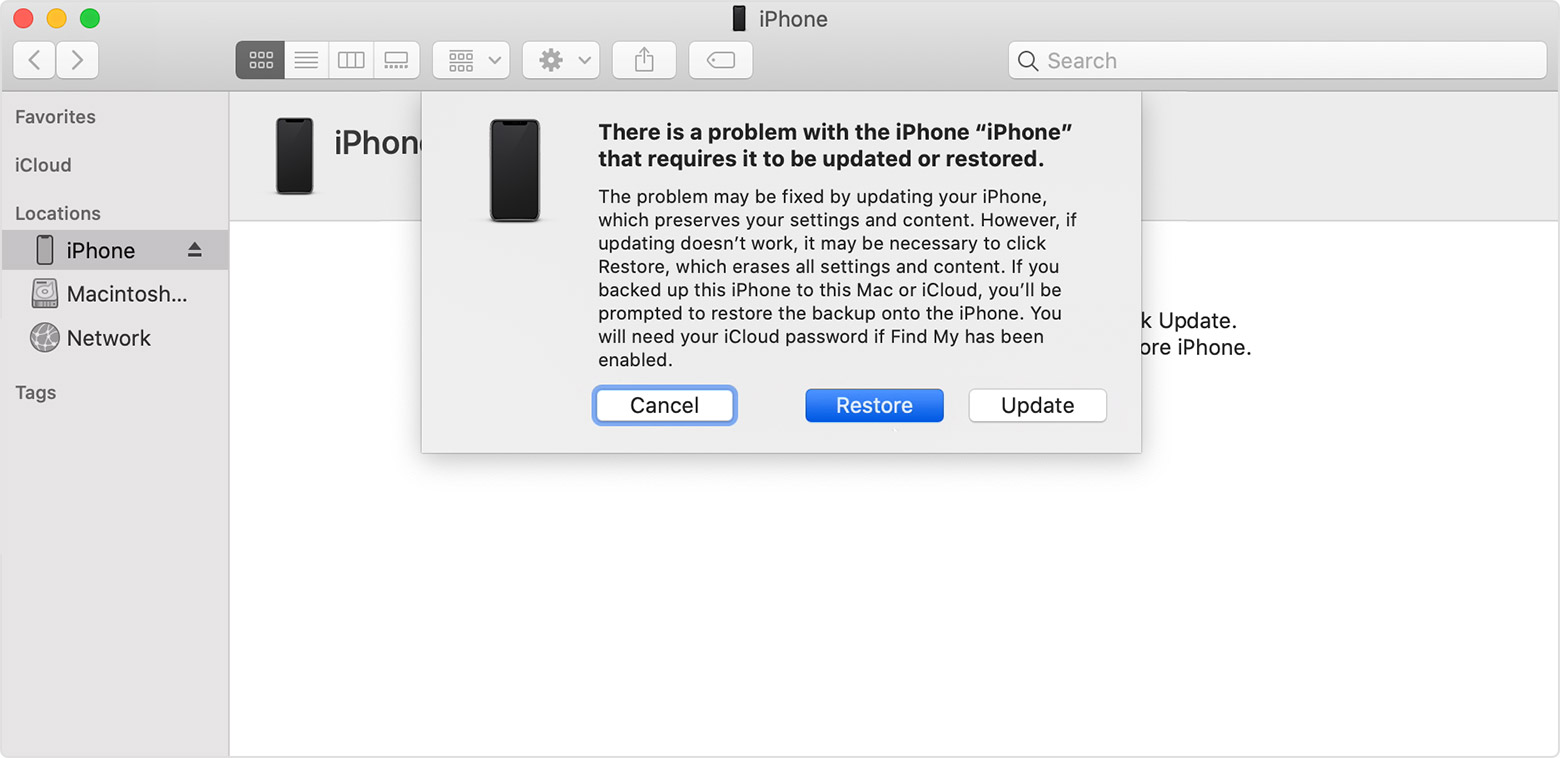
  2. Connect your device to your computer using the cable that came with your device. You should see this message: "There's a problem with the [your device name] that requires it to be updated or restored."
  3. Click Update (not Restore) to reinstall iOS or iPadOS and keep your personal data.


If the above fails


If your device turns on but gets stuck during start up

If you see the Apple logo or a red or blue screen during startup, try these steps:

  1. Connect your device to a computer. On a Mac with macOS Catalina 10.15, open Finder. On a Mac with macOS Mojave 10.14 or earlier, or on a PC, open iTunes.
  2. Locate your device on your computer.
  3. While your device is connected, follow these steps:
    • iPad models with Face ID: Press and quickly release the Volume Up button. Press and quickly release the Volume Down button. Press and hold the Top button until your device begins to restart. Continue holding the Top button until your device goes into recovery mode.
    • iPhone 8 or later: Press and quickly release the Volume Up button. Press and quickly release the Volume Down button. Then, press and hold the Side button until you see the recovery mode screen.
    • iPhone 7, iPhone 7 Plus, and iPod touch (7th generation): Press and hold the Top (or Side) and Volume Down buttons at the same time. Keep holding them until you see the recovery mode screen.
  • iPad with Home button, iPhone 6s or earlier, and iPod touch (6th generation) or earlier: Press and hold both the Home and the Top (or Side) buttons at the same time. Keep holding them until you see the recovery mode screen.
  1. When you get the option to restore or update, choose Update. Your computer will try to reinstall iOS or iPadOS without erasing your data.

Your computer will download the software for your device. If it takes more than 15 minutes, your device will exit recovery mode and you'll need to repeat steps 2 and 3.


If you need more help

Contact Apple Support to set up service if you have any of these issues:

  • You still see a black screen after charging, force restarting, or following the steps in this article.
  • You see a black screen, but you can hear alerts, sounds, and vibrations.
  • The screen remains black, but the device chirps when you unmute it and connect it to power.
  • Your screen is on, but it doesn't respond when you tap, slide, or try other gestures. 
  • You can't force your device to restart because a button is broken or stuck.
  • Your device is stuck on the Apple logo, displays a solid color, or isn't recognized in iTunes.


Mar 29, 2020 2:30 AM in response to ktaufik

Update using your computer

To download the latest version of iOS or iPadOS, using your computer, follow these steps:

  1. On a Mac with macOS Catalina 10.15, open Finder. On a Mac with macOS Mojave 10.14 or earlier, or on a PC, open iTunes.
  2. Plug your device into your computer.
  3. Locate your device on your computer. You might need to trust your device to continue.
  4. Click Check for Update.
  5. Click Download and Update.

If you see a different alert during an update, learn how to resolve it.


Else

  • You still see a black screen after charging, force restarting, following the steps in this article.
  • You see a black screen, but you can hear alerts, sounds, and vibrations.
  • The screen remains black, but the device chirps when you unmute it and connect it to power.
  • Your screen is on, but it doesn't respond when you tap, slide, or try other gestures. 
  • You can't force your device to restart because a button is broken or stuck.
  • Your device is stuck on the Apple logo, displays a solid color, or isn't recognized in iTunes.

Contact Apple Support to set up service if you have any of the above issues:


Mar 30, 2020 1:41 AM in response to SravanKrA

Hi SravanKrA

Thanks for your reply. I actually already several times do the updates, all with the same error... cannot be updated error 14.

If you see the error log attached, It should be already 100% updated on the process, however I believe the storage is FULL.


Do you know any methods to access the "photos and videos" while the Iphone is recovery mode?

I am stuck in recovery mode now, and if only I can access the photos and videos , I can delete some photos/videos to get more storage space. And will try another update ... :(

Apr 12, 2020 3:42 AM in response to ktaufik

Hi, did you manage to solve the problem? Right now I'm facing the exact same issue with my wife's phone. It was almost full and one morning it got hung up, we tried rebooting it but it got stuck on apple logo, we tried updating the OS with iTunes and the error 14 started appearing. We've also tried Reiboot and 3utools and nothing, the same error. We get the error at 93 of 100, so it's pretty close. I was thinking the same, if there was a way to free up some memory so the process can finish, but I haven't find anything yet.


I've read several blogs and some people have been able to get pass the error 14, using different pcs and different cables (apparently it has something to do with the cable), I don't know. My biggest concern is that it could be a hardware problem, and right know with all the covid-19 situation it's impossible for us to go to an apple store. I guess I'll just keep looking for alternatives and trying.

Apr 24, 2020 11:27 AM in response to ktaufik

I have iphone x and my problem is same as yours, can't get out from recovery mode.

My storage was full got hanged my phone try to restart it and it got stucked at apple logo. After apple logo it goes to recovery mode and when i try to update there cam an error 14. Currently Phone is in recovery mode and i have no backup for my phone :( Please tell me if there is any way to access my camera roll as the data is very important to me.

HELP.

Jun 20, 2020 2:30 AM in response to s-mart1

Hi friends,


Error 14 is a very sad epidemic. Unfortunately, to date there’s nothing that can be done to retrieve the data. Only Apple can do something about this but they chose to sweep the problem under the rag.

The only way to get them to do something about this problem is to make sure our voice is heard everywhere. I tried to approach several media outlets and tech journalists, with the hopes that they’ll pick up the story!


This problem comes without any notice whatsoever!! They shouldn’t be selling junk for so much money!!


Please watch the following YouTube video. It’ll give you all the info you need about “error 14”.


https://youtu.be/aQTObeAUzkQ

Apr 13, 2020 6:23 AM in response to Monardo12

Hi Monardo12,


Still the same situation here. I already created the ticket support to apple actually, but no lucks yet.

I believe Apple Service Centre has tools to do this type of situation.

As for me, I already checked and rechecked some possible issues of the error 14. But I am sure what happened was because of out of storage capacity even to start the OS.


So for me, If only I can access the data/photos/images/videos .... during the "recovery mode" or even " DFU mode" for me to just delete some of the photos/videos to reclaim some free spaces.


The go to ITunes and continue the "update" ...


I think I will be Ok.


This thread has been closed by the system or the community team. You may vote for any posts you find helpful, or search the Community for additional answers.

IPhone SE full storage/out of storage, stuck apple logo, try to update, stuck in recovery mode. Please help

Welcome to Apple Support Community
A forum where Apple customers help each other with their products. Get started with your Apple Account.