What Wifi speeds should I expect from Airport Extreme (AC)

With everyone home with this Coronavirus issue, my wife (who always works from home) is complaining about the internet speed. I noticed that I have 100 Mbps service from my internet provider (fiber optic). I have a 6th generation Extreme.


When I plug my laptop directly into the LAN cable provided by my ISP, I am getting close to 100 Mbps. However for any connection through the Airport Extreme, including wireless and wired, I am only getting about 10 Mbps. It doesn't matter where I am in the house, or what laptop or device I use, it is almost exactly the same everywhere (about 9.4 Mbps). At first I didn't think this was bad, as I assumed the number was Mbytes per second.


This doesn't seem right but I'm not sure what my expectation should be. Anyone suggest a fix??


It just

Posted on Apr 24, 2020 5:30 AM

Reply

Similar questions

15 replies

Apr 24, 2020 6:43 AM in response to Rudegar

If you had called Apple Support regarding your AirPort Extreme speed issue, the first thing that they would have you do is reset the AirPort Extreme back to its default settings and then set it up again.


So, if you have not already done this, now might be a good time. There is no guarantee that this will help, but it is a logical first troubleshooting step.


For what its worth, I don't have a fiber connection here, I use a normal cable type connection with a speed plan of 200 Mbps. When I run a check of WiFi and wired Ethernet connections, the speed is consistently at 200 Mbps or higher, which indicates that my provider is actually sending a 210-220 Mbps signal.

Apr 24, 2020 8:21 AM in response to monkeyman14

With the AirPort Expresses temporarily powered off, you know that your WiFi testing device will be picking up the signal from the AirPort Extreme......and not one of the AirPort Expresses.


Trying to use the AirPort Express to wirelessly extend the signal can help with signal strength, but unfortunately this type of connection will always result in a significant loss of speed. So, when you extend the network, you get a "bigger" network, but it will also be a slower network. Apple does not tell you things like this, of course.


We'll get into that more once you have had a chance to reset the AirPort Extreme, turn off the Expresses temporarily, and you have run a few speed checks. One check will be with the WiFi device close to the AirPort Extreme......maybe 8-10 feet away. Try to run a check with both the iPhone and PC.


Another check will be to measure the speed at the location of AirPort Express 1 (with the Expresses still powered off) and another check will be to measure the speed at the location of the AirPort 2 (with the Expresses still powered off).


We'll know quickly whether you might have a problem with the AirPort Extreme......unlikely.....or whether the speed problem is being caused by the Expresses.......likely.


Apr 24, 2020 12:47 PM in response to monkeyman14

The 802.11ac standard allows for a maximum of 8 spatial streams, but the AirPort Extreme is limited to only 3 in a 3x3:3 MIMO configuration. What that basically means is that your Extreme is capable of broadcasting with up to 1300 Mbps over 80 MHz-wide channels. That would be its maximum bandwidth or Tx Rate.


A wireless client would also need, as a minimum, to be capable of working with up to 3 spatial streams to potentially connect to the Extreme at that same bandwidth. However, the actual data throughput between them will always lower than the total bandwidth for a number of reasons. Primarily due to signal noise or obstacles between devices.

Apr 24, 2020 5:47 AM in response to monkeyman14

I have two of them and just tested using https://www.speedtest.net/

and get

 PING ms 17

 DOWNLOAD Mbps 51.62

 UPLOAD Mbps 50.99


which is pretty much what I pay for, got two extremes extending each other, not sure which one my work laptop I just did the test on connects to likely the older flat extreme which extend the tall extreme which connects to the fiber modem.


Apr 24, 2020 4:36 PM in response to monkeyman14

When problems arise on an extended network it is almost always the extenders that are creating the issues for several different reasons. Often, if an extender connects using WiFi, it's location is not correct, or there are too many obstructions in the signal path between the WiFi devices, and or other interference from nearby wireless networks. I'm not a fan at all of extending using a WiFi connection, but sometimes there are no choices.


When an extender connects to the network using a wired Ethernet connection, users frequently apply the wrong setting to the Express and set it up to "extend a wireless network". That would seem like the logical setting to use, but surprisingly is the wrong setting to use. When the wrong setting is used, it can slow down the entire network tremendously.


The correct setting is "extend using Ethernet".


We will first work on the Express that connects to the network using Ethernet. Please leave the other Express powered off for now until we know that the wired Express is working OK.


Power up the Express that connects to the LAN using an Ethernet and let it run for a minute

Then, hold in the reset button for 7-8 seconds and release and allow a full minute for the Express to restart to a slow, blinking amber light status. You can also perform a Factory Default Reset if you wish.


On your iPhone.......

Go to the Home Screen

Tap on Settings

Tap on WiFi

Look for a listing of Set Up a New AirPort Base Station

Tap on AirPort Express just below that listing
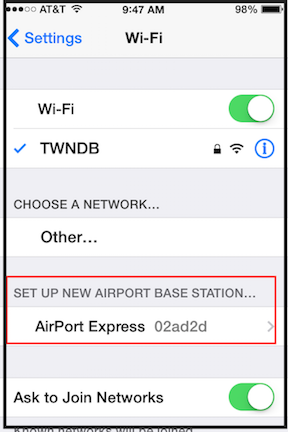


When you tap on AirPort Express, that will start up the AirPort Utility setup "wizard". The utility will take few seconds to analyze the network and then display a screen to the effect that the Express will be set up to extend the network. The illustration below is from a Mac version of AirPort Utility, but the iPhone will be similar except your devices will appear along with your network name.
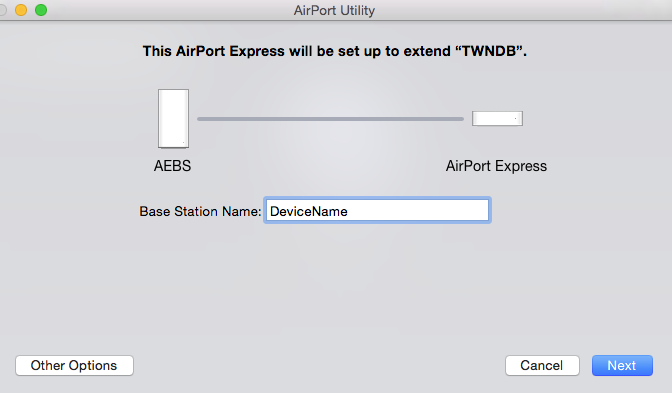


Type in a device name that you want to call the Express, or you can use the suggested name

Tap Next


Watch the next screen very carefully to see that the Express is being set up to extend using Ethernet. This will confirm that the setup utility is picking up the Ethernet connection between the two AirPorts, so the Express will be set up with the correct settings for an Ethernet connection.
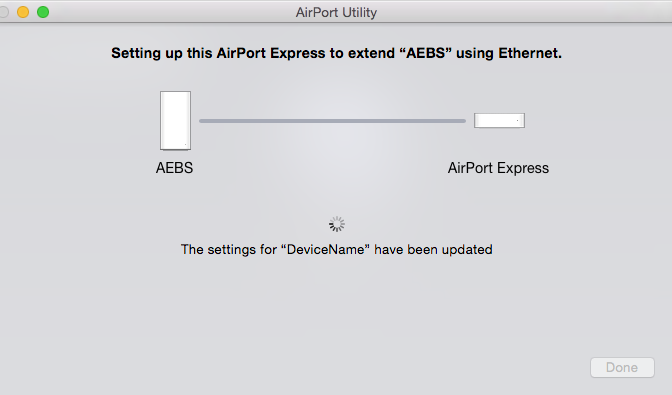


When you see the message of Setup Complete, tap Done and you are Done.


Now, you need to make sure that the iPhone or whichever device that you are using to test speeds is connected to the AirPort Express WiFi......not the AirPort Extreme WiFi.


If you are using AirPort Utility for iOS, you can check as follows:

Go to the Home Screen

Tap to open AirPort Utility

Tap on the picture of the AirPort Express (you may or may not be asked for the admin password)

Tap on Wireless Clients to see that your iPhone is a client of the Express. If you don't see it here, check the AirPort Extreme.....the iPhone may be connected to the AirPort Extreme even though it is closer to the Express.


Now you can run a few speed checks to see how the Express is doing. Something in the 60-70 Mbps range would be pretty good.


Post back on your results and we will continue.


Apr 24, 2020 7:54 AM in response to Bob Timmons

No, my laptop are all PCs. I use my iPhone to program. I do have the airport utility on my main PC computer.


The airport express(es) that I have are probably not critical. I have one in my audio cabinet to boost my signal for my appleTV and DirecTV and one in the garage to reach my networked grill. However, the Airport Extreme gives pretty good signal throughout my house.


I will try at lunch with a bare-bones configuration and see what I get.

Apr 24, 2020 1:34 PM in response to monkeyman14

OK, thanks for checking on this.


The AirPort Extreme is doing fine. Frankly, I doubt that the reset did the trick......the AirPort Extreme was probably fine all along, but that's water under the bridge.


I'm not clear on "how" the AirPort Express(es) will extend the signal. Will they connect using a permanent wired Ethernet cable connection or will they connect using only a wireless connection? We ask because the set up is different depending on how the Expresses will connect.


I'm assuming that you have AirPort Utility installed on the iPhone, correct? If not, you can download it from the App Store for free.


Apr 24, 2020 5:36 PM in response to Bob Timmons

Ok, now we are getting somewhere!


I set up the Express and wow, speeds are incredible. In the family room (where the Express is located inside a cabinet). speeds are between 80-90. My phone connects to this express in the hallway heading to the front of the house, maintaining speeds above 80.


The interesting thing is once I leave the hallway and enter my office, the phone connects to the Extreme, and I am getting around 27 mbps in my office, and my wife is getting around 35 across the hall.


obviously, I’m happy with 25 compared to 10, but I could use the other Express in the front of the house for another Ethernet wired connection.


Apr 24, 2020 5:52 PM in response to monkeyman14

Set up the other Express using Ethernet exactly the same way that you set up the previous Express using a wired connection. Just assign a different device name to that Express and the setup wizard will take care of the rest for you automatically.


There is such a thing as too many AirPorts on a network when they are located too close together. Then, Macs and iPhones have a tough time trying to figure out which AirPort to connect to. Another way to say the same thing would be to say that in general, you would want to locate AirPorts at least a few rooms away from each other. You normally don't want AirPorts in adjacent rooms unless the rooms are huge and the walls are very thick between them.


Sometimes, iPhones will not "switch" AirPorts when you move them from one area to another. It is a good idea to temporarily turn Airplane Mode on at the iPhone when you move it, then turn it off again when the iPhone is at the new location. Then, the iPhone will usually.......but not always......connect to the closest AirPort.


Apr 24, 2020 7:20 AM in response to monkeyman14

I assume I will have to reset my 2 airport expresses that I use for network extension?


No, unless you plan to change the name and password of the WiFi network that the AirPort Extreme provides.


But.....this is the first time that you have mentioned that you are using two AirPort Expresses to extend the network, so that complicates things.


Once you have factory reset the AirPort Extreme and set it up again, we need to run a few checks on the Extreme.......with the AirPort Express devices powered off.


Hopefully, your laptop is a Mac. Is that the case?

Apr 24, 2020 1:26 PM in response to Bob Timmons

I completely reset the router and it seemed to work very well. I immediately received 98 mbps over wifi right next to the router and about 25 mbps in my office one story down. Much better than 9.4 mbps!


I haven't had a chance to check the hardwired connection, and haven't checked the garage to see if there is a viable signal.


If I wanted to add the Express to extend the signal, any recommendations?


Thanks everyone!

Apr 24, 2020 6:25 PM in response to monkeyman14

Nature of the beast with iPhones and iPads. You can usually get an iOS device to connect to the closest AirPort using the "trick" that I listed above.


You can also temporarily turn the WiFi off on the iPhone, then turn the WiFi back on.


New iPhones seem to be a bit better than the older iPhones, but still are not exactly reliable when there are multiple AirPorts on a network.


Macs will usually do a nice job of automatically connecting to the AirPort with the best quality signal.

This thread has been closed by the system or the community team. You may vote for any posts you find helpful, or search the Community for additional answers.

What Wifi speeds should I expect from Airport Extreme (AC)

Welcome to Apple Support Community
A forum where Apple customers help each other with their products. Get started with your Apple Account.


