Check the following
- Do you have any third party Alarm App installed which is interfering with the default Alarm app?
- Do you want to say there was no Vibration even?
- Settings > General > Accessibility > Vibration > Vibration [Enabled] or [Disabled]
- Settings > Sound > Vibration [Enabled] or [Disabled]
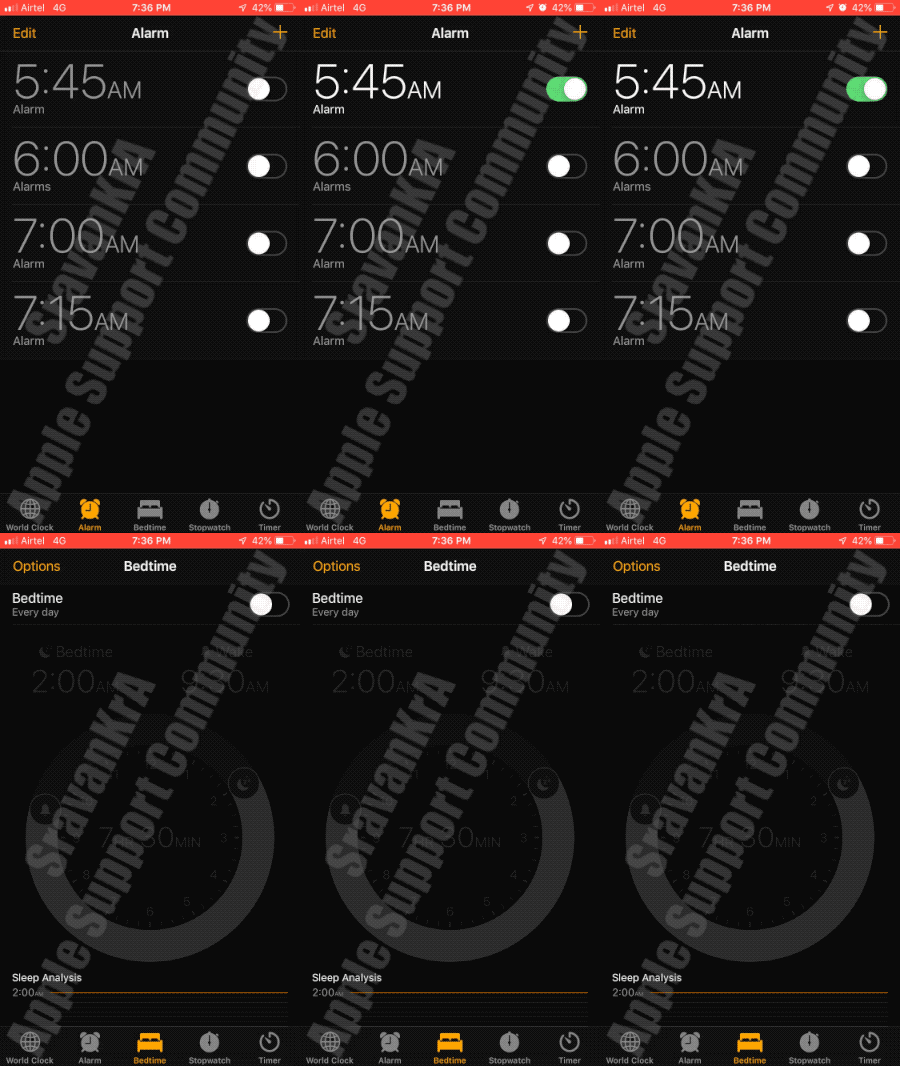
- Was there any Alarm symbol on status bar on top (Watch the GIF below). Though this shows up on your device (As per your post)
- Turn on Set Automatically1 in Settings > General > Date & Time. This automatically sets your date and time based on your time zone. If there’s an available time zone update, your device lets you know.
- Allow your device to use its current location to determine the correct time zone. To do this, go to Settings > Privacy > Location Services > System Services and select Setting Time Zone.
- Check that your device shows the correct time zone in Settings > General > Date & Time > Time Zone.
Get help with alarms
Do Not Disturb and the Ring/Silent switch don't affect the alarm sound. If you set your Ring/Silent switch to Silent or turn on Do Not Disturb, the alarm still sounds.
If you have an alarm that doesn’t sound or is too quiet, or if your iPhone only vibrates, check the following:
- Set the volume on your iPhone. If your alarm volume is too low or too loud, press the volume button up or down to adjust it. You can also go to Settings > Sounds & Haptics and drag the slider under Ringers And Alerts.
- If your alarm only vibrates, make sure that your alarm sound isn't set to None. Open the Clock app, tap the Alarm tab, then tap Edit. Tap the alarm, then tap Sound and choose a Sound.
- If you use iOS 11 or later and you connect headphones or speakers to your iPhone, the alarm plays at a set volume through the built-in speakers on your iPhone as well as wired headphones and speakers. It doesn't play through wireless headphones and speakers.
Manually adjusting your iPhone’s time in Settings to change app behavior, like game timers, isn’t recommended and can affect alarms.

