have an apple pop up that won't stop popping up

I updated to the new software this morning and cannot get a warning message from apple to stop popping up blocking the screen


“GoWebSearchDaemon” will damage your computer.


How do I get rid of this?

MacBook Pro 13″, macOS 10.15

Posted on Jun 7, 2020 1:35 PM

Reply
Question marked as Top-ranking reply

Posted on Aug 9, 2020 11:50 AM

I had been waiting for the OP to reply so that I could provide specific guidance but after two months he is not likely to return. You or anyone else can apply the following general instructions for getting rid of problems like GoWebSearchDaemon, should it affect them.



The subject dialog always takes this form, as described in Safely open apps on your Mac:
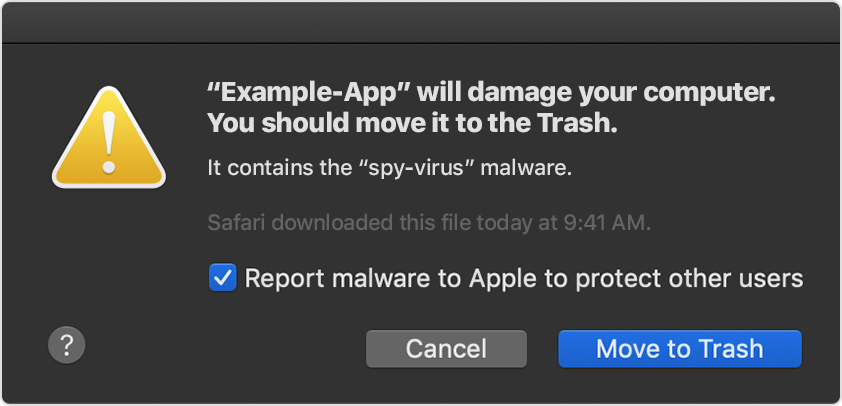


Move to Trash is the correct response. When that message becomes persistent though, the cause is always the same: one or more files that spawn the process resulting in its appearance.


General instructions applicable to all similarly categorized malware are as follows:


The folders to be examined are these three:


~/Library/LaunchAgents

/Library/LaunchDaemons

/Library/LaunchAgents


There should only be few files, if any, in each of the above folders. You should know what they are and why you need them. If you're unsure, ask.


Legitimate products that deposit system-altering components in those folders commonly include Adobe, Amazon, Dropbox, Google and Microsoft, including its product Skype. Teamviewer also, assuming you really need it. Less common but equally legitimate products include Steam (games), various non-Apple "cloud backup" products that don't work very well, and device drivers for external hardware such as printers and non-Apple input devices. You should have at least a passing familiarity with the products you installed on your Mac, and the files they deposit in those folders should never come as a surprise.


Illegitimate products notorious for causing trouble include any non-Apple product that claims to "clean", "enhance", "optimize", "protect", or "scan" your Mac. Anything in that broad category of junk should be uninstalled according to their instructions and never reinstalled, ever again.


Everything else should be regarded as suspicious. Some malware will litter those folders with hundreds of randomly named files in a pathetic attempt to obscure itself. For one particularly egregious example refer to notice unysgar.app, but if you have no explanation for any particular file in those folders you need to investigate.


Among the few examples in this Discussion are files containing the following in their names:


calculator

confcloud

copypaste

fixer

helper

hlpr

mafntask

moniter 🙄

pcv

scan

search

systemExtr

spigot

techyutil

updService

util

utilty

vlm

files containing nothing but a random string of long alphanumeric text


... among a few others, but deleting those is a good place to start.


Then, reset your desired Search Engine, uninstall any strange Extensions, remove any unwanted Login Items, delete any unwanted apps, examine System Preferences for the existence of any Profiles, and finally restart your Mac (normally; not Safe Mode).


Then, evaluate its operation. If something still isn't right re-examine those three folders and determine if you overlooked anything. If something really gets messed up you have Time Machine to fall back on, so keep that important fact in mind.


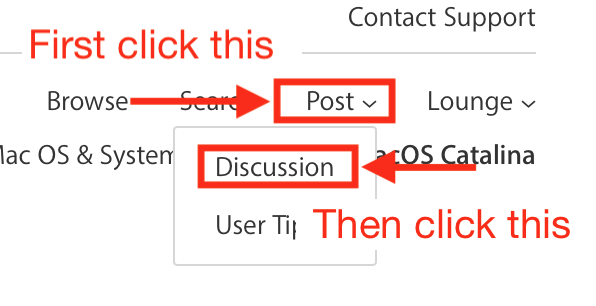
That in a nutshell is how you get rid of adware, on your own, without having to even ask anyone for help. If you prefer individual attention specifically tailored to your needs though, then by all means please post a new Discussion. To do that click the Post link above right, and choose Discussion from the dropdown menu:



7 replies
Question marked as Top-ranking reply

Aug 9, 2020 11:50 AM in response to elliotHStein

I had been waiting for the OP to reply so that I could provide specific guidance but after two months he is not likely to return. You or anyone else can apply the following general instructions for getting rid of problems like GoWebSearchDaemon, should it affect them.


The subject dialog always takes this form, as described in Safely open apps on your Mac:


Move to Trash is the correct response. When that message becomes persistent though, the cause is always the same: one or more files that spawn the process resulting in its appearance.


General instructions applicable to all similarly categorized malware are as follows:


The folders to be examined are these three:


~/Library/LaunchAgents

/Library/LaunchDaemons

/Library/LaunchAgents


There should only be few files, if any, in each of the above folders. You should know what they are and why you need them. If you're unsure, ask.


Legitimate products that deposit system-altering components in those folders commonly include Adobe, Amazon, Dropbox, Google and Microsoft, including its product Skype. Teamviewer also, assuming you really need it. Less common but equally legitimate products include Steam (games), various non-Apple "cloud backup" products that don't work very well, and device drivers for external hardware such as printers and non-Apple input devices. You should have at least a passing familiarity with the products you installed on your Mac, and the files they deposit in those folders should never come as a surprise.


Illegitimate products notorious for causing trouble include any non-Apple product that claims to "clean", "enhance", "optimize", "protect", or "scan" your Mac. Anything in that broad category of junk should be uninstalled according to their instructions and never reinstalled, ever again.


Everything else should be regarded as suspicious. Some malware will litter those folders with hundreds of randomly named files in a pathetic attempt to obscure itself. For one particularly egregious example refer to notice unysgar.app, but if you have no explanation for any particular file in those folders you need to investigate.


Among the few examples in this Discussion are files containing the following in their names:


calculator

confcloud

copypaste

fixer

helper

hlpr

mafntask

moniter 🙄

pcv

scan

search

systemExtr

spigot

techyutil

updService

util

utilty

vlm

files containing nothing but a random string of long alphanumeric text


... among a few others, but deleting those is a good place to start.


Then, reset your desired Search Engine, uninstall any strange Extensions, remove any unwanted Login Items, delete any unwanted apps, examine System Preferences for the existence of any Profiles, and finally restart your Mac (normally; not Safe Mode).


Then, evaluate its operation. If something still isn't right re-examine those three folders and determine if you overlooked anything. If something really gets messed up you have Time Machine to fall back on, so keep that important fact in mind.


That in a nutshell is how you get rid of adware, on your own, without having to even ask anyone for help. If you prefer individual attention specifically tailored to your needs though, then by all means please post a new Discussion. To do that click the Post link above right, and choose Discussion from the dropdown menu:


Jun 7, 2020 5:01 PM in response to elliotHStein

You installed adware at some time in the past. Whether or not you were aware of it your Mac has not been operating properly since then. macOS's improved malware detection algorithms are only now making you aware of its presence.


To fix it follow the instructions below. To learn how not to make that mistake again, please read How to install adware.


To ascertain the cause so that you can eliminate it, start by inspecting the contents of the following folder:


~/Library/LaunchAgents


To open that folder, copy the entire line above and paste it in the Finder's Go menu > Go to Folder... field. Make it look like this:


... and click the Go button.


A Finder window will open. Make sure all its file names are readable by selecting View > as List or other selection that shows that folder's complete contents. Then, take a screenshot of that Finder window.


Often, there is nothing in that Launch Agents folder so don't be surprised to find it empty.


In the same manner as the above, navigate to this next folder:


/Library/LaunchDaemons


The Finder's Go menu > Go to Folder... field should look like this:


... and click the Go button once again.


Once again ensure all its files and their names are readable and capture a screenshot.


Then, repeat that exercise with the following folder:


/Library/LaunchAgents


Notice its pathname is different than the other two. The Finder's Go menu > Go to Folder... field should look like this:


In the end, you will have captured the contents of the following three separate folders:


~/Library/LaunchAgents

/Library/LaunchDaemons

/Library/LaunchAgents


All three will be saved to your Mac's Desktop with names "Screen Shot... " followed by the date and time they were captured. Please be sure to include or otherwise indicate the name of the folder that corresponds to each screenshot, so that you and I can keep track of which ones they are.


Post the entire contents of all three windows, one at a time, using the "picture" icon that appears below your reply text:


This thread has been closed by the system or the community team. You may vote for any posts you find helpful, or search the Community for additional answers.

have an apple pop up that won't stop popping up

Welcome to Apple Support Community
A forum where Apple customers help each other with their products. Get started with your Apple Account.