Sign in with the same Apple ID & password say example1@icloud.com on your iPhone & Mac and connect both with the help of the usb cable follow this article https://support.apple.com/guide/mac-help/wi-fi-syncing-mchlada1d602/10.15/mac/10.15
Click on finder > general > sync
Let the bar be completely loaded .
Open your mailbox in iPhone
Click on edit option on the up-right corner
Click on “new mailbox” option on your down-right corner ,
In the new mail box , in the name section enter your iCloud id say example1@icloud.com
And set your mailbox location as per you requirement (iCloud / gmail) - prefer iCloud
Then again click on edit , you will see your apple id , under it you will find an option of “new mailbox '’on your right corner > choose the name for your folder and add the mailbox location ( iCloud id )> click on save > finally click on done .
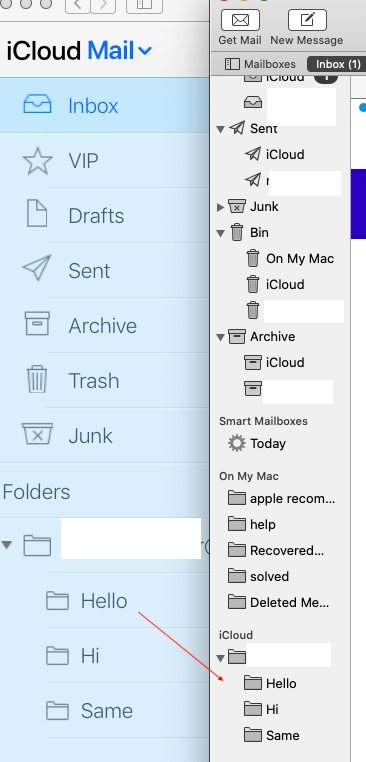
The folder is created in iPhone , open www.icoud.com in mail section in the bottom left corner click on refresh , the mail folders will be visible after few moments , then open IMAP account , under iCloud section in the bottom click on drop down arrows all mail folders will appear .