Problem with "System Administrator"

Good afternoon, I recently bought a Macbook pro through second hand. Later it turned out that the "System Administrator" limited me to some actions, such as changing something in the "HD Disk", and also I can not go to "PROFILES", do not confuse with "users and groups" and "sharing". Help remove or find the password for the "System Administrator". I will tell you right away that I have the latest version 10.12.6, I also disposed of the disk several times, and reinstalled macOS

MacBook Pro 15″, macOS 10.15

Posted on Aug 6, 2020 11:54 AM

Reply
10 replies

Aug 7, 2020 9:15 AM in response to TimurSlugin22

If it is locked by a Firmware Update, then you would see:


Lock icon


If your Mac is using a firmware password, the lock icon appears when you try to start up from another disk or volume, such as an external drive or macOS Recovery. Enter the firmware password to continue.


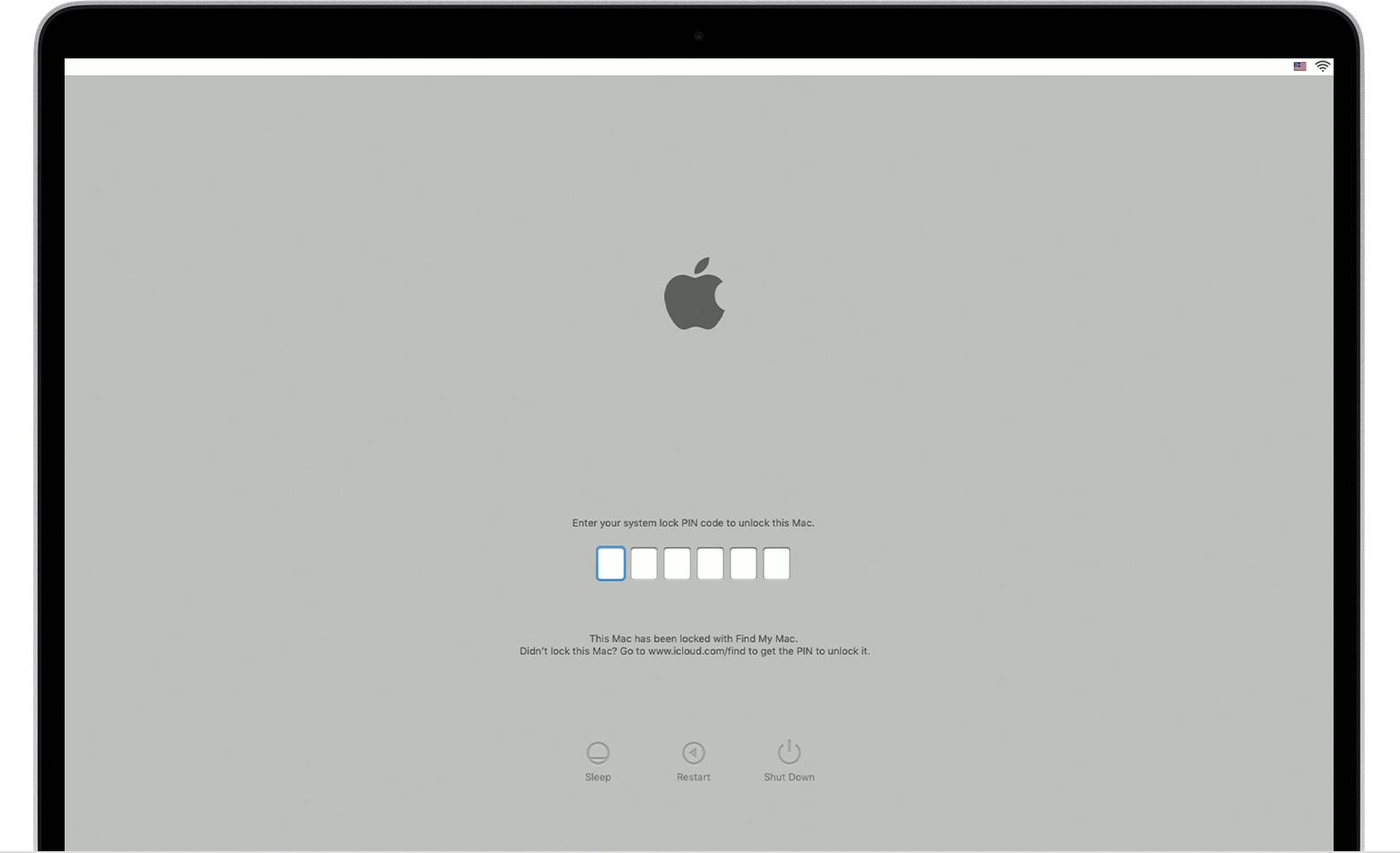
If it has been locked with a PIN code, then you would see:


System lock PIN code


Your Mac asks for a PIN code when it has been remotely locked using Find My. Enter the four-digit or six-digit passcode to continue.


Either of these screens would appear when you boot the computer. You would need to take the computer to an Apple shop for help. However, you must be able to prove you are the original purchaser.


Aug 6, 2020 12:31 PM in response to TimurSlugin22

Here's what you need to do:


Internet/Network Recovery of macOS


     This will perform a factory reset.


  1. Restart the computer. Immediately, at or before the chime, hold down the (Command-Option-Shift-R) keys until a globe appears.
  2. The Utility Menu will appear in from 5-20 minutes. Be patient.
  3. Select Disk Utility and click on the Continue button.
  4. When Disk Utility loads select the target drive (out-dented entry w/type and size) from the side list.
  5. Click on the Erase button in Disk Utility's toolbar. A panel will drop down.
  6. Set the partition scheme to GUID.
  7. Set the Format type to APFS (SSDs, only if installing Mojave or Catalina ) or Mac OS Extended, (Journaled.)
  8. Provide a volume name, usually "Macintosh HD."
  9. Click on the Apply button, then click on the Done button when it activates.
  10. Quit Disk Utility and return to the Utility Menu.
  11. Select Install OS X and click on the Continue button.


Once this has successfully completed, you can upgrade to Catalina: How to upgrade to macOS Catalina.

This thread has been closed by the system or the community team. You may vote for any posts you find helpful, or search the Community for additional answers.

Problem with "System Administrator"

Welcome to Apple Support Community
A forum where Apple customers help each other with their products. Get started with your Apple Account.