Backup and storage

iPhone won’t back up, storage is full, phone won’t let me delete photos, can’t take any photos. Bought more storage, nothing changed. Deleted all apps except the ones I really need. Can’t even open some apps it just goes back to home screen when I click on them. HELP?!

iPhone XS, iOS 13

Posted on Aug 22, 2020 4:00 AM

Reply
5 replies

Aug 22, 2020 4:08 AM in response to Crystmas

When you get a popup message on your iPhone or iPad that the storage is full.


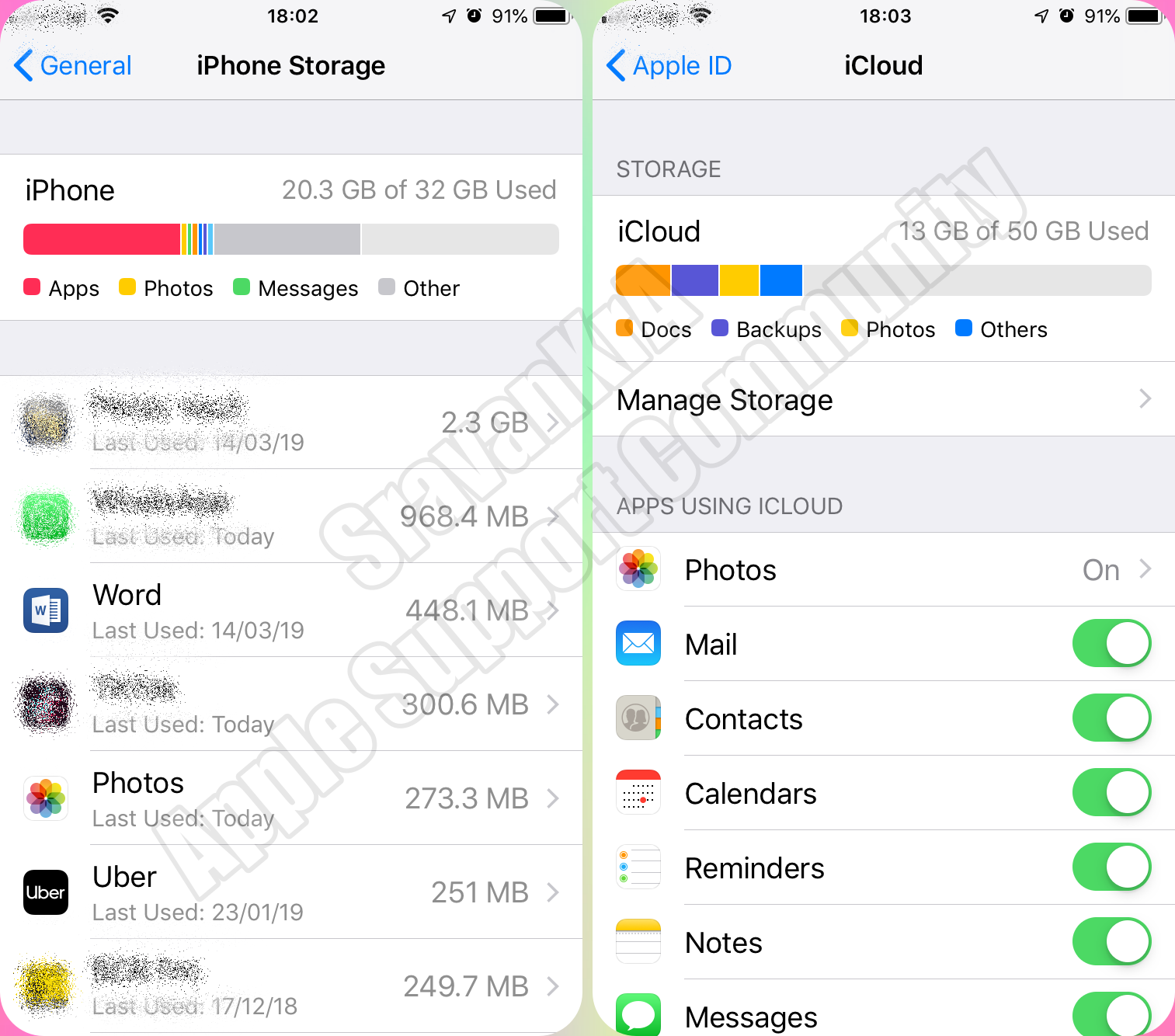
Look closely storage of iPhone and iCloud.


You cannot increase storage of iPhone. However you can optimise iPhone Storage by using iCloud Storage. Save space on your device

Settings > [your name] > iCloud Tap Photos > Choose Optimize [device] Storage Set up and use iCloud Photos - Apple Support


iCloud storage is primarily for keeping a copy of your iPhone data safely on cloud. If you delete data on iPhone, data on iCloud is gone.


iPhone Storage (Setting > General > iPhone Storage)

  1. Total storage remains same through out life span of the iPhone
  2. Storage can not be enhanced
  3. You may take back up on Mac or PC using iTunes without iCloud


iCloud Storage (Settings > [Tap your name] > iCloud)

  1. By default every user gets 5GB of free storage space
  2. You can buy more storage based on your requirement 50, 200GB, 2TB with monthly subscription
  3. Based on your storage capacity you can back up iPhone or iPad
  4. The space can be shared between your family members for storage plan beyond 200GB


Aug 22, 2020 4:11 AM in response to Crystmas

If you can't delete photos which re-appear after some time.


Probably you have synced these Photos from your Mac/PC though iTunes. Un-sync then they be gone.


Un-Sync photos to your device

  1. Connect your device to your Mac.
  2. You can connect your device using a USB or USB-C cable or using a Wi-Fi connection. To turn on Wi-Fi syncing, see Sync content between your Mac and iPhone or iPad over Wi-Fi.
  3. In the Finder  on your Mac, select the device in the Finder sidebar.


  4. Select Photos in the button bar.
  5. Note: When iCloud Photos is turned on, no photo syncing options appear when you select Photos in the button bar.
  6. Select “Sync Photos to your device from” tickbox, then choose Photos, Pictures or a folder from the pop-up menu.
  7. Uncheck Sync photos
  8. Click on Apply / Sync


Aug 22, 2020 4:10 AM in response to Crystmas

If you are not able to delete photos which re-appear after sometime


Probably you have synced these Photos from your Mac/PC though iTunes. Un-sync then they be gone.


Un-Sync photos to your device

  1. Connect your device to your Mac.
  2. You can connect your device using a USB or USB-C cable or using a Wi-Fi connection. To turn on Wi-Fi syncing, see Sync content between your Mac and iPhone or iPad over Wi-Fi.
  3. In the Finder  on your Mac, select the device in the Finder sidebar.

  4. Select Photos in the button bar.
  5. Note: When iCloud Photos is turned on, no photo syncing options appear when you select Photos in the button bar.
  6. Select “Sync Photos to your device from” tickbox, then choose Photos, Pictures or a folder from the pop-up menu.
  7. Uncheck Sync photos
  8. Click on Apply / Sync


This thread has been closed by the system or the community team. You may vote for any posts you find helpful, or search the Community for additional answers.

Backup and storage

Welcome to Apple Support Community
A forum where Apple customers help each other with their products. Get started with your Apple Account.
