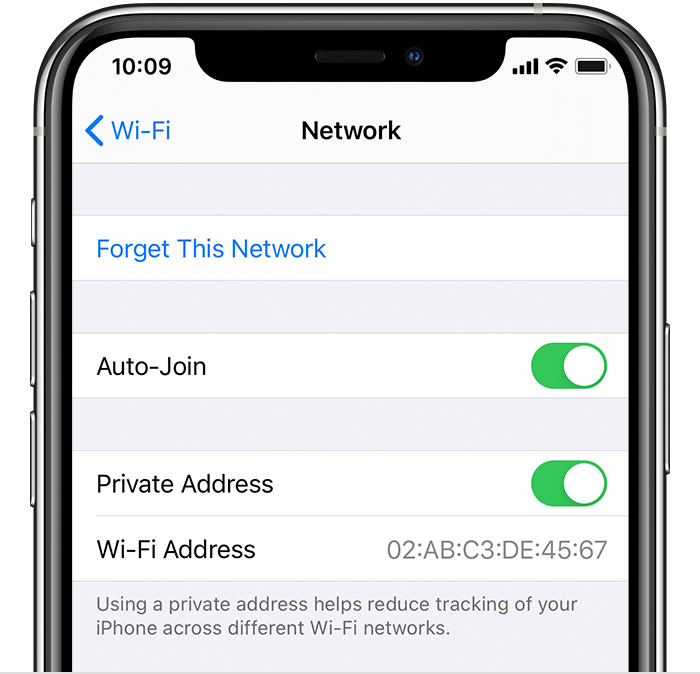
In iOS 14 how do you switch off private WiFi addresses for all networks?

I would like the option to be able to control it in one go instead of per network. Give the owner back control! As if the App Library wasn't bad enough!

How I wish that I had never updated to iOS 14!

iPhone XS Max, iOS 14

Posted on Sep 20, 2020 12:26 PM

Reply
11 replies

Oct 11, 2020 6:12 PM in response to wesley-nl

There’s tracking, and there’s tracking. Apple gives you tools to avoid having your web searches, sites you visit, purchases, etc recorded in monster databases that are available to anyone who wants to view them. If you are fine with this that’s great. I’m not. That’s why I don’t use Google search and I have enabled Limit Ad Tracking (and it’s more advanced equivalent in iOS 14). I know that my location can be tracked (approximately) by my carrier; I have no choice there, because it’s required by law. It also is quite imprecise, and, with recent agreements from carriers, that information is not publicly available, only for law enforcement and E911 services. But with Wi-Fi tracking my precise location is recorded every time I get near any Wi-Fi network, unless my phone sends false Wi-Fi IDs, which is what this feature does (when it is on, which it is by default).


How many Wi-Fi networks do you connect to that make it so burdensome to turn off private addresses for those networks? You do realize that iOS has sent bogus Wi-Fi addresses to all networks that you are NOT connected to when you are near them for the past 3 years.


Sep 25, 2020 9:59 AM in response to wesley-nl

Hi there, wesley-nl!


Thanks for reaching out to the Apple Support Communities! That’s a great question you have about turning off private Wi-Fi addresses all at once instead of per network. Please check out this article to Use private Wi-Fi addresses in iOS 14, iPadOS 14, and watchOS 7. Per the article, it will need to be turned off for each network:


"Turn private address off or on for a network

You can stop or resume using a private address with any network. For better privacy, leave the setting on for all networks that support it.

iPhone, iPad, or iPod touch

  1. Open the Settings app, then tap Wi-Fi.
  2. Tap the information button  next to a network.
  3. Tap Private Address. If your device joined the network without using a private address, a privacy warning explains why.

"


You're welcome to use this link for Product Feedback to submit feedback directly to Apple for features you'd like to see in the future.


Have a terrific day!

This thread has been closed by the system or the community team. You may vote for any posts you find helpful, or search the Community for additional answers.

In iOS 14 how do you switch off private WiFi addresses for all networks?

Welcome to Apple Support Community
A forum where Apple customers help each other with their products. Get started with your Apple Account.