Big Sur installation stuck at "Less than a minute remaining..."

Im trying to install Big Sur on my macbook pro mid 2015 and it stuck at "Less than a minute remaining..." for about 2 hours now.. Should I just wait or is there something I can do?! Thanks

MacBook Pro 15″, macOS 10.14

Posted on Nov 24, 2020 5:23 AM

Reply
Question marked as Top-ranking reply

Posted on Jan 29, 2021 9:54 AM

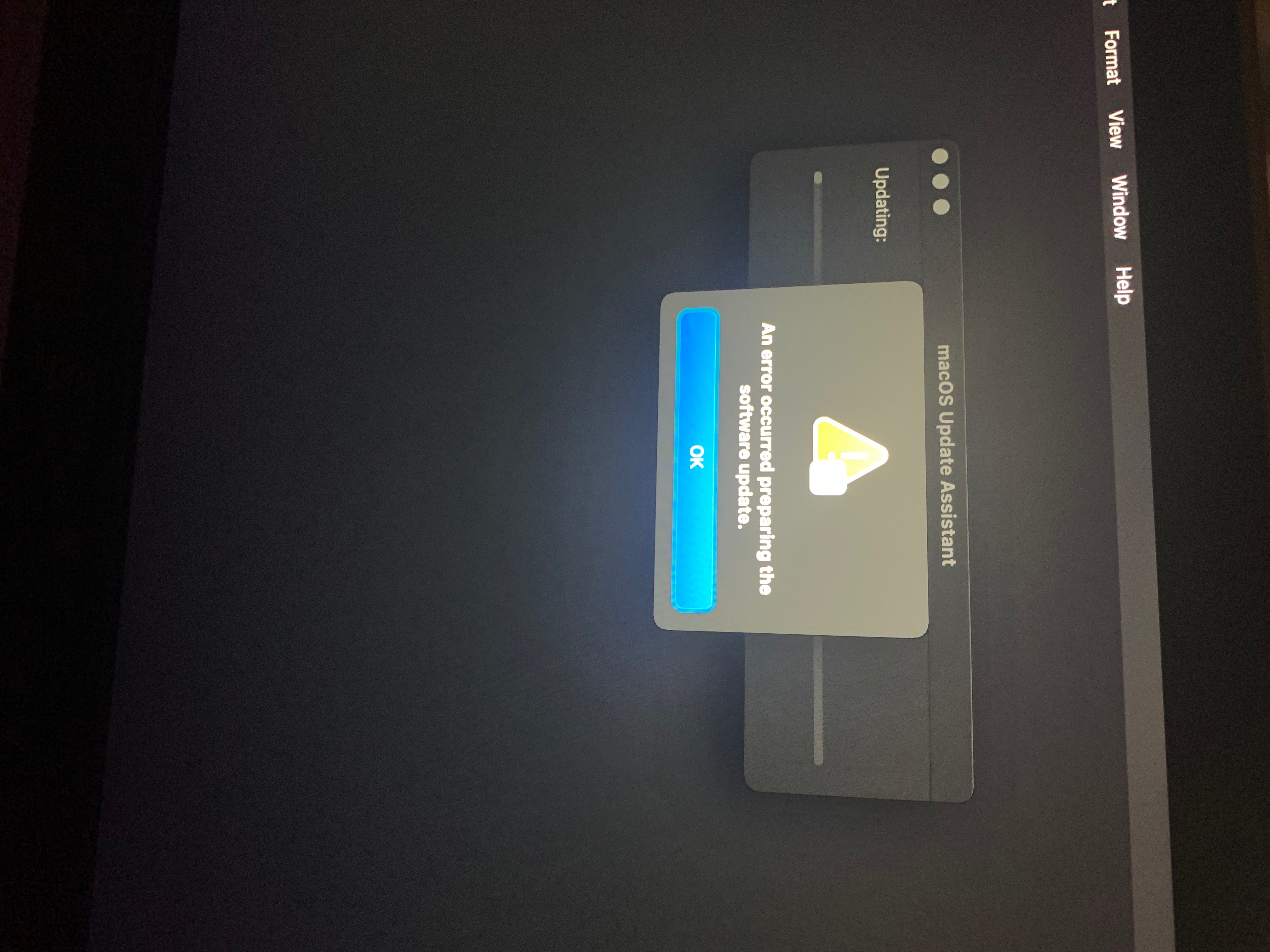
I was having this same problem and I want to share what helped me because I haven’t seen this fix proposed anywhere else. None of the options like turning on/off, using internet Recovery, or MacOS Recovery were working. I turned it on and off again several times and it kept getting stuck on less than a minute remaining. When I finally decided to let it set on that screen and leave it overnight, when I came back in the morning it had an error saying “an error occurred preparing the software update.” Using First Aid from Disk Utility on Recovery also did not fix it.

When I tried to use the option “Reinstall Big Sur” from Recovery it would tell me there was not enough room on the disc to do it. So I was effectively stuck on the install screen.


I called Apple and they were helpful. I was working with them on the phone on a different WiFi than I usually use as I was not at home when I tried calling them. Just to give an idea of what we tried, when I would use Recovery (turn off, turn on, hold command +R or hold command + R + P) and go to “reinstall Big Sur” from there it wouldn’t connect to WiFi and gave me an error that “Keychain ‘System’ cannot be found to store [my wifi username].” We hit cancel to get out of that (don’t choose “reset to defaults” if you get this error or else your keychain passwords on the computer will be deleted; if you save them in iCloud it may not matter if you do).


What ended up working was turning the machine off, then holding Option while it was off, and it came on with a screen to select my Macintosh disc and connect to WiFi. It let me connect to WiFi there. This took me to my desktop login screen and I was able to log in and get back to my regular desktop! Thank goodness.


From there we investigated and turns out I did not have enough space left on my disc to do the Big Sur install— the agent told me it takes 35 gigabytes, and I only had about 33 gig available (checked by going to Apple in top left corner > about this Mac > storage). Luckily I had an old iPhone backup I could delete to free up a lot of space.


The Apple agent told me not to turn my laptop off/restart it, or it would probably put be back onto the install screen. If I have to in the meantime, she said to follow the steps I described as working above to get back to the desktop.

She put notes on my case and I am supposed to call them back once I’m back on my regular home WiFi and we can restart and they will guide me through the reinstall through Recovery. I will update once we’ve attempted that. But for now, luckily my computer is actually working and not stuck on the install screen! I hope this helps someone else who is still having issues where the other proposed solutions aren’t working.
111 replies

Feb 3, 2021 12:19 PM in response to MichaelB2019

Do Apple have more input to this?


I have the exact same problem - running a 2015 MacBook Pro with 250Gb HD, and High Sierra, I decided to update to Big Sur. Followed Apple instruction to do so through the App Store. After clearing enough space the install was allowed, ran, and got stuck at 1 min for 12 hours.


Tried to reboot and run safe mode. Holding shift while booting, I get the Apple Logo, about 30% progress quickly, then black screen, then it repeats.


Tried to reboot and run Recover Mode. Tried to reinstall Big Sur, and told neither partition has enough space. Tried TimeMachine and after 10 mins it crashes saying “error occurred”.


Seems the only option to try next is TimeMachine onto my data partition and lose anything I might not have backed up. Though that probably won’t work either.


Would really appreciate help. Big Sur allowed and install with 21Gb available and now crashing saying not enough space?

Feb 3, 2021 1:57 PM in response to CraigT2000

I can’t get back to my desktop, just keeps going back to the “about 8 minutes remaining” screen. I’ve tried holding space bar down then entering in my computers password (says my password is not correct), tried CMD R and CMD RP, goes right back to the updating screen. I’ve moved buildings with different Wi-Fis (both strong connections)!! I’m lost at this point. Does this software update delete all your documents??

Feb 4, 2021 6:52 AM in response to CraigT2000

Thank you! I will try this now and see what happens. I got a screen at one of my restart cycles earlier that asked for another computer and a thunderbolt cable, to connect to and use as a drive?? neither of which i have. Nor would I have a clue what to be doing with. Thanks for your help. I'll try the reboot and recovery now and hope for the best.

Feb 6, 2021 8:59 AM in response to GanJah

Apple - this is appalling. I moved to Apple because Windows updates were a disaster. My MacBook has been dead for 5 days now. Apple support told me to create space by moving stuff to my other Mac. Fine - spent £40 on a Thunderbolt cable. Cleared a load of space. Still have the same issue.


Surely it is coding basics to ACCURATELY CHECK there is enough disk space before updating an OS. My seven year old could tell you that.


Next step shift the rest of my stuff. Wipe the hard drive and have another go.


Apple has become a bunch of hopeless amateurs.


Feb 9, 2021 7:41 PM in response to axlsj84

I got a snarky “support” person via chat today who basically shamed me for not ensuring I double backed up everything before I did this update. um, hey Apple, maybe don’t make a computer update that has the major potential to put people’s computers out of commission and potentially wipe them clean?! they are seriously 0 help with this. infuriating.

Feb 16, 2021 8:13 PM in response to Itsjustausername

So this command is assuming the volume with your data is called “Macintosh HD - Data“, the name of your home folder is “username“, and that the name of your backup drive is “backup” (And that the volume is already mounted/unlocked).


cp-r -v /Volumes/“Macintosh HD - Data”/Users/username/ /Volumes/backup


You can adjust the names accordingly, I usually just target the user folder which stores the majority of your data, but the command could be adjusted to target other folders/directories, such as Pictures or Music, etc.


Likewise I make sure the external hard drive is formatted as HFS+ (Mac OS Extended Journaled) and GUID partition map.


There are other ways to save the data, such as a disk image, or installing the OS on an external disk, booting from that and grabbing what you need, but I find this way is quicker and works just as well, if not better. Especially if your choices of saving your data are slim, this is an effective step to take before erasing, although nothing is a sure deal, setting up Time Machine to prevent data loss is the way to go, but I know sometimes this isn’t done, or can’t be for whatever reason.

This thread has been closed by the system or the community team. You may vote for any posts you find helpful, or search the Community for additional answers.

Big Sur installation stuck at "Less than a minute remaining..."

Welcome to Apple Support Community
A forum where Apple customers help each other with their products. Get started with your Apple Account.