TC is first to be set up. We'll assume that the Ethernet cable from the EE router to the TC is working correctly. If you want to test to be sure, connect your MBP directly to the Ethernet cable from the EE router, make sure that the WiFi is turned "Off" on the MBP and check to make sure that the MBP can get an Internet connection this way. If it can, then you know the Ethernet cable is working correctly. You can turn the WiFi back "On" at the MBP now.
Connect the Ethernet cable from the EE router to the WAN "O" port on the TC
Power up the TC and let it run for a minute or two
Open AirPort Utility on your Mac Finder > Applications > Utilities > AirPort Utility
Click on the Other WiFi Devices button in the upper left corner of the window
Click on Time Capsule xxxxxx. It might also say AirPort Time Capsule xxxxxxx depending on the version that you have

When you click on Time Capsule, that will start up the AirPort Utility setup "wizard". The wizard will take a few seconds to analyze the network and then display a screen that looks like the example below except that you will see a Time Capsule pictured.
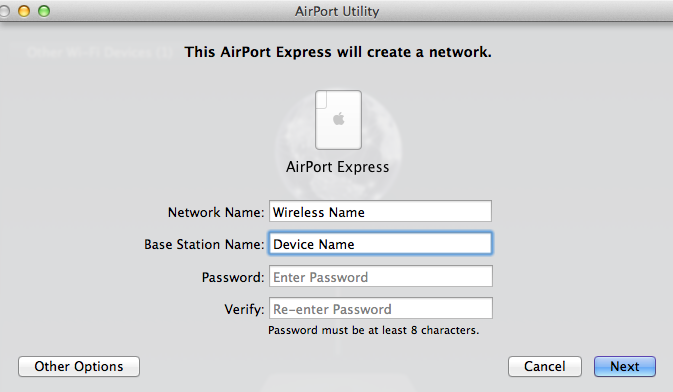
Network Name.......Type in a short simple name for the wireless network that the TC will create. Avoid using special characters in the name. For example, the name of my wireless network is "TWNDB".
A poor name would be something like "John's Red Apple Wireless Network". Too long, an apostrophe, etc.
Base Station Name......Type in a short simple device name for the Time Capsule. The name of my Time Capsule is "TC", for example
Password......Type in a password for the Time Capsule wireless network
Verify......Type in the same password again to confirm
Click Next, and give the Time Capsule a minute to restart. Should be a green light on the Time Capsule at this point
Important......the setup "wizard" will set up the Time Capsule in a Network Mode of Off (Bridge Mode). We'll need to change that in the next series of steps, but for now post back to confirm that you have a green light on the Time Capsule.

