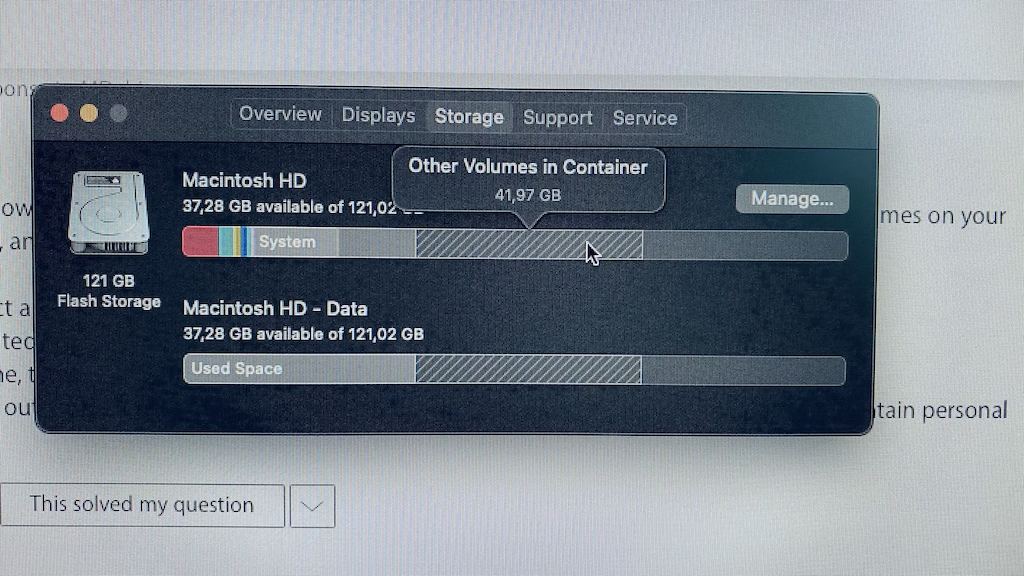
Other volumes in container!

When i open “about this mac” and i check the memory section .. in the bar there is 42,03GB “other volumes in Container” .. what is that !! I have photos, apps, MOS, and others i know those ! But what is the other volumes in container !

MacBook Air

Posted on Jan 17, 2021 1:20 AM

Reply
Question marked as Top-ranking reply

Posted on Jan 19, 2021 6:21 AM

Thanks for that. It appears that you have an extra Data volume.


In macOS Big Sur, your startup disk contains two volumes: Macintosh HD (the system volume), and Macintosh HD - Data (the data volume). These two are combined into an APFS volume group, making the two appear as a single volume on your Mac.


The other expected volumes on your Mac are listed here:


  • Preboot: Stores boot data needed in order to boot from the system volume.
  • Recovery: Stores macOS Recovery.
  • VM: Stores sleep images and the swap file (the latter is used when your Mac runs out of memory/RAM)
  • Update (Hidden): In macOS Big Sur, this volume is used to store update-related data.


To determine which Data volume on your Mac is the legitimate one:


EDIT: An easier way:


  1. Open Disk Utility, located in Applications -> Utilities.
  2. In the sidebar, select one of the data volumes.
  3. Near the bottom of the window, check the Mount Point. The legitimate data volume will be mounted at /System/Volumes/Data.
  4. Rename the extra data volume to something else.
  5. In Finder, examine the extra data volume, and move any content you want to keep into your user account (into places like Desktop or Documents).
  6. Let me know when you’re done; we’ll delete the extra data volume at that time.
8 replies
Question marked as Top-ranking reply

Jan 19, 2021 6:21 AM in response to MDehiss

Thanks for that. It appears that you have an extra Data volume.


In macOS Big Sur, your startup disk contains two volumes: Macintosh HD (the system volume), and Macintosh HD - Data (the data volume). These two are combined into an APFS volume group, making the two appear as a single volume on your Mac.


The other expected volumes on your Mac are listed here:


  • Preboot: Stores boot data needed in order to boot from the system volume.
  • Recovery: Stores macOS Recovery.
  • VM: Stores sleep images and the swap file (the latter is used when your Mac runs out of memory/RAM)
  • Update (Hidden): In macOS Big Sur, this volume is used to store update-related data.


To determine which Data volume on your Mac is the legitimate one:


EDIT: An easier way:


  1. Open Disk Utility, located in Applications -> Utilities.
  2. In the sidebar, select one of the data volumes.
  3. Near the bottom of the window, check the Mount Point. The legitimate data volume will be mounted at /System/Volumes/Data.
  4. Rename the extra data volume to something else.
  5. In Finder, examine the extra data volume, and move any content you want to keep into your user account (into places like Desktop or Documents).
  6. Let me know when you’re done; we’ll delete the extra data volume at that time.

Jan 18, 2021 10:13 PM in response to MDehiss

Hi MDehiss,


Please complete the following steps to describe your disk layout. This describes how the partitions and volumes on your internal drive are set up, and helps me with finding the solution to your issue.


  1. Eject and disconnect any external drives connected to your Mac.
  2. Open Terminal, located in Applications -> Utilities.
  3. At the command line, type "diskutil list" without the quotes and hit Enter (Return).
  4. Paste the complete output here. You may redact the names of the volumes and/or partitions if they contain personal info.

Jan 19, 2021 1:00 PM in response to MDehiss

Perfect. To delete the extra data volume, follow these steps.


NOTE: If you want to protect the data in the extra data volume from being recovered, follow these additional steps:


  1. Open Finder.
  2. Right-click (or hold down Control as you click) on the extra data volume (should be in the sidebar).
  3. Choose Encrypt.
  4. Enter a password to protect the data.


To delete the extra data volume and all of its contents (this is irreversible):


  1. Open Disk Utility, located in Applications -> Utilities.
  2. Select the extra data volume in the sidebar.
  3. Click the (-) button near the top right of the window. (If that button is greyed out, you accidentally selected the legitimate data volume; choose the other data volume instead.)
  4. When prompted to confirm, click Delete.
  5. Disk Utility will delete the extra data volume. This should free up additional space on your Mac.

Jan 19, 2021 3:47 AM in response to Encryptor5000

the data is below ... i want to ask you something, my laptop should be 128 GB why it appears 121GB and the only thing I really have and aware of is the (APFS Volume ⁨Macintosh HD - Data⁩     27.5 GB    disk1s5), the rest I don't know anything about


/dev/disk0 (internal, physical):


   #:                       TYPE NAME                    SIZE       IDENTIFIER


   0:      GUID_partition_scheme                        *121.3 GB   disk0


   1:                        EFI ⁨EFI⁩                     314.6 MB   disk0s1


   2:                 Apple_APFS ⁨Container disk1⁩         121.0 GB   disk0s2


/dev/disk1 (synthesized):


   #:                       TYPE NAME                    SIZE       IDENTIFIER


   0:      APFS Container Scheme -                      +121.0 GB   disk1


                                 Physical Store disk0s2


   1:                APFS Volume ⁨Macintosh HD - Data⁩     41.9 GB    disk1s1


   2:                APFS Volume ⁨Preboot⁩                 594.0 MB   disk1s2


   3:                APFS Volume ⁨Recovery⁩                1.2 GB     disk1s3


   4:                APFS Volume ⁨VM⁩                      1.1 GB     disk1s4


   5:                APFS Volume ⁨Macintosh HD - Data⁩     27.5 GB    disk1s5


   6:                APFS Volume ⁨Macintosh HD⁩            15.0 GB    disk1s7


   7:              APFS Snapshot ⁨com.apple.os.update-...⁩ 15.0 GB    disk1s7s1


This thread has been closed by the system or the community team. You may vote for any posts you find helpful, or search the Community for additional answers.

Other volumes in container!

Welcome to Apple Support Community
A forum where Apple customers help each other with their products. Get started with your Apple Account.