Diskutil

hello !


I reinstalled the system,

how could I've done to delete everything from Disk 1 ? and should I be doing it ? I don't need any thing from my old usage,

when I am trying sudo  Diskutil eraseVolume APFS Empty /dev/disk1s7

I get

Error: -69623: Unable to delete the given APFS Volume and remove it from its APFS Container

anyone would have a tip ?

thanks

in

Posted on Jan 31, 2021 2:11 PM

Reply
Question marked as Top-ranking reply

Posted on Jan 31, 2021 2:37 PM

Waelofnorth wrote:

hello !

I reinstalled the system,
how could I've done to delete everything from Disk 1 ? and should I be doing it ? I don't need any thing from my old usage,
when I am trying sudo  Diskutil eraseVolume APFS Empty /dev/disk1s7
I get
Error: -69623: Unable to delete the given APFS Volume and remove it from its APFS Container
anyone would have a tip ?
thanks


https://discussions.apple.com/content/attachment/482f59c8-02ae-4d3b-b873-db67b0a9a985
in


It would of saved some confusion if you clearly stated from the get go what MacOS you reinstalled—posting in the MacBook Pro forum... but we figured it out:


Your < disk1s7 > is your Macintosh HD (system files 15GB ) you do not want to delete that


ref: About the read-only system volume in macOS Catalina - Apple ...

https://support.apple.com/en-us/HT210650


Add, delete, or erase APFS volumes in Disk Utility on Mac ...

https://support.apple.com/guide/disk-utility/add-erase-or-delete-apfs-volumes-dskua9e6a110/mac


You have one extra "Macintosh HD -Data" volume ( it is a ghost) you can use the +/- option to remove it.


it looks to be disk1s1, 827KB there is hardly anything on it compare to your Macintosh HD -Data disk1s5 4.8GB


Two Macintosh HD - Data

from Disk Utility.app you can see the mount point


One will be mounted at /System/Volumes/Data this is the one you want to keep,


The other will be mounted at /Volumes and you can simply use the “ -“ to delete it.


here is an example of what to expect in Catalina, for example only—don't worry about the number scheme

Disk Utility>View>Show All Devices
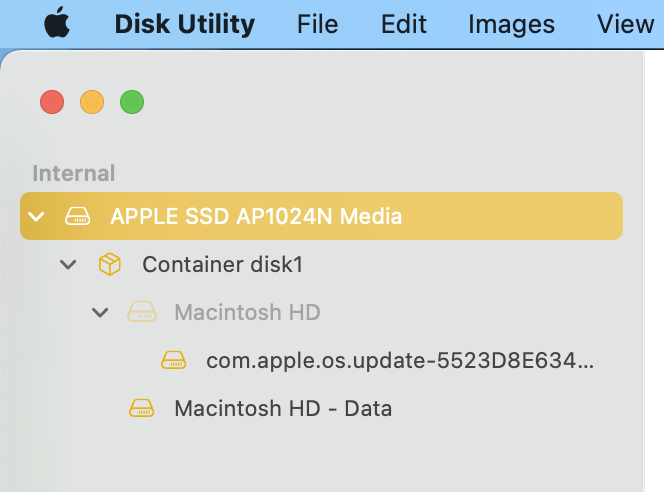


Virgin install example—


Big Sur uses a “snapshot” of the current system for its (SSV) Signed System Volume, as you see in the list. This is the new normal as well. This would be the 'Macintosh HD'


diskutil list internal


Big Sur


MacBook-Pro ~ % diskutil list internal

/dev/disk0 (internal, physical):

#: TYPE NAME SIZE IDENTIFIER

0: GUID_partition_scheme *1.0 TB disk0

1: EFI ⁨EFI⁩ 314.6 MB disk0s1

2: Apple_APFS ⁨Container disk1⁩ 1.0 TB disk0s2


/dev/disk1 (synthesized):

#: TYPE NAME SIZE IDENTIFIER

0: APFS Container Scheme - +1.0 TB disk1

Physical Store disk0s2

1: APFS Volume ⁨Macintosh HD⁩ 14.9 GB disk1s1

2: APFS Snapshot ⁨com.apple.os.update-...⁩ 14.9 GB disk1s1s1

3: APFS Volume ⁨Macintosh HD - Data⁩ 279.7 GB disk1s2

4: APFS Volume ⁨Preboot⁩ 281.5 MB disk1s3

5: APFS Volume ⁨Recovery⁩ 655.5 MB disk1s4

6: APFS Volume ⁨VM⁩ 1.1 GB disk1s5


Big Sur since it loads the System from a locked Macintosh HD...


Big Sur use this snapshot of the current system for its SSL (Signed System Volume ) w/ strong cryptographic protections to store system content .


Similar questions

3 replies
Question marked as Top-ranking reply

Jan 31, 2021 2:37 PM in response to Waelofnorth

Waelofnorth wrote:

hello !

I reinstalled the system,
how could I've done to delete everything from Disk 1 ? and should I be doing it ? I don't need any thing from my old usage,
when I am trying sudo  Diskutil eraseVolume APFS Empty /dev/disk1s7
I get
Error: -69623: Unable to delete the given APFS Volume and remove it from its APFS Container
anyone would have a tip ?
thanks


https://discussions.apple.com/content/attachment/482f59c8-02ae-4d3b-b873-db67b0a9a985
in


It would of saved some confusion if you clearly stated from the get go what MacOS you reinstalled—posting in the MacBook Pro forum... but we figured it out:


Your < disk1s7 > is your Macintosh HD (system files 15GB ) you do not want to delete that


ref: About the read-only system volume in macOS Catalina - Apple ...

https://support.apple.com/en-us/HT210650


Add, delete, or erase APFS volumes in Disk Utility on Mac ...

https://support.apple.com/guide/disk-utility/add-erase-or-delete-apfs-volumes-dskua9e6a110/mac


You have one extra "Macintosh HD -Data" volume ( it is a ghost) you can use the +/- option to remove it.


it looks to be disk1s1, 827KB there is hardly anything on it compare to your Macintosh HD -Data disk1s5 4.8GB


Two Macintosh HD - Data

from Disk Utility.app you can see the mount point


One will be mounted at /System/Volumes/Data this is the one you want to keep,


The other will be mounted at /Volumes and you can simply use the “ -“ to delete it.


here is an example of what to expect in Catalina, for example only—don't worry about the number scheme

Disk Utility>View>Show All Devices
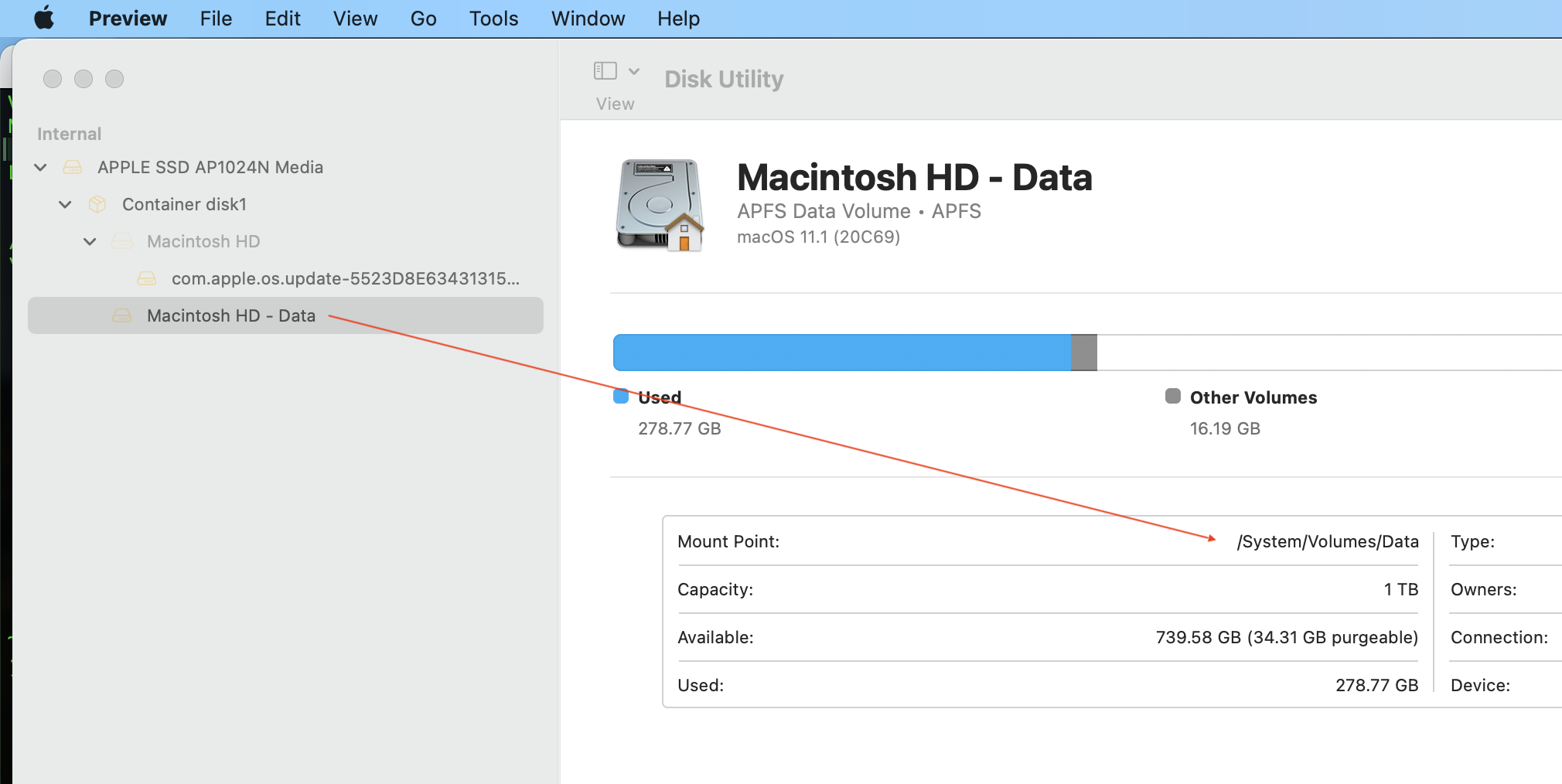


Virgin install example—


Big Sur uses a “snapshot” of the current system for its (SSV) Signed System Volume, as you see in the list. This is the new normal as well. This would be the 'Macintosh HD'


diskutil list internal


Big Sur


MacBook-Pro ~ % diskutil list internal

/dev/disk0 (internal, physical):

#: TYPE NAME SIZE IDENTIFIER

0: GUID_partition_scheme *1.0 TB disk0

1: EFI ⁨EFI⁩ 314.6 MB disk0s1

2: Apple_APFS ⁨Container disk1⁩ 1.0 TB disk0s2


/dev/disk1 (synthesized):

#: TYPE NAME SIZE IDENTIFIER

0: APFS Container Scheme - +1.0 TB disk1

Physical Store disk0s2

1: APFS Volume ⁨Macintosh HD⁩ 14.9 GB disk1s1

2: APFS Snapshot ⁨com.apple.os.update-...⁩ 14.9 GB disk1s1s1

3: APFS Volume ⁨Macintosh HD - Data⁩ 279.7 GB disk1s2

4: APFS Volume ⁨Preboot⁩ 281.5 MB disk1s3

5: APFS Volume ⁨Recovery⁩ 655.5 MB disk1s4

6: APFS Volume ⁨VM⁩ 1.1 GB disk1s5


Big Sur since it loads the System from a locked Macintosh HD...


Big Sur use this snapshot of the current system for its SSL (Signed System Volume ) w/ strong cryptographic protections to store system content .



Jan 31, 2021 2:49 PM in response to Waelofnorth

Waelofnorth wrote:

many thanks for prompt reply..
and what is the VM that taking 20 gb ?


20 KB not 20 gb as you have written ... GB is calculated differently then gb as well .


There is an old computer adage, garbage in garbage out. Maybe they don't teach it anymore...?


dedicated Virtual Memory. You have no say over this Volume.


In the APFS all Volumes share the same space in the Container without penalty. In other words they will expand and contract as needed.

This thread has been closed by the system or the community team. You may vote for any posts you find helpful, or search the Community for additional answers.

Diskutil

Welcome to Apple Support Community
A forum where Apple customers help each other with their products. Get started with your Apple Account.