Connection to printer
Have recently changed broadband supplier and am now unable to connect to my printer Canon MG3550. Getting message “no AirPrint printer found
iPad Air, iOS 12
Have recently changed broadband supplier and am now unable to connect to my printer Canon MG3550. Getting message “no AirPrint printer found
iPad Air, iOS 12
If set-up correctly, should you continue to experience difficulties, your new WiFi Router may be unexpectedly failing to pass Apple Bonjour traffic on you local network - or your WiFi Router or Network Switch may be blocking this device discovery protocol.
The Apple Bonjour protocol uses mDNS (Multicast DNS) UDP port 5353.
You may find that restart of your network components will resolve the problem. You’ll need to restart your network devices in the correct order. Assuming that you WiFi Router provides DNS services for your network, restart devices in this order - allowing time for devices to fully boot/restart prior to restarting other devices:
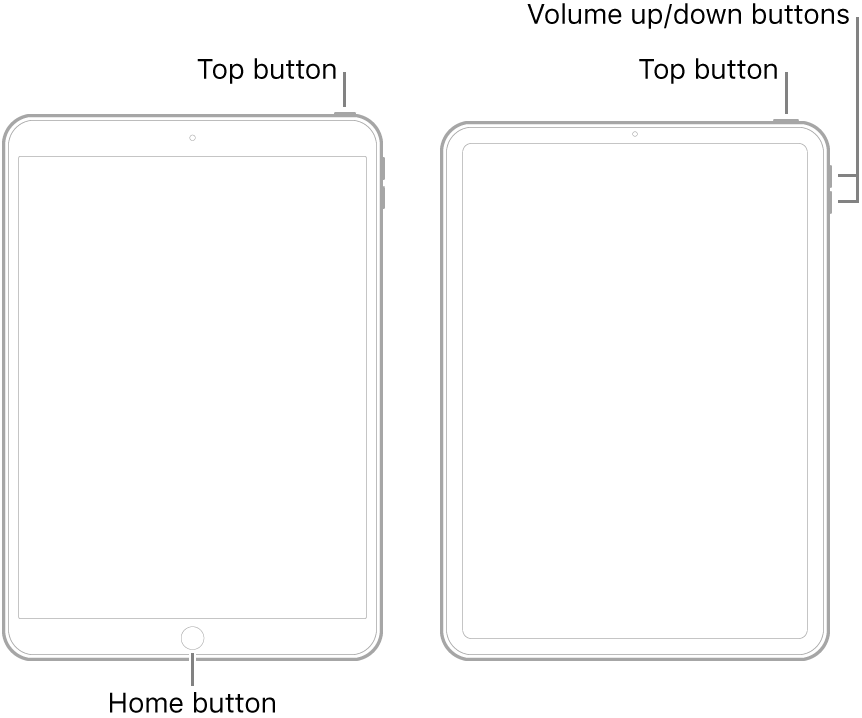
Restarting your iPad, after restarting other devices in the correct sequence, is most simply achieved by a forced-restart of the iPad:
If set-up correctly, should you continue to experience difficulties, your new WiFi Router may be unexpectedly failing to pass Apple Bonjour traffic on you local network - or your WiFi Router or Network Switch may be blocking this device discovery protocol.
The Apple Bonjour protocol uses mDNS (Multicast DNS) UDP port 5353.
You may find that restart of your network components will resolve the problem. You’ll need to restart your network devices in the correct order. Assuming that you WiFi Router provides DNS services for your network, restart devices in this order - allowing time for devices to fully boot/restart prior to restarting other devices:
Restarting your iPad, after restarting other devices in the correct sequence, is most simply achieved by a forced-restart of the iPad:
Your ISP has nothing to do with AirPrint. All AirPrint needs is that both the Apple device and printer are actively connected to the same WiFi network. So make sure the printer is connected first. AirPrint is a purely local area network function so has nothing to do with your internet connection (you don’t even need the internet to use AirPrint - just a LAN).
As described, your new router is likely inhibiting “broadcast” traffic on WiFi, or blocking network traffic between WiFi devices on your network.
Within your Router settings (you will need to sign-in to your WiFi Broadband Router using a web-browser) look for a setting like IGMP Snooping. If you find it, enable it and restart the router. Otherwise look for something in the WiFi network settings that suggests privacy between network devices (e.g., PSPF or similar) - and disable it. Unfortunately, there are many different routers, all with different settings; as such, it is impossible to provide definitive guidance as to specific router settings.
If the Router was provided by your Internet Service Provider (ISP), you may need to seek assistance from their technical support pages - or technical support team.
If your printer supports AirPrint - and was working before - then it will be no less compatible than before. Don’t forget, if you have changed Router, you will need to set-up your printer again.
If your neighbour has the same router, as a diagnostic exercise, perhaps they will entertain you setting-up and testing your Printer with their WiFi network.
doria50 Said:
"Connection to printer: Have recently changed broadband supplier and am now unable to connect to my printer Canon MG3550. Getting message “no AirPrint printer found"
-------
Ask this in Canon Forums - Being based on printers, you'd likely get the answer you need in there.
Ask Here: Home - Canon Community
Really appreciate your help however I don’t have a computer which is probably not helping mr solve the problem. My neighbour has the same router from the same provider but a different printer and connection worked from my iPhone. Could the problem be non compatibility with my printer Canon MG3550 which is about 6 years old?
Thank you for your help unfortunately still not connecting to printer and still receiving same msg “no AirPrint printer found!
Thank you very much for your help. Spoken to Canon and a friend who has recommended I get a new updated printer! Got a good deal with HP insta ink contract. Appreciate your help and recommendations
Connection to printer