Line graph

Once a month I leave a table cell in column B blank and Insert in a table cell in column C once a month. I’d like to avoid putting in a 0 in the blank cell for column B that one time a month to avoid the line graph dropping drastically. When I do it breaks up the line. I know by adding a 0 in it will complete the line, but I’d like to not do so to avoid that drastic drop in the line. Would this be possible?

When adding a 0:

When leaving the 0 out (breaks the line):

iPhone 11 Pro Max, iOS 14

Posted on Jun 16, 2021 7:01 AM

Reply
Question marked as Top-ranking reply

Posted on Jun 16, 2021 11:20 AM

Unfortunately Numbers does not have an option to connect data points across a blank spot. It can be done but the only way I know of can be painful if you have more than one series on the chart. It requires splitting your table into multiple tables and making a filter that will hide blank rows. If the chart is set to not plot hidden data (which is the default), it will skip over hidden rows. This will only work for scatter charts. Your main table can stay like it is, you can create new tables that pull the data from your main table just for the chart.
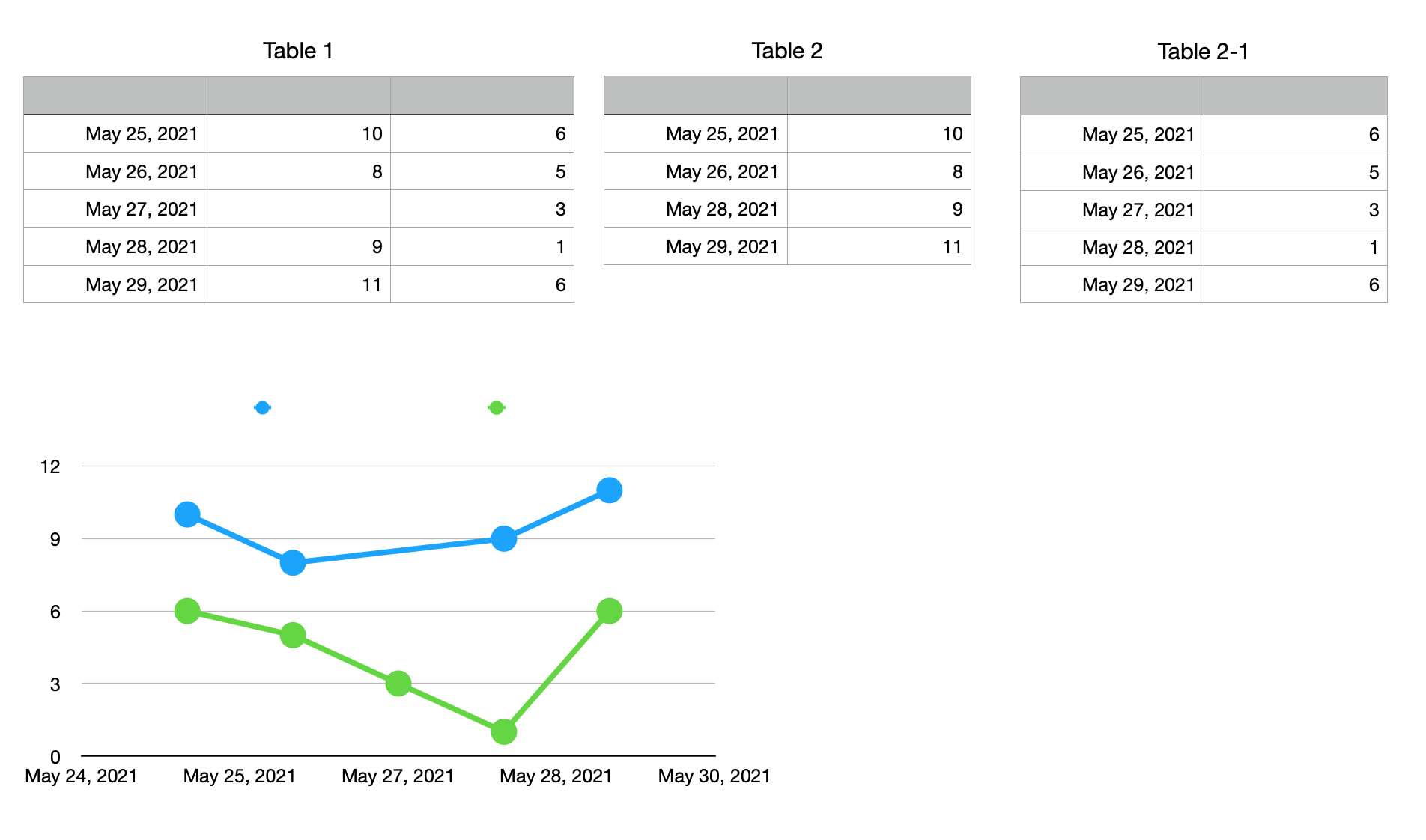


Table 1 is where the data is entered

Table 2 is for the first series. It should be as many rows as or longer than Table 1. No header columns because it will be for a scatter chart. In the screenshot it has a filter on it hiding the one "blank" row. It is actually many rows longer than Table 1.

B2 =IF(Table 1::B≠"",Table 1::A,"hide")

C2 =Table 1::B

Fill down to complete the columns

If Table 2 is longer than Table 1, you must use references like "Table1::B" in the formulas, not ones like "Table 1::B2". When you add rows to Table 1, these references will pick up the newly added rows. If Table 2 is longer than Table 1, you will have a lot of error triangles. Don't worry about them.


Create a filter on Table 2 of "show rows where column A text is not hide".

This filter will hide the rows with blank data. It also hides all the rows with error triangles

Turn the filter off for now.


Copy/Paste Table 2 to make Table 2-1

Change all references of Table 1::B to Table 1::C in the formulas.


Select both columns of Table 2 and create a scatter chart

Edit Data References and select both columns of Table 2-1 to add the second series

In the black area above column A click on the disclosure triangle and deselect "share X values"


Turn on the filters on the two tables.

You can cut/paste the two tables to another sheet, out of the way.

Similar questions

8 replies
Question marked as Top-ranking reply

Jun 16, 2021 11:20 AM in response to Numbersrook

Unfortunately Numbers does not have an option to connect data points across a blank spot. It can be done but the only way I know of can be painful if you have more than one series on the chart. It requires splitting your table into multiple tables and making a filter that will hide blank rows. If the chart is set to not plot hidden data (which is the default), it will skip over hidden rows. This will only work for scatter charts. Your main table can stay like it is, you can create new tables that pull the data from your main table just for the chart.


Table 1 is where the data is entered

Table 2 is for the first series. It should be as many rows as or longer than Table 1. No header columns because it will be for a scatter chart. In the screenshot it has a filter on it hiding the one "blank" row. It is actually many rows longer than Table 1.

B2 =IF(Table 1::B≠"",Table 1::A,"hide")

C2 =Table 1::B

Fill down to complete the columns

If Table 2 is longer than Table 1, you must use references like "Table1::B" in the formulas, not ones like "Table 1::B2". When you add rows to Table 1, these references will pick up the newly added rows. If Table 2 is longer than Table 1, you will have a lot of error triangles. Don't worry about them.


Create a filter on Table 2 of "show rows where column A text is not hide".

This filter will hide the rows with blank data. It also hides all the rows with error triangles

Turn the filter off for now.


Copy/Paste Table 2 to make Table 2-1

Change all references of Table 1::B to Table 1::C in the formulas.


Select both columns of Table 2 and create a scatter chart

Edit Data References and select both columns of Table 2-1 to add the second series

In the black area above column A click on the disclosure triangle and deselect "share X values"


Turn on the filters on the two tables.

You can cut/paste the two tables to another sheet, out of the way.

Jun 16, 2021 8:31 PM in response to Numbersrook

The "filter to hide rows with no data" approach works for many kinds of charts, not just Scatter Charts.


For a working example see the '30-Day History' sheet (tab) of the 'My Stocks' template at File > New in your menu.


To produce a (2D-2Axis) stock chart the data table uses a filter to hide non-trading days that have no data.


SG

Jun 16, 2021 9:00 PM in response to Numbersrook

Yes, you are correct that filters work on an entire row, not specific columns within a table.


But filters can be very useful when plotting data that has breaks in it.


It's well worth it to explore the various templates at File > New in your menu. For charts, in addition to 'My Stocks' there is 'Charting Basics', and many other working examples of charts that are immediately visible in the template chooser.


SG

Jun 16, 2021 9:11 PM in response to SGIII

Filtering to hide rows does work with the other charts but if you try it with this idea of using multiple tables, it will mismatch the category labels and the data. All series of a category chart need to have the same category labels in the same order. If any are missing from a series, the rest of the data gets shifted left.

This thread has been closed by the system or the community team. You may vote for any posts you find helpful, or search the Community for additional answers.

Line graph

Welcome to Apple Support Community
A forum where Apple customers help each other with their products. Get started with your Apple Account.
