How can I back up my phone

Hey man is it

iPhone 12 Pro Max, iOS 14

Posted on Aug 17, 2021 12:01 AM

Reply
Question marked as Top-ranking reply

Posted on Aug 17, 2021 12:10 AM

There are two places you can keep backup (iTunes or iCloud)


Here is the process for iCloud Backup and Restore...



Use iCloud Backup and Restore.


How to back up with iCloud

  1. Connect your device to a Wi-Fi network.
  2. Go to Settings > [your name], and tap iCloud.
  3. Tap iCloud Backup.
  4. Tap Back Up Now. Stay connected to your Wi-Fi network until the process completes.


How to back up your iPhone, iPad, and iPod touch - Apple ...


Restore your device from an iCloud backup

  1. Turn on your device. ... 
  2. Follow the onscreen setup steps until you reach the Apps & Data screen, then tap Restore from iCloud Backup.
  3. Sign in to iCloud with your Apple ID.
  4. Choose a backup.

More items...


Restore your iPhone, iPad, or iPod touch from a backup ...


Back up to Computer...


How to backup with your computer
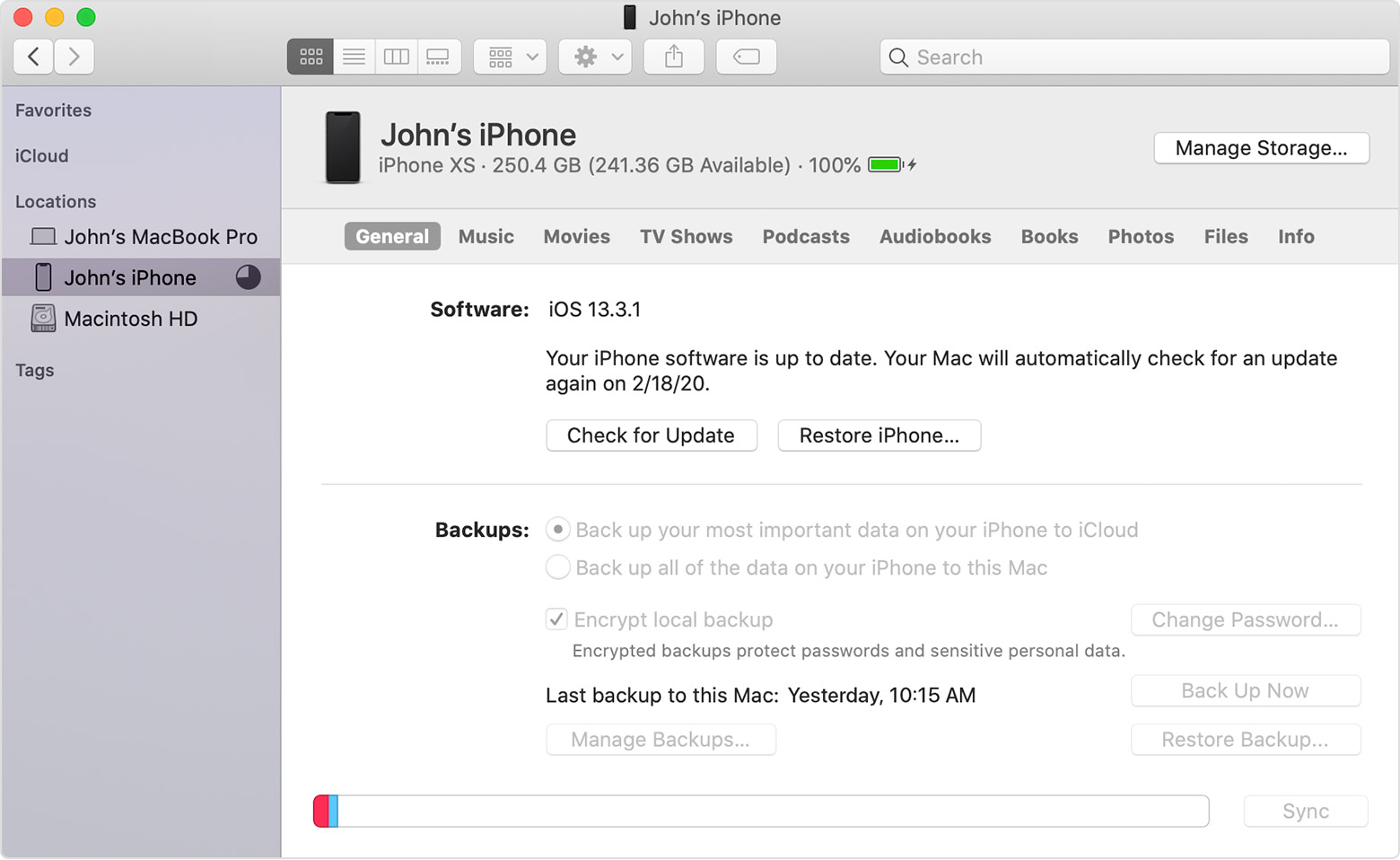
  1. Connect your device to your computer. On a Mac with macOS Catalina 10.15, open Finder. On a Mac with macOS Mojave 10.14 or earlier, or on a PC, open iTunes.
  2. If a message asks for your device passcode or to Trust This Computer, follow the onscreen steps. If you forgot your passcode, get help.
  3. Locate your device on your computer. If your device doesn't appear on your computer, learn what to do.
  4. If you want to save Health and Activity data from your device or Apple Watch, you need to encrypt your backup: Select the box called Encrypt [device] backup and create a memorable password. If you don't need to save your Health and Activity data, you can make a backup that isn't encrypted. Just click Back Up Now.
  5. Write down your password and store it somewhere safe, because there's no way to recover your iTunes backups without this password.
  6. When the process ends, you can see if the backup finished successfully.


Restore your device from a backup on your computer

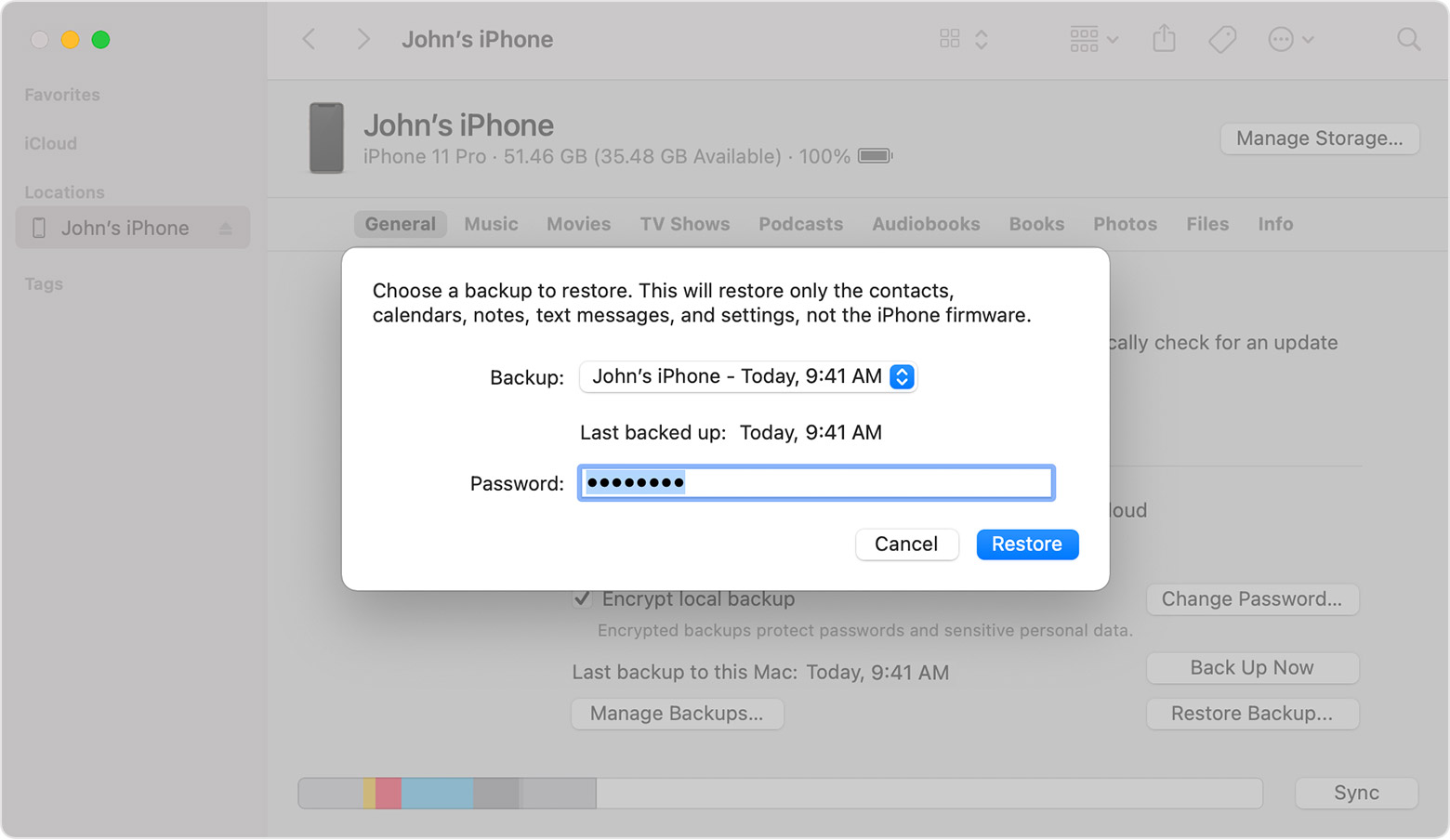
  1. On a Mac with macOS Catalina 10.15 or later, open Finder. On a Mac with macOS Mojave 10.14 or earlier, or on a PC, open iTunes.
  2. Connect your device to your computer with a USB cable.* If a message asks for your device passcode or to Trust This Computer, follow the onscreen steps. If you forgot your passcode, get help.
  3. Select your iPhone, iPad, or iPod touch when it appears in the Finder window or iTunes. If your device doesn't appear, learn what to do.
  4. Select Restore Backup. If a message says that your device's software is too old, learn what to do
  5. Look at the date of each backup and pick the most relevant.
  6. Click Restore and wait for the restore time to finish. If asked, enter the password for your encrypted backup.
  7. Keep your device connected after it restarts and wait for it to sync with your computer. You can disconnect after the sync finishes.
  8. Get help restoring from a backup.


3 replies
Question marked as Top-ranking reply

Aug 17, 2021 12:10 AM in response to MElenaF

There are two places you can keep backup (iTunes or iCloud)


Here is the process for iCloud Backup and Restore...


Use iCloud Backup and Restore.


How to back up with iCloud

  1. Connect your device to a Wi-Fi network.
  2. Go to Settings > [your name], and tap iCloud.
  3. Tap iCloud Backup.
  4. Tap Back Up Now. Stay connected to your Wi-Fi network until the process completes.


How to back up your iPhone, iPad, and iPod touch - Apple ...


Restore your device from an iCloud backup

  1. Turn on your device. ... 
  2. Follow the onscreen setup steps until you reach the Apps & Data screen, then tap Restore from iCloud Backup.
  3. Sign in to iCloud with your Apple ID.
  4. Choose a backup.

More items...


Restore your iPhone, iPad, or iPod touch from a backup ...


Back up to Computer...


How to backup with your computer
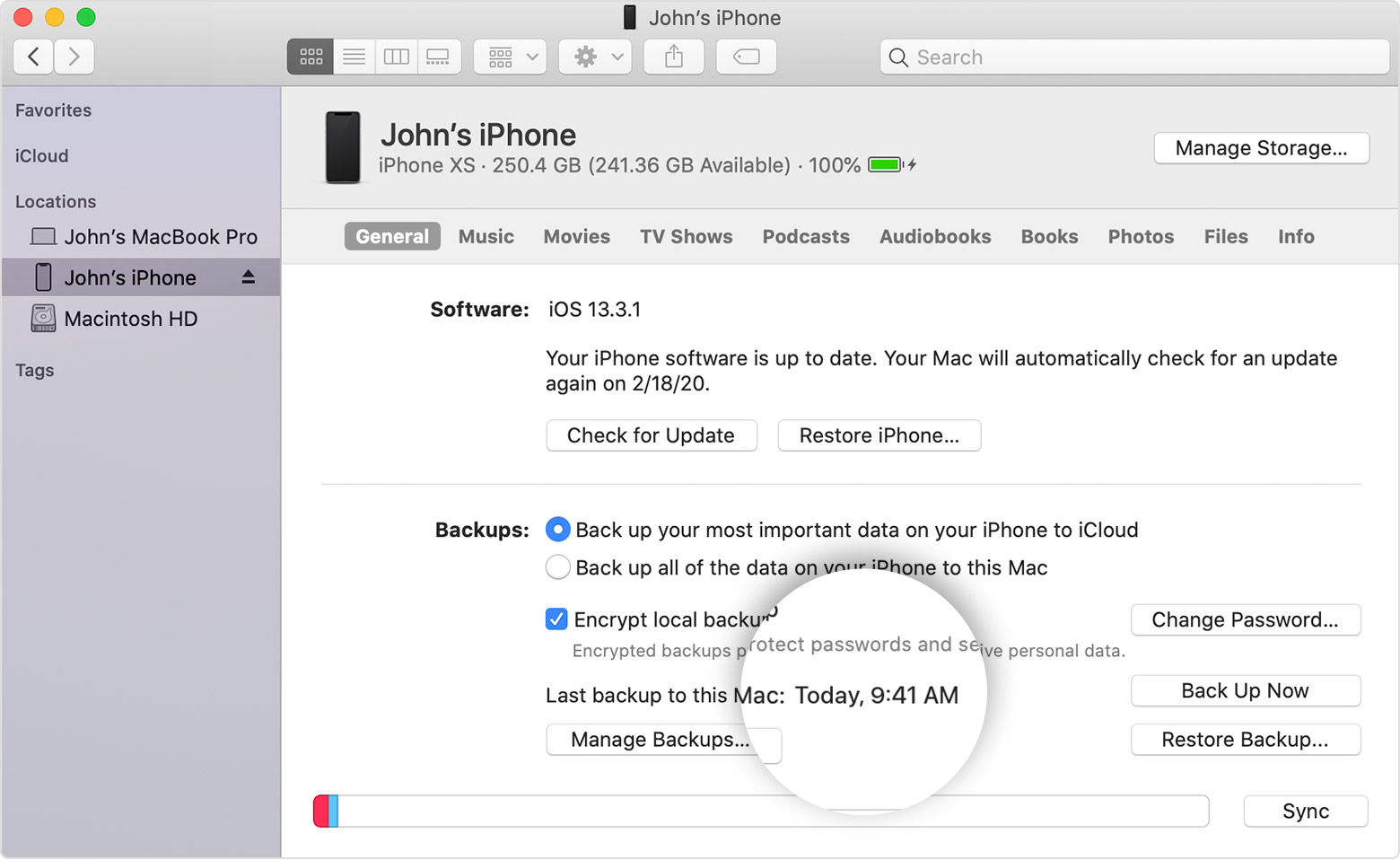
  1. Connect your device to your computer. On a Mac with macOS Catalina 10.15, open Finder. On a Mac with macOS Mojave 10.14 or earlier, or on a PC, open iTunes.
  2. If a message asks for your device passcode or to Trust This Computer, follow the onscreen steps. If you forgot your passcode, get help.
  3. Locate your device on your computer. If your device doesn't appear on your computer, learn what to do.
  4. If you want to save Health and Activity data from your device or Apple Watch, you need to encrypt your backup: Select the box called Encrypt [device] backup and create a memorable password. If you don't need to save your Health and Activity data, you can make a backup that isn't encrypted. Just click Back Up Now.
  5. Write down your password and store it somewhere safe, because there's no way to recover your iTunes backups without this password.
  6. When the process ends, you can see if the backup finished successfully.


Restore your device from a backup on your computer
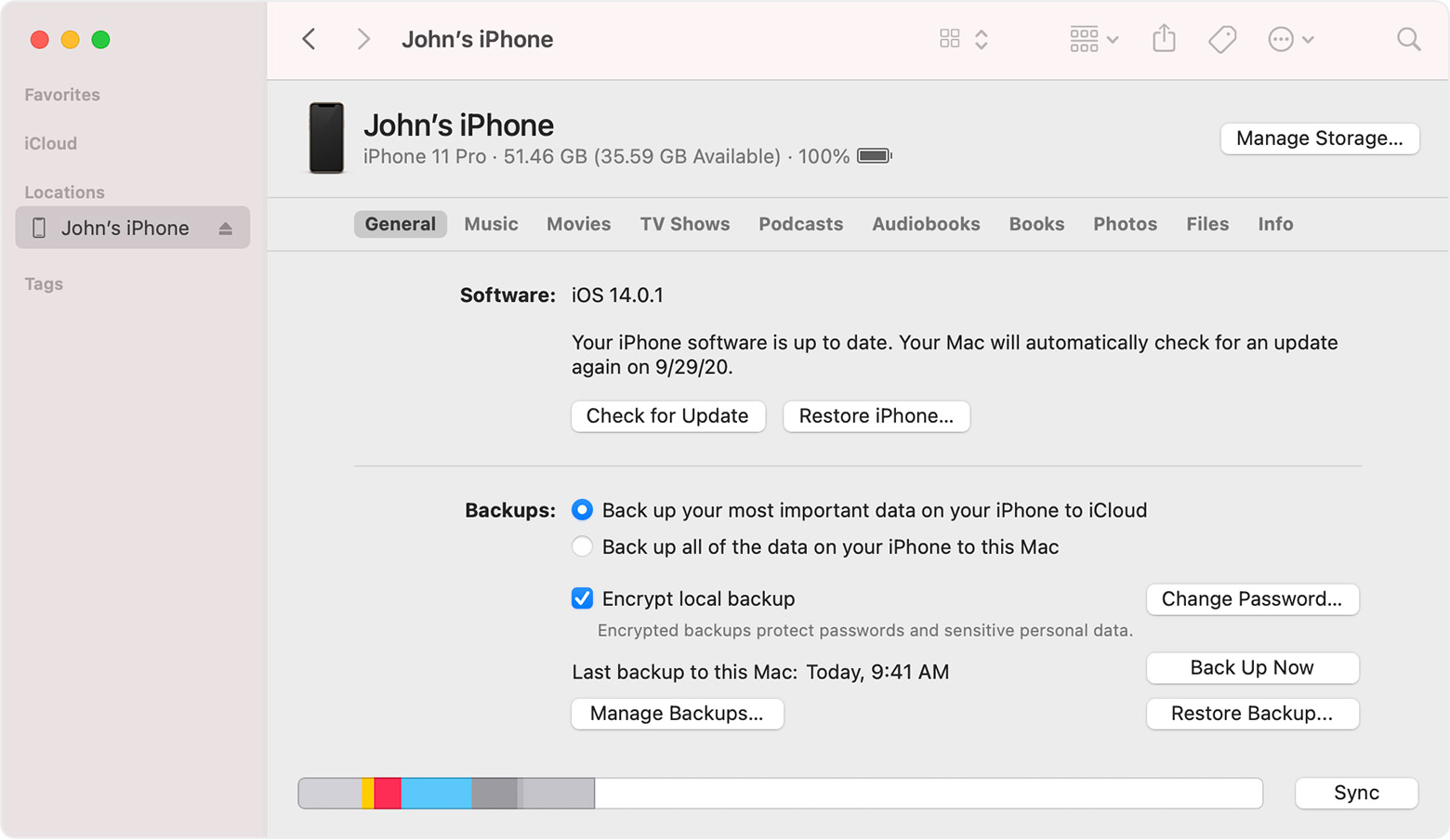
  1. On a Mac with macOS Catalina 10.15 or later, open Finder. On a Mac with macOS Mojave 10.14 or earlier, or on a PC, open iTunes.
  2. Connect your device to your computer with a USB cable.* If a message asks for your device passcode or to Trust This Computer, follow the onscreen steps. If you forgot your passcode, get help.
  3. Select your iPhone, iPad, or iPod touch when it appears in the Finder window or iTunes. If your device doesn't appear, learn what to do.
  4. Select Restore Backup. If a message says that your device's software is too old, learn what to do
  5. Look at the date of each backup and pick the most relevant.
  6. Click Restore and wait for the restore time to finish. If asked, enter the password for your encrypted backup.
  7. Keep your device connected after it restarts and wait for it to sync with your computer. You can disconnect after the sync finishes.
  8. Get help restoring from a backup.


Aug 17, 2021 12:39 AM in response to MElenaF

Hello.


First off, welcome to the community forums. I'd be happy to help you out.


Keep in mind that by default, iOS should already be doing this, provided that you are signed in to your Apple ID.


Here is what you can do to see if things already are being backed up to the cloud. There is a way manually to push a backup through, and I'll explain those steps in just a moment, but first of all, let's check a few settings.


  1. From your home screen of icons, tap on the Settings icon.
  2. Just directly below the search bar, you should see your name/Apple ID. Tap on this.
  3. Next, look at the 5th option down this list. It should say iCloud. Tap on it.
  4. Don't worry about all the things on this screen you can turn on or off; don't let it overwhelm you! Near the top of the screen, you should see an option which says, "Backups." Tap on it. It's the option on this screen right below Photos. Don't tap on photos. I'm saying it's directly below that option.

After tapping on backup, we have several options here:

  • First, make sure "iCloud backup" is turned on. If it's not, go ahead and turn it on. that will force a backup to be created.
  • If it's already on, then great! Fantastic! It probably is on already, but just make sure not to skip looking, just in case.
  • "Backup over cellular"... this is really totally up to you. Just know that if you're not connected to wifi, and it *does* make a backup, you might incur data charges to your bill, so be careful. Depending on your carrier's data plan, you might be OK, but just keep that in mind. If in doubt, check with your carrier, but in the ming time, turn it off until you know for sure.
  • Below this, you'll see an option that says, "backup now." Tap on it.


there you go. You should now see a progress indicator illistrating how much time remaining for the backup to be created, etc. When done, it should tell you when the last backup was created.


Now, when you either restore your phone, or get a new device and set it up for the first time, during the initial setup process, you'll be asked if you want to set up as a new device, or restore from an iCloud backup. Obviously, you'd choose the option to restore from a backup, then would choose the backup of your choice based on the date and time listed. If you don't see it, you'd tap on show other backups. If the backup is compatible with your current device you're setting up, it should show up. Tap on it, then you're well on your way. It should then bring back your settings, your apps, etc.


There is another way you can back up to your computer, instead of to iCloud, but for most average users, this method should be sifficient. If however you want to know the other way, let us know, and tell us if you're on Windows or a mac, and we'll talk you through it.


HTH!


Chris.

This thread has been closed by the system or the community team. You may vote for any posts you find helpful, or search the Community for additional answers.

How can I back up my phone

Welcome to Apple Support Community
A forum where Apple customers help each other with their products. Get started with your Apple Account.