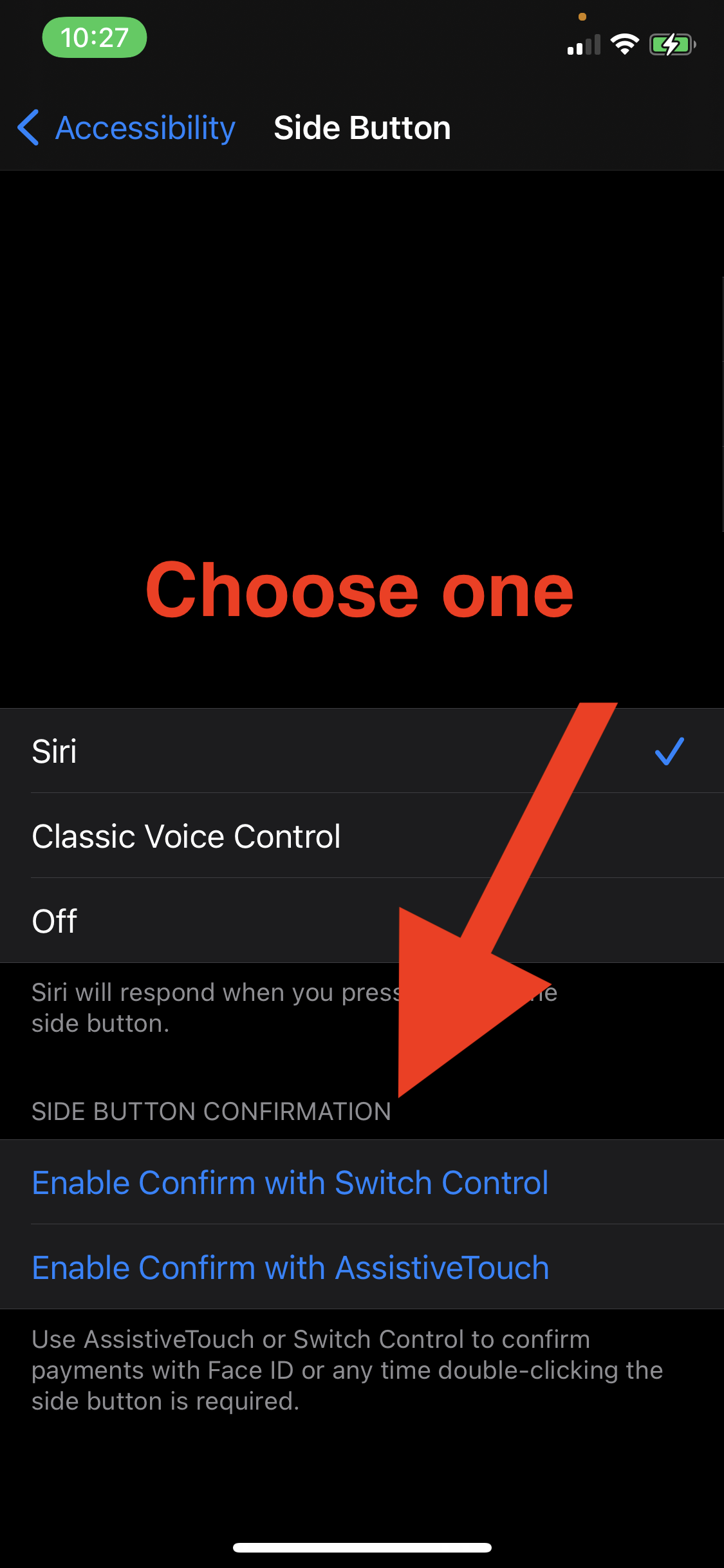
If your side button does not work you can go to this user tip Double-Click side button usage for Apple … - Apple Community and follow the steps in part two.
Part two
Remove Double-Click to pay requirement
There are two methods to remove the double-click requirement. Method one is Assistive Touch and method two is Switch Control.
Method 1 - Assistive Touch
If you do not want to Double-Click to confirm payment:
- Go to Settings
- Tap Accessibility (photo 1)
- Tap Touch (photo 2)
- Tap Assistive Touch (photo 3)
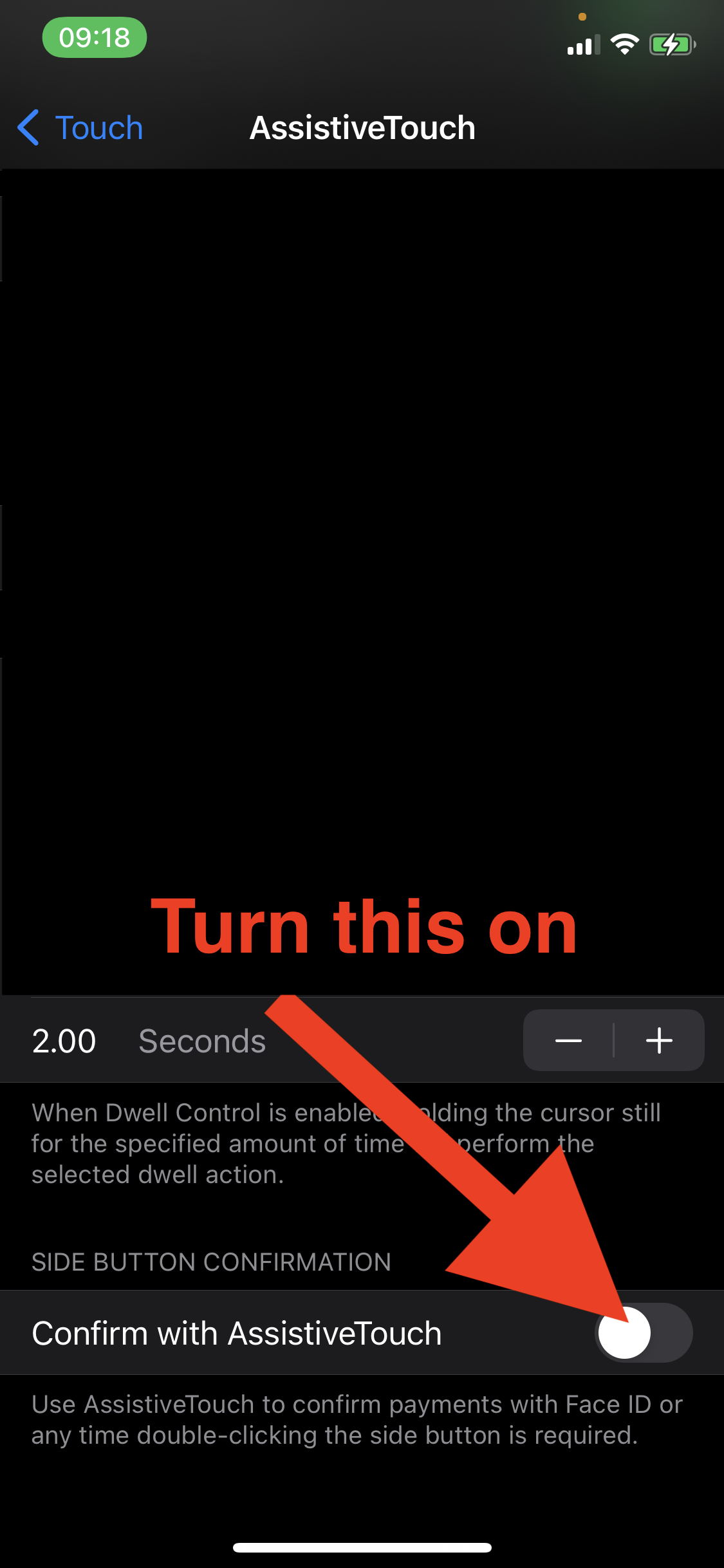
- Confirm with assistive touch - turn that on and follow the instructions (photo 4). You will now be able to pay with Apple Pay without double-clicking the side button.
or
You can also;
- Go to Settings
- Tap Accessibility
- Tap Side Button
- Tap "enable confirm with assistive touch" and follow the instructions on the screen (see "alternate path in settings" below)
[You may have to go to settings>Face ID & Passcode>Apple Pay - turn off for Face ID.]
Photo 1
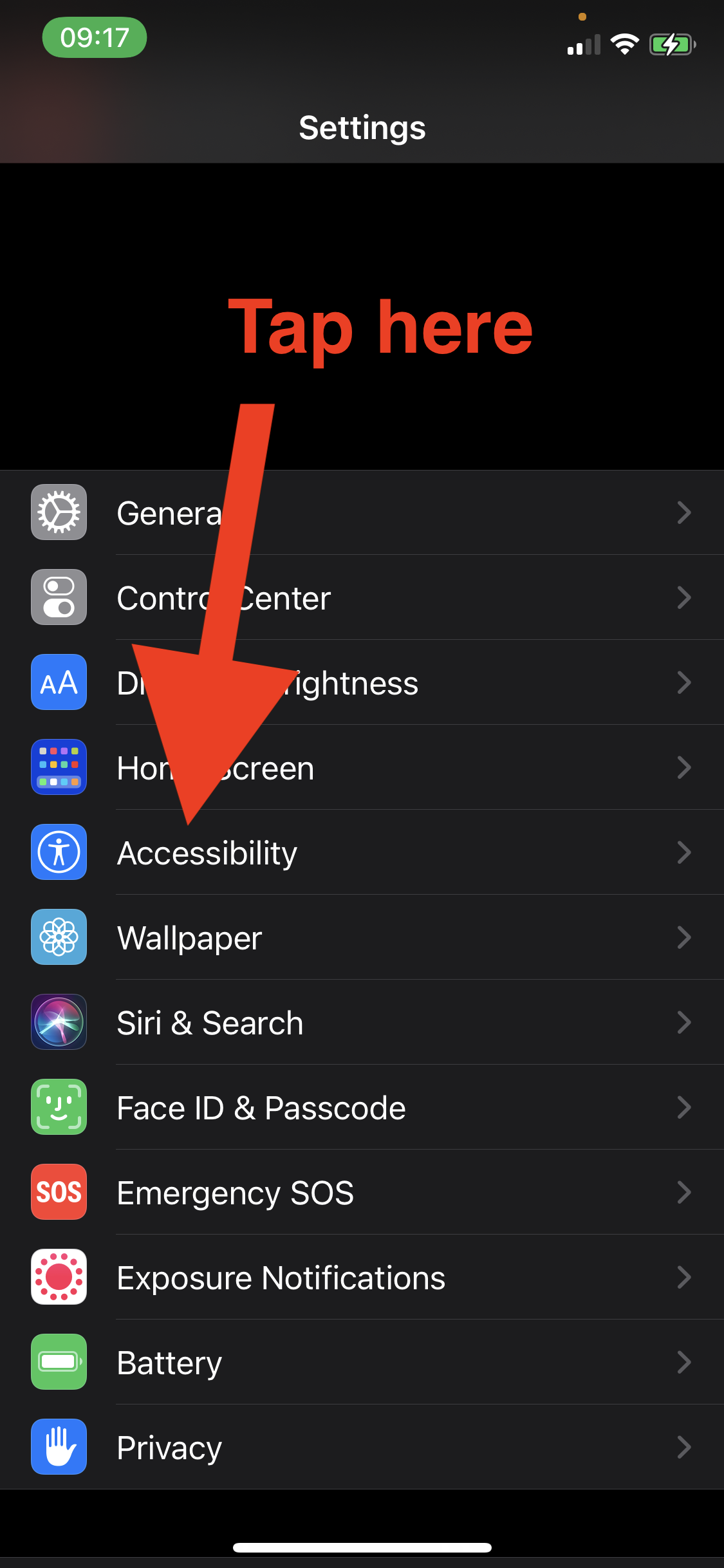
Photo 2
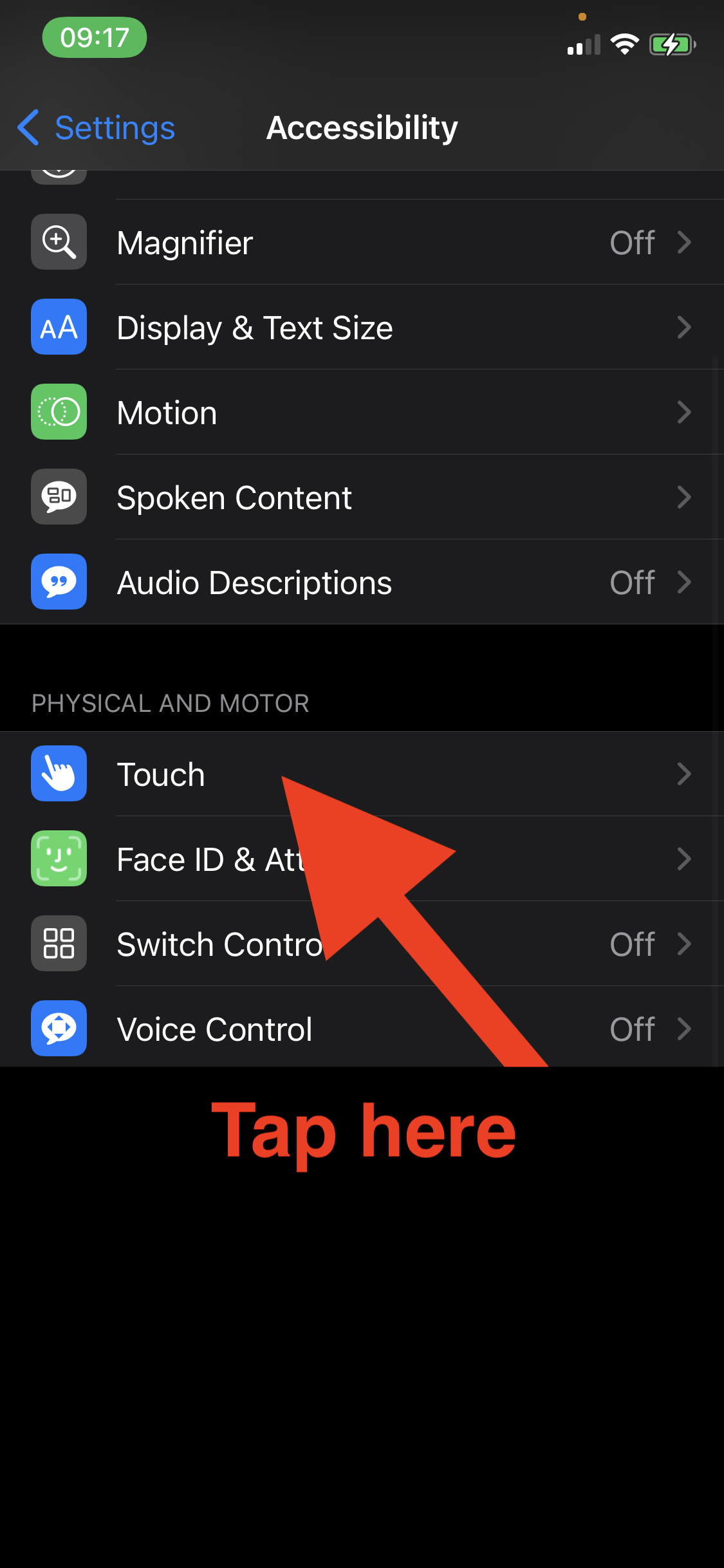
Photo 3
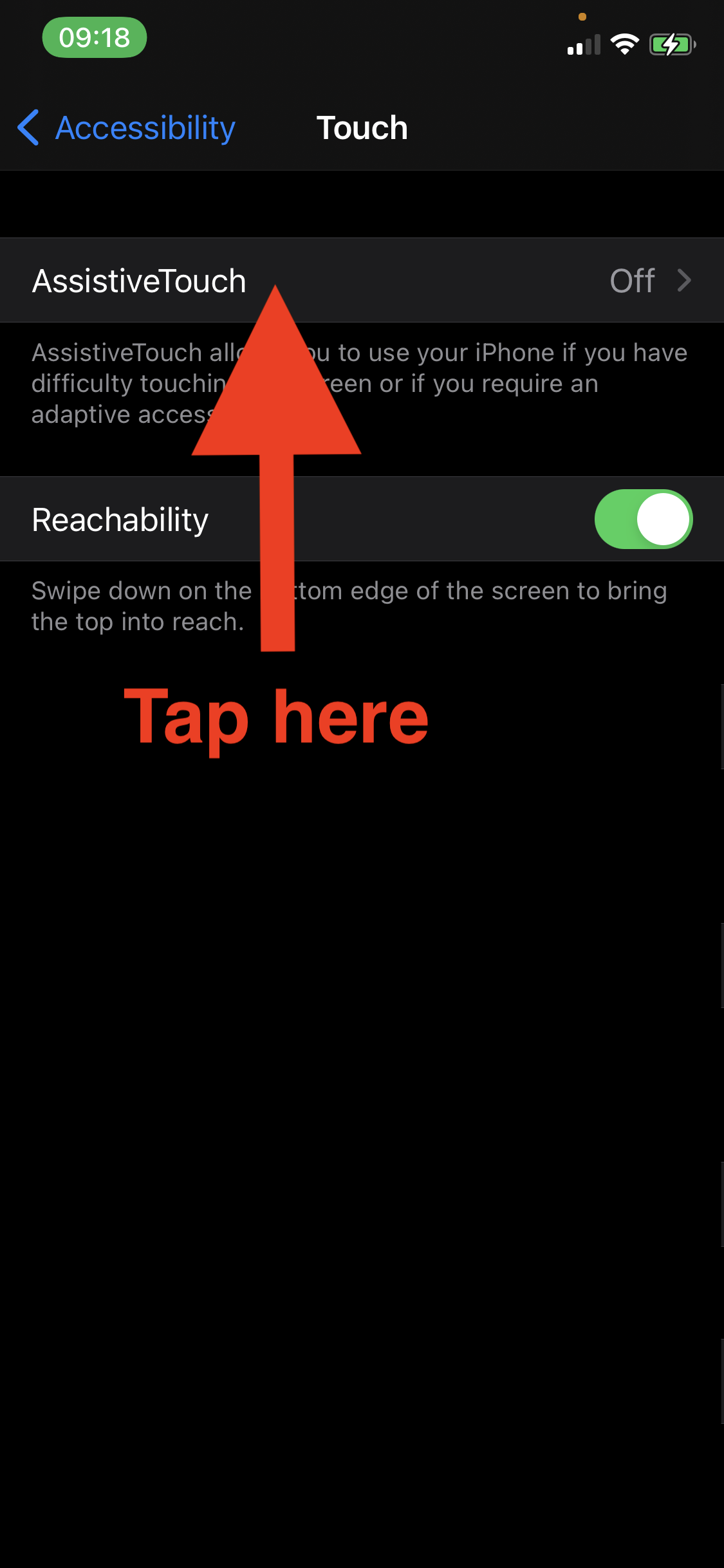
Photo 4
Method 2 - Use Switch Control
- Go to Settings
- Tap Accessibility (photo 5)
- Tap Switch control (photo 6)
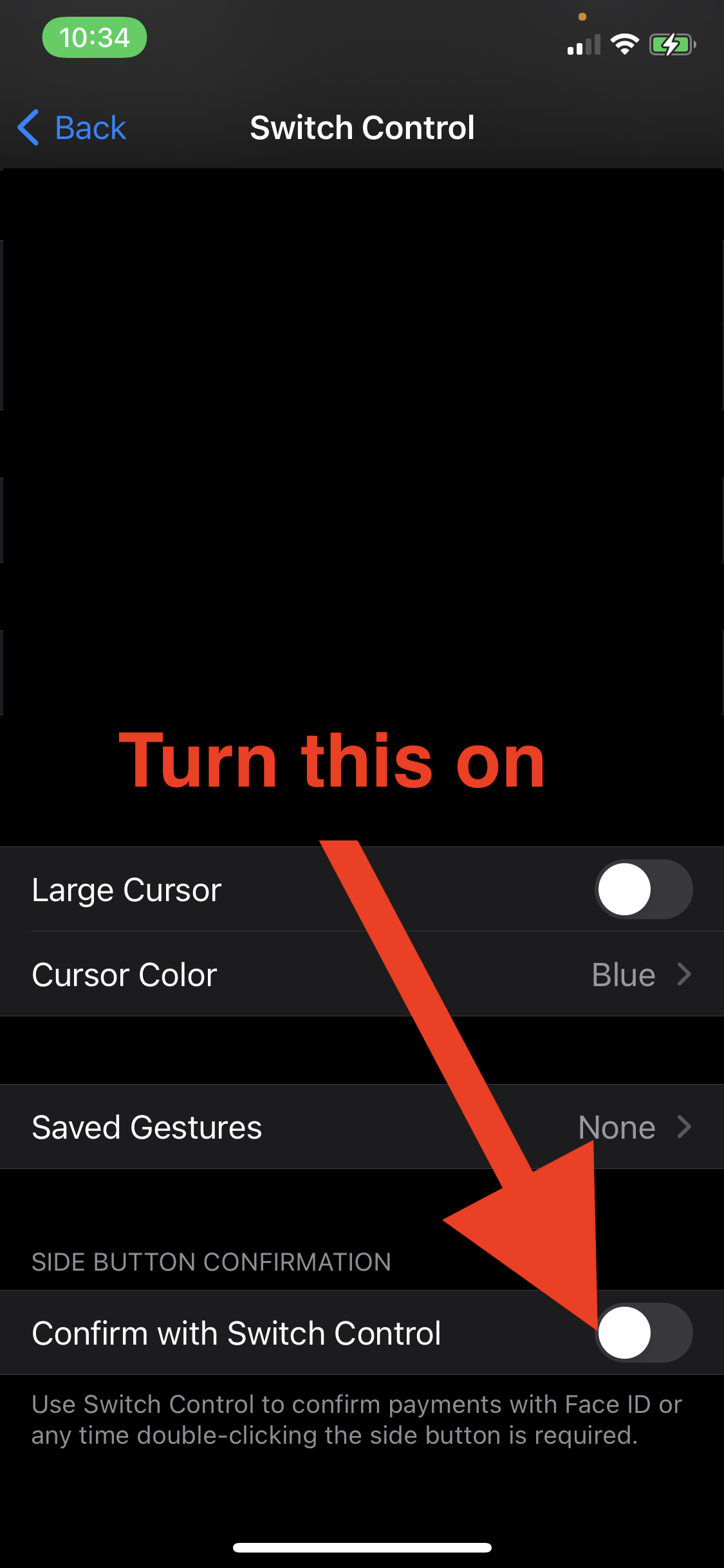
- Confirm with switch control (photo 7)- Turn this on and follow the instructions. {you may have to enable switch control also}
or
You can also;
- Go to Settings
- Tap Accessibility
- Tap Side Button
- Tap "enable confirm with switch control" - select this and follow the on screen instructions (see "alternate path in settings" below)
Photo 5
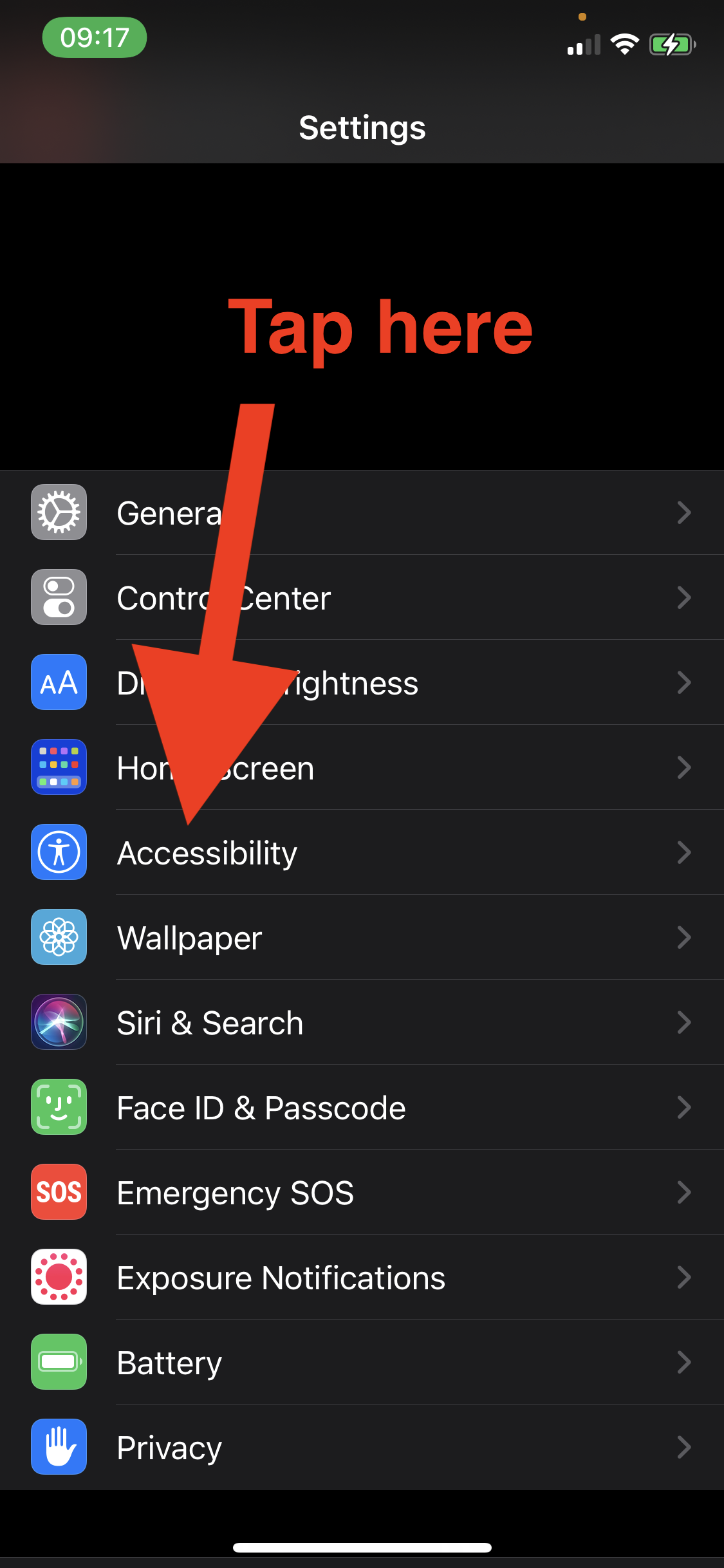
Photo 6
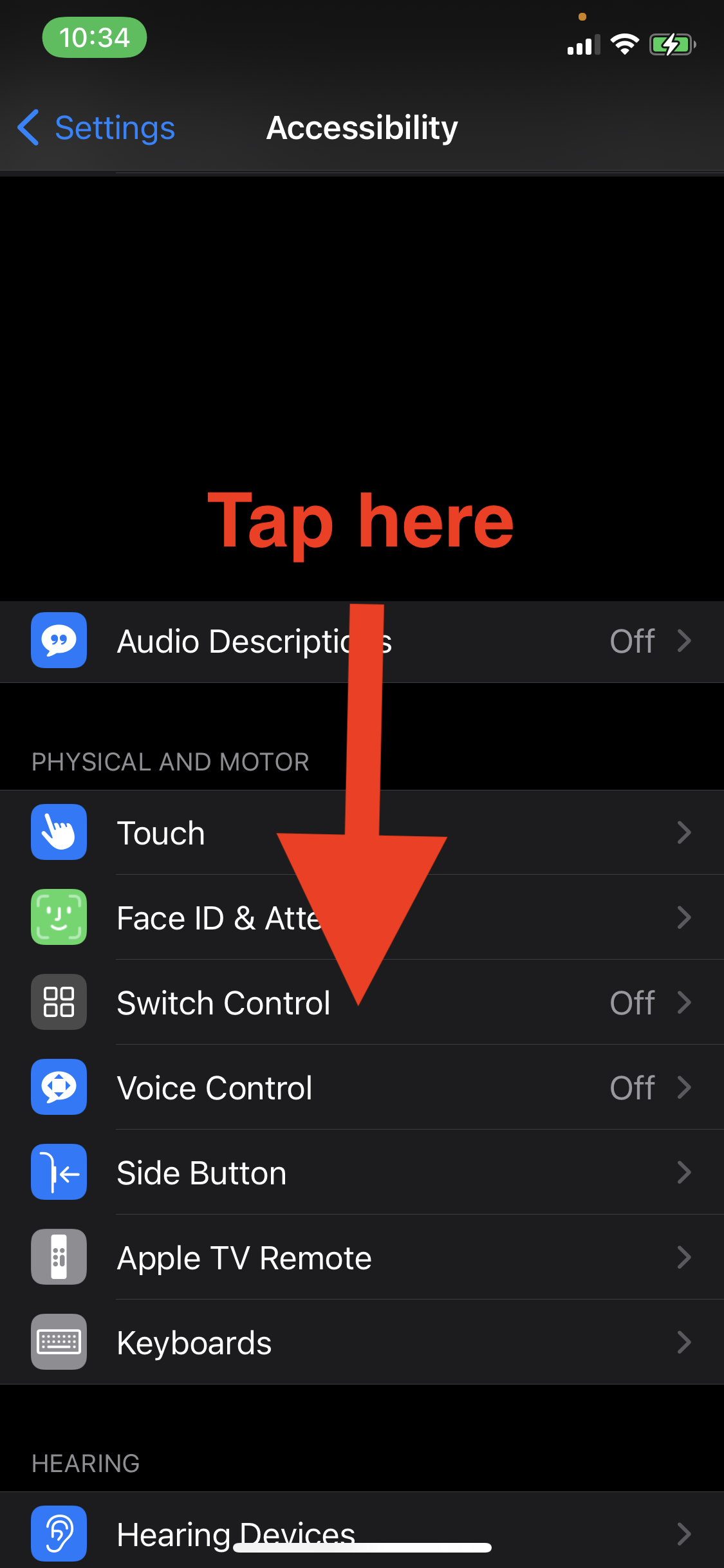
Photo 7
Alternate path in settings for method one and method two
- Go to Settings
- Tap Accessibility (photo 8)
- Tap Side Button (photo 9)
- Tap on your preferred method, follow the on screen instructions (photo 10).
Photo 8
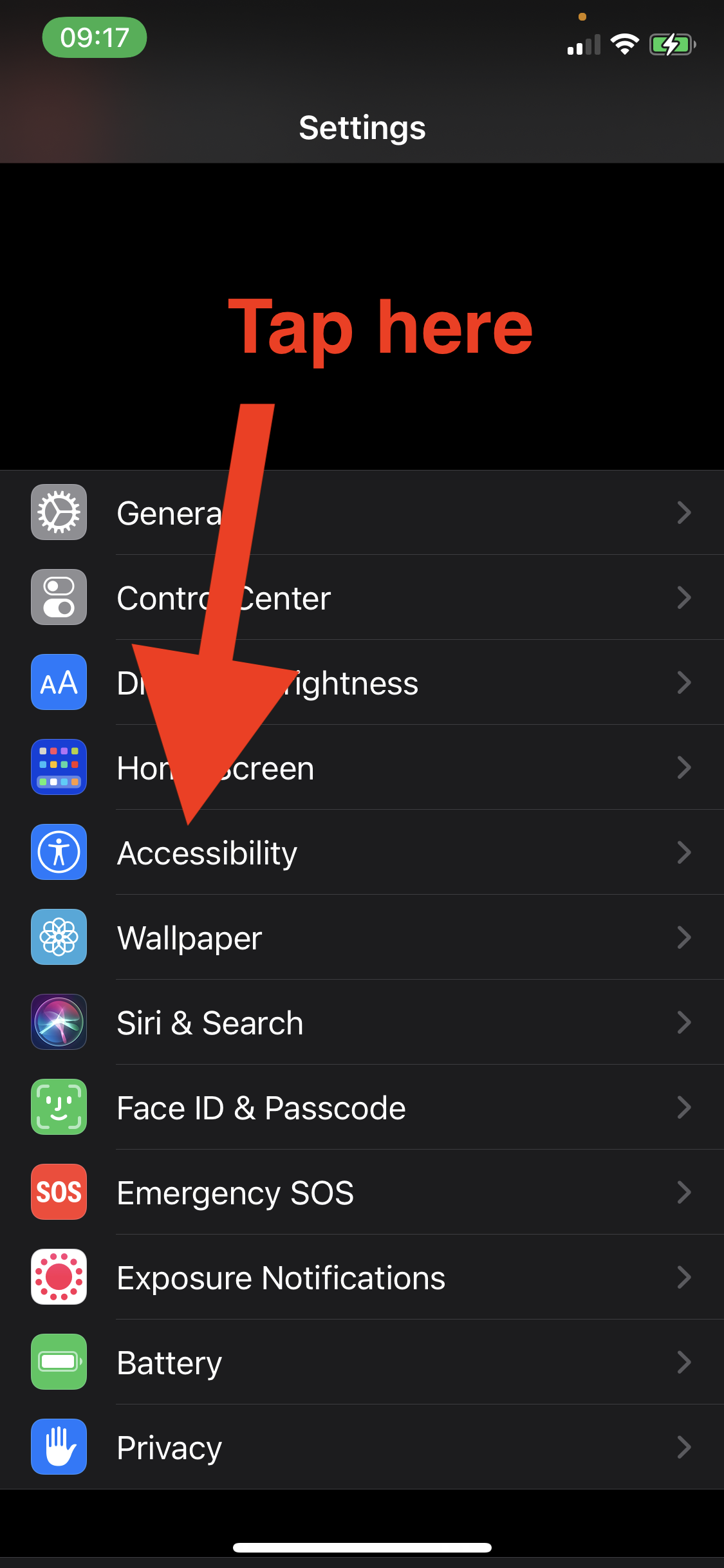
Photo 9
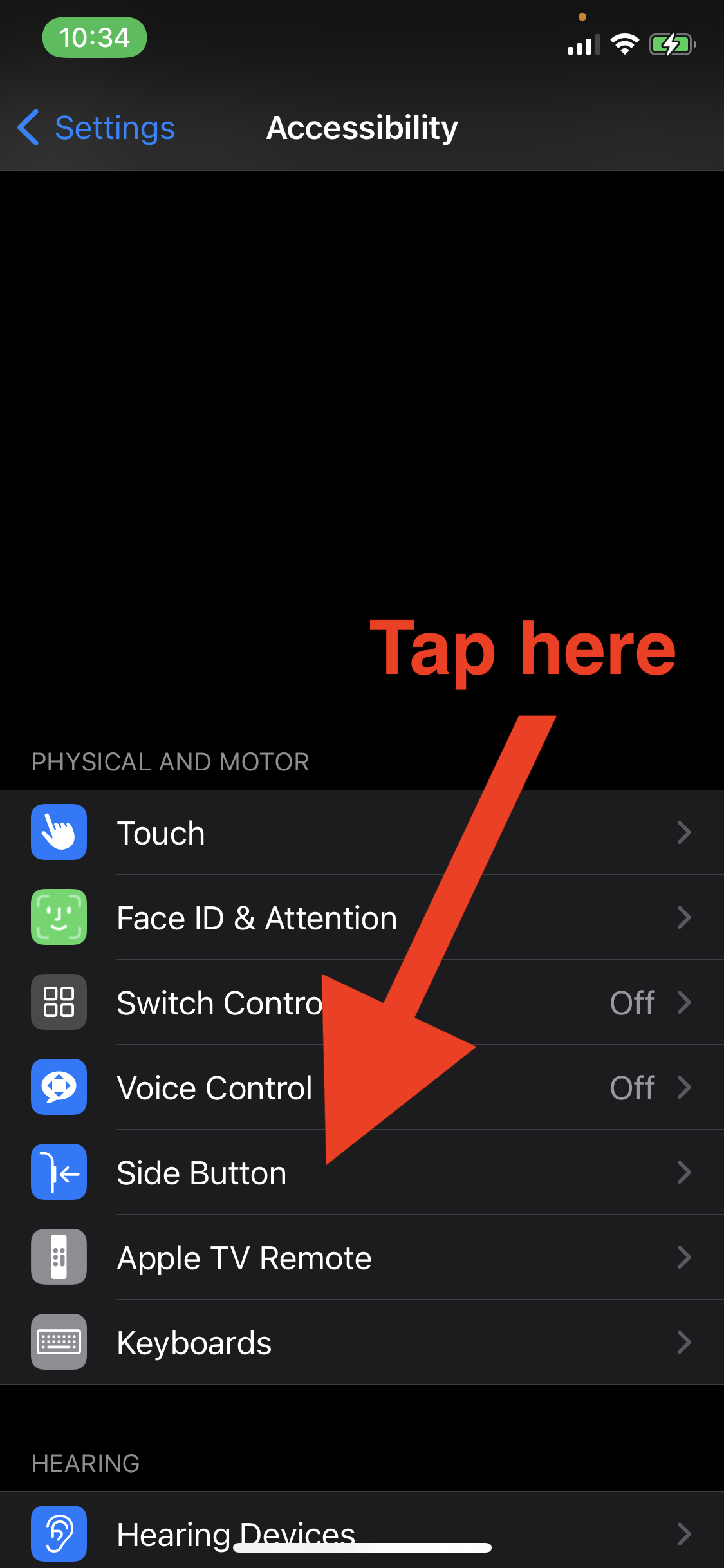
Photo 10