Iphone 6S disabled and Apple id login forgetted

my iphone is diabled and i have also forgetted my email address of apple id ??what i do now?please help me.I m worrird about it.its my another phone where was login

Posted on Oct 11, 2021 9:13 AM

Reply
Question marked as Top-ranking reply

Posted on Oct 11, 2021 9:19 AM


First put your iPad in recovery mode.


  1. Make sure that your Mac is up to date. If you're using iTunes, make sure you have the latest version of iTunes
  2. On a Mac with macOS Catalina, open Finder. On a Mac with macOS Mojave or earlier, or on a PC, open iTunes. If iTunes is already open, close it, then open it again. Find out which macOS your Mac is using.
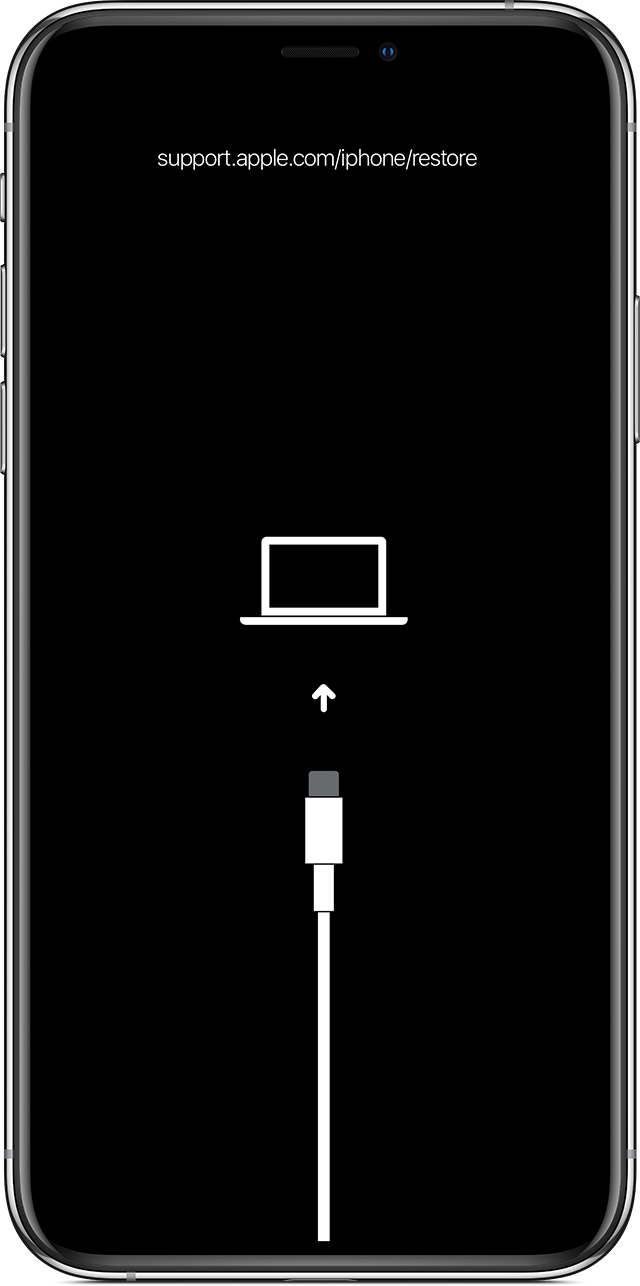
  3. Keep your device connected and wait until the recovery mode screen appears:
    • iPad models that don't have a Home button: Press and quickly release the Volume Up button. Press and quickly release the Volume Down button. Press and hold the Top button until your device begins to restart. Continue holding the Top button until your device goes into recovery mode.
    • iPhone 8 or later: Press and quickly release the Volume Up button. Press and quickly release the Volume Down button. Then, press and hold the Side button until you see the recovery mode screen.
    • iPhone 7, iPhone 7 Plus, and iPod touch (7th generation): Press and hold the Top (or Side) and Volume Down buttons at the same time. Keep holding them until you see the recovery mode screen.
  • iPad with Home button, iPhone 6s or earlier, and iPod touch (6th generation) or earlier: Press and hold both the Home and the Top (or Side) buttons at the same time. Keep holding them until you see the recovery mode screen.


Then follow the recovery mode process-


Get your device ready

  1. Make sure that your Mac or PC is updated. If you're using iTunes, make sure that you have the latest version.
  2. If you want to save the information on your iPhone, iPad, or iPod, make a backup.
  3. Go to Settings > [your name] > Find My, tap Find My iPhone, then turn it off. Learn what to do for an unresponsive device or one that won't turn on. Get help if you forgot your passcode.


Restore your device to factory settings

  1. On a Mac with macOS Catalina or later, open Finder. On a Mac with macOS Mojave or earlier, or on a PC, open iTunes. Find out which macOS your Mac is using.
  2. Connect your device to your computer.
  3. If a message asks for your device passcode or to Trust This Computer, follow the onscreen steps. Get help if you forgot your passcode
  4. Select your device when it appears on your computer. Learn what to do if your iPhoneiPad, or iPod touch is unresponsive or won't turn on. Or get help if your device doesn't appear on your computer.
  5. Click Restore [device]. If you're signed into Find My, you need to sign out before you can click Restore.
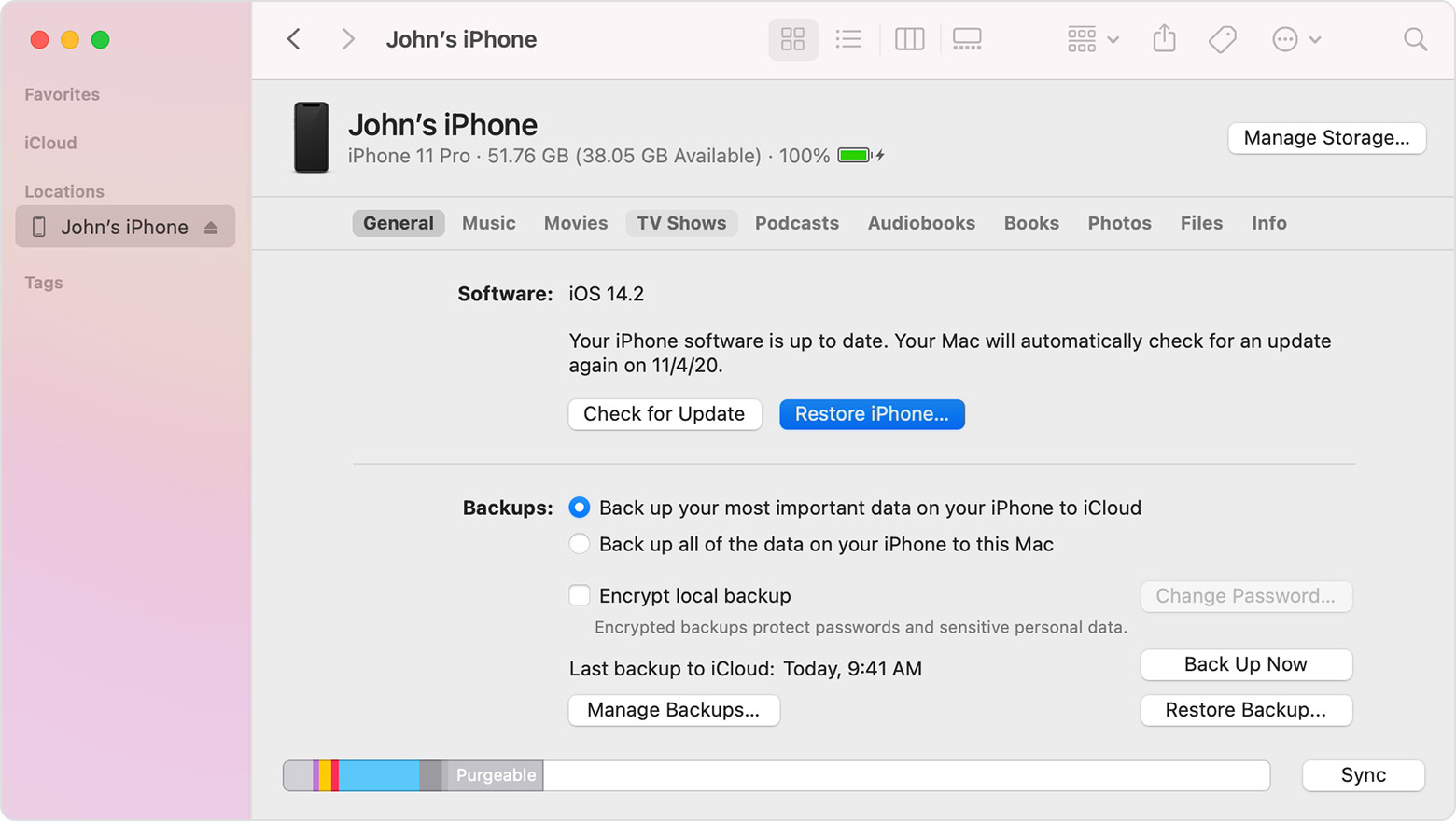
  6. Click Restore again to confirm. Your computer erases your device and installs the latest iOS, iPadOS, or iPod software.
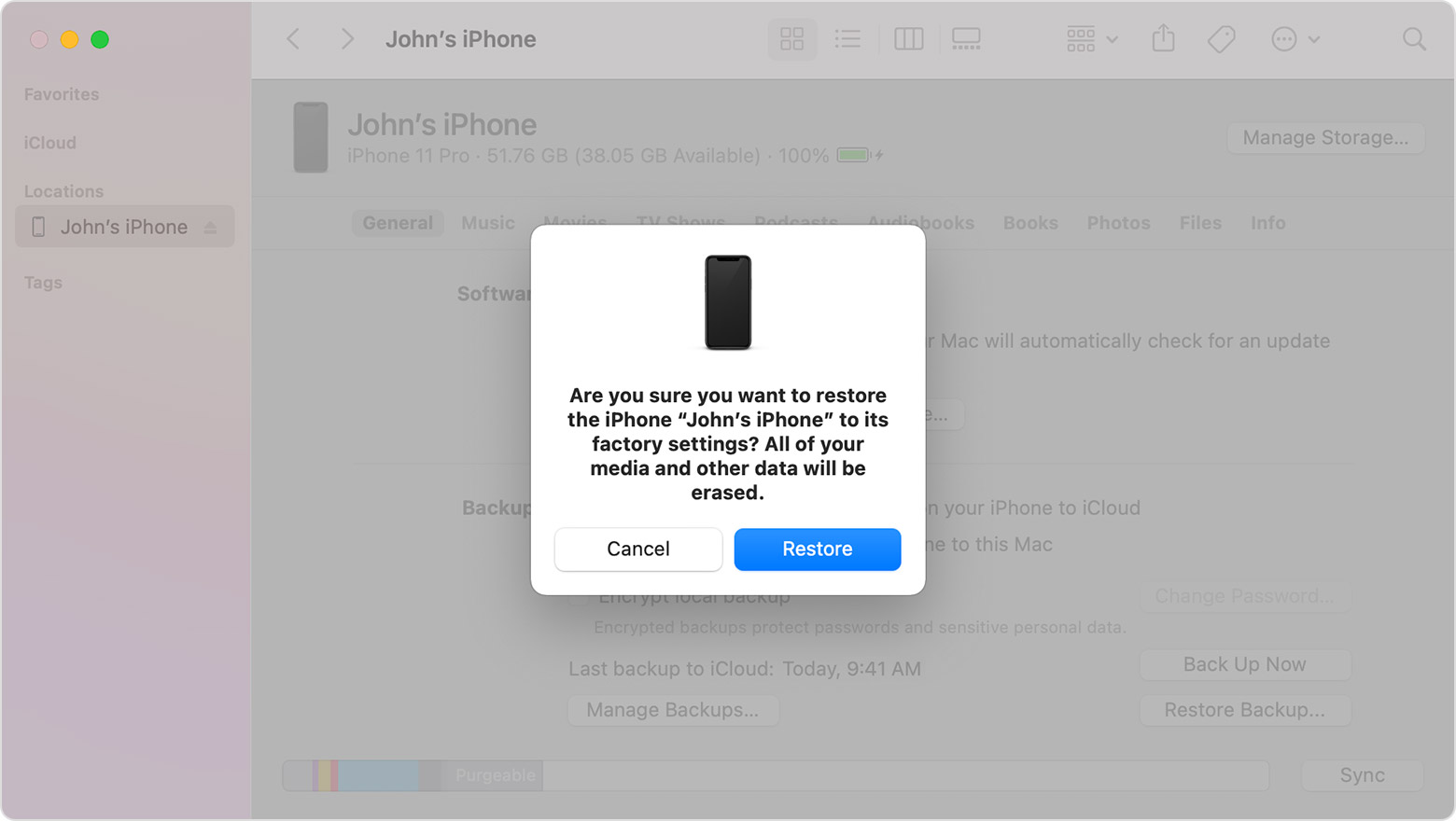
  7. After your device restores to factory settings, it restarts. Now you can set it up as new.


Activation Lock Will Happen After The Restore. BUT if you forgot your Apple ID password-

Go To https://appleid.apple.com and click 'Forgot Apple ID Or Password?'


You will need your backup email or your backup phone number.


I hope this helps. Have a great day.

2 replies
Question marked as Top-ranking reply

Oct 11, 2021 9:19 AM in response to hussnain165


First put your iPad in recovery mode.


  1. Make sure that your Mac is up to date. If you're using iTunes, make sure you have the latest version of iTunes
  2. On a Mac with macOS Catalina, open Finder. On a Mac with macOS Mojave or earlier, or on a PC, open iTunes. If iTunes is already open, close it, then open it again. Find out which macOS your Mac is using.
  3. Keep your device connected and wait until the recovery mode screen appears:
    • iPad models that don't have a Home button: Press and quickly release the Volume Up button. Press and quickly release the Volume Down button. Press and hold the Top button until your device begins to restart. Continue holding the Top button until your device goes into recovery mode.
    • iPhone 8 or later: Press and quickly release the Volume Up button. Press and quickly release the Volume Down button. Then, press and hold the Side button until you see the recovery mode screen.
    • iPhone 7, iPhone 7 Plus, and iPod touch (7th generation): Press and hold the Top (or Side) and Volume Down buttons at the same time. Keep holding them until you see the recovery mode screen.
  • iPad with Home button, iPhone 6s or earlier, and iPod touch (6th generation) or earlier: Press and hold both the Home and the Top (or Side) buttons at the same time. Keep holding them until you see the recovery mode screen.


Then follow the recovery mode process-


Get your device ready

  1. Make sure that your Mac or PC is updated. If you're using iTunes, make sure that you have the latest version.
  2. If you want to save the information on your iPhone, iPad, or iPod, make a backup.
  3. Go to Settings > [your name] > Find My, tap Find My iPhone, then turn it off. Learn what to do for an unresponsive device or one that won't turn on. Get help if you forgot your passcode.


Restore your device to factory settings

  1. On a Mac with macOS Catalina or later, open Finder. On a Mac with macOS Mojave or earlier, or on a PC, open iTunes. Find out which macOS your Mac is using.
  2. Connect your device to your computer.
  3. If a message asks for your device passcode or to Trust This Computer, follow the onscreen steps. Get help if you forgot your passcode
  4. Select your device when it appears on your computer. Learn what to do if your iPhoneiPad, or iPod touch is unresponsive or won't turn on. Or get help if your device doesn't appear on your computer.
  5. Click Restore [device]. If you're signed into Find My, you need to sign out before you can click Restore.

  6. Click Restore again to confirm. Your computer erases your device and installs the latest iOS, iPadOS, or iPod software.

  7. After your device restores to factory settings, it restarts. Now you can set it up as new.


Activation Lock Will Happen After The Restore. BUT if you forgot your Apple ID password-

Go To https://appleid.apple.com and click 'Forgot Apple ID Or Password?'


You will need your backup email or your backup phone number.


I hope this helps. Have a great day.
This thread has been closed by the system or the community team. You may vote for any posts you find helpful, or search the Community for additional answers.

Iphone 6S disabled and Apple id login forgetted

Welcome to Apple Support Community
A forum where Apple customers help each other with their products. Get started with your Apple Account.