First, Check The Basics
While this may seem like a no-brainer, make sure the Ring / Silent switch on the side of your iPhone is pulled towards the display. If it’s pushed towards the back, your iPhone is set on silent. Pull the Ring / Silent switch forward to set it to ring.
Once you’re sure that your iPhone is set to ring, make sure the volume is turned up. You can do this in Settings or by using the volume buttons on the side of your iPhone.
If you want to use the volume buttons to adjust the volume, make sure the volume bar that comes on the screen says Ringer when you press them. If it says Volume, head to Settings to adjust the ringer volume.
- Go to Settings.
- Tap on Sounds & Haptics.
- Make sure Change with Buttons is switched on.
- You can use the volume bar on the screen to adjust the ringer volume or the volume buttons now.
![]()
Turn Off Do Not Disturb
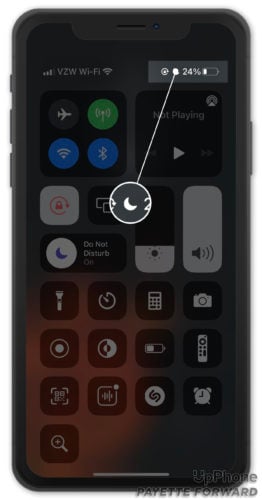
If your ringer is on, but Do Not Disturb is also turned on, you won’t receive notifications for calls or texts. The easiest way to check if Do Not Disturb is on is to look for the moon in the upper right-hand corner of the screen.
If you have an iPhone with Face ID, you’ll see moon icon when you open Control Center.
Tap the Do Not Disturb icon in Control Center to turn it off. You’ll know Do Not Disturb is off when the icon is white and gray.
![]()