Cancel my subscription with Apple in regards to LinkedIn

I have hard time to cancel this subscription please do whatever needed

Posted on Nov 21, 2021 11:42 PM

Reply
Question marked as Top-ranking reply

Posted on Nov 22, 2021 12:08 AM

How to cancel a subscription from Apple

Learn how to cancel subscriptions that you purchased with an app from the App Store. You can also cancel Apple TV+, Apple News+, Apple Fitness+, and other subscriptions from Apple.

Cancel a subscription from Apple

You can cancel a subscription in the Settings app on your iPhone or iPad, or in the App Store on your Mac.

Cancel a subscription


How to cancel a subscription on your iPhone, iPad, or iPod touch
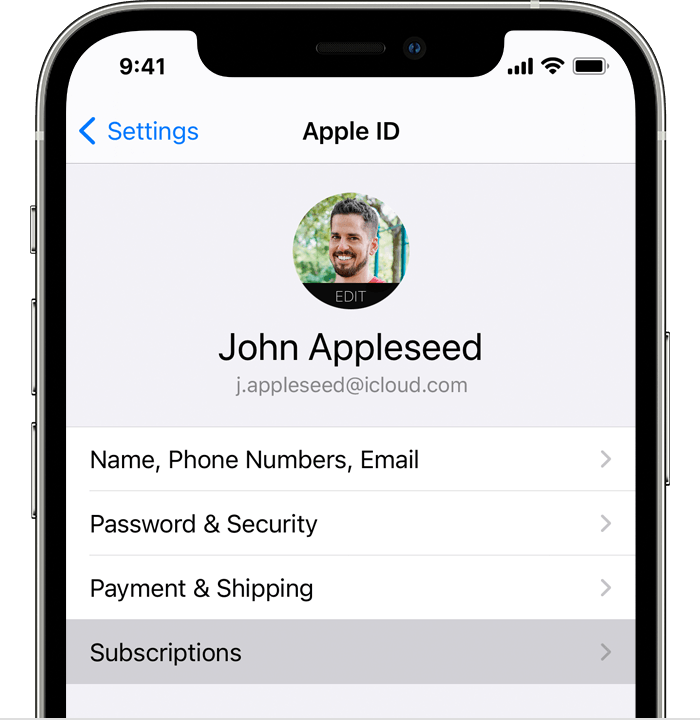
  1. Open the Settings app.
  2. Tap your name.
  3. Tap Subscriptions.

  4. Tap the subscription that you want to manage. Don't see the subscription that you're looking for?
  5. Tap Cancel Subscription. (Or if you want to cancel Apple One but keep some subscriptions, tap Choose Individual Services.) If you don’t see Cancel, the subscription is already canceled and won't renew.


Cancel a subscription on your Mac

  1. Open the App Store app.
  2. Click the sign-in button  or your name at the bottom of the sidebar.
  3. Click  View Information at the top of the window. You might be asked to sign in.
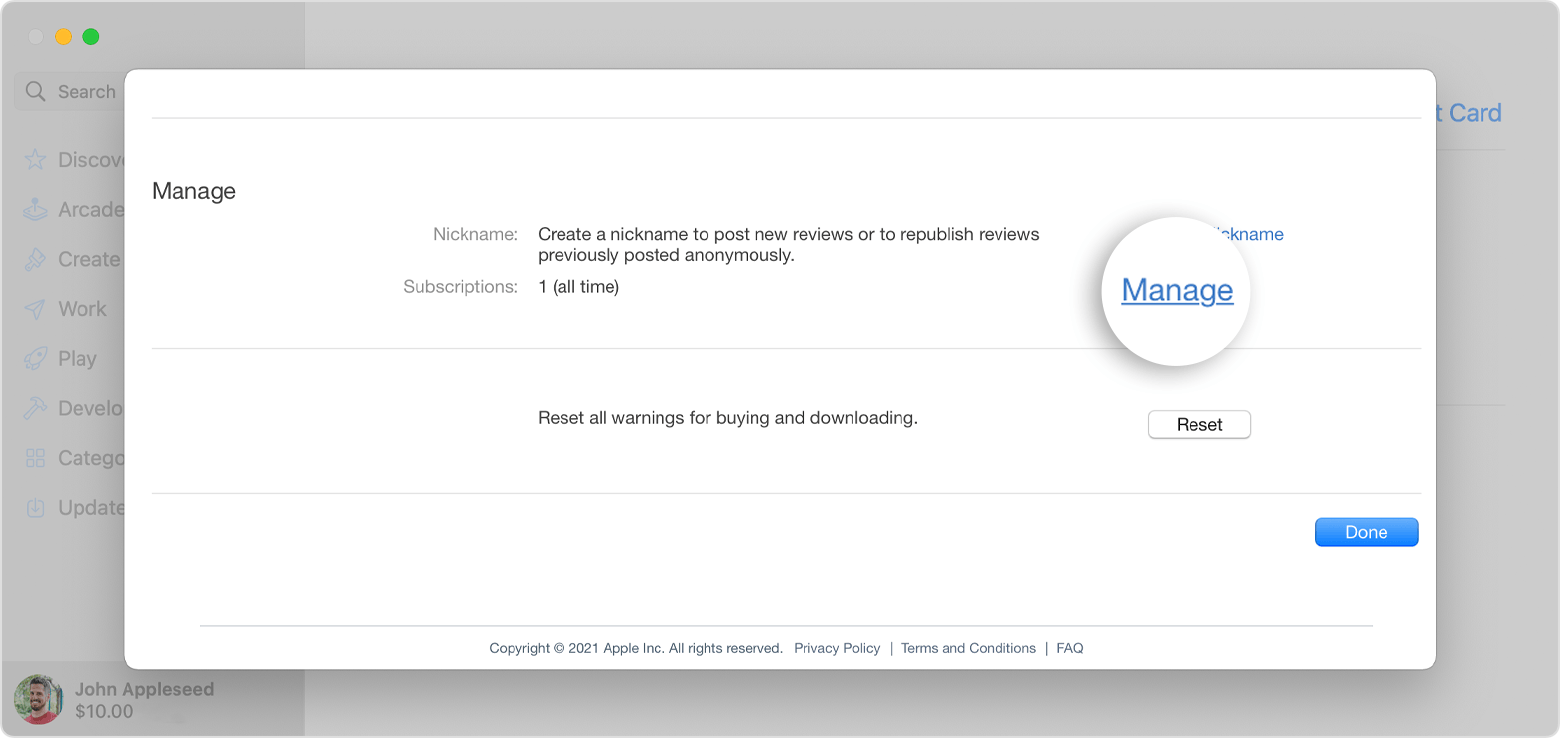
  4. On the page that appears, scroll until you see Subscriptions, then click Manage.
  5. Click Edit next to the subscription that you want. Don't see the subscription that you're looking for?
  6. Click Cancel Subscription. If you don’t see Cancel Subscription, then the subscription is already canceled and won't renew. 


Cancel a subscription on your Windows PC

Use iTunes to cancel subscriptions from Apple.


Cancel a subscription on your Apple Watch

  1. On your Apple Watch, open the App Store.
  2. Scroll to Account and tap it.
  3. Tap Subscriptions.
  4. Tap the subscription that you want. Don't see the subscription that you're looking for?
  5. Tap Cancel Subscription. If you don’t see Cancel Subscription, then the subscription is already canceled and won't renew. 


Cancel a subscription on your Apple TV

On Apple TV, you can edit subscriptions only for tvOS apps that are installed on that Apple TV. For Apple TV (3rd generation or earlier), use an iOS or iPadOS device or computer to manage your subscriptions.

  1. Open Settings.
  2. Select Users & Accounts, then select your account.
  3. Select Subscriptions.
  4. Choose the subscription that you want to manage, then select Cancel Subscription. If you don’t see Cancel Subscription, then the subscription is already canceled and won't renew.


If you don't have an Apple device or Windows PC


About canceling subscriptions from Apple

  • Most subscriptions automatically renew unless you cancel them.
  • If you cancel a paid subscription, you can keep using the subscription until the next billing date.
  • If you cancel during a free trial period, you might lose access to the subscription immediately.

If you signed up for a free or discounted trial subscription and you don't want to renew it, cancel it at least 24 hours before the trial ends.

5 replies
Question marked as Top-ranking reply

Nov 22, 2021 12:08 AM in response to Rogerkalaouz

How to cancel a subscription from Apple

Learn how to cancel subscriptions that you purchased with an app from the App Store. You can also cancel Apple TV+, Apple News+, Apple Fitness+, and other subscriptions from Apple.

Cancel a subscription from Apple

You can cancel a subscription in the Settings app on your iPhone or iPad, or in the App Store on your Mac.

Cancel a subscription


How to cancel a subscription on your iPhone, iPad, or iPod touch

  1. Open the Settings app.
  2. Tap your name.
  3. Tap Subscriptions.

  4. Tap the subscription that you want to manage. Don't see the subscription that you're looking for?
  5. Tap Cancel Subscription. (Or if you want to cancel Apple One but keep some subscriptions, tap Choose Individual Services.) If you don’t see Cancel, the subscription is already canceled and won't renew.


Cancel a subscription on your Mac

  1. Open the App Store app.
  2. Click the sign-in button  or your name at the bottom of the sidebar.
  3. Click  View Information at the top of the window. You might be asked to sign in.
  4. On the page that appears, scroll until you see Subscriptions, then click Manage.
  5. Click Edit next to the subscription that you want. Don't see the subscription that you're looking for?
  6. Click Cancel Subscription. If you don’t see Cancel Subscription, then the subscription is already canceled and won't renew. 


Cancel a subscription on your Windows PC

Use iTunes to cancel subscriptions from Apple.


Cancel a subscription on your Apple Watch

  1. On your Apple Watch, open the App Store.
  2. Scroll to Account and tap it.
  3. Tap Subscriptions.
  4. Tap the subscription that you want. Don't see the subscription that you're looking for?
  5. Tap Cancel Subscription. If you don’t see Cancel Subscription, then the subscription is already canceled and won't renew. 


Cancel a subscription on your Apple TV

On Apple TV, you can edit subscriptions only for tvOS apps that are installed on that Apple TV. For Apple TV (3rd generation or earlier), use an iOS or iPadOS device or computer to manage your subscriptions.

  1. Open Settings.
  2. Select Users & Accounts, then select your account.
  3. Select Subscriptions.
  4. Choose the subscription that you want to manage, then select Cancel Subscription. If you don’t see Cancel Subscription, then the subscription is already canceled and won't renew.


If you don't have an Apple device or Windows PC


About canceling subscriptions from Apple

  • Most subscriptions automatically renew unless you cancel them.
  • If you cancel a paid subscription, you can keep using the subscription until the next billing date.
  • If you cancel during a free trial period, you might lose access to the subscription immediately.

If you signed up for a free or discounted trial subscription and you don't want to renew it, cancel it at least 24 hours before the trial ends.

This thread has been closed by the system or the community team. You may vote for any posts you find helpful, or search the Community for additional answers.

Cancel my subscription with Apple in regards to LinkedIn

Welcome to Apple Support Community
A forum where Apple customers help each other with their products. Get started with your Apple Account.